1
0BIntroduction
Step 5
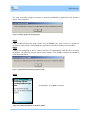
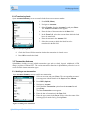
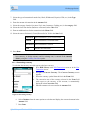
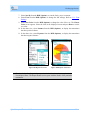
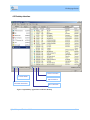
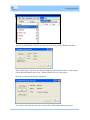
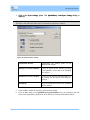
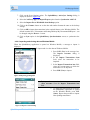
The Synchronization Setup Wizard opens simultaneously on the desktop when installing the
SplashMoney application on Windows Mobile. Follow the Synchronization Setup Wizard to
establish the partnership between the SplashMoney application on Windows Desktop and Windows
Mobile. The Microsoft ActiveSync screen shows the connection status.
) Follow the Synchronization Setup Wizard only after installing the SplashMoney application on
the Windows Mobile.
To synchronize the data between the handheld and desktop, refer to section 4.4SplashMoney
synchronization settings.
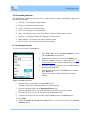
1.3.2 Launching the SplashMoney Application
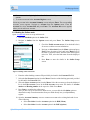
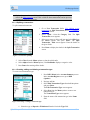
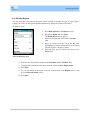
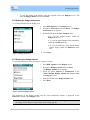
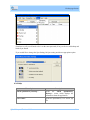
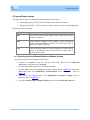
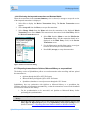
To launch SplashMoney application on Windows Mobile:
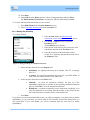
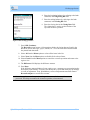
1. Press LSK (Start).
2. Select the SplashMoney icon
and press Enter. The SplashMoney application opens the
Accounts Summary screen. The Account Summary screen is the startup window of the
SplashMoney application.
) If you cannot see SplashMoney icon, then press LSK (More).
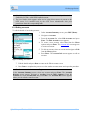
1.3.3 Registration
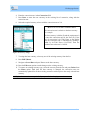
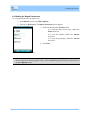
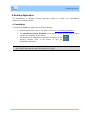
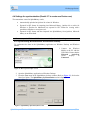
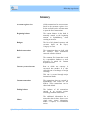
To register for SplashMoney application:
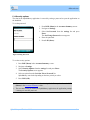
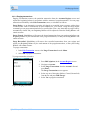
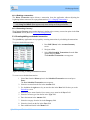
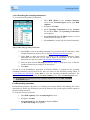
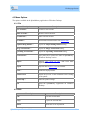
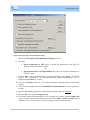
1. Launch the SplashMoney application on Windows
Mobile. The SplashMoney screen appears.
2. Enter the code provided by SplashData in the text box and
press Register. The handheld displays a message if an
invalid code is entered in the text box.
3. Press Trial to select the trial version. The trial version
expires after 30 days. The trial version cannot be reused
after the period of expiry.
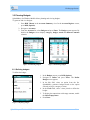
Figure 5 Registering SplashMoney
SplashMoney on Windows Mobile
4