1
J74 Progressive - User Manual
Page 42 of 52
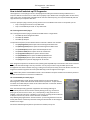
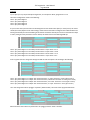
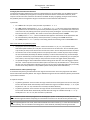
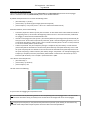
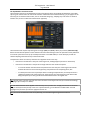
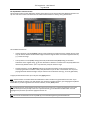
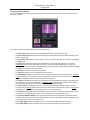
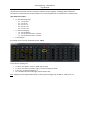
Important: If you wish to analyze only a section of the clip, select in the clip the area of interest (notes to be
selected in Live MIDI editor). If you wish to analyze the entire clip, just select the clip in the Session view by clicking
on it.
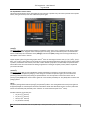
Tip: if you do not find a match analyzing the entire clip, your clip probably apples one or more change of scale.
Select only a portion of the clip to study the clips in steps.
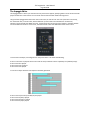
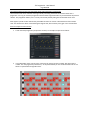
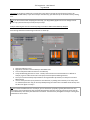
Example: detecting the scale of an audio clip using Live Audio-to-MIDI and the MIDI Clip Analyzer
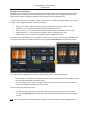
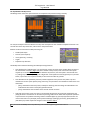
Here the logic work flow for detecting a scale from an audio clip:
1.
2.
3.
4.
5.
6.
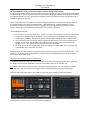
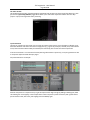
Open the audio clip in Live
Right Click, and select "Convert Melody to New MIDI Track"
Let Live analyze the audio and convert it to a MIDI clip
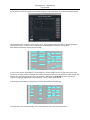
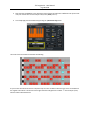
Verify the MIDI clip generated is "clean". Usually if the material is not well recorded or it is difficult to
analyze (e.g. this is often the case of a vocal part) a few false positive will be generated.
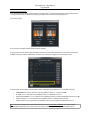
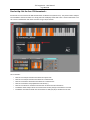
Once your converted melody responds well to the original audio clip material, use Analyzer as usual on
MIDI material
If to few notes (less than 6) are present for scale detection, try adding notes manually. If too many notes
are collected (more than 7-8) you are still probably having some false note in the MIDI converted clip. Look
for false note again as in step 4.
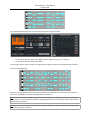
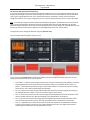
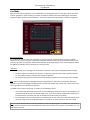
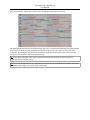
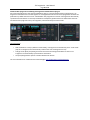
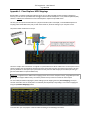
Tip: if the material is difficult for Live to analyze, you can still clean it up quickly. Typically false notes have very
low velocity, and can therefore be easily manually deleted (select the notes using the velocity bar under the clip,
in Live MIDI editor). Also check pitch detection in transients: sometime if the pitch glides live will put a wrong note
in between to correct notes.