1
J74 Progressive - User Manual
Page 21 of 52
The Chord Explorer
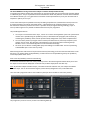
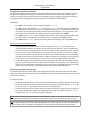
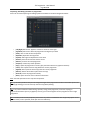
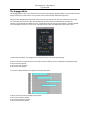
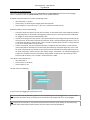
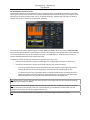
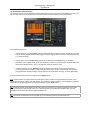
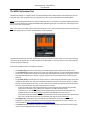
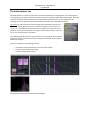
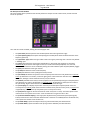
The Chord Explorer is a tool for chord exploration and performance. The tool provides all the available chords in
the scale as well as all the chords possible through the modifiers rules in Progressive. The chords are assigned to
dedicated buttons and can be played and combined on the fly, by using pads or keys on a MIDI a controller or by
using the mouse. The tool can be launched from the docked device and from Chord Progression Editor.
Here a few situations for which the Chord Explorer may result useful:
•
•
•
Define your chord palette to work with: you can try the chords in free format to find something you like.
Note the chords down (degree number and chord type) and try to build a progression starting from here.
Looking for the next chord: while creating a progression you often ask yourself which could be the next
chord. While programming you can quickly try the chords by just click on their Chord Explorer buttons.
Jam to find inspiration: the buttons on the Chord Explorer are MIDI mappable (using Live MIDI mapping)
and can even respond to input MIDI notes (if the [MIDI On/Off] toggle is enabled - see below). You can this
way use a keyboard or controller and jam with chords hands-on.
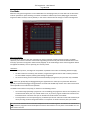
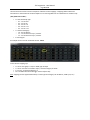
The chord buttons
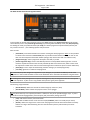
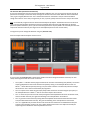
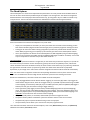
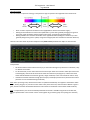
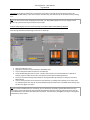
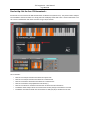
The Chord Explorer presents the chords in a logical way: on the vertical axis you have the degrees (1 to 7) while on
the horizontal axis you have the various chord options, given by the rules of the [modifier] matrix, with the left
section of buttons focused on the diatonic chords, the center section on forced to major (or [Custom1]) chords and
the right section on forced to minor (or [Custom 2]) chords. The chords notes and names are populated
dynamically. If you change root or scale names and notes assigned to the buttons will be refreshed automatically.
Note: if no chord name is assigned to a button the corresponding chord does not fit any of the common chord
shapes. This is related to the fact that a high level of dissonance is present in the resulting set of notes.
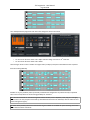
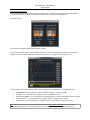
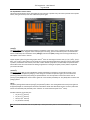
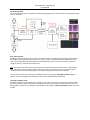
Besides the chord buttons, a few other controls are available on the Chord Explorer:
•
•
•
•
•
•
The [T/M] toggle defines how the buttons behave: toggle (T) or momentary (M) mode. If you trigger the
chord buttons using the mouse, leave this to toggle mode (T). If you MIDI map the buttons using Live MIDI
or KEY mapping, use momentary mode (M). If you use MIDI input notes (when the [MIDI On/Off] toggle is
enabled, see next) you can leave this setting to toggle mode (T).
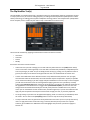
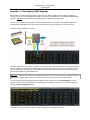
At the right of the [T/M] toggle you can find the [Load New Mappings] button and [Preset Mappings]
menu. They can be used to load different MIDI note input mappings. The [Preset Mappings] offers some
presets for popular options. The [Load New Mappings] button allows you to load custom mappings. See
Appendix 1 for instructions on how to create custom mappings.
The [MIDI On/Off] selector, if turned ON, enables MIDI input notes to trigger the chords.
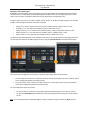
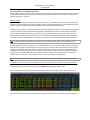
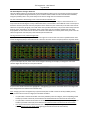
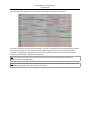
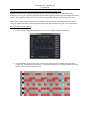
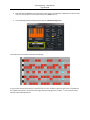
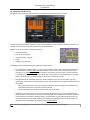
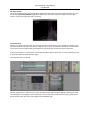
The [Show Tension] enables visualization of the chord harmonic tension in the current context.
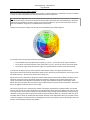
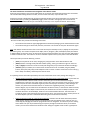
The [Show CoF] opens a separate window focusing on the Circle of Fifths
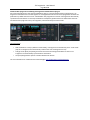
The [Force Root] column allows you to overrule the root (tonic) of forced chords.
Let's now look at the other controls of the Chord Explorer, such as the [Show Tension] function, the [Show CoF]
additional view and the [Force Root] column.