1
WebCenter
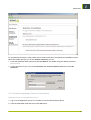
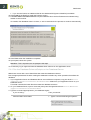
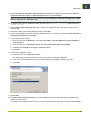
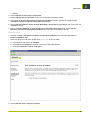
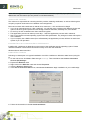
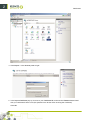
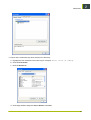
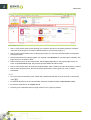
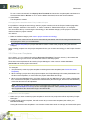
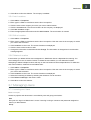
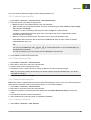
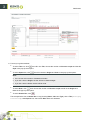
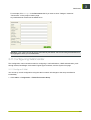
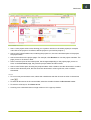
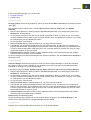
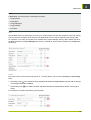
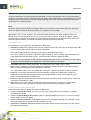
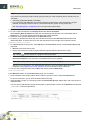
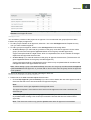
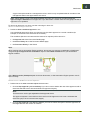
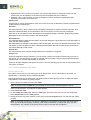
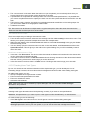
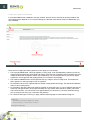
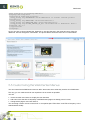
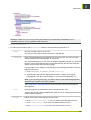
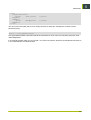
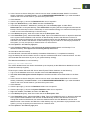
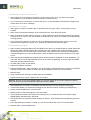
2. Click Download in the Actions menu.
3. Choose where to save the archive and click Save.
Use a decompression utility to extract the documents from the archive. The documents are now on the
hard drive and may be manipulated as desired.
Tip: To download all of a project's documents, click More actions... then Download in the header of the
Project Details page.
Download Documents from Multiple Locations
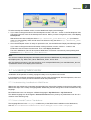
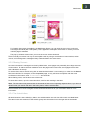
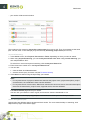
To conveniently download documents from several projects, you can use the Cart. You can add documents
to download to the cart as you are browsing the projects, then download them in a zip archive when you are
done.
1.
2.
3.
4.
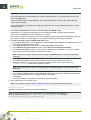
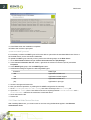
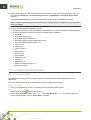
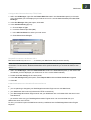
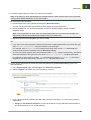
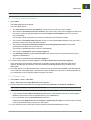
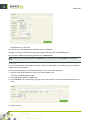
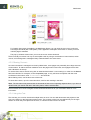
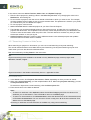
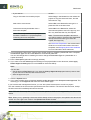
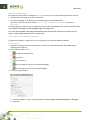
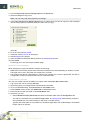
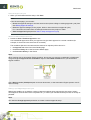
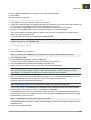
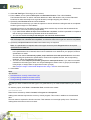
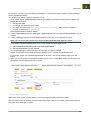
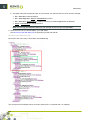
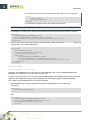
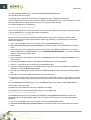
For each document that you want to download, click Add to Cart in the Actions menu.
Click the Cart button in the top row menu or next to a document name to go to the Cart.
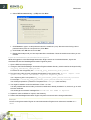
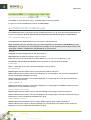
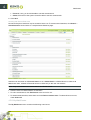
Select the checkboxes of the documents to download.
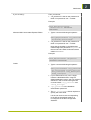
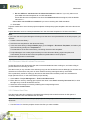
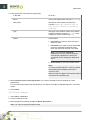
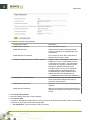
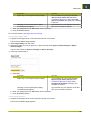
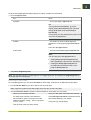
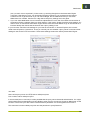
If you are downloading ArtiosCAD documents, choose the format in which to download them in
Download As lists. You may only download in those formats for which you have permission, and you
may only choose one download format for designs and one for manufacturing files, respectively.
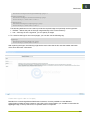
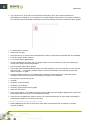
5. Click Download in the actions menu.
6. Choose where to save the archive and click Save.
Use a decompression utility to extract the documents from the archive. The documents are now on the
hard drive and may be manipulated as desired.
4.3.4 Assigning Document Attributes
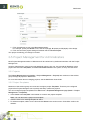
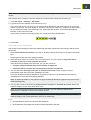
Attributes are a way to assign user-configurable fields and their values to documents and projects. They
can be restricted to a group of preset values, or can be prompted so that the user has to set a value each
time it is used.
Assign Document Attributes
1.
2.
3.
4.
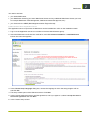
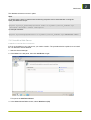
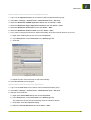
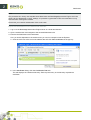
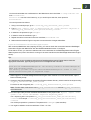
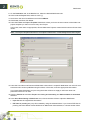
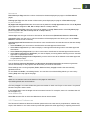
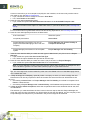
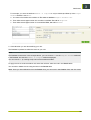
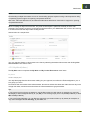
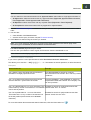
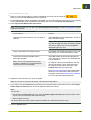
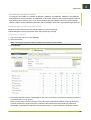
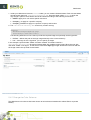
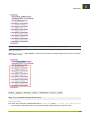
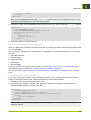
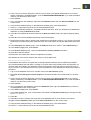
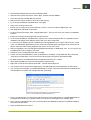
Open the project and folder containing the document to change and click its name.
Click Attributes.
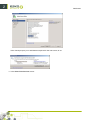
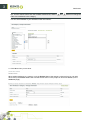
Select the Attribute Category to use and click Save.
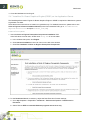
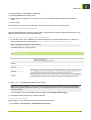
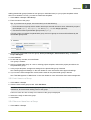
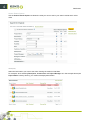
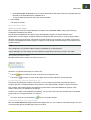
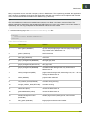
In the Show Attributes in Category page, fill in the desired the values for the Attributes and click Save.
Change Document Attributes
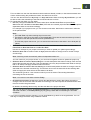
1. Open the project and folder containing the document to change and click its name.
2. Click Attributes.
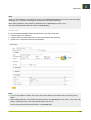
3. Change the Attributes values as desired and click Save. The values are changed.
Change an Attribute Category
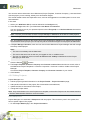
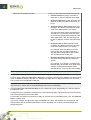
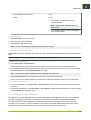
Attribute Categories are related Attributes grouped together for convenience. If you change an Attributes
Category, the previous values are not saved.
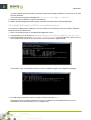
1.
2.
3.
4.
5.
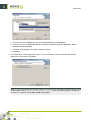
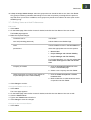
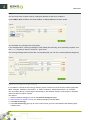
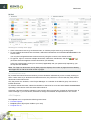
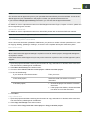
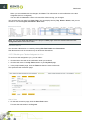
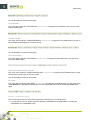
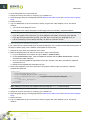
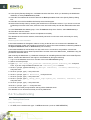
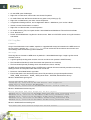
Open the project and folder containing the document to change and click its name.
Click Attributes.
Click the Change Category link.
Select the new Attributes Category to use and click Save.
Confirm the deletion of the old values and click OK.
145
4