1
WebCenter
Application server
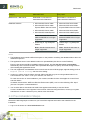
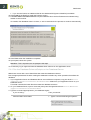
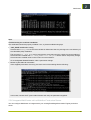
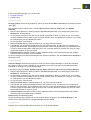
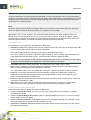
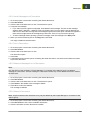
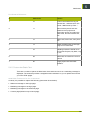
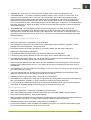
• mail service is logging under this header: com.esko.webcenter.service.MailDispatcher onMessage
• notification message e-mail creation and sending to a JMS queue is logging under this header:
com.esko.webcenter.mail.MailNotificationBean
Web server
• notification message data preparation is logging under this header:
com.esko.webcenter.jsp.TaskNotificationMgr (where the Task part is replaced by an appropriate
Notification Type that you're looking for; other possibilities might be ApprovalNotificationMgr,
ProjectNotificationMgr and so on; search for NotificationMgr inside the Web server log file).
Note: WebCenter MBean Services will have their own log files in the future.
If you cannot find any suspicious log messages related to any of the notification dispatchment phases, you
should also check the JMS E-mail Queue for corrupted messages that block correct messages from being
sent.
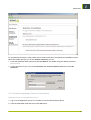
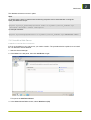
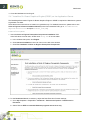
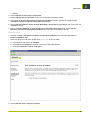
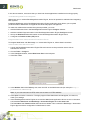
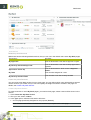
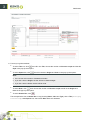
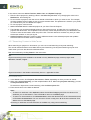
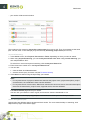
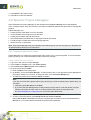
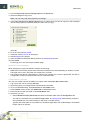
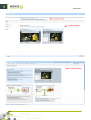
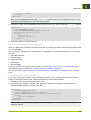
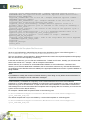
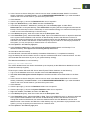
To check a JMS Queue, open JBoss' JMX Console that is used to inspect all running JBoss services.
To open the JMX Console, open a browser and point to the following link: http://<App. Server Host
Name>:8086/jmx-console/ where <App. Server Host Name> is the host name of the machine that is
running the WebCenter JBoss (if it is the current machine, then you can just use localhost). Just a note even though JMX console is listening on port 8080 by default, WebCenter uses port 8086.
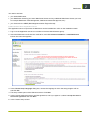
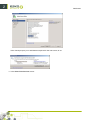
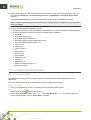
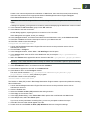
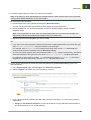
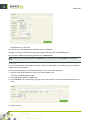
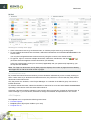
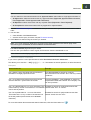
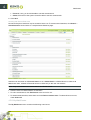
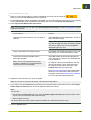
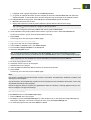
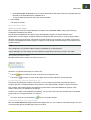
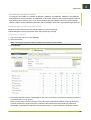
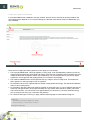
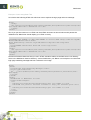
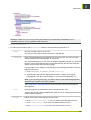
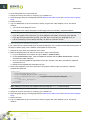
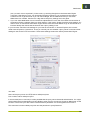
When you open the JMX Console, you have to locate the appropriate E-mail Notifications JMS queue,
which actually is a JBoss service. It is found in the jboss.mq.destination section (near the bottom of the
services list) with the name name=WebCenterEmail Queue,service=Queue. Follow this link to go to the
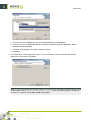
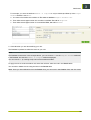
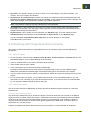
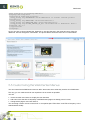
management interface of the MBean service. From here you can:
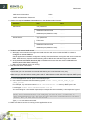
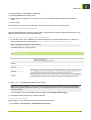
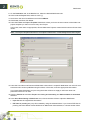
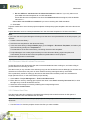
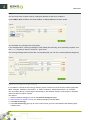
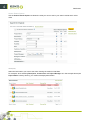
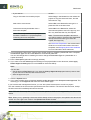
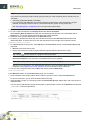
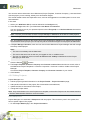
• Check how many messages are waiting in the JMS queue (by invoking listMessageCounter() method).
• View messages that are currently present on the queue (by invoking listMessages() method).
• Clear the whole queue (by invoking removeAllMessages() method); this will however delete all the waiting
messages and they will be lost forever.
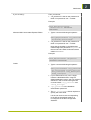
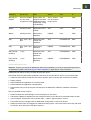
Symptom: If the e-mail notification seems to be sent correctly, but the recipient doesn't receive it:
Possible resolution: This situation indicates that there are issues on the mail server side. The e-mail service
within WebCenter is only responsible for connecting to an appropriate mail server and dispatching email message through this connection. Further processes that run on the mail server side are out of the
scope of WebCenter. There are several aspects of the mail server configuration that affect if the WebCenter
notifications really get sent to the appropriate recipients:
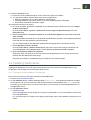
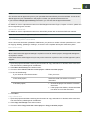
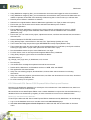
• Spam policy: messages may be considered spam by the server. It is important to have a valid e-mail
address in the FROM address field on the E-mail Environment Setup page in case there is a spam policy
in place on the appropriate Mail Server
• Authenticated mail session: this situation is already observed by the e-mail service, but some mail
servers might be configured more strictly in this respect.
• Internal vs. external recipient addresses: some mail servers are configured to process outgoing email messages based on their target e-mail addresses. The distinction is between internal addresses
and external addresses is determined by the domain part of the address. For example, the domain part
of [email protected] is esko.com. The mail server may be configured to dispatch e-mail messages to an
internal address (so, from the example above, a mail server with hostname of xxxx.esko.com would
consider [email protected] to be internal, while [email protected] would be external), but it would not
send any messages to an external target.
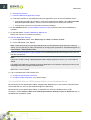
All these issues are determined by the setup of a given mail server, so if you encounter any indications
toward such issues, consult the mail server's administrator.
281
6