1
TraitsUI 4 User Manual, Release 4.6.0.dev153
FileEditor()
Suitable for File
Default for File
Optional parameters entries, filter, filter_name, reload_name, truncate_ext, dclick_name
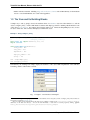
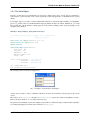
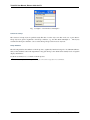
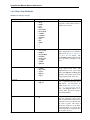
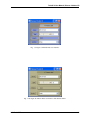
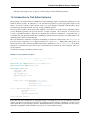
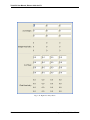
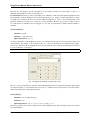
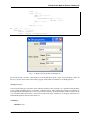
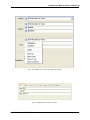
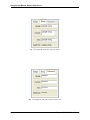
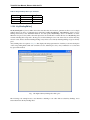
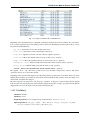
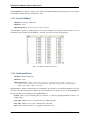
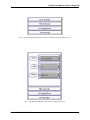
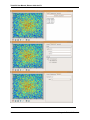
A file editor enables the user to display a File trait or set it to some file in the local system hierarchy. The styles of this
editor are shown in Figure 31.
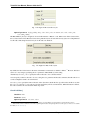
Fig. 1.31: Figure 31: File editor styles
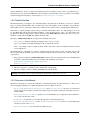
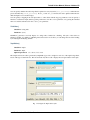
The default version of the simply style displays a text box and a Browse button. Clicking Browse opens a platformspecific file selection dialog box. If you specify the entries keyword parameter with an integer value to the factory
function, the simple style is a combo box and a button labeled .... The user can type a file path in the combo box,
or select one of entries previous values. Clicking the ... button opens a browser panel similar to the custom style of
editor. When the user selects a file in this browser, the panel collapses, and control is returned to the original editor
widget, which is automatically populated with the new path string.
For either version of the simple style, the user can drag and drop a file object onto the control.
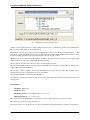
The custom style displays a file system browser panel, in which the user can expand or collapse directory structures,
and click an icon to select a file.
You can specify a list of filters to apply to the file names displayed, using the filter keyword parameter of the factory
function. In Figure 31, the “Custom with Filter” editor uses a filter value of [’*.py’] to display only Python source
files. You can also specify this parameter for the simple style, and it will be used in the file selection dialog box or
54
Chapter 1. TraitsUI 4 User Manual



































![User Manual [PDF 779 kB]](http://vs1.manualzilla.com/store/data/005781460_1-49b4dd0a8e6377162bdb6a1daefcc9f3-150x150.png)