1
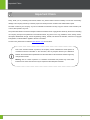
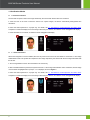
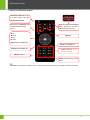
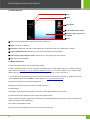
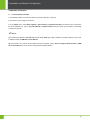
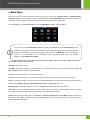
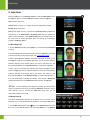
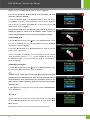
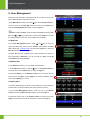
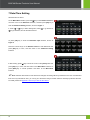
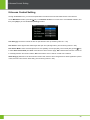
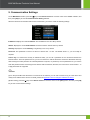
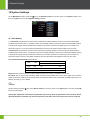
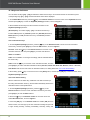
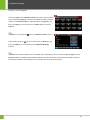
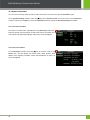
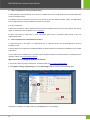
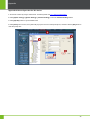
BIOCAM Series Products User Manual 7 Date/Time Setting Set Date/Time for device. On the Main Menu interface, press the [] key on the Remote Control to move the cursor on the Date/Time submenu, and then press [OK] key to enter the Date/Time Setting interface, shown as Figure 1: 1. Press [] or [] key to select setting item, Press [] to go forward or [] to go backward, and set the date and time. Or press [OK] key to enter the Date/Time input interface, shown as Figure 2: Press the numeric keys on the Remote Control to enter Date/Time and press [OK] key to save, and then return to the Date/Time Setting interface. 2. After setting, press [] key to move the cursor on the [Save] button and press [OK] key to save, and then return to the Main Menu interface. Or press [ESC] key to cancel operation and return to the Main Menu interface. Note: After the date and time of the device are changed, the setting will be synchronized to the IPC. If the date and time are not synchronized in time, you can log in to the device using a browser and then manually synchronize the time. For detail, please see Appendix 4 How to Sync time for IPC device. 19