1
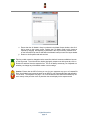
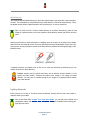
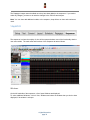
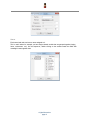
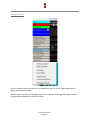
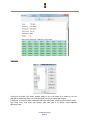
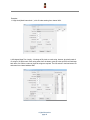
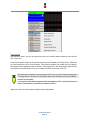
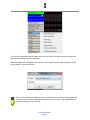
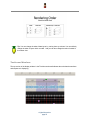
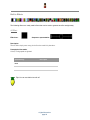
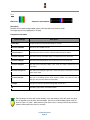
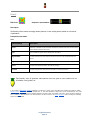
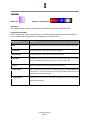
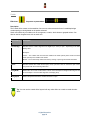
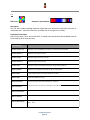
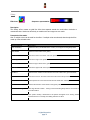
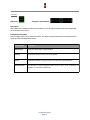
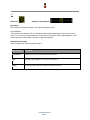
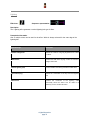
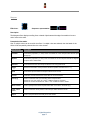
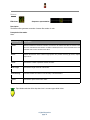
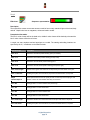
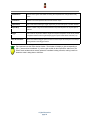
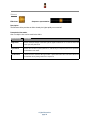
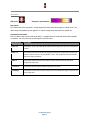
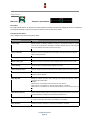
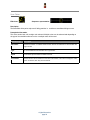
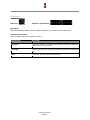
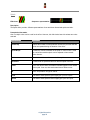
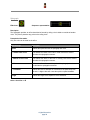
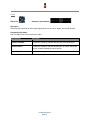
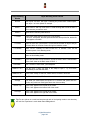
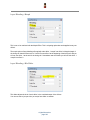
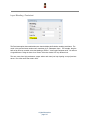
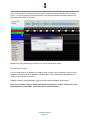
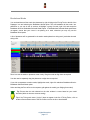
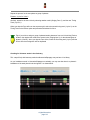
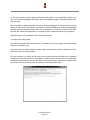
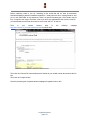
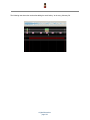
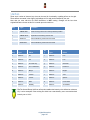
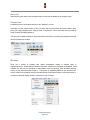
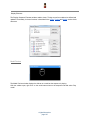
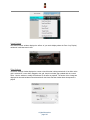
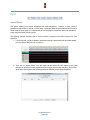
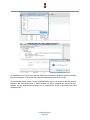
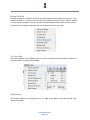
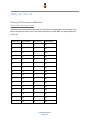
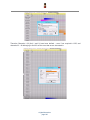
Layers Layering effects gives you the ability to create unlimited stunning effects that could not be created without layers. First, let's go over the limits. Each model may have a up to 200 layers of effects. Each layer can be mixed 12 different ways with the layer below it for a combination of thousands possibilities within a single timing cell. Usually 46 layers is plenty enough though for the most discriminating user depending on the model shape and size. Why would you even want multiple layers on a model? Layers on a model is like layers on a cake. Each layer adds a bit to the effect produced at the end. Much like layering your popcorn with butter or salt. It's easy to think of each layer of being additive like a food recipe, but you can also use layers to be subtractive as well using layer masks to reveal only a portion of a layer. See the table below for the different layer blending options. Think of a color wash in red, with a layer of snowflakes. Normally you would picture a red model with the white snowflakes. You could change the layer masking so that the model was black and showed red on the snowflakes. Some effects like Morph can be applied to only a portion of a model, so using layers you can get multiple morphs on a Mega Tree that look like interleaving fingers for example. Combining two spirals in opposing directions on a mega tree also can create stunning effects. To add layers to a model right click the model in the sequencer tab and choose Add Layer above or below (the current layer). When setting the layer blending modes, the current layer is considered layer 1 and the layer below is considered layer 2. xLights/Nutcracker page 107