1
Infor Business Intelligence Release
Notes
10.5.0
Copyright © 2014 Infor
Important Notices
The material contained in this publication (including any supplementary information) constitutes and
contains confidential and proprietary information of Infor.
By gaining access to the attached, you acknowledge and agree that the material (including any
modification, translation or adaptation of the material) and all copyright, trade secrets and all other
right, title and interest therein, are the sole property of Infor and that you shall not gain right, title or
interest in the material (including any modification, translation or adaptation of the material) by virtue
of your review thereof other than the non-exclusive right to use the material solely in connection with
and the furtherance of your license and use of software made available to your company from Infor
pursuant to a separate agreement, the terms of which separate agreement shall govern your use of
this material and all supplemental related materials ("Purpose").
In addition, by accessing the enclosed material, you acknowledge and agree that you are required to
maintain such material in strict confidence and that your use of such material is limited to the Purpose
described above. Although Infor has taken due care to ensure that the material included in this publication
is accurate and complete, Infor cannot warrant that the information contained in this publication is
complete, does not contain typographical or other errors, or will meet your specific requirements. As
such, Infor does not assume and hereby disclaims all liability, consequential or otherwise, for any loss
or damage to any person or entity which is caused by or relates to errors or omissions in this publication
(including any supplementary information), whether such errors or omissions result from negligence,
accident or any other cause.
Without limitation, U.S. export control laws and other applicable export and import laws govern your
use of this material and you will neither export or re-export, directly or indirectly, this material nor any
related materials or supplemental information in violation of such laws, or use such materials for any
purpose prohibited by such laws.
Trademark Acknowledgements
The word and design marks set forth herein are trademarks and/or registered trademarks of Infor and/or
related affiliates and subsidiaries. All rights reserved. All other company, product, trade or service
names referenced may be registered trademarks or trademarks of their respective owners.
Publication Information
Release: Infor Business Intelligence 10.5.0.
Publication Date: March 4, 2014
Contents
Contents
Contacting Infor...........................................................................................................................7
Chapter 1: Products and components..........................................................................9
Chapter 2: First steps...................................................................................................11
Chapter 3: List of prerequisites...................................................................................13
Chapter 4: Cross-version compatibility......................................................................15
Chapter 5: New functionality........................................................................................17
Platform support......................................................................................................................................17
Product and content setups.....................................................................................................................17
Office Plus...............................................................................................................................................18
Office Plus for Microsoft Office Word and Office Plus for Microsoft Office PowerPoint..........................18
Application Studio....................................................................................................................................18
OLAP Server............................................................................................................................................20
Dashboards.............................................................................................................................................20
Application Engine...................................................................................................................................21
Chapter 6: Changed functionality................................................................................27
Application Studio....................................................................................................................................27
Application Studio WebServices..............................................................................................................27
Dashboards.............................................................................................................................................28
Office Plus...............................................................................................................................................28
OLAP Server............................................................................................................................................28
Planning and Consolidation.....................................................................................................................29
Licensing..................................................................................................................................................29
Chapter 7: Known issues.............................................................................................31
BI platform...............................................................................................................................................31
Application Studio....................................................................................................................................31
Application Studio WebServices..............................................................................................................32
DPI settings..........................................................................................................................................32
Office Plus...............................................................................................................................................33
OLAP Administration...............................................................................................................................33
Dashboards.............................................................................................................................................33
Antivirus software.................................................................................................................................34
Infor Business Intelligence Release Notes | 3
Contents
Repository................................................................................................................................................34
Designer..................................................................................................................................................34
Limitations................................................................................................................................................35
Chapter 8: Previous versions......................................................................................39
10.4.1.......................................................................................................................................................39
New Functionality.................................................................................................................................39
Changed Functionality.........................................................................................................................45
Fixed Issues.........................................................................................................................................46
10.4..........................................................................................................................................................50
New Functionality.................................................................................................................................50
Changed Functionality.........................................................................................................................54
Fixed Issues.........................................................................................................................................55
10.3.2.......................................................................................................................................................74
New Functionality.................................................................................................................................74
Changed Functionality.........................................................................................................................75
Fixed Issues.........................................................................................................................................76
10.3.1.......................................................................................................................................................82
New Functionality.................................................................................................................................82
Changed Functionality.........................................................................................................................87
Fixed Issues.........................................................................................................................................87
10.3..........................................................................................................................................................93
New Functionality.................................................................................................................................93
Changed Functionality.........................................................................................................................99
Fixed Issues.......................................................................................................................................105
10.1.7.....................................................................................................................................................105
Platform support changes..................................................................................................................105
Performance Management................................................................................................................106
Fixed Issues.......................................................................................................................................106
10.1.6.....................................................................................................................................................117
Platform Support Changes.................................................................................................................117
Performance Management................................................................................................................117
PM Applications.................................................................................................................................117
OLAP..................................................................................................................................................118
OLAP Consolidation...........................................................................................................................118
Designer.............................................................................................................................................119
Fixed Issues.......................................................................................................................................119
10.1.5.....................................................................................................................................................129
Performance Management................................................................................................................129
Applications........................................................................................................................................130
Workstation........................................................................................................................................130
Business Edition.................................................................................................................................131
4 | Infor Business Intelligence Release Notes
Contents
Application Studio/Office Plus............................................................................................................131
Office Plus..........................................................................................................................................131
OLAP..................................................................................................................................................131
OLAP Consolidation...........................................................................................................................131
Designer.............................................................................................................................................131
Fixed Issues.......................................................................................................................................132
10.1.4.....................................................................................................................................................141
Performance Management................................................................................................................141
Architect.............................................................................................................................................142
Business Edition.................................................................................................................................142
Workstation........................................................................................................................................142
Excel Services....................................................................................................................................143
OLAP Consolidation...........................................................................................................................143
Office Plus..........................................................................................................................................143
Repository..........................................................................................................................................144
Application Studio..............................................................................................................................144
Designer.............................................................................................................................................144
Fixed Issues.......................................................................................................................................145
10.1.3.....................................................................................................................................................154
Performance Management................................................................................................................154
Business Edition.................................................................................................................................154
Financial Consolidation......................................................................................................................155
Budgeting/Financial Consolidation.....................................................................................................156
OpenLink............................................................................................................................................156
Application Studio..............................................................................................................................156
Office Plus..........................................................................................................................................157
Consolidation.....................................................................................................................................157
Setup..................................................................................................................................................157
Repository..........................................................................................................................................158
Designer.............................................................................................................................................158
User Management..............................................................................................................................159
Fixed Issues.......................................................................................................................................159
10.1.2.....................................................................................................................................................165
Infor Business Information Services Integration................................................................................165
Infor Security Support........................................................................................................................166
Business Edition.................................................................................................................................166
Budgeting/Financial Consolidation.....................................................................................................166
Financial Consolidation......................................................................................................................168
Planning.............................................................................................................................................169
Setup Improvements..........................................................................................................................169
OLAP and Designer...........................................................................................................................170
Application Studio/Office Plus............................................................................................................171
Infor Business Intelligence Release Notes | 5
Contents
Application Studio..............................................................................................................................171
Decision.............................................................................................................................................172
Fixed Issues.......................................................................................................................................172
10.1.1.....................................................................................................................................................185
Documentation...................................................................................................................................185
Budgeting/Financial Consolidation.....................................................................................................185
Financial Consolidation......................................................................................................................185
Financial Reporting............................................................................................................................186
Decision.............................................................................................................................................186
Single Sign On Support Across Components....................................................................................186
Office Plus..........................................................................................................................................186
Application Studio..............................................................................................................................187
OLAP..................................................................................................................................................187
Fixed Issues.......................................................................................................................................188
10.1........................................................................................................................................................193
BPA Look and Feel............................................................................................................................193
Business Edition.................................................................................................................................193
BPA Administration............................................................................................................................194
BPA Web Manager............................................................................................................................194
View Manager....................................................................................................................................194
Budgeting/Financial Consolidation.....................................................................................................196
Financial Consolidation Only.............................................................................................................196
Decision.............................................................................................................................................197
Infor PM BSA Template.....................................................................................................................200
Office Plus..........................................................................................................................................201
Application Studio..............................................................................................................................203
Application Studio WebServices........................................................................................................208
OLAP..................................................................................................................................................209
Repository Administration..................................................................................................................211
Designer.............................................................................................................................................211
Fixed Issues.......................................................................................................................................213
10.0........................................................................................................................................................213
New Functionality...............................................................................................................................213
Changed Functionality.......................................................................................................................226
Fixed Issues.......................................................................................................................................229
6 | Infor Business Intelligence Release Notes
Contacting Infor
If you have questions about Infor products, go to the Infor Xtreme Support portal at http://www.infor.
com/inforxtreme.
If we update this document after the product release, we will post the new version on this Web site.
We recommend that you check this Web site periodically for updated documentation.
If you have comments about Infor documentation, contact [email protected].
Infor Business Intelligence Release Notes | 7
Contacting Infor
8 | Infor Business Intelligence Release Notes
1
Products and components
This Infor BI 10.5.. release includes these Infor products and components:
• Infor BI Application Studio, Application Studio WebServices, Application Studio Sharepoint Integration
• Infor BI Office Plus for Microsoft Office Excel
• Infor BI Office Plus for Microsoft Office Word
• Infor BI Office Plus for Microsoft Office PowerPoint
• Infor BI Dashboards & Infor Motion Dashboards
• Infor BI Samples including BI Best Practices Templates and Tutor models
• Infor BI Designer
• Infor BI OLAP Server
• Infor BI Repository
• Infor BI Samples
• Infor BI ImportMaster
• Infor BI DeltaMiner
The file version.txt in the installation folder on the Infor BI DVD lists all Infor BI components with their
build numbers.
The user interface is available in English, German, French, Dutch, Italian, Spanish, Czech, Russian,
Simplified Chinese, Japanese, Brazilian Portuguese, Danish, Norwegian, Swedish, and Polish.
ImportMaster is available only in English and German. DeltaMiner is available in English, German,
French, Dutch, Italian, Spanish, Portuguese and Russian.
The online help has been updated only in English. The other languages will be updated in future.
Infor Business Intelligence Release Notes | 9
Products and components
10 | Infor Business Intelligence Release Notes
2
First steps
We recommend that you read these documents:
• Infor _BI _Installation_Guide.pdf in the Documentation folder on the DVD provides installation
instructions. The Installation Guide also contains instructions for upgrading and migrating from
previous versions.
• Infor _BI _Platform _Support _Guide.pdf in the Documentation folder provides details on supported
and required OS software versions.
• Infor _BI _Hardware _Recommendations _Guide.pdf in the Documentation folder on the DVD helps
you to ensure that your targeted hardware matches requirements.
• The List of prerequisites section of this document with details about BI software prerequisites.
New Functionality
In Infor BI 10.5.0 many new features are available. For a list of new features and What's new information,
see New Functionality.
The chapters "New Functionality" for each previous version describe most of the new functionality in
versions since PM 10.0.
Changed Functionality
In Infor BI 10.5.0 a few changes to current functionality have been made. For a list of these changes,
see Changed Functionality.
The chapters "Changed Functionality" for each previous version describe most of the changed
functionality in versions since PM 10.0.
Fixed Issues
In Infor BI 10.5.0 many issues have been fixed. For a list of fixed issues see Fixed Issues.
The chapters "Fixed Issues" for each previous version describe fixed issues in versions since 10.0.
You can download the latest patches for each Infor BI 10.5.0 product from the Infor Xtreme support
Portal - http://www.infor.com/inforxtreme. The links for each product are in knowledge base article
1185383.
Known Issues
In Infor BI10.5.0 we describe some known issues and suggest workarounds where they are available.
The list is not intended to be a comprehensive list of all known issues.
Infor Business Intelligence Release Notes | 11
First steps
12 | Infor Business Intelligence Release Notes
3
List of prerequisites
These prerequisites are not installed by any Infor BI product.
If those prerequisites are not yet installed, download and install them on each machine that you plan
to use. The list of prerequisites, and the locations from which they are available, are:
Infor BI
64bit and 32bit
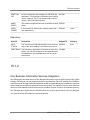
Microsoft® .NET Framework 3.5 This feature is installed, but might need to be enabled through
SP 1
Server Manager or Control Panel, depending on your operating
system.
Enable this feature on all client and server machines used to install
any Infor BI product.
®
Microsoft® .NET Framework 4.5 Microsoft .NET Framework 4.5 :
http://www.microsoft.com/en-us/download/details.aspx?id=30653
Download and install on all client and server machines used to install
any Infor BI product.
SQLServer2005_BC
Before you install BI Samples, install the SQL Server backward
compatibility tool - SQLServer2005_BC.
http://www.microsoft.com/en-us/download/details.aspx?id=20101
Note: This prerequisite is also required for SQL Server 2008 and
SQL Server 2012.
Visual Studio 2010 Tools for Of- Before you install Office Plus for Microsoft Office Word and Microsoft
fice (VSTO)
Office PowerPoint, install Visual Studio 2010 Tools for Office Runtime on each client machine: http://www.microsoft.com/en-us/
download/details.aspx?id=40790
Infor Business Intelligence Release Notes | 13
List of prerequisites
14 | Infor Business Intelligence Release Notes
Cross-version compatibility
4
To help ensure compatibility and correct functioning, we recommend that all installed BI components
are at the same service pack level.
Dashboards and Application Studio
If you want to create Infor Dashboards content connections to Application Studio WebServices, only
version 10.4.1 or later is supported.
Designer
This product and all BI components with which they are used must be at the same service pack level.
Infor d/EPM 10.5.0
d/EPM version 10.5.0 cannot be used together with Infor BI version 10.5.0.
Infor Business Intelligence Release Notes | 15
Cross-version compatibility
16 | Infor Business Intelligence Release Notes
5
New functionality
Platform support
Dashboards on Safari on the Mac OS
Dashboards on Safari on Mac are now supported.
BI on Chrome on the Mac OS
All Infor BI web content now supports Chrome on Mac.
Internet Explorer 11
Infor BI now supports Internet Explorer 11.
Microsoft Windows 8.1
Microsoft Windows 8.1 is now a supported platform for Application Studio, Designer, and Office Plus.
Certified RDBMS for repository
Microsoft SQL Server 2012 R2 and Oracle 12c are certified as relational database systems for Infor
BI Repository.
Office Plus certification
Office Plus is certified on Microsoft Excel 2013.
Setup overwrites web.config during updates from previous versions
During installation of Dashboards and Application Studio WebServices, the web.config file is overwritten.
If you use IFS authentication, or you want to change to IFS authentication, it is necessary to recreate
these Web applications with the Dashboards WebExpert and the Application Studio WebServices
WebExpert as appropriate.
To retain the existing name and URL you must delete the Web application from IIS before recreating
it.
Product and content setups
Languages
All components are now available in Danish, Swedish, Norwegian, and Polish.
Infor Business Intelligence Release Notes | 17
New functionality
Product names
The ION prefix has been removed from product names.
Shortcuts to help files
Start menu shortcuts to the help files of individual products have been replaced by a single shortcut
to Documentation on Infor Xtreme.
Windows Identity Foundation (WIF)
Installation of WIF is no longer required because it is included with Microsoft® .NET Framework 4.5,
which is a prerequisite.
Visual Studio 2010 Tools for Office (VSTO)
VSTO is now a prerequisite.
OLAP Server 32bit version
OLAP Server is no longer available on 32bit Windows systems. However, the 32bit setup is delivered
to enable installation of OLAP client core components.
Office Plus
Ad-hoc reports are saved to Microsoft Office Excel's .xslx format.
Office Plus for Microsoft Office Word and Office Plus
for Microsoft Office PowerPoint
BI Office Plus for Microsoft Office Word and BI Office Plus for Microsoft Office PowerPoint are add-ins
to Microsoft Word and Microsoft PowerPoint, which are installed by individual users on their computers.
The add-ins can insert data blocks from Application Studio reports into Microsoft Word or Microsoft
PowerPoint documents.
Application Studio
Integration of Infor Q&A Evolve
Q&A Evolve has been integrated into Application Studio. This provides flexible access to relational
data sources for report building via DataLinks.
Multiselect
The Select Element dialog, when opened from a Select Element action, now enables you to select
multiple elements. If you select multiple elements, your selection is stored as XML in the 'Action result'
18 | Infor Business Intelligence Release Notes
New functionality
variable. You can specify that the values of the multiple elements are aggregated by one of these
methods:
• Sum
• Min
• Max
• Avg
• Any
Text objects
A new version of text objects has been implemented. The new version supports the use of spreadsheet
formulas. This functionality can be used, for example, to display long cell notes.
Enhanced content packages
Report exports have been extended to support the export of calculations, images and all other references
required by the selected reports.
Compatibility mode in charts
Compatibility mode has been removed and its options included in 'Gradients and other options' in the
Format Data Series dialog . Charts which were created with compatibility mode options are automatically
converted, but with these differences:
• Transparent patterns are not converted. Instead, 50% transparency is applied.
• 3D borders for plot area, legend, chart titles, and axis titles are removed.
Shared image in charts
Images shared in the repository can now be inserted into charts.
Animated portfolio charts
The Animate in Web option has been added to Portfolio charts.
Conditional formatting
Conditional formatting has been improved to indicate better which formatting is included in the conditional
format.
Format painter
The Format Painter has been added to the Edit toolbar and to the Format toolbar. Use the Format
Painter to apply the format of a cell to one or more other cells, without copying the cell's content. The
Format Painter has two modes. In single-use mode you can apply the format of a cell to another cell
or to a group of adjacent cells. In multiple-use mode, you can apply the format of a cell to multiple
non-adjacent cells or to multiple, non-adjacent, groups of cells.
Export report books to Microsoft Excel
You can specify whether all the reports in the book are exported to a single Excel file, or to a separate
file for each report.
Relational access to OLAP Server
Application Studio can use the XMLA interface of OLAP to send relational queries to BI OLAP. You
can use this, for example, to return elements from multiple dimensions in a single hyperblock.
Infor Business Intelligence Release Notes | 19
New functionality
Custom lists
Custom lists are lists based on custom hierarchies. The columns of a relational list can be input to a
custom list, which makes it possible to output all the returned columns of a relational query to a report.
Any XML created with the SetProperty function can serve as input to custom lists.
Attribute support in the OLAP meta data hierarchy
The Analyzer, and Self-Service Templates for dashboard building now support attributes.
OLAP Server
File format for data models
There is a new file format for data models. Data models in the old format are automatically converted
to the new format.
Internet Protocol
OLAP Server now supports IPv6.
Increased number of dimensions per cube
OLAP Server now supports 30 dimensions per cube.
Fast dimension changes
Cubes are no longer reloaded when dimensions are modified. Users can now add new data line-by-line
in the relational model instead of having to create the dimensions first and then load cell data.
Web interface
OLAP Server now has a Web interface that supports SQL queries. Cubes and dimensions are presented
as tables in which dimension levels, attributes, and the elements of the measure dimension are columns.
Dashboards
Favorites and recently used dashboards
In Motion Dashboards users can now maintain a list of favorite dashboards. Favorite and recently
opened dashboards can be opened directly from a new, personalized, start screen.
Pinch to zoom
In Motion Dashboards users can now pinch to zoom their view of a dashboard in or out. You can close
a dashboard by zooming out fully. The dashboard is added to the recently opened dashboards on the
start screen.
Content search
In Motion Dashboards users can now search for dashboards and widgets.
Session expiry
Warnings that a dashboards session is about to expire are now given even if Motion Dashboards is
running in the background.
20 | Infor Business Intelligence Release Notes
New functionality
Infor Motion Server environment selection
Users who work in more than one IMS environment (for example, in development and test environments)
can now switch between environments in the Settings dialog of Motion Dashboards.
Dashboard title bar
The Dashboard Properties dialog now includes the Show Dashboard Title Bar option. For each
dashboard you can specify whether the title of the dashboard is displayed.
Sharing the current dashboard view
In BI Dashboards, users can now select from three types of dashboard link. These control which view
of the dashboard is shared. These are the links and their properties:
• Simple: opens the default view of the dashboard
• Full context: shares the current view of the dashboard
• Relative context: shares the difference between the current view and the default view.
InInfor Ming.le, a full context link is sent. In Motion Dashboards a full context link is sent if possible.
But, if the URL of a full context link is too long, a relative context link is sent. If the relative context link
is also too long, a simple link is sent.
Note: The restriction on the length of URLs does not apply in Infor Ming.le, in which dashboard links
are not carried by URLs.
Pop-out dialogs outside widget borders
Dialogs launched from within a widget can now overflow the borders of the widget.
Import and export dashboards and folders
In BI Dashboards you can export and import dashboards and folders.
Getting started guide
Motion Dashboards now includes Getting Started, a graphical overview of key techniques for creating
and managing dashboards.
Application Engine
while statement
BI# now supports the 'while' statement, which simplifies typical loop constructs.
Improved error handling
RaiseError with the TRY and CATCH keywords simplifies error handling.
Improved integration with Application Studio
Binding reports and processes is now easier. You can now bind actions to processes even if the version
of a process is changed while the process is being imported.
Prepared SQL statements with SQLPreparedCommand
With SQLPreparedCommand, you can now use prepared SQL statements in BI#. Prepared statements
improve performance and security in many processes.
Infor Business Intelligence Release Notes | 21
New functionality
You can use these BI# functions with SQLPreparedCommand objects:
• SQLPreparedCommand SQLCreatePreparedCommand(SQLConnection connection, string
statement);
• int SQLExecuteNonQuery(SQLPreparedCommand command);
• SQLData SQLExecuteQuery(SQLPreparedCommand command);
• void SQLBindStringParameter(SQLPreparedCommand command, string name, string value);
• void SQLBindStringParameter(SQLPreparedCommand command, string name, string value, int
size);
• void SQLBindIntegerParameter(SQLPreparedCommand command, string name, int value);
• void SQLBindIntegerParameter(SQLPreparedCommand command, string name, int value, int size);
• void SQLBindDoubleParameter(SQLPreparedCommand command, string name, double value);
• void SQLBindDoubleParameter(SQLPreparedCommand command, string name, double value, int
size);
• void SQLBindDateTimeParameter(SQLPreparedCommand command, string name, DateTime
value);
• void SQLBindDateTimeParameter(SQLPreparedCommand command, string name, DateTime
value, int size);
• void SQLBindBooleanParameter(SQLPreparedCommand command, string name, bool value);
• void SQLBindBooleanParameter(SQLPreparedCommand command, string name, bool value, int
size);
MingleConnection
Infor Ming.le™ is a social platform that helps people to communicate and collaborate. BI# now has
data types and functions which enable your processes to interact easily with Infor Ming.le. These
functions are currently available:
• MingleConnection MingleCreateConnection(string endpoint, string tenant, string userGUID, string
accessKey, string secretKey);
• void MinglePostMessage(MingleConnection connection, string message, string privacyLevel);
• void MinglePostMessageToOtherUser(MingleConnection connection, string toUserGUID, string
message, string privacyLevel);
• void MinglePostMessageToGroup(MingleConnection connection, string groupGUID, string message,
string privacyLevel);
• void MinglePostMessage(MingleConnection connection, string message, IntArray userIDs, IntArray
groupIDs);
• void MinglePostMessageToOtherUser(MingleConnection connection, string toUserGUID, string
message, IntArray userIDs, IntArray groupIDs);
• void MinglePostMessageToGroup(MingleConnection connection, string groupGUID, string message,
IntArray userIDs, IntArray groupIDs);
COM interface
Application Engine is now available via COM now and integrates with Microsoft Excel, Microsoft Word,
and with Office Plus.
22 | Infor Business Intelligence Release Notes
New functionality
XMLA and MDX support
BI# now fully supports XMLA, and allows OLAP and Analysis Services to be used.
New OLAP functions for the native API
BI# offers these new OLAP functions, which are mainly for modeling OLAP structures dynamically:
• void OLAPCreateUserCube(OLAPConnection connection, string cubeName, string cubeDescription,
string dimension1, string dimension2, ...);
• void OLAPCreateSystemCube(OLAPConnection connection, string cubeName, string
cubeDescription, string dimension1, string dimension2, ...);
• void OLAPCreateCubeAccessControlCube(OLAPConnection connection, string cubeName, string
cubeDescription, string dimension1, string dimension2, ...);
• void OLAPCreateDimensionAccessControlCube(OLAPConnection connection, string cubeName,
string cubeDescription, string dimension1, string dimension2, ...);
• void OLAPDeleteCube(OLAPConnection connection, string cubeName);
• void OLAPCreateDimension(OLAPConnection connection, string dimensionName, string
dimensionDescription);
• void OLAPCreateDimensionBegin(OLAPConnection, string dimensionName, string
dimensionDescription);
• void OLAPCreateDimensionEnd(OLAPConnection connection);
• void OLAPAddNumericalElement(OLAPConnection connection, string elementName);
• void OLAPAddTextualElement(OLAPConnection connection, string elementName);
• void OLAPDeleteDimension(OLAPConnection connection, string dimensionName);
• void OLAPDeleteAttributeTable(OLAPConnection connection, string dimension, int tableIndex);
• void OLAPCreateAttributeTable(OLAPConnection connection, string dimension, int tableIndex);
• void OLAPCreateStringAttributeTableField(OLAPConnection connection, string dimension, int
tableIndex, string attributeName, string attributeDescription);
• void OLAPCreateNumericalAttributeTableField(OLAPConnection connection, string dimension, int
tableIndex, string attributeName, string attributeDescription);
• void OLAPCreateDateAttributeTableField(OLAPConnection connection, string dimension, int
tableIndex, string attributeName, string attributeDescription);
• void OLAPCreateBooleanAttributeTableField(OLAPConnection connection, string dimension, int
tableIndex, string attributeName, string attributeDescription);
• OLAPCube OLAPGetCube(OLAPConnection connection, string cubeName);
• OLAPDimension OLAPGetDimension(OLAPConnection connection, string dimensionName);
• OLAPElementList OLAPGetDirectChildElementList(OLAPConnection connection, string dimension,
string element, bool onlyBaseElements);
• bool OLAPSplashValueDynamic(OlapConnection connection, string cubeName, double value,
string mode, bool rounding, int decimals, bool doNotDeleteOnZero, StringArray reference, StringArray
target);
• OlapElementList OLAPGetLevelElements(OlapConnection connection, string dimension, int level,
bool onlyBaseElements);
Infor Business Intelligence Release Notes | 23
New functionality
• OlapElementList OLAPGetLevelElements(OlapConnection connection, string dimension, string
element, int level, bool onlyBaseElements);
OLAP functions support up to 30 dimensions
The latest versions of OLAP Server and BI# now support operations which use up to 30 dimensions.
New DataArea filter
This new filter is OLAPDataAeaSuppressTextValues.
StringList functions
The latest BI# runtime supports additional functions for manipulating StringList objects. These StringList
functions have been added:
• StringList CreateStringList();
• void Append(StringList list, string element);
• int Count(StringList list);
• string GetElementByIndex(StringList list, int index);
• StringList ConvertToStringList(StringArray x);
StringLists and arrays as sets
In the latest BI# runtime, StringList objects and arrays can now be treated as sets, as well as used for
storing lists of objects. Use these functions to treat StringList objects as sets:
• bool Contains(StringList list, string element);
• bool Contains(StringArray array, string element);
• bool Contains(DoubleArray array, double element);
• bool Contains(IntArray array, int element);
• void AppendDistinct(StringList list, string element);
• void AppendDistinctStringArray array, string element);
• void AppendDistinct(DoubleArray array, double element);
• void AppendDistinct(IntArray array, int element);
• StringList MergeDistinct(StringList list1, StringList list2);
Improved Application Engine Process Editor
The Application Engine Process Editor has these improvements:
• The editor is now based on AvalonEdit.
• The editor has Import/Export functions.
• The display and sorting of processes has been improved by changes to the process and function
selection dialogs.
• You can increase and decrease the font size of the BI# editor.
• Automatic code reformatting has been added.
• The search and replace dialog is more powerful.
• The workflow for testing processes has been changed to make it more convenient.
24 | Infor Business Intelligence Release Notes
New functionality
New engine version and runtime version
Engine version 3.0 and Runtime version 3.0 have been added.
New Time and Date functions
These time and date functions have been added:
• DateTime CreateDateTime(int year, int month, int day, int hour, int minute, int second);
• string GetDateAsString(DateTime dateTime, string culture);
• string GetTimeAsString(DateTime dateTime, string culture);
• double GetDurationAsDouble(DateTime start, DateTime end);
• string GetDateTimeAsString(DateTime dateTime, string format);
• string GetDateTimeAsString(DateTime dateTime, string format, string culture);
• string GetDateTimeAsSortableString(DateTime dateTime);
New string functions
These string functions have been added:
• string ToLower(string s);
• string ToUpper(string s);
New mathematical functions
These mathematical functions have been added to the BI# runtime:
• int Ceiling(double x);
• int Floor(double x);
• double Truncate(double x);
• double Atan2(double y, double x);
• double Cosh(double x);
• double Sinh(double x);
• double Tanh(double x);
• double Exp(double x);
• double LogE(double x);
• double Log10(double x);
• double Pow(double x double y);
• double IEEERemainder(double x, double y);
• bool IsNaN(double x);
• bool IsNegativeInfinity(double x);
• bool IsPositiveInfinity(double x);
• int ToInt(double x);
Application Engine Service
The Application Engine is available as a service as part of Infor BI Services.
Infor Business Intelligence Release Notes | 25
New functionality
New samples
New samples illustrate the new features.
Documentation
The documentation has been amended to describe the new features. Some parts have been reviewed
and amended.
26 | Infor Business Intelligence Release Notes
6
Changed functionality
Application Studio
Compatibility mode for charts
Compatibility mode has been removed from the Pattern tab of the Format Data Series dialog. Charts
which were created with compatibility mode options are automatically converted, but with these
differences:
• Transparent patterns are not converted. Instead, 50% transparency is applied.
• 3D borders for plot area, legend, chart titles, and axis titles are removed.
The Texture option has been removed. But if a report in which textures are specified is imported to
Application Studio 10.5.0, the textures are rendered correctly.
Objects in hidden rows
If an object with the 'Only depends on cell position' property is placed in row which is then hidden, the
object now remains visible. This fixes an issue which had previously been exploited by some report
designers in order to hide objects. That technique still works with objects which have the 'Depends on
cell size and position' property.
Application Studio WebServices
Setup overwrites web.config during updates from previous versions
During installation of Dashboards and Application Studio WebServices, the web.config file is overwritten.
If you use IFS authentication, or you want to change to IFS authentication, it is necessary to recreate
these Web applications with the Dashboards WebExpert and the Application Studio WebServices
WebExpert as appropriate.
To retain the existing name and URL you must delete the Web application from IIS before recreating
it.
Infor Business Intelligence Release Notes | 27
Changed functionality
Dashboards
User interface
The user interface of both Motion Dashboards and BI Dashboards has been redesigned for a better
user experience, with greater focus on business data. Menu structures have been reviewed and
reorganized and now include New Dashboard and Close Dashboard commands.
Copy-to feature
The Copy-to feature of Motion Dashboards has been extended to BI Dashboards. You can now copy
a dashboard to a specific folder.
Size restrictions
Memory limitations of iPads restrict the size of dashboards that can be opened to 12 mega pixels. If
you specify a dashboard width and height in BI Dashboards that would exceed this limit (for example,
3000 x 4000 px), a warning message is displayed. In BI Dashboards you can choose to ignore the
warning but users will be unable to view the dashboard in Motion Dashboards.
IMAM
In Infor Motion Server, and e-mails sent by it, references to IONDASHBOARDS have been replaced
by references to Motion Dashboards.
Office Plus
DataLinks
Support for DataLinks has been removed from Office Plus.
Recalculating ad-hoc reports
If Recalculate ad-hoc reports automatically is not selected in the Options dialog, press F9 to
recalculate ad-hoc reports manually. Previous versions used the F5 key for manual recalculation,
overriding Microsoft Excel's 'Go To' functionality.
OLAP Server
Scripts for OLAP meta data tables
The two SQL scripts which are required to create the OLAP meta data tables are now included in the
OLAP Server setup. The scripts are CreateOlapMetaData.sql andCreateOlapMetaDataOracle.
sql and they are installed to the 64bin folder of the OLAP installation path. For example to: C:\
Program Files\Infor\BI\OLAP\bin64 .
28 | Infor Business Intelligence Release Notes
Changed functionality
Planning and Consolidation
Planning and Consolidation is no longer included in Infor Business Intelligence. The products have
been renamed and form part of Infor Dynamic Enterprise Performance Management.
Licensing
Licensing has been removed and replaced by usage logging.
Infor Business Intelligence Release Notes | 29
Changed functionality
30 | Infor Business Intelligence Release Notes
7
Known issues
BI platform
Chinese and Japanese versions
The Chinese and the Japanese Excel versions of Infor BI require a local operating system. Due to an
Excel bug the Chinese or Japanese version ofInfor BI running on an English operating system may
crash. Therefore using a local operating system (Chinese or Japanese) is recommended.
VPN connections slow setups
If a VPN connection is open when setup is launched, theInfor BISetups will take approximately 5
minutes to load. This delay occurs with older Cisco VPN client (version 5) connections, not with
AnyConnect.
Product titles
After installation on Windows 8, there is a delay in displaying the Infor BI product titles.
Application Studio
No pdf printing
With Microsoft Security Update MS10-061. You cannot print to PDF from WebServices in Windows
Server 2008, Windows 7, or Windows Server 2008 R2 after installing security update MS10-061. For
a resolution see http://support.microsoft.com/default.aspx?scid=kb;en-US;2480118
Sharepoint integration and Infor Federation Support
Application Studio Sharepoint Integration does not yet support IFS (Infor Federation Support). Sharepoint
integration still supports Windows authentication.
Browser navigation
The Back and Forward buttons of the browser cannot be used for navigation in Application Studio
WebServices.
Row height when exporting to Excel
If you specify a row height which is equivalent to more than 409.5 points and export the report to Excel,
the height of the row is reduced to 409.5 points in the exported report.
Infor Business Intelligence Release Notes | 31
Known issues
Self-service templates
Application Studio 10.5.0 requires updated versions of the self-service templates. Install the latest
versions from: Installation Directory>Infor>BI>Application Studio>Self Service
Templates.
Application Studio WebServices
Application Studio WebServices does not correctly detect the regional setting for List Separator. This
can result in all regional settings being ignored.
If the value of "Use Client Regional Settings" in the Repository is TRUE, Application Studio WebServices
detects the regional settings during log on. This should apply the date, time, and number formatting
relevant to the Operating System's current locale. However, the List Separator format is correctly
detected only in Microsoft Internet Explorer.
In browsers other than Internet Explorer, Application Studio WebServices always uses a comma (",")
as the list separator. To avoid possible ambiguity, if the selected regional settings have the same
character assigned to different separators or symbols, all regional settings are ignored.
To workaround this issue:
1 Create this registry key: HKEY_USERS\.DEFAULT\Software\MIS AG\OlapStudio\Settings
.
2 Apply Read permission to the account which runs the WebHost.exe process.
For anonymous authentication this is usually the ASWS user. For Windows authentication, this is
normally ASWS_GROUP.
Note: For earlier versions, it might be necessary to apply Full Control permission.
3 Create this registry entry: (DWORD value (32bit)) LocaleSetting and specify 1 as its value.
DPI settings
Application Studio WebServices supports only default DPI settings.
See Knowledge Base Article 1398364 for details.
Antivirus software
Issues can occur in Dashboards and Application Studio WebServices if antivirus scanning is enabled
on the IIS web application folder. That is, the physical path specified in the basic settings of the sites
in IIS.
32 | Infor Business Intelligence Release Notes
Known issues
By default, the path for Dashboards is C:\Program Files (x86)\Infor\BI\Dashboards\web
and, for Application Studio WebServices, C:\Program Files (x86)\Infor\BI\Application
Studio\WebServices\. We recommend that you disable antivirus scanning on these folders.
Office Plus
Office Plus first Start
After installation, start Office Plus once with an administrator Windows user. Otherwise normal users
cannot start Office Plus.
Chinese and Japanese characters
You cannot use Chinese and Japanese characters for the names of 'Projects' and 'OLAP Permission
Management'.
Because of the Chinese double-byte character problem we do not currently support Chinese characters
in passwords.
DBSET2 Mode3
If using DBSET2 in additive mode (mode 3) in Office Plus, you should not use DBGETC in the same
Excel workbook. This is because, based on DBGETC, the workbook will be calculated twice and the
value then will be doubled. In this case use DBGET instead.
Different MS Excel Versions
MS Excel 2007 does not fully support the XLS format (see: http://msdn.microsoft.com/en-us/library/
bb241279.aspx ). This can lead to conflicts, especially with formatting. If you edit formula reports with
both MS Excel 2007 and older versions of MS Excel, we recommend that you select XLS as the default
file format for MS Excel 2007.
OLAP Administration
If Brazilian Portuguese was selected in OLAP Administration, it changes to Swedish after updating to
10.5.0. Manually change the language back to Brazilian Portuguese.
Dashboards
Bandwidth optimization
If you use the 3G network of an operator that implements bandwidth optimization and you access the
dashboards server with a direct http connection, you might experience problems loading reports
completely. This is because a bandwidth optimizer distributes html requests between multiple IP
addresses - which cannot be mapped to the server session and which are refused for security reasons.
Infor Business Intelligence Release Notes | 33
Known issues
If this is the case, set your Infor Dashboards to https, or use a VPN connection. You can use VPN with
https.
Antivirus software
Issues can occur in Dashboards and Application Studio WebServices if antivirus scanning is enabled
on the IIS web application folder. That is, the physical path specified in the basic settings of the sites
in IIS.
By default, the path for Dashboards is C:\Program Files (x86)\Infor\BI\Dashboards\web
and, for Application Studio WebServices, C:\Program Files (x86)\Infor\BI\Application
Studio\WebServices\. We recommend that you disable antivirus scanning on these folders.
Repository
Overlapping operations
Microsoft® Management Console (MMC) allows many windows to be opened for different nodes, which
could lead to overlapping operations. When you perform a long-running operation (such as registering
1000 Windows users) in Repository Administration, do not start the next action - for example
Disconnect, Connect, Import, Export - on the same database, unless the long-running operation
has been finished or aborted. Otherwise, you will receive an exception error, and the first operation
will not be completed.
Troubleshooting the Event Viewer
Application Studio WebServices users need special permissions to access the Windows Event Log,
which may not be granted by default. This prevents certain events in Application Studio WebServices
from being logged in the Windows Event Viewer, although logging on computer level is enabled for
the Event Viewer in Repository.
A workaround is described in the Repository online help.
Designer
Scenarios as mapping type
Choosing "Scenarios" as the mapping type in Mapping Wizard results in an empty Business Entity
dimension page for Step 2.
T-Codes in DataLink connections
All T-Codes used in transactions must be valid. If a transaction has a T-Code without any representation
in the T-Code table, the record is not loaded toInfor BI OLAP Server.
34 | Infor Business Intelligence Release Notes
Known issues
Hierarchical Dimension Editor
Deleting parent elements with children deletes all children of the same name from other parent
structures.
Assigning rules to rule groups
When using Designer to assign a rule to a rule group, make sure that both items are associated with
the same cube definition. Use Administration's capabilities to change a rule group name so that the
change is automatically inherited by all rules in the rule group. If Designer is used to change the rule
group name, each rule must be manually associated with the new rule group
Limitations
This topic outlines known limitations.
SAP BW
In both Application Studio and Office Plus, these features are not supported:
• Writeback.
• Calculations. The Calculations folder in Database Structure is disabled.
• Filtering by caption and unique name. However, you can filter by Name, Value, Attribute & Custom
MDX.
• Filtering by Attribute or Name is possible only with a String-type filter. Filtering by Wildcard, Number
or Regular Expression is not supported.
• Sorting by caption and unique name. However, you can sort by Name, Value, Attribute & Custom
MDX.
• MEMBER_KEY attribute. The attribute is excluded from the Attributes list in the List Designer.
• Inverted hierarchies. The Invert option in the Advanced pane of the List Designer is disabled.
• Empty element suppression.
In Office Plus, these features are also not supported:
• Calculated elements based on visual elements
• Rankings
• Exception ranges
• Presentation types other than Result
• MEMBER.CNAME, MMEMBER.ANAME, MMEMBER.MNAME, MMEMBER.NAME
• Suppression of empty and/or zero rows and/or columns
Office Plus
If you use a 64 bit version of Microsoft Office, the 64 bit version of Office Plus will be installed. The 64
bit version of Office Plus has these limitations.
Infor Business Intelligence Release Notes | 35
Known issues
• Office Plus OLAP Excel Integration is disabled.
• DataLink integration is disabled.
• UBMatrix is not available.
Safari support
With some limitations, Application Studio WebServices supports the Safari browser on devices which
run iOS 6 (iPad) and on OS X (Mac).
On iOS 6, the limitations are:
• Kerberos authentication is not supported
• Cell notes and comments are not supported
• The Web user interface is not available for the Scheduled Task Manager (Microsoft Silverlight-based
components are not supported by Safari).
On OS X, the limitations are:
• Safari does not support Kerberos authentication (Kerberos can be required, for example, when
connecting to Analysis Services on a machine other than the Application Studio WebServices server)
• The Web user interface is not available for the Scheduled Task Manager (Microsoft Silverlight-based
components are not supported by Safari).
Dashboards
Dashboards have these known limitations:
Content connections
Infor Dashboards content connections can be created only to Application Studio WebServices 10.4.1.
It is not possible to connect to Application Studio WebServices 10.4.0 or earlier.
Create dashboard link
If you use a Web-based e-mail client, press Ctrl + Send Email in the Create Dashboard Link dialog
to open your mail client in a new window.
If no standalone or Web-base e-mail client is installed or configured, Firefox prompts you to select a
mail application to launch. Internet Explorer displays a message that e-mail is not properly installed.
In Chrome, clicking Ctrl + Send Email has no effect.
UI elements in report widgets
If a UI element in a report, such as a drop-down list, is too big for the widget in which it is displayed,
it is cut off by the widget border.
IFS authentication
To support single sign-on (SSO) with IFS authentication on Application Studio within Dashboards,
ensure that you use this configuration:
• Dashboards IIS application uses IFS authentication.
• Application Studio WebServices IIS application uses Basic authentication.
• Any content connection authentication in Dashboards that points to this configuration of Application
Studio WebServices uses Existing Connection.
36 | Infor Business Intelligence Release Notes
Known issues
Note: In this configuration, although Application Studio WebServices is configured for basic
authentication, it will not be accessed from Dashboards with a basic user.
WebViews - Navigation
Infor ION Dashboards offers limited navigation in WebViews.
WebViews - Unsupported pages
Pages that cannot be framed are not supported.
WebViews - Java applets
Java applet content is not supported.
WebViews - Flash
If Internet Explorer or FireFox is used, Flash content is not supported
WebViews - Chrome
If Chrome is used, pages which use HTTP basic authentication are not supported. This is a feature
of Chrome. See: http://blog.chromium.org/2011/06/new-chromium-security-features-june.html
You can work around this issue by adding --allow-cross-origin-auth-prompt to Chrome's
command line arguments.
Safari
Dashboards are not supported on Safari.
Infor Ming.le™
Dashboards does not support Internet Explorer 8 but, if running in Infor Ming.le, Dashboards is forced
into IE 8 document mode. As a result, reports do not load correctly. To work around this issue:
1 As Adminstrator, open the Infor Ming.le Property Bag Configuration tool (All Programs>Infor
Ming.le>Infor Ming.le Property Bag Configuration).
2 Sign in using the SPFarm Account.
3 Select the appropriate Web Application.
4 Select the site collection in which to switch the IE document mode.
5 Click New Property.
6 Enter Infor_Core_IE9CompatibilityMode_Enabled in Property Name and enter true in the Value
field.
7 Click Submit.
Infor Business Intelligence Release Notes | 37
Known issues
38 | Infor Business Intelligence Release Notes
8
Previous versions
10.4.1
New Functionality
Platform support changes
Internet browsers
Safari for Mac OS X is now certified, with certain limits. Refer to the Infor BI Installation Guide.
Firefox 21 is now certified
Chrome 26 is now certified
For a complete list of supported third-party components, refer to the Infor BI Platform Support Guide.
Application Studio
Export to MS PowerPoint
You can now export reports to Microsoft PowerPoint .pptx format.
You can also export reports as .png or .jpg images.
Animated charts
Stacked charts and Doughnut charts now support the "Animate in Web" option.
Improved styles for on-sheet controls
On the Properties tab of the Object Properties dialog, a new property - Style in Web - has been
implemented for list objects and command buttons.
Infor Business Intelligence Release Notes | 39
Previous versions
For list objects select Infor or Custom style. For command buttons, you can select from a variety of
styles, including Native Windows.
Unit conversion
In fields which contain a measurement, the unit of measurement can now be selected. For example,
specify button size in centimeters, pixels, inches or points. By default, the base unit of measurement
is derived from the regional settings of the operating system.
Copy and paste format of spreadsheet objects
It is no longer necessary to format the style of each button, combo box, list view or radio button list in
a report. The formats of one can be pasted to other objects of the same type.
Unique string names
The string table has been amended to support unique string names.
A new function TRANSLATEUNIQUESTRING has been implemented, in addition to the existing
TRANSLATESTRING.
Improvements for Dashboards
Dashboard jumps
A new action type - Jump to dashboard - has been implemented. When a report in which the action
is defined is displayed in a dashboard, it enables a jump to another dashboard. Use it, for example,
to jump from a summary dashboard to a detail dashboard. The action has no effect in the Application
Studio client.
Jump behavior
In Infor Motion Dashboards and Infor Dashboards users can create reports from templates. The
templates are Application Studio reports. For example, several reports, linked by jump actions, might
be used as a report wizard in Dashboards. In this case, it is necessary for the jumps to take place
within the report widget, rather than jump to a new dashboard. Jump Behavior is a new report property
with three possible values: Controlled by Dashboard (default), Replace Dashboard, Replace Widget.
Use Replace Widget to ensure that jumps take place within the report widget. If Replace Dashboard
or Replace Widget is selected, the jump behavior cannot be specified in the dashboard.
Immediate Interaction mode
By default, Infor Motion Dashboards and Infor Dashboards users must manually switch report widgets
to interaction mode in order to interact with the reports they display. But, for reports used as templates
in Dashboards interaction mode should be enabled automatically. A new report property - Start
Interaction after Drop - enables report designers ensure that interaction mode is enabled as soon as
a report is dropped onto a dashboard.
Tuple report parameter
A new report parameter type - Tuple - has been implemented.
40 | Infor Business Intelligence Release Notes
Previous versions
Self-service templates
You can now use templates to create your own widget content in Infor Dashboards and Infor Motion
Dashboards. Application Studio installs a package of database-independent, self-service templates
which you can import to any Application Studio report catalog.
ANY aggregation function for value filters
The ANY aggregation method has been added. This which makes it possible to create better NULL
suppression filters. The ANY aggregation method works in a similar way to the ANY function in client
lists.
STYLENUMBERFORMAT function
Returns the current format of a named number style format. This can be used to simplify the use of the
TEXT function, which takes a number format as its second argument and which requires number
formats appropriate to the current regional settings.
INITSLICERS and VALIDATESLICERS functions
Dynamic reports are reports which are not tied to a specific data structure, but which can run different
data structures from different databases. They are used, for example, as templates which can be used
to create reports in Infor Dashboards and Infor Motion Dashboards. Dynamic reports use XML variables
to store the filters - or slicers - which users select. The INITSLICERS AND VALIDATESLICERS functions
enable report designers to initialize XML variables with valid values.
Application Studio WebServices
With some limitations, Application Studio WebServices supports the Safari browser. The limitations
are:
• Safari does not support Kerberos authentication (Kerberos can be required, for example, when
connecting to Analysis Services on a machine other than the Application Studio WebServices server)
• The Web user interface is not available for the Scheduled Task Manager (Microsoft Silverlight-based
components are not supported by Safari).
Office Plus
SAP BW variables
SAP BW variables are now supported.
ANY aggregation function for value filters
If you select two or more elements from a single hierarchy in the Data Area, you must select an
aggregation function. The Aggregation function list now contains the ANY aggregation function.
Infor Business Intelligence Release Notes | 41
Previous versions
Application Engine
New functions allow browsing of OLAP databases:
• List of cubes
• List of dimensions
• List of dimension elements (already available in 10.4.0)
• List of attribute tables
• List of attribute table fields and definitions.
New functions allow splashing and deletion of values on calculated elements.
New functions allow reading and writing cell comments.
New functions enable checking the existence of cubes, dimensions, and elements.
A new function makes it possible to send OLAP XML requests, and to receive responses.
New functions enable dynamic access to data in cubes in a process. This makes it possible to handle
changing structures in an OLAP database.
The OLAP "Load from Source" feature can be started by a process.
New functions make it possible to write dimension attribute values.
New functions to:
• Create numerical dimension elements
• Create text dimension elements
• Delete dimension elements
• Rename dimension elements.
New functions to find and replace texts, using regular expressions.
New data types have been introduced, mainly for the new features.
An action in Application Studio can now automatically refer to the latest process version.
Automatic and manual logging can now be activated when running processes from Application Studio.
New runtime and engine versions are available:
• Runtime and engines version 1 are still available and are unchanged. Processes from 10.4.1 will
work the same as in 10.4.0.
• Runtime and engines version 2 are new and include all new functions and bug fixes.
A new tool enables processes to run from the Windows command line:
Processes can be automated
Processes can be integrated in several external tools such as Microsoft Excel.
The statistical computing system "R" has been integrated.
The Process Editor has been improved:
• Errors are now underlined directly in the code
42 | Infor Business Intelligence Release Notes
Previous versions
• Error messages and error handling in processes have been improved.
The Application Engine Guide has been revised.
All runtime functions are now documented in the user manual.
Many new demo processes have been created for the new features.
Dashboards
Widget communication enhancements
Parameters in WebView widgets
It is now possible to select parts of a WebView's URL and convert them to parameters for use in widget
communication. This enables you to use parameters in other reports on the dashboard to drive the
content displayed by the URL.
Manually create connections
Previously, if two or more widgets on a dashboard could be connected by a parameter, it was possible
only to turn that parameter off or on. You can now manually connect the parameters of different widgets
and remove single widgets from automatically detected connections.
Specify dynamic initial values
You can now specify one widget per connection as the one that drives the initial value on the dashboard
when it is loaded.
Collaboration enhancements
Dashboard links
You can send links to a dashboard by e-mail. The format of the links varies according to whether the
dashboard should be opened in Infor Motion Dashboards or Infor Dashboards. It is now possible to
send links in both formats from both Dashboards applications.
E-mail screen
In Infor Motion Dashboards you can send an image of a dashboard in an e-mail with dashboard links
and, optionally, annotate the image before sending.
Save to photos
In Infor Motion Dashboards you can save an image of a dashboard to the iPad photo album. Optionally
you can annotate the image before saving it.
Printing from Infor Motion Dashboards
You can print dashboards to an AirPrint-enabled printer.
Integration with Infor Ming.le™
The plug-in delivered by the latest release of Infor Ming.le improves the integration of Dashboards
with Infor Ming.le. Users can now share dashboard links within Infor Ming.le.
Set start screen
The ability to specify a dashboard to display when the application starts has now been added to Infor
Motion Dashboards.
Infor Business Intelligence Release Notes | 43
Previous versions
Reordering dashboards and folders
The ability to use drag and drop to reorder the dashboards and folders in the dashboards browser has
now been added to Infor Motion Dashboards.
Refresh content
Refreshing content in the Infor Motion Dashboards content browsers has been updated. Now simply
swipe down with a finger and release.
Dashboard and folder permissions
Permissions on dashboards and folders can now be administered in both Infor Motion Dashboards and
Infor Dashboards.
Self-service templates
You can now use templates to create your own widget content in Infor Dashboards and Infor Motion
Dashboards. Application Studio installs a package of database-independent, self-service templates
which you can import to any Application Studio report catalog.
New look
Dashboards has been updated with our new white interface.
Analyzer
Infor BI Analyzer is a suite of analyses for ad-hoc browsing and data mining. The analyses are connected
by context. That is, within each analysis are options to navigate to others which, as you do so, inherit
the selections of the previous analysis. Analyzer is installed as a content package which can be imported
into Application Studio.
Planning and Consolidation
A new feature allows the import of the structure and data from these Infor ERP systems:
• Lawson S3 v9.0.1 and 10
• SunSystems 4, 5 and 6
• SyteLine 7
• SyteLine 8 XA AM 7.8 and 9.0
44 | Infor Business Intelligence Release Notes
Previous versions
Product and content setups
Software tags
Software Identification Tags have been implemented to uniquely identify each installed product for the
purposes of software inventory and asset management. For each installed product, an XML-based
SWIDTAG is created and installed to:
• ..\Program Files (x86)\Infor\BI
• ..\ProgramData
OLAP
Load From Source
The relational database from which the OLAP database is loaded has been updated for both Oracle
and Microsoft SQL Server. In several fields subqueries can be now be used in place of table names.
Load From Source - Incremental
OLAP Server allows the loading of data incrementally from a relational source directly. The range can
be defined by LastLoadedVersion and NewestVersionToLoad
Flexible Hosting
With Flexible Hosting a set of OLAP Server instances can be hosted on a cluster of machines under
control of a single OLAP Server Communications Manager. An interface is provided to allow
administrators to start and shut down server instances on any machine in the cluster. Clients are
unaware of which machine their server instance is running.
Changed Functionality
Product and content setups
Prerequisites setup
A setup file to install Infor BI prerequisites is no longer supplied. All Infor BI products will run on the
certified Operating Systems after installation or manual activation of a short list of prerequisites. Infor
BI product setups give a warning message if a software prerequisite is not found.
See "List of prerequisites" for a list of the prerequisites that are required and not automatically provided
by the Operating System, and the locations from which they can be downloaded.
Infor Business Intelligence Release Notes | 45
Previous versions
OLAP
Memory consumption for crossjoins
A significant reduction of memory consumption and time required by large cross-joins has been
achieved.
Slow report loading after migration
After migrating from 10.3.2 to 10.4.1 the time taken to open Application Studio reports might significantly
increase. This has been resolved.
Office Plus
Asynchronous formulas are enabled by default for Microsoft Excel 2010 and higher.
Application Studio WebServices
The WebServices user interface has been reviewed and updated.
Fixed Issues
Application Studio
KBA
Description
1381663
The order of dimensions has changed in the patch releas- FIXED
es 10.3.2.203, 213 and 217. Due to this WBC formulas
do not work.
6466018
1382582
There is an issue with the connection to an SAP BW
database system. In some cases a HTML redirect error
message appears.
FIXED
6426600
1379065
The pick list information of a global server list gets lost
when jumping to another report.
FIXED
6445143
1377014
Exporting a report to Excel ".xlsx" fails when using a hy- FIXED
perblock with a RWDB formula.
6462195,
6426160
1374073
A connection to a CPM 10.4 or 10.3.2 relational database FIXED
fails when using the Infor CPM Applications Authentication
System. The error message is: "XMLA error : Error creating schema rowset xml. Error occurred in getting cubes."
6452381,
6410026,
6366375
n.a.
Changing a reports unique name makes jump actions on FIXED
such a report invalid. When fixing the target report input
n.a.
46 | Infor Business Intelligence Release Notes
Category
Incident ID
Previous versions
in the action definition dialog all parameters from the target
report still remain invalid. This should be fixed automatically when the target report input is fixed. Remark: There
are some specific scenarios for which this behavior cannot
be fixed with reasonable effort (e.g. importing a report
from XML with a jump action to a different project).
n.a.
A pasted cell with conditional format does not work because the references are not adjusted automatically.
FIXED
n.a.
n.a.
Min/Max for spark line grouping does not work correctly. FIXED
n.a.
n.a.
Write back to a DSConnector alias does not work.
FIXED
n.a.
n.a.
there is an issue with map charts when creating a "global" FIXED
action from latitude and longitude source by defining an
action in the latitude cell.
n.a.
n.a.
An ROC formula with access to an SAP BW database
does not work when a parent cube contains mandatory
SAP variables.
FIXED
n.a.
n.a.
In a chart is displayed a #REF error when the data is re- FIXED
ceived from a hyperblock which doesn't contain data.
n.a.
n.a.
There are performance issues with connection to a SAP FIXED
BW database. Remark: The improvements concern the
following areas. Caching of SAP variables , caching of
member caption and unique name, caching hierarchy
calculation in preview pane, caching structure selection
hierarchy calculation, selection change in data space filter.
Except for the first area the improvements concern all
database providers and not only SAP BW.
n.a.
n.a.
For a pin chart (map charts) there is no info window con- FIXED
taining user defined text created if one cell which contains
a location label is empty.
n.a.
1133844,
1387089
There is an error message when opening "Chose Account" FIXED
in the "Group Account Analisis" report of Infor BI Consolidation.
6461821
1379552
There is an issue with the connection to a CPM database. FIXED
6449061
n.a.
The registry key for overwriting locale settings is opened FIXED
with read/write permission while read would be sufficient.
n.a.
1388343
There is an issue with enabling/disabling the version his- FIXED
tory when the report catalog is shown.
6524433
655736,
1360345,
1390722
For a specific relational hyperblock there is an unhandled FIXED
exception when trying to edit the hyperblock.
6608426,
6546231
Infor Business Intelligence Release Notes | 47
Previous versions
1377520
Attributes aren't displayed correctly in parent children hi- FIXED
erarchies for Analysis Services cubes.
6368200
1384945
There are some issues with the export to Excel feature.
FIXED
6469224
1133844,
1388163
There is an issue with the display of POVs.
FIXED
6524173
n.a.
There is an issue with variables in relational lists.
FIXED
n.a.
n.a.
It is not possible to change the default value of the Con- FIXED
nectionTimeout and CommandTimeout of aliases.
n.a.
1387150
There is an issue with the connection to a CPM 10.1.8
database.
FIXED
6535058,
6527989,
6516940
Category
Incident ID
FIXED
6402444
1378593
A pick list referring to a variable global list does not work. FIXED
6426500
1378566
Changing the password throws an error message “Object FIXED
reference not set to an instance of an object.”.
6436634
1358446
In a specific environment there is no loading icon while a FIXED
report is being loaded.
6244086
n.a.
Dotted are different in charts and animated charts.
FIXED
n.a.
1390982
A session is terminated when a user with a lot of OLAP
roles tries to open reports.
FIXED
6447143
1392863
For a specific scenario changing a selection of a combo FIXED
box leads to a crash.
6624295,
6607208,
6558671,
6557759,
6527064
1388135
There are backward compatibility issues with the Direct
Link.
FIXED
6578881,
6515795
Description
Category
Incident ID
Application Studio WebServices
KBA
Description
1133844,1376298 In some cases characters from cell texts are removed
when a column is not wide enough.
Office Plus
KBA
48 | Infor Business Intelligence Release Notes
Previous versions
1382582
There is an issue with the connection to an SAP BW
database system. In some cases a HTML redirect error
message appears.
FIXED
n.a.
There are performance issues with connection to a SAP FIXED
BW database. Remark: The improvements concern the
following areas. Caching of SAP variables, caching of
member caption and unique name, caching hierarchy
calculation in preview pane, caching structure selection
hierarchy calculation, selection change in data space filter.
Except for the first area the improvements concern all
database providers and not only SAP BW.
n.a.
1360442
The Windows group policy concerning the visibility of
drives is not handled correctly in a Citrix environment.
6330153,
6180437,
6148225
n.a.
In a specific scenario write back formulas are overwritten FIXED
with write back.
n.a.
n.a.
Excel crashes when pressing Enter after a cell was copied FIXED
with Ctrl-Ins.
n.a.
n.a.
The MDX.Set.Pick formula does not work correctly.
FIXED
n.a.
n.a.
After some search operations the MMember.CName
throws a parser error message.
FIXED
n.a.
n.a.
In some cases ranking leads to a crash.
FIXED
n.a.
n.a.
In some scenarios clicking the safe button leads to an
unnecessary message before opening the save dialog.
FIXED
n.a.
n.a.
For some unsupported write back scenarios message
boxes are missing.
FIXED
n.a.
1390645
The command "Windows("Mappe7.xlsx").visible = TRUE" FIXED
causes an error.
6537471
1389859
In some scenarios in the formula wizard for Alea formulas FIXED
the attribute is displayed instead of the element.
6537936
1389802
In the DBGETC Formula Wizard the position of the mea- FIXED
sure dimension in the order of the dimensions is not correct for some scenarios.
6537994
1141885
Imported rules cannot be edited when the rule was disabled before exporting it as a txt-file.
FIXED
5354796
1386981
Concerning the VBA function Workbooks.activate there
is a different behavior between 10.3 and 10.4.
FIXED
6499027
FIXED
6426600
Infor Business Intelligence Release Notes | 49
Previous versions
n.a.
A setup feature ("Client Core Components (64-bit)") is
IMPLEneeded to deploy the 64-bit client core files plus all needed MENTED
dependencies: Mis.Alea.ClientSupport64.dll,
Mis.Alea.COSConnector64.dll.
n.a.
1387931
Excel array formulas cannot be created, modified or
copied.
FIXED
6516324
n.a.
For a specific scenario there is an issue with a circular
reference.
FIXED
n.a.
10.4
New Functionality
Platform support changes
Operating systems
Windows Server 2012 and Windows 8 are now supported. Windows XP, Windows Vista, and Windows
Server 2008 are no longer supported.
OLAP Server
OLAP Server 32bit only for demo purposes on 32 bit Windows
Database servers
SQL Server 2012 Service Pack 1 is now supported
Microsoft SQL Server 2005 is no longer supported
Oracle 10 is no longer supported.
Excel 2003
Excel 2003 is no longer supported.
Internet browsers
Internet Explorer 10 is now certified
Internet Explorer 8 is no longer supported
FireFox 16 is now certified
Chrome 22 is now certified
For a complete list of supported third-party components, refer to the Infor BI Platform Support Guide.
50 | Infor Business Intelligence Release Notes
Previous versions
Application Studio
Export formats
There is a new export format, compatible with MS Excel 2007 and MS Excel 2010. The available export
formats are now:
• Excel Workbook (*.xlsx)
• Excel Workbook, values only (*.xlsx)
• Excel 97-2003 Workbook (*.xls)
• Excel 97-2003 Workbook, values only (*.xls)
Formula clustering
Clustering of formulas to render sparklines and conditional formats has been enhanced to improve
performance.
Map Charts
A map chart displays multiple charts which represent data relating to specific locations on a map. To
create map charts, you require the longitude and latitude of each location in Signed Degree format.
You must have a commercial agreement with Google in order to use Map Charts. If you have such an
agreement, enter your Google Map license key in Repository Administration.
Filter performance
The performance of filters in dataspaces has been enhanced by the use of new OLAP MDX functions.
Writeback behavior
A new option in Report Properties enables Spreadsheet mode or Form mode. These modes affect
navigation in Application Studio WebServices within and between cells which have been enabled for
writeback.
Buttons in spreadsheets
It is now possible to define and show tooltip strings on buttons.
Options to position button captions have been improved.
Buttons with the appearance of native Windows buttons can be created.
Report auto-sizing
To support the design of dashboards which auto-size for different screen sizes and resolutions, you
can now specify that individual columns and rows can grow or shrink. If you allow shrinkage or growth
on even a single column or row of a report, it enables the report to be resized.
Relational list designer
A new driver has been introduced for accessing relational data and the design of the Relational List
Designer has been updated.
Drillback in Workspace
If Application Studio is running in Workspace, you can define an action which drills back to the
application on which Application Studio is reporting.
Report parameters
To support the design of dashboards, report parameters which point to global or report variables can
be defined. In dashboards, reports which share parameters can communicate and update each other
without the dashboard having to be reloaded.
Infor Business Intelligence Release Notes | 51
Previous versions
Thumbnails
Thumbnail images have been introduced to enable the easy identification of reports in the content
browsers of Infor Dashboards and Infor Motion Dashboards.
Application Engine Process action
The Application Engine Process action has been introduced. It can be used to trigger rules and
processes created in the Infor BI Application Engine Process Editor, which is now installed with
Application Studio and Consolidation and Planning.
Animated charts
These chart types can be animated:
• Column charts (simple columns only, no stacks)
• Bar chars (simple bars only, no stacks)
• Line charts
• Pie charts
Animation can be enabled globally or by series. it is not available for charts in compatibility mode.
Office Plus
Cell notes in ad-hoc reports
Cell notes can now be created in ad-hoc reports.
Report management
Drag & Drop and Copy & Paste can now be used to move and copy reports in the Report Catalog.
Formula Wizard
A new formula wizard has been introduced and the formulas re-categorized.
Dashboards
The 10.4 release sees the introduction of two, major cross-platform, products: Infor Dashboards and
Infor Motion Dashboards which offer, respectively, Web-based and iPad-based BI reporting. New
functionality has been introduced in Application Studio to support the new products.
The new products access Application Studio WebServices report catalogs and enable you to create
flexible and attractive dashboards comprising multiple reports and Web content.
Infor Dashboards and Infor Motion Dashboards share much of the same functionality, but there are
differences. For example, administrative functions such as creating connections to report catalogs are
undertaken in Infor Dashboards. The Infor BI Installation Guide details the differences.
Planning and Consolidation
Planning and Consolidation are now integrated into one model:
52 | Infor Business Intelligence Release Notes
Previous versions
• NewInfor BI Application Engine Process Editor available to ease building consolidation rules and
processes
• Application Process Engine Editor is delivered via Application Studio and Planning and Consolidation
Setup
• Now possible to attach documents to journals and ownership changes.
Attachments of participation changes and journals
In the Add Attachment dialog, you attach documents to a participation change or a journal and you can
view or delete document attachments. The attachments are stored on a version control server and are
available for all users who are connected to the server. Every user has his own directory on the server
to manage attachments and folder structures.
OLAP
Load from source
Functionality has been added to automatically load an OLAP model directly from a relational source
(MS SQL-Server) without requiring an external tool. This includes:
• Creating dimensions (including Attribute definition) and loading of all elements and attribute values
• Creating cubes (including Cube properties and Cube Rules) from relational tables/views
• Loading data into the cube (including options for partial cube load)
• Loading security information (DAC and MDAC cubes)
Performance improvements
Multicore calculation
Existing multicore calculation capabilities have been extended to increase request performance for
single users.
Now, calculations for single-user read requests are split into multiple tasks and multiple threads so
that a single request can make use of the power of parallel computing on multiple cores.
Cache partitioning
The cache for calculated values can be split into multiple parts. This can significantly improve request
performance in combined read/write scenarios because it reduces the requirement to recalculate
values in areas of cubes that were not affected by changes.
MDX Engine improvements
The MDX Engine has been improved to increase performance and to decrease memory consumption
to a great extent - especially on null/zero suppression.
Infor Business Intelligence Release Notes | 53
Previous versions
Product and content setups
Silent setup
Content setups can now be run silently. That is, without user intervention, by specifying installation
parameters on the command line.
Dashboards
A setup for Infor Dashboards is now included.
Changed Functionality
Overview
This chapter summarizes changes in functionality and User Interface; introduced into Infor BI since
version 10.3.2.
Application Studio
PDF export
To support PDF export in Dashboards, the setting "Browser Window for PDF Files" has been removed
from the report catalog settings in Repository Administration. PDF exports now always open in a new
window.
BIS
BIS support has been removed from BI.
Office Plus
Trusted locations
It is no longer necessary to add Office Plus manually to the list of trusted locations.
Unsupported environments
If you attempt to install Office Plus on an unsupported environment, setup is aborted and a message
displayed.
License key location
In the Windows registry, the license key is now stored for the computer. That is:
HKEY_LOCAL_MACHINE \Software\MIS AG\Plain\10.4\axlc\License ("Location"
key, type: REG_DWORD)
In previous versions, the key was stored by Windows user: HKEY_CURRENT_USER
54 | Infor Business Intelligence Release Notes
Previous versions
Product and content setups
Unsupported environments
If you attempt to install products on unsupported environments the setup is aborted and a message
displayed.
Application Studio Dispatcher
Application Studio Dispatcher is no longer included in the installation.
Repository conversion support
Conversion support for 4.1 and 5.0/5.1 repositories has been removed from the Application Studio
Repository Conversion tool.
Content setup
Content has been enhanced to allow deployment of up to 15 models.
32bit/64bit file naming
Where there are separate setup files for 32bit and 64bit installations, the file name suffixes have been
changed from x86/x64 to 32bit/64bit.
Flash demos
Flash product demos have been removed from the installation.
CPM Business Edition
The CPM Business Edition update is not delivered with the Infor BI 10.4 DVD.
Fixed Issues
Overview
This chapter summarizes issues fixed inInfor BI since version 10.3.2.
Application Studio
This chapter summarizes the issues fixed in Application Studio, Application Studio Web Services, and
the Repository.
KBA
Description
Category
Incident ID
953449,
1131119,
1169556,
1169661
There is an issue with installing the BI sample TUTOR on FIXED
Oracle11gR2.
5655507
1181431
There is an migration issue due to a difference between FIXED
using DS Connect with CPM 10.1.x and XMLA with CPM
10.3.2: The dimension list is reordered in the formula UI.
5771254
Infor Business Intelligence Release Notes | 55
Previous versions
1187491
Until the alias is refreshed in a customers report REF er- FIXED
rors are shown instead of values.
5860479
1344649
There is a display issue with Thai language setting.
FIXED
6149370
1342410
Copying specific customer reports throws the error mes- FIXED
sage "Error copying report 'Reportname'."
5826963
1343201
Excel export does not work with Internet Explorer 8 via
HTTPS.
FIXED
6135413
597945,
1148956
A margin error message can prevent reports from being FIXED
printed to PDF by the Scheduler.
5763647,
5669045,
5430008
1159271,
1170112
In some cases the import of media content throws an error FIXED
message.
5536323,
5685278
943539,
1175450
There is a performance issue when loading the user
management from an Oracle repository.
FIXED
5648063
1177179,
588375,
1019381,
1159649,
1169766
There is an issue with exporting reports with the Task
Scheduler.
FIXED
5712760,
5534946
1178523,
1179322
For some charts the automatic scaling of the x-axis is not FIXED
working correctly for all cases.
5772636,
5776124
n.a.
For a specific scenario there is a crash when pasting a
format which includes a sparkline.
FIXED
n.a.
1178533
There is an issue with overlapping text.
FIXED
5767733
n.a.
There is an update issue because the file mis.onvision.panes.dll has the version number 0.0.0.0.
FIXED
n.a.
1180526
In some cases the Range function in an ROC formula re- FIXED
turns #NA.
5775838
1182557
Clicking a button with only one action and the condition
for the action is False leads to an error message.
5820123
n.a.
When the option "Split by" is enabled for one of the report FIXED
parameters in a report book, printing the report book fails
with the error message "Object reference not set to an
instance of an object."
n.a.
n.a.
In some cases an action for stacked charts doesn't work. FIXED
n.a.
1185743
For LDAP authentication with LDAP provider 10.3.1.116 FIXED
there is an issue with the password detection.
5839617
56 | Infor Business Intelligence Release Notes
FIXED
Previous versions
1184920
For a specific scenario in which two independent ROC
formulas influence each other the result is #NA.
FIXED
5692526
n.a.
The cut-out in a chart area gradient isn't antialiased.
FIXED
n.a.
n.a.
In the List Designer the column size is limited.
FIXED
n.a.
956399,
1144099,
1145557
On the client machine a user must have access to the
FIXED
folder C:\Windows\Temp folder. This should not be necessary.
5353748
n.a.
The "COS Tool" needs to identify "GO" commands in case FIXED
that database SQL scripts are executed.
n.a.
1156417
PDF export from in Internet Explorer 8 fails.
FIXED
5846178,
5827525,
5815950,
5807207,
5740143,
5651760,
5553094,
5540595,
5510113
1159025
The select element range function fails when printing the FIXED
current report from the Export Wizard in WebServices.
5518503
n.a.
For future compatibility reasons a check for OLAP 10.4
provider has to be adjusted.
FIXED
n.a.
n.a.
In some cases there is a crash when entering the portfolio FIXED
report in the Analyzer model.
n.a.
1179422
After migration from 10.1.x a script to export a report to
Excel exports the file to '.mht' format.
FIXED
5778874
1181940
For a specific report updated from 10.1.7 values are not FIXED
shown.
5808608
1181384
For a specific report there is an error when selecting ele- FIXED
ments in the Web Services Export Wizard : "The element
list failed to load".
5855110,
5829051,
5808247
n.a.
The top navigation bar briefly appears when navigating
to reports via a http POST request.
n.a.
1184233
For a customer environment it is not possible to connect FIXED
to a SQL repository. This is due to specific version numbers of the SQL server.
5827647
n.a.
A mechanism to remove report files from the temp folder FIXED
when rendering new reports has been implemented. In
some cases with Dashboards, when there are engines
with IDs >= 10, more files than intended are deleted.
n.a.
FIXED
Infor Business Intelligence Release Notes | 57
Previous versions
n.a.
For a special scenario after a content export attributes are FIXED
lost, and the order of reports in the tree has changed.
n.a.
1174220
When a single report is open running the Print or Export FIXED
Wizard in order to print a dynamic report book the following
error occurs: "The book is not specified as dynamic. No
delivery report can be defined".
5728935
1149795
A filter errors occur when using the Pick List Manager and FIXED
ODBO attributes are defined.
5444551
n.a.
There is an issue with the Direct Link feature concerning FIXED
the input tag and report variables.
n.a.
1153731
The parameter "showTree=1" overrides the permission
"browse folders" when using the Direct Link feature.
FIXED
5347680
1173906
There is an issue with the ROA formula which returns a
#VALUE! Error even if the value is valid.
FIXED
5725538
1175628
In some environments cache files for client list are not
created.
FIXED
5744072
1172498
For a specific report there is a crash when it is printed via FIXED
the print preview.
5508297
n.a.
There is an issue with the Web Expert when it runs on a FIXED
domain controller. Remark: For a productive environment
running WebServices (or other Infor BI software) on a
domain controller is not recommended. Potentially not all
problems (e.g. performance issues) can be solved in this
environment. This is unsupported if the reported problem
doesn't appear on a similar non domain controller.
n.a.
n.a.
There is an issue with the update of the cache for Client FIXED
Lists.
n.a.
1173096
When immediately after closing a pop up windows with
the close button in the upper right corner an interaction
with the report follows it might happen that the report is
not calculated.
FIXED
5680579
1153366
For some specific reports it may happen that write back
values are deleted from the input report when trying to
write back several values at the same time.
FIXED
5409783
1171907
Setting pick list elements recalculates the whole report
instead of just the necessary lists.
FIXED
5704276
n.a.
There is a display issue with the focus marker on buttons. FIXED
In some cases the dotted rectangle overlaps the button
text.
58 | Infor Business Intelligence Release Notes
n.a.
Previous versions
n.a.
If changing the chart setting 'Format Axis' - 'Scaling' FIXED
'Category axis intersects at' in some cases it may happen
that the first value in the chart is not shown at the correct
position.
n.a.
n.a.
There is an issue when running the silten setup with spe- FIXED
cific setting on an Oracle repository.
n.a.
1157364
For a specific report the content of a report variable is not FIXED
printed on PDF when using the Export Wizard.
5505769
1171088
The PROPER function does not work as expected.
FIXED
5694648
1172551
For a customer scenario there is a performance issue with FIXED
the first load of Client Lists.
5662301
1170412
There is an issue with the context menu when a button
and an action is in the same cell.
FIXED
5684346
n.a.
Due to a side effect (see below 10.3.2.182, PMRPTGFIXED
10193) the navigation in the report tree doesn't work when
using tabbed browsing.
5710335
1142491,
1158628
There is an issue with the display of hierarchies in a hy- FIXED
perblock with activated line break.
5438839
1160577
There is a performance issue concerning deleting caches. FIXED
In some cases this may lead to a waiting time of about
one minute.
5506552
1155230
There is a performance issue in reports with SelectElement FIXED
action on huge OLAP dimensions when using Search All
in this dialog. This was already fixed for version
10.3.2.174. Now a special case with variable lists is fixed,
too.
5498472
1167800,
1167853
For some cases the cell format "[h]:mm:ss" delivers a
FIXED
wrong result. E.g. the value "0,166661" delivers "3:00:00"
instead of "4:00:00".
5665269
1161802
There is an issue with the display of drop down area of a FIXED
combo box when the number of elements is limited by
setting.
5558258
n.a.
For a Set Parameter Action on a button the HTML code FIXED
is generated twice. Remark: This is not critical. The fix is
just a minor optimization.
n.a.
1133844,
1166147
When a report uses a style sheet with a combo box and FIXED
a global variable is used for the input and output variables
of the combo box the global variable is always reset to
the value used in the combo box which is stored in the
style sheets definition when opening this report.
5543576,
5647861
Infor Business Intelligence Release Notes | 59
Previous versions
n.a.
There is an endless loop in the chart module when receiv- FIXED
ing an INF value from the OLAP server.
n.a.
n.a.
Very long Direct Link strings cannot be processed by some IMPLEbrowsers. Solution: The URLs are allowed to be send as MENTED
POST requests.
n.a.
n.a.
From the report tree a report cannot be opened in a new FIXED
window.
n.a.
1160898
There is an issue with the result of a division by zero.
FIXED
5518159
n.a.
There is a performance issue for very big charts with
hundreds of series.
FIXED
n.a.
1167628
In Application Studio clicking in any area of an action menu FIXED
executes the action, in WebServices the click must be
executed on the text.
5662187
1161671
For a specific customer database the Pick List dialog
doesn't deliver the correct filter results.
FIXED
5504670
1161760
There is a critical side effect in Application Studio
FIXED
10.3.2.174, Consolidation reports are not shown any more.
5655619,
5654768,
5558478
1166052
There is a display issue with write back cells which are
close to combo boxes.
FIXED
5647508
1150167
There is a display issue with the formula bar when
changing the size of the application windows.
FIXED
5444898
1155230
There is a performance issue in reports with SelectElement FIXED
action on huge OLAP dimensions when using Search All
in this dialog.
5498472
1157381
There is a performance issue when deactivating single
list filters.
FIXED
5500928
1157364
When running the Export Wizard that uses a specific script FIXED
which sets a REPORT variable, the report variable value
is omitted from the printed report.
5505769
810966,
1133844,
1158114
Export to PDF doesn't work for a specific scenario with
an Oracle repository.
FIXED
5520870
1158032
There is an issue with writing back to an OLAP DAC cube. FIXED
5527496
1157740
There is an issue with conditional formatting after updating FIXED
from 10.1.6.
5510549
1155796
When setting the server list cache in the Repository Ad- FIXED
ministration to e.g. 10000 there is an unhandled exception
when trying to change this value afterward in the settings.
5506790
60 | Infor Business Intelligence Release Notes
Previous versions
1153738
The cell format Line Break is not handled correctly by
WebServices.
FIXED
5483545
1156341
Under special circumstances the size of graphic objects FIXED
is a little bit different than in 10.1.6.
5474494
n.a.
Under some very special conditions styles used in condi- FIXED
tional formats can be destroyed.
n.a.
1133844,
1157015
There are some minor differences in the layout of a report FIXED
in a web browser compared to the full client.
5501011
n.a.
There is an issue with scrolling of write back reports.
n.a.
1150832
When printing reports using the Export Wizard, the orien- FIXED
tation in the page setup is ignored.
5518545,
5329719
1147415
The Task Scheduler Page Setup settings override those FIXED
of the individual reports when exporting a report book,
5430532
1156958
In former versions it was possible to deactivate the
splasher in Application Studio so that writing data on celements was not possible over a RWC formula.
FIXED
5509805
1152914,
1153569
For a special case the IRR function in Application Studio FIXED
does not work properly and returns #VALUE.
5484996,
5490588
1156617
For a non-native connection splashing via '#L' or '# Like' FIXED
command to a base cell using a consolidated cell as basis
will throw an error message: "The structure of the source
and the target cells do not match." This worked in Application Studio 10.1.5.
5512796
1153038
When opening a new window via Open Dialog Action a
small minimized window appears for a second.
FIXED
5485378
1150839
ROA formulas are not always updated if WBA writes the FIXED
value via an action.
5456701
1156435
For a special scenario there is an issue with the calculation FIXED
of charts.
5500876
1156921
MEMBERNAME returns the first element in a dimension FIXED
instead of an error when referencing invalid members.
5504061
1145834
For a specific scenario the error message "True" appears FIXED
sporadically when opening the customers start report.
5400598
1148522
For specific reports there is an issue with 'automatic'
scrolling in the browser.
FIXED
5305816
949161,
1148209
There is an issue with the default file extension when ex- FIXED
porting a report to Excel.
5411980
1151580
For Japanese UI it is not possible to add a global variable. FIXED
5468264
FIXED
Infor Business Intelligence Release Notes | 61
Previous versions
n.a.
For some cases the desciptions in the Splasher dialog
are not correct.
FIXED
n.a.
n.a.
There is an issue with centering a pie chart gradient.
FIXED
n.a.
1155152
There is a performance issue with the Splashing operation FIXED
LIKE.
5498060
1147931
Combo boxes overlap the next column after upgrading
from 10.1.
FIXED
5476380,
5427694
1146379
The ExecuteMDX scripting command on a XMLA Infor
OLAP connection fails in Application Studio 10.3.2.
FIXED
5415357
1151076
Scheduled printing tasks for specific days run one day too FIXED
early.
5447738
n.a.
There is a performance issue with the write back naviga- FIXED
tion in Internet Explorer.
n.a.
n.a.
There is a crash when in a special case a list calculation FIXED
fails.
n.a.
n.a.
There is a refresh issue when a new OLAP cube was
added.
FIXED
n.a.
n.a.
Filtering by value fails when a tuple is defined by an
empty variable.
FIXED
n.a.
1145903
There is an issue with actions on a button or chart in a
hyperblock.
FIXED
5271877
1142109
There is an issue with setting a value for the PickList dialog FIXED
per script.
5337126
1107030,
1144339
In a specific scenario there is a crash when selecting an FIXED
element in a combo box.
5306659
1146167
There is a performance issue with an OLAP database after FIXED
an update from 10.0.2.
5395096
1148434
There is a performance issue with a Microsoft Analysis
Services database after an update from 10.1.7.
FIXED
5418968
1133844
In a specific scenario there is an issue with requests that FIXED
causes the OLAP server allocating a huge amount of
memory.
5279915
1107030,
1135580
For a specific report design with 1 pixel wide columns
there is an issue with displaying navigation elements.
FIXED
5321110
1148659
There is an issue with COpenSaveDialog in scripts when FIXED
selecting several files.
5427615
1145327
For native Aliases there is an issue with displaying #NA
instead of the correct value for RWN or RON formulas.
5394434
62 | Infor Business Intelligence Release Notes
FIXED
Previous versions
n.a.
For a specific scenario the Undo Checkout function leads FIXED
to a crash.
n.a.
n.a.
For a specific report design there is an issue with the
alignment of text.
FIXED
n.a.
n.a.
In a special case there is an unhandled exception after
finishing the Export Wizard.
FIXED
n.a.
n.a.
There is a display issue in the List Designer for relational FIXED
lists.
n.a.
n.a.
Bold fonts in button labels are not always displayed in the FIXED
correct size.
n.a.
1132625
In some rare cases for lists which requests a very huge
amount of data Application Studio can cause a crash of
the OLAP server.
FIXED
5313105
1134040
When in a ROC or CELLGET formula an element in a
FIXED
specific customers Analysis Services database is selected
#NA is shown instead of the value.
5277173
1132644
When selecting the option "Allow access to a selected
FIXED
Repository ...." and entering a wrong password during login the "OK" button is disabled.
5309885
1135343
In some cases right of a 'frozen' column splitter the hori- FIXED
zontal grid lines are not displayed correctly.
5332879
1135428
In a specific customers report string elements are not
shown correctly.
FIXED
5318107
1136747
After a selection change and reopening the pick list man- FIXED
ager it is not that the same elements as before are selected and displayed.
5353260,
5353226
Office Plus
KBA
Description
Category
Incident ID
1185400
With deactivated write back editing a formula in a formula FIXED
report is not possible.
5815452
1338774
In an Alea formula report it is not possible to drag down a FIXED
formula if write back is disabled in the repository.
5876919
1342548,
1342548
A header dimension can't be changed in an Alea Ad-Hoc FIXED
report when write back is disabled.
6136849,
6157995
Infor Business Intelligence Release Notes | 63
Previous versions
1161117
In some certain cases after converting an Alea Ad-Hoc re- FIXED
port which contains cells with the result "#DIV/0!" to a
DBGET formula report these cells show "
5554819
1177384
When opening the dimension browser in an Alea Ad-Hoc FIXED
view it is not possible to save an element selection as
subset if the user hasn't the permission "Edit dimension".
5665674
1025896,
1180978
Values overwrite formulas if multiple values are pasted in FIXED
a formula report in a way that values are pasted so that
some of the cells are inserted outside of the target area of
the report definition and some are inserted to the formulas
in order to update the values.
5707252
1167909
For a specific customer report with a chart there is a crash FIXED
when pressing F9.
5658908,
5445049
n.a.
For an Ad-Hoc report a cross join with a single value filter FIXED
throws an error message.
n.a.
1175180
If an Excel file has write-protection enabled an error mes- FIXED
sage is thrown when opening the file with Office Plus
loaded.
5747356,
5746684,
5736143
1179939
There is a performance issue with the navigation in very
huge formula reports.
FIXED
5784148
1180258
Ad-Hoc reports created with 10.1.3 which containes a colon FIXED
":" in their names cannot be opened after the update to
10.3.2.
5783148
1180617
An error message "You have no permission to change the FIXED
report" is shown when a formula report name has been
changed in the "Save as" dialog.
5803645,
5802857,
5766447,
5760299
1181261
A conversion to a formula report (CELL.GETC) doesn't
FIXED
work properly if attribute tables are enabled in the Ad-Hoc
report.
5686735
1183908
Infor.paste.special via VBA doesn't work properly.
FIXED
5687549
n.a.
A message box appears when placing the mouse over the FIXED
link "Actions".
1185236
1185400
With deactivated write back changing a formula in a formula FIXED
report is not possible. (Remark: For 10.3.2 this will not be
fixed for Alea Ad-hoc reports.)
5815452
1135430,
1135430
A new created MdsEx.ini contains invalid folder names. A FIXED
backslash is missing.
5725078,
5350608
1173605
An Excel attachment in MS Outlook cannot be opened in FIXED
Office Plus.
5719740
64 | Infor Business Intelligence Release Notes
Previous versions
1156092
The de.add formula causes that the dimension description FIXED
gets lost.
5501239
1172169,
1174681
Very huge Alea reports can lead to issues (error messages FIXED
or crashes) with Excel.
5687631,
5761039,
5731591
1174070
When converting an Ad-Hoc report with multiple selections FIXED
to a formula report the following warning message can be
shown: "Some selections have been cleared because at
least one slice has too many elements". Remark: The limitations of Excel have to be taken into account. Especially
the limitations of Excel 2003 could become critical in this
case. This cannot be fixed within Office Plus.
5684019
1169779
Saving a file to a network location in a different domain
fails.
FIXED
5526475,
5480694
1169217
Network locations are shown twice in the Office Plus "Save FIXED
As" dialog.
5677599
1167230
In the dimension browser the width of the attributes column FIXED
is not saved.
5678038,
5652111,
5558508
1160847
When in the "Save as" dialog the button "Save as other
formats" is used for read only files also the new created
file is still read only.
FIXED
5552505
1167222
In some cases there is a deadlock when selecting a column FIXED
in sheets where the sheet protection is activated.
5678123,
5653746
n.a.
Office Plus doesn't send MDSCHEMA_HIERARCHIES with FIXED
cube restriction.
n.a.
1161117
There is an issue with the result of a division by zero.
FIXED
5554819
1160918
The splasher command COPY does not work for a specific FIXED
scenario.
5541592,
5672412
1166927
There is a performance issue with a new created formula FIXED
report compared to a converted formula report.
5559290
725392,
1167798
For Ad-Hoc formula reports and setting UseAsyncFormu- FIXED
las="True" the option "Show empty cells (#NA) as" does
not work correctly: Numbers are handled as strings.
5662197
1169891
In a specific Excel 2003 environment the "Edit Links" dialog FIXED
takes several minutes to close.
5683838
1134954
There is an issue for a very specific splashing scenario
when splashing on a calculated element which is zero.
5222854
FIXED
Infor Business Intelligence Release Notes | 65
Previous versions
1155215
For some environments OPlus starts with an exception
FIXED
when there is a hidden personal.xls workbook in the Excel
start folder as a .xlsb file.
5484831
1154841
An empty file is created when opening a .xls file and clicking FIXED
the "new file" button in Excel.
5501118
n.a.
For a specific report the alias name "Forecast" doesn't
work.
n.a.
1156617
For a non-native connection splashing via '#L' or '# Like' FIXED
command to a base cell using a consolidated cell as basis
will throw an error message: "The structure of the source
and the target cells do not match." This worked in Office
Plus 10.1.5.
5512796
1156643
In a customer scenario after upgrade 10.3.2 release it is FIXED
not possible anymore to change elements in the header of
an Alea Ad-Hoc report.
5518200
1143811
The "Open" and "Save" dialogs don't show shortcuts in the FIXED
file system. This was already fixed in Patch 10.3.2.157 but
a special case was is still open.
5386200
1107031,
1133845,
1136440
There is an issue with the log file when starting Office Plus FIXED
for the first time after installation.
5488807
1150168
There is an issue with the file name in the header of Office FIXED
Plus.
5459846
1133845,
1133846,
1134720,
1143886
There is an "Invalid number of parameters" error message FIXED
in an Ad-Hoc report when there is no permission on the
top level element.
5430752,
5383628
1149820
Under special circumstances there is a performance issue FIXED
in the UI when selecting columns or rows.
5409821
1148922
Under special circumstances there is a performance issue FIXED
when accessing Global Reports.
5412885
1054235,
1149841
There is an issue with the attribute layout after converting FIXED
an Alea Ad-Hoc report to a formula report.
5448043
1147998
In a specific scenario a selection in the Alea Ad-hoc report FIXED
designer gets lost.
5329712
1133158,
1134958
In some special cases "Division by 0" errors are not displayed correctly in Alea Ad-Hoc reports.
FIXED
5415567
1143593
The Open dialog shows a wrong sorting order concerning FIXED
dates.
5394587
66 | Infor Business Intelligence Release Notes
FIXED
Previous versions
1134618
There is an issue with attributes after the first log-in when FIXED
creating a new Alea Ad-Hoc report. An error message is
shown or the attributes are shown as mismatch of characters.
5430979,
5117121,
5382406,
5306622,
5333068
n.a.
In an Excel aggregated formula report on Analysis Services FIXED
the commands #W50% and &W-50% don't work correctly
on base cells.
n.a.
1126749,
1126827
A report which is stored on a network drive and opened via FIXED
a link in a Power Point document cannot be saved. A fix
was already released with the last patch. But there is a
special case which was not taken into account.
4956019,
5255348,
5105414
1146431
For an Ad-Hoc report and disabled options "Show slice-di- FIXED
mensions horizontally" the converted formula report via
Cell.GETC is not complete. It can happen that some cell
and column references get lost.
5421215
1126879
Trying to save a report to a restricted folder doesn't return FIXED
an error message.
5257993
n.a.
After converting an Ad-Hoc report to a Cell.GetC formula FIXED
report in some rare cases clicking the save button leads to
an unhandled exception.
n.a.
1128182
In a special scenario splashing Null causes heavy load on FIXED
the OLAP Server.
5239496
1134003
There is an issue with templates when working with two
open Excel sheets.
FIXED
5318699,
5382652
1143566
If a user opens an Excel file which is already in use by an- FIXED
other user a message "MS Excel Worksheet is locked for
editing" appears and in the header of Excel the information
"Read only" is shown. In Office Plus this information is
missing.
5393920
1145219
For pasting data in a formula report with MS Excel 2003 FIXED
SP3, the "Paste Special" option is available in the context
menu but the dialog does not open,
5427839,
5409449
1145236
There is a crash when using "Edit links" in Excel 2003 if
there are no links in the opened file.
FIXED
5410280
1143811
The "Open" and "Save" dialogs don't show shortcuts in the FIXED
file system.
5386200
1135570
There is an unexpected behavior of the Alea Ad-Hoc dimen- FIXED
sion browser when cutting elements.
5329281
Infor Business Intelligence Release Notes | 67
Previous versions
1116717
In a Dutch Excel 2007 empty cells return an #NB error in FIXED
all formula reports. The fix for a former version was not
working for all cases.
5077371,
5430232
1126452
There is an issue concerning automatic recalculation which FIXED
is caused by the settings in mdsex.ini and registry keys.
5251693
1133464
There is an issue with selecting elements in a dimension
with a parallel hierarchy.
5298016
n.a.
In a CellGetC formula report an invalid write back command FIXED
deletes the formula.
n.a.
n.a.
As last step in searching a default view Office Plus
searches in common files subfolder \MIS\Alea\View\.
n.a.
1127170
When saving a new or empty formula report on a network FIXED
drive the save dialog needs about 1-2 minutes to open.
5216126,
5376685,
5213208
1129883
The template path in 'Options' - Tab 'General' cannot be
changed.
5268865
n.a.
When exporting a formula report, in the export dialog the FIXED
selected 'Save as' type is by default always .xsl regardless
of which type the report is.
n.a.
n.a.
The write back command #W[value]? does not work with FIXED
cells that contain negative values.
n.a.
1134254
Create a new ad-hoc report / In 'Options' use 'Default ad- FIXED
hoc report' / An error message "Invalid number of parameter" appears.
5268713,
5376071
1136213
Open an empty formula report / Copy more then one cell FIXED
via context menu / Paste via context menu / In some cases
an error message appears.
5348385,
5338864
1136456
The shortcut Ctrl+M also copies the cell format if copying FIXED
from a different Excel session.
5332723
1136737
Under special circumstances closing the 'Edit Links' window FIXED
takes up to 2 minutes.
5301465
FIXED
FIXED
FIXED
OLAP
KBA
Description
n.a.
An invalid argument of the DefaultMember function FIXED
can lead to a crash.
68 | Infor Business Intelligence Release Notes
Category
Incident ID
n.a.
Previous versions
n.a.
For a specific scenario there is a small memory leak FIXED
due to loading an SSO provider DLL several times.
n.a.
1184972
It some scenarios it may happen that nn empty
FIXED
XMLA list is returned for a user with restricted permissions.
5805484
n.a.
For specific requests there is a crash during process- FIXED
ing a DESCENDANTS function on an empty set.
n.a.
1177024,
1177854
There is a caching issue when a cache contains
subcubes but no values.
FIXED
5756072
1179321
For specific list calculations a non admin user re- FIXED
ceives the error message "XMLA error : Internal error".
5761786
1159299,
1145472
If a string cell contains a c-element, it isn't correctly FIXED
handled by the (old) accelerated rule engine.
5526528,
5406594
n.a.
The default for the setting JIT Rules in the db.ini file IMPLEMENTED n.a.
should be changed to NO.
1179314
There is an issue with the CellToSQL function.
FIXED
5742134
1176690
On a system with Russian language settings the
FIXED
OLAP Administration UI shows incorrect characters.
5755152
1154559
An Alea ad-hoc view shows empty cells and "Y" sign FIXED
when selecting particular elements in dimensions to
create a view.
5480915
n.a.
It is not possible to limit the LastPeriods function to IMPLEMENTED n.a.
a subset of members of a dimension. Implementation: A third optional parameter 'set' has been added:
LastPeriods(index [, member[, set]]) If a set is
specified LastPeriods will search the last periods of
the member in the set instead of the dimension.
1134720,
1133845,
1133846,
1156579,
1143886
MDSCHEMA_HIERARCHIES throws an error if a
dimension doesn't have a default member.
FIXED
5326224,
5414085,
5430752,
5430956
1171053
Under special circumstances an internal overflow
occurred when importing values to an OLAP
database.
FIXED
5555362
n.a.
Under special circumstances there is a conversion FIXED
error when retrieving attribute values.
n.a.
n.a.
With some ODBC drivers the OLAP server crashes FIXED
when an ODBC error occurs.
n.a.
Infor Business Intelligence Release Notes | 69
Previous versions
1160103
Under certain conditions OLAP Server crashes when FIXED
processing mdx requests with Russian characters.
5538221
1154559
If the cache size which is used to accommodate the FIXED
result set returned from OLAP kernel is exceeded
the result set is truncated.
5480915
n.a.
In some scenarios OLAP may crash if an instance FIXED
of the ComManager is already running when it is
started.
n.a.
1156623
In very certain scenarios when calculating the same FIXED
reports several times and the "Calculated Cells
Cache" is enabled wrong values are returned.
5506456
n.a.
There is a memory leak in some internal filter func- FIXED
tions.
5493727
n.a.
There is a case in which a request is denied even FIXED
though the limit defined with MaximumRequestCells
is not reached.
n.a.
1128962
In a customers scenario is an "Internal Error: Contact FIXED
the software manufacturer" when browsing a cube
in Alea Ad
5272110
1133845,
1133846,
1147202,
1148403
There is an issue with high memory usage.
5335015
1150210
Requests can cause the OLAP server to allocate IMPLEMENTED 5428587
more memory than is physically available. An example is filtering through several million cells with zero
suppression. Solution: To prevent this scenario, the
OLAP Server will throw an exception if such a big
request is detected based on limit. By default the
limit for requesting cells is set to 10 million cells. This
limit is configurable in the DB.ini file: [INIT] MaximumRequestCells=10000000
1152599
A unique name is not resolved when the member
name contains the character "&".
FIXED
5472612
n.a.
In some cases there is a crash when evaluating
PrevMember on non-existing members.
FIXED
n.a.
n.a.
In a specific scenario after deleting a dimension
there is a crash when accessing this cube.
FIXED
n.a.
n.a.
In a specific scenario there is a crash after creating FIXED
a calculated element with an incorrect selection and
requesting this element.
n.a.
70 | Infor Business Intelligence Release Notes
FIXED
Previous versions
1150210
There is a memory consumption issue with the mdx FIXED
data cache.
5428587
1146409
Under special circumstances there is a memory leak FIXED
in the OLAP server.
5424875
1134720
Schema Hierarchies don't load DAC which is needed FIXED
for permission check on a default member.
5414085,
5326224
1114928
There is a memory issue when requesting MDFIXED
SCHEMA_MEMBERS with several million members.
5098223,
5287402
1144191
A subset name which dimension name contains a
dot cannot be resolved.
FIXED
5383857
n.a.
When enabling CellToSQL using a remote SQL
Server database OLAP crashes.
FIXED
n.a.
1123780
In a specific customers environment the OLAP
server crashes.
FIXED
5120453
Consolidation
KBA
Description
Category
Incident ID
1342347
In some cases 'Carry Forward Journals' doesn't transfer the
'Currency Translation Differences - Minorities' to the correct
schedule detail (element).
FIXED
5855522
1185003
When creating journals in Consolidation, it is possible to assign FIXED
a "Participation-Change" with the following selections: Holding,
Company, Typ, Date and Description. After the "ParticipationChange" is once assigned, only the Holding and the Company
is displayed in the respective journal.
5840458
n.a.
In some rare situations it can happen that the simulation mode FIXED
cannot be deactivated.
n.a.
1181876
There is no possibility to delete data areas.
5809544
1181655
In a specific customer environment there is a performance is- FIXED
sue.
5809530
602194,
655447,
1178542
Changing system accounts in Oracle Consolidation Designer FIXED
returns an error message.
5763775
1177330
Under special circumstances it is not possible to define a date FIXED
for the "Deconsolidation" (Endkonsolidierung).
5760592
IMPLEMENTED
Infor Business Intelligence Release Notes | 71
Previous versions
1168163
In a special environment opening the Company/Group journal FIXED
list leads to an error message.
5540956
1167012
For a special scenario the "Copy Subgroup Data" function runs FIXED
in an endless loop.
5073945
1054237,
1159363
In some environments in the log on screen the project and
language are not saved although the "Save settings" check
box is activated.
FIXED
5530206
1147081
In some cases after upgrading from Designer 10.3.1 an "Error FIXED
in Rule Target" error appears during the creation of the Designer database.
5376951
n.a.
After some operations the account selection dialog does not FIXED
open in the rules editor any more.
n.a.
1149489
For a very large Accounts dimension there is a crash when
changing a setting in: 'Consolidation Setting' - 'System Accounts'.
5440891
FIXED
Planning
KBA
Description
Category
Incident ID
n.a.
Incorrect formatting of marked lines in cost center
planning report
FIXED
n.a.
n.a.
Formatting of columns not logical
FIXED
n.a.
n.a.
Format of short header is incorrect
FIXED
n.a.
n.a.
List view for selecting currencies
FIXED
n.a.
n.a.
Currency rate settings colour codes incorrect
FIXED
n.a.
n.a.
Volume Forecasting functionality is unclear
FIXED
n.a.
n.a.
Distribution dialog in Volume planning is incomplete FIXED
n.a.
Designer
KBA
Description
1170151
After starting Designer the first time after installation clicking FIXED
on any of the folders displayed in the Designer structure
pane, right-click "link", select "dimension" an error is displayed in the Designer log window: "Could not add object
<number of object>".
72 | Infor Business Intelligence Release Notes
Category
Incident ID
5647605
Previous versions
1175872
After an update in the dimension editor copy/paste of attributes does not work anymore.
FIXED
5518883
1173435
A cube can't be re-created if cube-to-cube relations have not FIXED
been removed before.
5708600
1175414
In a customers environment there is a performance issue
with refreshing a dimension.
FIXED
5707321
1177639
In a specific customers environment is not possible to create FIXED
a new rule group.
5668304
1176161, Activating the option "Disconnect users from Infor BI OLAP FIXED
1176161 Server while creating the database" also logs off the
"aleainternal" user who is mandatory for the OLAP Server
Event Agent.
5671395,
5742031
1056189
There is an issue with dimensions named "Comment".
4821890
n.a.
For Consolidation creating a specific OLAP database fails. FIXED
n.a.
n.a.
There are issues when the Designer database is in Oracle. FIXED
n.a.
1133847, In some cases the order position cannot be edited.
1172903
FIXED
FIXED
5683765
1173475
For a specific configuration there is an issue with the access FIXED
to an Oracle database.
5717202
1019099
After increasing the length of a string attribute all existing
attribute values are deleted.
4581928
n.a.
For a specific environment attributes are not read correctly FIXED
from MS SQL2005.
n.a.
n.a.
For a specific database the model creation fails.
n.a.
1169773
If a script is used to create a dimension in explicitly one data FIXED
model the Designer also tries to create this dimension in
another data model.
1107033, In a specific scenario the MDAC cube is not generated.
1161335
1136270
FIXED
FIXED
5650480
FIXED
5518897
When opening "Cell Lock" scenarios in a specific customers FIXED
Designer database the following error message is shown:
Could not add the record to table 'tblCLScenarioDimsSubsets'.
5348290
Infor Business Intelligence Release Notes | 73
Previous versions
10.3.2
New Functionality
Platform support changes
Microsoft Office 2007, SP3 is now supported.
Mozilla Firefox 9.0 is now supported.
For a complete list of supported third-party components, refer to the Infor BI Platform Support Guide.
Product and content setups
Russian
All 10.3.2 components, with the exception of Infor BI Consolidation, are now available in Russian
translation.
New descriptions of installation types
The descriptions of the available installation types in the DVD browser have been reviewed and clarified.
License Server service
The License Server Service is now installed by default when you install the License Server.
Best Practices Templates sample database
The Best Practices Templates database has been simplified and some errors corrected. The database
has been reworked as a good sample for reference and self-study, rather than as a quick start-up tool.
Planning
Infor BI Planning is now available.
Planning controls integrated profit and financial planning. Building from single tasks in the planning
process, through to the resultant Balance Sheet and Profit and Loss statements, the Planning, Budgeting
and Forecasting processes are workflow-based for maximum efficiency and quick success. Integrated
reports and analyses help you to visualize the entire planning process.
Application Studio
Folder nesting limit in report catalog
74 | Infor Business Intelligence Release Notes
Previous versions
To ensure correct functioning with a variety of source databases, you can no longer create folder
hierarchies of more than eight levels. The default, Reports, folder is at the first level.
Help files
The online help files now include an index.
Read-only relational lists
Relational lists can be read-only, or write back can be enabled. For users who do not need read-write
access, read-only relational lists can return query results substantially faster than writable lists.
Improvements in User-defined Colors dialog
A color picker has been added to the User-defined Colors dialog. This enables you to select colors
from outside the dialog, including colors in other applications.
The positions of colors in the palette can now be exchanged by Drag & Drop and by Copy and Paste.
Tooltips on buttons in Application Studio WebServices
The Object Properties dialog now has an option to specify tooltip text on buttons displayed in Application
Studio WebServices
Office Plus
Folder nesting limit in report catalog
To ensure correct functioning with a variety of source databases, you can no longer create folder
hierarchies of more than eight levels. The default, Global Reports, folder is at the first level.
64 bit Office Plus
A 64 bit version of Office Plus is available. The 64 bit version will be selected automatically if Office
Plus is installed on a machine which is running the 64 bit version of Microsoft Excel.
Note: The 64 bit version of Office Plus has these limitations:
• Office Plus Alea functionality is not available
• DataLink integration is not avaiable
Help files
The online help files now include an index.
Changed Functionality
Application Studio
Value data labels in charts
Infor Business Intelligence Release Notes | 75
Previous versions
In some cases, value data labels in charts would overlap the highest value data series. This issue has
been fixed.
Password encryption in Application Studio WebServices Web Expert
Web Expert no longer stores unencrypted user information in the Repository.
Forms navigation
Spreadsheet mode and Form mode affect navigation in Application Studio and Application Studio
WebServices within and between cells which have been enabled for writeback.
In Spreadsheet mode, you can navigate between cells with the Tab key or by using the arrow keys on
the keyboard. The currently selected cell has a black border. To edit a cell, press F2 or double-click
the cell.
In Form mode, you can navigate between cells with the Tab key or with the mouse. The left and right
arrow keys move the cursor one character at a time, through the value in the cell. The up and down
arrows move the cursor to the beginning or end of the value respectively.
Whether Form mode or Spreadsheet mode is the default for all reports can be specified in Infor BI
Repository Administration
For individual report, the modes can be selected in the Writeback behavior option on the Options tab
in the Report Properties pane.
Improved filter performance
The performance of filters has been significantly improved through the use of new OLAP MDX functions.
Fixed Issues
Application Studio
Issue Description
ID
Incident
ID
Solution ID
Category
-
This Service Pack cumulates fixes for several customer reported issues and other improvements and bug fixes. All fixes for previous versions of this product are included in this Service Pack,
too. Please also check the Infor365 Solutions (new: Infor Xtreme
Support Knowledge Base Articles) for the Version Histories of
the previous product versions.
-
-
-
There are several issues in the Sharepoint Integration.
-
-
Fix
-
There are several issues in the Chart Visualization and Chart
Printing.
-
-
Fix
76 | Infor Business Intelligence Release Notes
Previous versions
-
WebServices: There are several issues in the Web Expert, in the Silverlight UI for the Print Scheduler and issues concerning IFS.
-
Fix
-
There are several issues in help files and translations.
-
-
Fix
n.a.
n.a.
Fix
PM- WebServices: With some version of the Chrome browser (e.g.
RPTG- 17.0.963.46) selecting a write back cell is not possible.
8493
PM- It is not possible to remove actions from combo boxes properties. 5216400 1122649 Fix
RPTG8431
PM- It is not possible to save any paper size other than the default
RPTG- A4.
8199
5171640 1119681 Fix
PM- There are some issues concerning the configuration of an IFS
RPTG- provider via the administration tools.
6052
n.a.
n.a.
Fix
PM- WebServices: The CurrentLanguage parameter is written to the n.a.
RPTG- Direct Link URL as "CL=<CurrentLanguage>" but it should be
7164 set as _CurrentLanguage variable value ("VariableName=_CurrentLanguage&VariableValue=<CurrentLanguage>").
n.a.
Fix
PM- WebServices: After migration of a 10.1 project for some reports 4782654 1053480 Fix
RPTG- with hidden columns and fixed panes some combo boxes and
7234 control elements are not positioned correctly.
PM- The new chart gradients are not rendered correctly for PDF ex- n.a.
RPTG- port.
7361
n.a.
Fix
PM- In XMLA driver the check if CUBE_TYPE is different than "USER" 5012313 n.a.
RPTG- is missing. In this case splashing should not be allowed like for
7535 the Native and ODBO OLAP drivers.
Fix
PM- A specific customer report with scripting cannot be printed using 5020290 1106374 Fix
RPTG- the print or export wizard.
4886164
7555
PM- WebServices: Automatic resizing of reports in web part (Share- n.a.
RPTG- point) does not work when hosted by LN in Infor Workspace.
7669
n.a.
Fix
PM- When selecting an element in the "Select element" dialog with a n.a.
RPTG- double quote a .Net Exception occurs.
8161
n.a.
Fix
PM- The Print/Export wizard prints all reports of a book including the 4814979 1055542 Fix
RPTG- removed ones.
6684
Infor Business Intelligence Release Notes | 77
Previous versions
PM- Writing back values to cells with percent formatting leads to in- 4919672 1105296 Fix
RPTG- consistent results.
7453
PM- A very specific syntax of MEMBERGET formulas do not work
RPTG- correctly.
7670
n.a.
n.a.
Fix
PM- Relational variable lists are not shown in the object properties of 5057762 1110794 Fix
RPTG- list views.
7757
PM- Web Services: Values are written back to wrongs cells if the write 5039757 1109894 Fix
RPTG- back area is far to the right side beginning with column AA.
7706
PM- Web Services: In an environment with different regional settings 4899127 1063290 Fix
RPTG- a WBC formula doesn't write back all values correctly for all
7595 clients.
PM- Web Services: Action Links are not underlined like in former
RPTG- versions.
7258
4917945 1063663 Fix
Office Plus
Issue ID
Description
-
This Service Pack cumulates fixes for several customer
reported issues and other improvements and bug fixes. All
fixes for previous versions of this product are included in
this Service Pack, too. Please also check the Infor365 Solutions (new: Infor Xtreme Support, Knowledge Base Articles) for the Version Histories of the previous product versions.
-
-
n.a.
There are several issues in help files and translations.
n.a.
Fix
PMRPTG8534
When saving a new or empty formula report in Office Plus 5213208 1127170 Fix
the save dialog needs about 1-2 minutes to open. This
5216126
happens in some cases when there are mapped but inaccessible network drives in the system.
PMRPTG8523
A report which is stored on a network drive and opened via 4956019 1126749 Fix
a link in a Power Point document cannot be saved.
PMRPTG8482
There is an issue concerning automatic recalculation which 5251693 1126452 Fix
is caused by the settings in mdsex.ini and registry keys
PMRPTG8593
Trying to save a report to a restricted folder doesn't return 5257993 1126879 Fix
an error message.
78 | Infor Business Intelligence Release Notes
Incident Solution
ID
ID
n.a.
Category
Previous versions
PMRPTG7989
When starting a customer's import interface Excel macro 5093626 1114914 Fix
the following error occurs multiple times "Object reference
not set to an instance of an object".
PMRPTG8401
When double clicking on a DBGET/DBGETC formula in a 5134647 1123964 Fix
formula report the cell note dialog box appears. There is
no way to disable it.
PMRPTG8459
Write back for the Alea part cannot be disabled in the Infor 5248245 1125924 Fix
PM Repository Administration.
PMRPTG8429
Office Plus on Infor OLAP crashes when a user selects el- 5198429 1123351 Fix
ements of an Alea Adhoc report using 'Keep Elements". 5144680 1125820
This happens for a specific customers dimension.
PMRPTG7549 PMRPTG-7898
PMRPTG8353 PMRPTG-8354
PMRPTG7624
There are some setup and migration issues when installing 4788914 1053175 Fix
in complex customer environments.
4769477 1112079
5078428 1123664
5177995
PMRPTG7638
There is a crash when creating an Excel value export of a 4831209 1107319 Fix
certain customer report and making a change in the list
designer.
PMRPTG7689
Option settings are not saved for a user with Windows User 5039579 1109150 Fix
rights. There is no write access to the mdsex.ini file.
PMRPTG7691
There is a performance issue when inserting columns.
5020292 1109592 Fix
PMRPTG7787
There is a performance issue when deleting columns.
5020292 1109592 Fix
PMRPTG7907
Copy/paste of cells from Excel to Office Plus which is run- 4926975 1107932 Fix
ning in a different instance of Excel doesn't work.
PMRPTG8185
In a German Excel 2010 gradients in Ad-Hoc reports don't 5082567 1119635 Fix
work correct in templates.
PMRPTG8211 PMRPTG-6315
In a Dutch Excel 2007 empty cells return an #NB error in
all formula reports.
PMRPTG8287
A 'Read only' information is missed in Office Plus. If an
5089480 1113202 Fix
Excel file is used from a user and another user opens it a
message "MS Excel Worksheet is locked for editing" appears and in the header of Excel the information "Read
only" is shown. In Office Plus this information is missed.
5077371 1116717 Fix
Infor Business Intelligence Release Notes | 79
Previous versions
OLAP
Issue ID
Description
-
This Service Pack cumulates fixes for several customer reported issues and other improvements and bug fixes.
All fixes for previous versions of this product are included
in this Service Pack, too. Please also check the Infor365
Solutions (new: Infor Xtreme Support Knowledge Base
Articles) for the Version Histories of the previous product
versions.
PMOLAP1263
The MDX Descendants function returns members only
on one level.
PMRPTG8429
Office Plus: Office Plus on Infor OLAP crashes when a 5198429 1123351 Fix
user selects elements of an Alea Adhoc report using 'Keep 5144680 1125820
Elements". This happens for a specific customers dimension. For this fix Office Plus 10.3.1.224 or later must be
installed.
PMOLAP1277
After migration of a customer database OLAP in some 5054217 1110956 Fix
cases shows #VALUE! Error instead of the values. This
issue only appears with OLAP Patch 10.3.1.122.
PMOLAP1350
After installation the Repository Administration cannot be 5175244 1119113 Fix
started via the Windows Start menu.
PMOLAP1040
A specific combination of two different dimensions in the
rule function GETATTR doesn't return a value.
Fix
PMOLAP1125
There are issues in the OLAP Administration when handling a larger number (>1600) of connected users.
Fix
PMRPTG7633
In a customers environment there is an error during
copying the OLAP Permission Management to a new
project.
PMOLAP1210
Under special circumstances the OLAP VB function
4932520 1064519 Fix
"RecordLoopFromDataarea" exports wrong values from
a specific cube which contains string values.
PMOLAP-692 A very special MDX statement leads to infinite calculation
time of OLAP.
PMOLAP1213
Incident
ID
Solution CategoID
ry
-
-
4678929 1060939 Fix
5020848 1108223 Fix
5024351
Fix
In a customers database the push rules use a very special 4833928 1054741 Fix
feature of the Event Agent and OLAP, where OLAP sends 4682968
the event information for a PutCell request directly within
the response instead of going through the event chain.
This feature does not work.
80 | Infor Business Intelligence Release Notes
Previous versions
PMOLAP1253
There is an issue with incorrect values in a specific cus- 4958750 1107159 Fix
tomer environment when acceleration is disabled and the
MaxTileSize value is too low.
PMOLAP1212
Opening a specific customers report in Application Studio 4678929 1060939 Fix
leads to an error message in aleapr.txt.
PMRPTG7853
Setup: During installation of OLAP 10.3.1 the following 5066722 1112785 Fix
error is written in aleapr.txt file: "HTTP LISTEN: Error >>
Can't open certificate C:\ProgramData\Infor\BI\OLAP\certificates\olap_root.pem'' This is because certificates are
not installed.
Consolidation
Issue
ID
Description
Incident
ID
-
This Service Pack cumulates fixes for several customer reported is- sues and other improvements and bug fixes. All fixes for previous
versions of this product are included in this Service Pack, too. Please
also check the Infor365 Solutions (new: Infor Xtreme Support Knowledge Base Articles) for the Version Histories of the previous product
versions.
Solu- Catetion ID gory
-
-
Designer
Issue ID Description
-
Incident ID Solution
ID
This Service Pack cumulates fixes for several customer reported issues and other improvements and bug fixes.
All fixes for previous versions of this product are included
in this Service Pack, too. Please also check the Infor365
Solutions (new: Infor Xtreme Support Knowledge Base
Articles) for the Version Histories of the previous product
versions.
PMDES- Creating a specific Consolidation Designer database
681
with a script leads to an error message.
n.a.
PMDES- When creating a specific Cell Lock scenario the follownig 4879723
679
error message comes up during creation of the
database: "Could not add the record to table
'tblCLScenarioDimsSubsets'."
Category
-
-
n.a.
Fix
1061555
Fix
Infor Business Intelligence Release Notes | 81
Previous versions
PMDES- For a dimension it is not possible to create a new at677
tribute with negative length (-1).
5209561
1124025
Fix
PMDES- In a customers environment rules are deleted from a
659
cube although they are not part of the created model.
5078119
1121604
Fix
PMDES- In a customers environment the Designer deletes public 5128241
647
subsets in OLAP during the creation of a database.
5226239
1116548
Fix
PMDES- Some update steps from an older Designer database
642
failed.
n.a.
n.a.
Fix
PMDES- There are some minor issues concerning the new
611
TableFieldHandler implementation.
n.a.
n.a.
Fix
PMDES- When using the import function in the Designer Relation- 4903614
577
al Data Source it is not possible to import "Weight" information.
1063851
Fix
PMDES- In some cases there is an issue when changing the
572
description of a string attribute.
4902899
1062133
Fix
PMDES- Attributfield IDName is automatically filled by the Design- 4876200
582
er.
1060634
Fix
10.3.1
New Functionality
Platform support changes
Additionally supported browsers:
• Firefox 7 certified
• Chrome certified
• Safari
For a complete list of supported third-party components, refer to the Infor BI Platform Support Guide.
DVD browser
For 10.3.1 the DVD browser has been improved with new software update technology and a new
design.
82 | Infor Business Intelligence Release Notes
Previous versions
Repository Administration
Infor Federation Services
The Infor Federation Services (IFS) SSO provider has been implemented, allowing tenant and
multi-tenant support in Infor BI.
Application Studio SharePoint integration supports Windows authentication but does not yet support
IFS.
Application Studio
Form and Spreadsheet report modes
Form and Spreadsheet modes affect the behavior and presentation of writeback-enabled cells in reports
viewed in Application Studio WebServices. In Form mode, writeback-enabled cells are presented as
they would be in pop-up dialog reports. Spreadsheet mode has the data entry behavior of previous
versions, with some improvements. Navigation between cells has been improved and standardized to
match the behavior of the full client and Excel.
Enhanced background settings
In the improved Format Background dialog, a background color, image, or color and image, can be
applied the whole report. The background is applied to the whole window, not only to the report area.
A background image can be used singly, or be repeated. Images can be repeated horizontally, vertically
or in both directions.
Full screen view
Reports can be presented in full-screen view. Press Shift + F5 to enable full-screen view and Esc to
exit.
Content packages
A Content Package Wizard enables export of multiple reports to a content package. In the Content
Package Wizard you select which lists, global variables, multilingual strings and custom hierarchies
should be exported. Content packages can easily be transferred between report catalogs and can be
installed by custom Content Setups.
Database type support
Multiple relational queries can be stored in a single list definition to account for variations in the way
SQL is implemented by different database providers. Relational Provider database aliases can be
created which specify the database type to be used.
SAP NetWeaver BW Provider
Application Studio and Office Plus support reporting on SAP NetWeaver BW. Current limitations are
described in the online help and in the Installation Guide.
Safari browser support on iOS
With some limitations, Application Studio WebServices supports Safari on the devices running the iOS
operating system. For example, the iPAD. The limitations are described in the online help and in the
Installation Guide.
Infor Business Intelligence Release Notes | 83
Previous versions
Support for Google Chrome
Application Studio WebServices supports Google's Chrome browser with one limitation. Microsoft
Silverlight-based components such as the Application Studio Report Scheduler are not currently
supported.
Variable user value handling
Global and report variables can have a value for each user and role, and a default value. If required,
all values can be edited, or returned to their defaults, in a central administrative user interface.
Localization of report and folder descriptions
The descriptions of reports, report folders, scheduled tasks and report books can now be localized.
Prerequisites setup
Microsoft® XML Core Services (MSXML) 4.0 SP 2 - is no longer included in the prerequisites setup.
You will need it if you use "Application Studio Conversion Support" to convert, for example, from OnVison
5.2 or earlier. If it is not already installed, download it from here: http://www.microsoft.com/downloads/
details.aspx?FamilyID=3144b72b-b4f2-46da-b4b6-c5d7485f2b42&DisplayLang=en
CHECKSUM function
The CHECKSUM spreadsheet function generates a hash value for a given range of values. In a
Checksum report, if the hash value changes, it indicates that there have been changes within the
specified range of values. Such changes might be deliberate, or they might be the result, for example,
of accidental corruption of the data. In OLAP Server and Consolidation a hash value can be created
for a given data area. This functionality can be accessed in Application Studio through scripting.
Keep Original Size option for image objects
A new right-click option, Keep Original Size, is available on image objects. The size of images can
change due, for example, to changes in the height of rows. The new option returns an image to its
original size and automatically selects the Depends on cell position option on the Properties tab of
the Object Properties dialog.
Office Plus
DataLink support
Relational reporting via DataLinks is now available in Office Plus. It is possible to view DataLink tables
in ad-hoc mode, and to create formula based reports.
Local Cube Wizard
The Local Cube Wizard has been improved and no longer requires the .xla plugin
(MIS.Plain.LocalCube.xla).
Asynchronous clustered formulas
Multiple issues with the performance of clustered cell get formulas have been addressed through
implementation of asynchronous UDF formulas in Excel 2010.
MEMBER.ANAME and MMEMBER.ANAME functions
84 | Infor Business Intelligence Release Notes
Previous versions
MEMBER.ANAME displays a specified attribute of an element. MMEMBER.ANAME displays a specified
attribute of multiple elements.
SAP NetWeaver BW Provider
Office Plus and Application Studio support reporting on SAP NetWeaver BW. Current limitations are
described in the online help and in the Installation Guide.
OLAP Server
Increase in concurrent users
The number of concurrent users supported has been increased from 1000 to 16000.
Consolidation
New features and improvements
Standard cash flow
An enhanced consolidation model with a predefined chart of accounts for cash flow now supports a
configurable cash flow calculation for companies and groups. The cash flow data is stored in a new
cash flow cube and can be adopted from financial and schedule data and from previous periods' cash
flow automatically. Cash flow accounts can also be set to manual to manage them by entering data
manually. The process supports managing the company and group cash flow data, calculation of
currency differences, and automatic transfer from company cash flow to group cash flow.
Standard transaction management
An enhanced consolidation model now supports management of intercompany transactions using
transaction currencies and calculating transaction and currency differences. Transaction data is stored
in a new cube and managed through new standard reports. A set of new consolidation rules manages
the calculation and carry forward of the differences automatically.
Schedules overview
This standard view shows the schedule configuration that is defined in Infor BI Designer. Users with
no access to Infor BI Designer can check this schedule configuration in Infor BI Consolidation. The
schedule overview includes the same information as defined in the schedule configuration of the
Designer.
In the view, the data is displayed hierarchically. The schedules are shown on the top level of the view.
The schedules can be expanded or collapsed to view the schedule details in the different schedule
areas such as data entry, journals, or reporting.
Chart of Accounts overview
This standard view shows the account configuration that is defined in Infor BI Designer. Users with no
access to Infor BI Designer can check this account configuration in Infor BI Consolidation.
The account overview includes the same information as defined in the account configuration of the
Infor BI Designer.
Infor Business Intelligence Release Notes | 85
Previous versions
Copying journals
The function to copy journals can be used to copy data of selected journals from the company journal
list and the group journal list.
In the company journal list or the group journal list, select one or several manual journals in the Selection
column, right-click and select Copy Journals from the context menu or select Consolidation > Copy
Journals. If you select automatic journals, these menu items are disabled.
The Copy Journals dialog opens in which you select the target of the copying process. You can select
the target of the journal copy from the Year, Period, Scenario and Group or Company drop-down lists.
Select group or company according to the journal list that you currently use. To start copying the
journals, click OK.
Carrying forward journals
Journals that are copied by carry forward journals receive a new journal text that includes the journal
number and the context of the source journal. This is the default setting. You can configure to keep
the original text instead, if you select the check box Keep original text of carry forward journals in the
Consolidation Project Settings.
Checksum report for companies and groups
The Checksum report is a standard view for companies and groups to create checksum reports. You
use checksum reports to easily notify significant changes of data.
The checksum report applies to the data area that you select from the drop-down lists Year, Period,
Scenario, Group or Company, and Consolidation stage.
To select multiple accounts for the checksum report, click Select Accounts. The Select Elements
dialog opens. Here you can filter the displayed list of accounts by ID and name in the Filter by ID and
Filter by name fields. Select the accounts in the list and click Add selected elements to add the
accounts to the list below. To remove an account from the list below, select the account and click
Remove selected elements. To add all accounts to the list below, click Add all elements. To remove
all elements from the list below, click Remove all elements. To add the selected accounts to the
checksum report, click OK.
Optionally, you can specify a password that is used to create the checksum values. The same report
can be only re-created with the same password. When you use another password, other checksums
will be created.
To create the report, click Create report. The created report shows the selected Report Context and
the values of the selected context and accounts for the three areas Finance Data, Schedule Data, and
Segment Data. Depending on the segmentation mode (parallel, hierarchical, or disabled) the Segment
Data section varies.
86 | Infor Business Intelligence Release Notes
Previous versions
Changed Functionality
Application Studio
These nodes of the Database Structure Pane can now be copied and pasted: Alias, Cube, Measure,
Dimension, Set, Hiearchy, Level, List, Element Attribute, Variable List. Pasting into the spreadsheet
inserts the unique name of the nodes.
Drag & drop functionality in Application Studio is unchanged except that dragging a Level to the
spreadsheet now creates a hyperblock. Previously, it inserted the unique name of the level.
Drag & drop functionality in Office Plus is unchanged except that dragging a Set to the spreadsheet
now displays the Insert Elements dialog. Previously it inserted the unique name of the set.
The Insert Elements dialog has been modified to allow inserting of either the unique name of the node
or its elements.
Clustering
Clustering improvements have been implemented to improve the performance of, for example, conditional
format calculations and data retrieval of sparklines.
Improved image object behavior
The Depends on cell size and position option did not always work correctly when row and column
sizes were altered. This has been fixed.
Fixed Issues
Application Studio
Issue
ID
Description
Incident ID Solution
ID
-
This Service Pack cumulates fixes for several customer reported issues and other improvements and bug fixes.
All fixes for previous versions of this product are included
in this Service Pack, too. Please also check the Infor365
Solutions for the Version Histories of the previous product
versions.
-
-
n.a.
There are several issues in help files and translations.
n.a.
Fix
n.a.
Category
Infor Business Intelligence Release Notes | 87
Previous versions
PMThe MEMBERCNAME formula doesn't work on a BPA
RPTG- database when the last parameter contains a cell refer6032
ence.
n.a.
n.a.
Fix
PMThe Structure Filter of a Client List sometimes shows a
RPTG- wrong structure when editing the Client List.
6123
n.a.
n.a.
Fix
PMIn some cases sub folders of a target folder disappear
RPTG- during drag and drop.
6124
n.a.
n.a.
Fix
PMIn a script "listview.alias" returns the unique name instead 4708522
RPTG- of the element caption.
6289
1042682
Fix
PMCopy and Paste an area of a sheet containing a list view n.a.
RPTG- object doesn't work.
6327
n.a.
Fix
PMAn error message appears when connecting to a Microsoft 4710245
RPTG- 2000 Analysis Services database. The Support Level for 4730481
6356
this database type is "Viable" and will be set to "Unsupported" in the future.
1043002
Fix
PMThe connection to an Infor OLAP database doesn't work n.a.
RPTG- with a trusted certificate.
6182
n.a.
Fix
PMIn a certain customers environment no report can be
RPTG- opened after opening a corrupt report once.
6399
n.a.
Fix
PMAfter a conversion report margins may change by 1 mm. 4742827
RPTG6416
1045126
Fix
PMThere are some conversion issues with folder print settings 4686664
RPTG- and report books.
6236
1041415
Fix
PMThere is an issue with the global page numbering in the
RPTG- report book administration.
6471
4712101
1042876
Fix
PMThere is an update issue in the DSConnector.
RPTG6513
n.a.
n.a.
Fix
PMThe MEMBERNAME formula throws different error state n.a.
RPTG- results than in 10.1.6.
5853
n.a.
Fix
88 | Infor Business Intelligence Release Notes
4731345
Previous versions
PMWebServices: In a certain scenario the error message
3278367
RPTG- "IDBSchemaRowset::GetRowset()failed Error:34 Unspec1553
ified error Error:34.Could not log on." appears when trying
to connect.
n.a.
Fix
PMWebServices: The Cancel button is disabled when opening n.a.
RPTG- the "Change Password" or "Change Database Aliases"
5921
dialog for a second time.
n.a.
Fix
PMWebServices: There is an issue with the translation of the n.a.
RPTG- online help.
6240
n.a.
Fix
PMWebServices: A certain defined button type leads to an
RPTG- error message.
6550
4781936
4759739
1051166
Fix
PMRepository: In a certain scenario the Repository Adminis- 4752051
RPTG- tration console throws an error message.
6452
1045822
Fix
PMRepository: The properties dialog for LDAP SSO provider n.a.
RPTG- does not open when upgrading from version older than
6530
10.1.6.
n.a.
Fix
PMRepository: LDAP users and groups are not read by the
RPTG- LDAP provider.
5959
1022029
Fix
4599983
Office Plus
Issue ID Description
Incident ID Solution CateID
gory
-
This Service Pack cumulates fixes for several customer re- ported issues and other improvements and bug fixes. All
fixes for previous versions of this product are included in this
Service Pack, too. Please also check the Infor365 Solutions
for the Version Histories of the previous product versions.
-
-
n.a.
There are several issues in help files and translations.
n.a.
Fix
PMRPTG6353
There is crash when performing a specific sequence of Excel 4338711
functions.
1043937 Fix
PMRPTG6301
In a specific environment when working with CTRL-x, -c and 4607481
-v sometimes the error message "Attempted to read or write
protected memory error." appears.
1039693 Fix
n.a.
Infor Business Intelligence Release Notes | 89
Previous versions
PMRPTG6258
In a certain scenario DBGET(C) is overwritten if multiple re- 4682875
ports are open.
1040507 Fix
PMRPTG6255
There is an issue with write back on aggregated cells.
n.a.
n.a.
PMRPTG5865
For specific reports with DBGETC formulas which refer to
other DBGETC formulas it may happen that F9 has to be
pressed more than once in order to recalculate the report.
4484381
1012127 Fix
PMRPTG4818
The last DBGETC() formula in a column is overwritten by
value after entering the value twice.
n.a.
953652
Fix
PMRPTG6457
There is an out of memory issue when very large reports are 4662136
calculated.
4280918
955724
Fix
PMRPTG6499
When pasting data in a formula report, the "Paste Special" 4731623
dialog is no longer available.
4640718
1024806 Fix
PMRPTG6492
Execute_MDX is not able to create a file.
n.a.
PMRPTG5325
Office Plus adds up percentage measures instead of calcu- 4516771
lating the average in combination with certain rules. Now
4508670
this behavior can be configured with a registry setting: 32bit
OS: HKLM\Software\MIS AG\Plain\<Version>\axlc\General\
64bit OS: HKLM\Software\Wow6432Node\MIS
AG\Plain\<Version>\axlc\General\ AggregationMethod with
string value "Aggregate" (behavior by default) or "Sum"
1010288 Fix
PMRPTG6490
When pasting data in a formula report, the "Paste Special" 4731623
dialog is no longer available.
4640718
1024806 Fix
PMRPTG6612
KEY.GET formulas are not updated and shown after pressing 4770839
F9 in a different worksheet when manual calculation is activated in Excel.
1052556 Fix
PMRPTG6727
For rare scenarios there is a calculation issue with the
CELL.GETC formula.
4798467
1054274 Fix
PMRPTG6141
Repository: The version number of the Repository in the
'About' box of Office Plus is not correct.
n.a.
n.a.
90 | Infor Business Intelligence Release Notes
n.a.
Fix
Fix
Fix
Previous versions
PMRPTG5798
Repository: The write back setting in the Repository has no n.a.
effect. Write back is always possible. (The write back setting
on report level works.)
n.a.
Fix
PMRPTG6530
Repository: The properties dialog for LDAP SSO provider
does not open when upgrading from version older than
10.1.6.
n.a.
n.a.
Fix
PMRPTG5959
Repository: LDAP users and groups are not read by the
LDAP provider.
4599983
1022029 Fix
OLAP
Issue ID Description
Incident
ID
Solu- Catetion ID gory
-
This Service Pack cumulates fixes for several customer reported issues and other improvements and bug fixes. All fixes for
previous versions of this product are included in this Service
Pack, too. Please also check the Infor365 Solutions for the
Version Histories of the previous product versions.
-
-
PMOLAP1053
Requesting an attribute value fails when the dimension name n.a.
contains a dot.
n.a.
Fix
PMOIt is only possible to set OLAP database setting "MaxExportTile- 3908269
LAP-324 Size" via the "DB.ini" file of the regarding OLAP database.
723183 Fix
PMOAttributes which are written via Application Studio cause issues 4283060
LAP-752 with the NUMBR function in Infor OLAP rules.
952883 Fix
PMOIt is not possible to transfer the OLAP log to Oracle.
LAP-714
955559 Fix
4314340
PMOIf a user has restricted permissions on a dimension due to a 4508978
LAP-835 Data Access Cube and there are parallel hierarchies in that dimension, the elements are shown several times.
n.a.
PMOIt is not possible to run two Event Agent instances on Windows 4337590
LAP-922 Server 2008 R2.
1021288 Fix
PMOThere is an issue with copying a rules calculated base value. 4346091
LAP-956
1001631 Fix
PMOLAP1020
1042222 Fix
The VB function DataPutValue2 (mode 2) adds single quotation 4645509
marks when writing a string value to a cube.
Fix
Infor Business Intelligence Release Notes | 91
Previous versions
PMOLAP1034
If calling the VBA function NoteSet with value NULL for deleting 4710064
of a cell note returns error 66 if there isn't a note and no value
in the cell.
1045297 Fix
PMOLAP1052
There is an upgrade issue from 10.1.x which causes OLAP to 4759265
crash when opening Application Studio reports which use specific filter settings.
1052791 Fix
PMOLAP1058
Attribute values cannot be retrieved if the dimension name
contains dot.
n.a.
PMOLAP1065
In some cases a Dimension rule gets lost when loading a 10.0.2 4791533
database.
n.a.
Fix
1054170 Fix
Designer
Issue ID Description
-
Incident
ID
This Service Pack cumulates fixes for several customer reported issues and other improvements and bug fixes.
All fixes for previous versions of this product are included
in this Service Pack, too. Please also check the Infor365
Solutions for the Version Histories of the previous product
versions.
Solution ID Category
-
-
PMDES- Attributes are not created by the Designer when the string 3947447
8
ends with blank characters.
725818
Fix
PMDES- There is an issue with redundant records in a table.
310
4041058
815740
PMDES- The buttons Add parent, Remove Parent and Change
529
Weighting which were available in 5.2 are missing.
4804173
1054818
Consolidation
Issue Description
ID
-
Incident
ID
This Service Pack cumulates fixes for several customer reported issues and other improvements and bug fixes. All fixes for
previous versions of this product are included in this Service
Pack, too. Please also check the Infor365 Solutions for the
Version Histories of the previous product versions.
92 | Infor Business Intelligence Release Notes
Solution Category
ID
-
-
Previous versions
10.3
New Functionality
Platform support changes
Operating systems:
• Windows 2003 server is no longer supported.
Database servers:
• Oracle 9 is no longer supported
Supported browsers:
• MS Internet Explorer 9.
• Mozilla Firefox 4
Application Studio
Report scheduling and delivery
Application Studio provides the ability for users in the web and in the installed client to schedule export,
print and email of reports. For administrators Application Studio offers an interface to manage the report
tasks of all users.
Web users are able to send exports of reports by email, simply by clicking a button on the toolbar.
Application Studio offers exceptional report delivery with the new dynamic report books, which also
help distributing reports to a bigger audience. With the dynamic report books, automatically the right
report parameters are set for each recipient by the report book.
Sparklines
Sparklines are cells sized graphics which allow presenting much information in small space. With the
sparklines the dashboard building capabilities of Application Studio improved strongly.
SharePoint integration
Application Studio provides a plug-in to integrate into MS SharePoint 2010. The plug-in provides ability
to show reports in web parts, and to integrate report catalogue navigation in SharePoint Masterpages.
Immediate Writeback
It is possible to configure on global level, and by single report, whether data entry to web reports will
be executed immediately, or only when pressing the Save button on the toolbar.
Refresh Ranges for Actions
Infor Business Intelligence Release Notes | 93
Previous versions
Application Studio experts can now configure report actions to, that only certain pieces of a report will
reloaded in the web, when the action is executed.
Online Help
An online help is available from the toolbar for web users now.
XMLA Support
Application Studio will support XMLA connections to Infor CPM Applications (Former Infor PM BPA
Relational) and Infor OLAP Server (Former Infor PM OLAP). The new connection adds new functions
to the connection to CPM Relational, new writeback methods, and cell notes support.
The XMLA also provides performance improvements for many types of reports against CPM Relational
and OLAP Server.
Open Dialog Action
The Open Dialog" action allows opening an Application Studio report on top of another report. Using
this action it is possible for example to open a detail report on top of a summary report, without the risk
of losing the context of the summary report. Other use of the 'Open Dialog' action is to provide dialogs,
using small reports. For example a report can serve as 'Enter Cell Note' dialog, or as 'Select Distribution
Method' dialog in a planning scenario, and many other things.
Flexible Rows and Columns
The sizing behavior of rows and columns in the Application Studio spreadsheet improved. Rows can
be configured to use 'Optimal' row height. With that setting the rows will adjust automatically e.g. to
changing font sizes in a row, where in previous versions too big texts would be truncated. Additionally
it is possible to set the size of rows and columns using variables. This configuration in combination
with report actions, allows to easily show, hide, or resize cells in reports, without the need to use
scripting.
Writeback Improvements
The writeback commands of Application Studio have been updated to be consistent with Office Plus.
Writeback through the XMLA provider offers new writeback methods when writing back to CPM
Applications.
Freeze Panes - Line setting
It can be configured now, whether a black line will be drawn automatically if the report contains frozen
panes. If no black line is drawn, the report design alone controls how the frozen pane is presented.
New Spreadsheet Functions
New spreadsheet functions have been added to Application Studio, to provide more flexibility and
functionality:
• CELLWRITE: This formula is similar to the WBC formula, but flexible concerning the notation of the
dimensions in a cube.
• NOTEGET: This formula is similar to the RWN formula, but flexible concerning the notation of the
dimensions in a cube.
• NOTEWRITE: This is a new formula, which allows to writeback cell notes within an action.
94 | Infor Business Intelligence Release Notes
Previous versions
• CELLPROPERTYGET() allows to easily query a certain property of a cube cell. For example the
formula can ask the Writable property from an OLAP Server cell.
• ReportObject.List.ListResult. This function calls all elements of a list into an XML table. Such table
can then be read using the GETPROPERTYVALUES function to create for example a comma
separated list of all elements in a combobox.
Chart Improvements
Charts can be configured as to whether hidden columns shall be included in the chart or not. Additionally
the Sample data behavior in Design mode has been improved, to make creation of charts easier.
Improved Report Tree
The usability and functionality of the Report Tree in the installed Application Studio client has been
improved in general. The folder structure is no longer restricted to three levels.
Drag & Drop from Preview
When creating static element lists in a spreadsheet, it is now possible to select several elements at a
time in the preview, to drag them into the spreadsheet. When dropping the elements, it is possible to
insert speaking element names (caption) or unique names, inserting in a vertical or horizontal direction.
Designer
Usability improvements
Several user interface parts of the Designer were complicated to use or did not work as the user
expected it. The functionality and user interface will be improved to work more intuitively. This applies
to the tree with the content, the main and context menus, the logging area and status bar as well as
the wording and icons used in various places.
Adjust Attribute fields
In the past there was a difference between attribute field definitions in the Designer and in OLAP Server,
for example concerning the length of Attribute Field Names. This will be aligned in the Designer so that
it meets the current OLAP Server limits. (tentative)
Office Plus
Paste multiple values
During planning it's often needed to paste multiple values into the planning sheet. Office Plus will
support this functionality in Ad-hoc and formula reports.
Excel aggregated reports
A new conversion method will be added which converts Ad-hoc reports to formula reports where the
aggregated values are calculated using Excel formulas. This will result in lower data transfer between
the database and Office Plus and also enable client-side spreading on these types of reports.
Client side spreading, locking and constraints
Infor Business Intelligence Release Notes | 95
Previous versions
If client side spreading is enabled and values are entered on an aggregated cell, the spreading is done
in Office Plus and only the resulting base values are sent to the database. This allows controlling the
full spreading process on the client side and enables the usage of cell locking and setting constraints.
The locked cells are not changed and the entered data is distributed between the unlocked cells. The
constraints set borders for a cell and the spreading can change the value of it only within these borders.
The locking and constrains have an intuitive UI the Office Plus toolbar.
Not immediate writeback
Office Plus allows switching between immediate and not immediate writeback modes. During immediate
writeback the entered values are sent to the database and the changes are visible for everyone. In
case of not immediate writeback the entered values are remembered locally which enables trying
multiple scenarios without affecting other users. The locally remembered values can be easily cleared
or updated to the database.
Distinction between planning and reporting sheets (enable writeback setting)
A new setting to distinguish between reporting and planning reports will be surfaced. The setting drives
whether values on a report can be written back to the database or not.
Importing Excel Services Cell-based Reports into Office Plus
Office Plus is able to import Infor PM CBR sheets. During the import all CBR specific functions will be
converted to their Office Plus equivalent. Custom scripts are not converted.
Caption support in formula reports
A new function will be added which converts captions to unique names. Using this function end-users
can enter captions of elements and do not need to work with unique names.
Unicode and Extended Excel limits support
Office Plus will support Excel Unicode to interoperate with the Excel API. Unicode support enhances
the usability of Office Plus for companies having multi lingual environments. For example; regional
settings of each operating system must not be adjusted. Furthermore limitations in previous Excel
versions will be improved by Microsoft constantly; therefore the communication between Office Plus
and Excel was changed to support the extended number of rows, columns and cell sizes.
Insert elements
Modeling Office Plus reports is always time expensive if elements names and captions are needed.
For example, creating formulas manually or defining a specific list of members. Office Plus will offer
ability to "drag' and 'drop' elements from the preview and the OLAP pane. Furthermore lists of elements
can be specified and inserted automatically to the sheet
Installation improvements
Office Plus is a client application in nature and is available as a single application setup to be installed
separately from OLAP. The Installation process for customers using CPM Applications or Microsoft
Analysis Server has been simplified. The installation of Office Plus always requires a Windows Update
due to the fact that the Windows help file support must be updated with a Microsoft patch. The
deployment has been enhanced to simplify the installation process of Office Plus and ensures that
Office Plus is working correctly anytime
96 | Infor Business Intelligence Release Notes
Previous versions
OLAP
The XMLA provider will replace the current ODBO provider. This removes the dependency on SIMBA
and allows us to optimize the OLAP access for the Infor clients in the future.
Until now OLAP Server supported ca. 250 concurrent connections. This limit has been raised to 1000.
Consolidation
New features and improvements
• Capital Consolidation (Part 1): Manage participation changes. Participation changes can now be
documented in detail in the standard including changes in equity and reserves. Journals can be
linked to participation changes.
• New filters in journal lists allow to filter journals directly on the database by additional criteria.
• Performance and memory usage improvements. The journal list views have been improved to handle
larger amount of journals much faster. The copy subgroup data function is now about 80% faster
than in previous versions. The execution time of consolidation rules is now about 20% faster than
in previous versions. Automatic calculation of group participation and effective ownership and control
is around 95% faster than before. Also some other functions are faster than before.
• A new view in the client does now show the entire structure of groups. For every group or subgroup
the holding and all directly and indirectly owned companies are shown in a hierarchical structure
showing additional information as ownership and control, effective ownership and effective control,
and consolidation method within the group.
• All patches and improvements for all prior versions are included.
• Infor BI Consolidation supports the Infor Business Intelligence platform
Repository Administration
The common Infor BI Repository Administration installation is needed by all applications. Because of
the broad range of installation scenarios supported, the installation of Infor BI Repository Administration
was not transparent to customers. Repository Administration will be covered as main feature within all
setups to simplify the process.
Samples
The Infor BI Samples is a new set of samples and templates which is delivered the first time with Infor
BI 10.3. It contains the former Infor PM Best Practices Templates, parts of the former OLAP model
Genesis, and the training model TUTOR.
Best Practices
The Best Practices model covers the whole process of developing an Infor BI application:
• Starting with raw data of a customer’s sample database,
• Extracting and transforming data from that database and building a data model by using Infor BI
Designer
Infor Business Intelligence Release Notes | 97
Previous versions
• Creating an OLAP Server database with predefined dimensions and cubes for sales, cost and
finance analysis
• Visualizing the data with Infor BI Application Studio in reports for analysis, data entry and even a
dashboard based on that OLAP Server database.
The former 'Genesis' cube 'Analysis' has been added to the Best Practices OLAP Server model. The
Analysis cube is used by the Self-training Tutorials.
The Best Practices model is set up so it can be used as a successor for MIS Enterprise Planning and
SunSystem Budgeting & Forecasting for new implementations based on Infor BI.
The Infor PM Best Practices Templates sample consists of:
• The Infor 10 OLAP Server database ‘Best_Practices_Templates_Olap’
• The sample access database which serves as source for the OLAP ‘modelSampleCustomerData ‘
• The Repository database ‘Best_Practices_Templates’ which contains the Infor BI Designer model
used to create, fill and maintain the Infor OLAP Server. The repository contains a set of Infor BI
Application Studio reports and templates working on the OLAP model
‘Best_Practices_Templates_Olap’. Additionally the repository contains a set of sample reports on
the MS Analysis Services 'Adventure Works' model in project 'MS Analysis Services Demo'.
You can install Infor BI Best Practices Templates using Infor BI Samples Setup. For installation details
see Installation.
The Best Practices Templates is a sample model for the Infor Business Intelligence platform. As such,
it has been tested and verified by our QA department, but it is covered neither by support nor any
warranty.
TUTOR
The TUTOR OLAP Server model is used in trainings as are offered by Infor Academy or Infor ICS. The
TUTOR model consists of:
• OLAP Server model ‘TUTOR_EN’ which provides the training model in English translation
• Repository ‘TUTOR_RepositoryDB’, which provides the OLAP Permission Management for the
TUTOR model in all languages
• The OLAP model TUTOR is available additionally in these languages:
• TUTOR_CS: Czech
• TUTOR_DE. German
• TUTOR_ES: Spanish
• TUTOR_FR: French
• TUTOR_JA: Japanese
• TUTOR_ZH: Chinese Simplified
• TUTOR_EA: on this English TUTOR model push rules have been defined to learn the Event
Agent
98 | Infor Business Intelligence Release Notes
Previous versions
Changed Functionality
Application Studio
Report Catalog Tree
The report tree of Application Studio has changed to a Microsoft conform behavior. That means that
one can always create child-objects on the selected item. It is possible now, to create as many folder
levels as needed.
The context sensitive menu on the report tree changed:
• When selecting a folder one can create folders and reports in that folder.
• When selecting a report, one can create snapshots and report links based on that report
• When selecting to create a new report, the “Create Report” dialog will open where one can
• Enter a name
• Enter a unique name
• Select a style sheet
• Select to create the report based on a template
Note: The commands "New Template Report based Report", "New Style Sheet based Report",
and "New Style Sheet based Report Template" have been removed. This functionality is provided
by the "Create Report" dialog now.
• The term "Index" does no longer appear in the user interface of Application Studio.
• It is possible to duplicate a selected report by pressing CTRL+D
Note: It is no longer necessary to create a report by selecting an existing report and pressing
ENTER. Instead press INSERT to create a report
Open reports behavior
By default all items in the report tree open on a single click and on right-click. It is possible to change
the behavior to that items open on double-click. If items open on double-click, the context sensitive
menu can be opened on all items, without opening the selected item. E.g. you can copy a report, without
opening it first.
To change the open items behavior go to Extras > Settings > Report Pane.
Select the wanted behavior in group Open reports as follows.
New Report Catalogue Tree items
Reports
This is a new system folder which cannot be deleted. All reports and folders below this folder are shown
to Report Viewers. The Reports folder is invisible to Report Viewers.
Report Books
Infor Business Intelligence Release Notes | 99
Previous versions
This is a new system folder which cannot be deleted. It contains folders and report books. The report
books replace the previous concept of folder print. For PM Application Studio 10.1 folders which
contained print settings, automatically reports books are created during the update process. Please
refer to Infor BI Installation and Migration Guide.pdf for details of the conversion.
Scheduled Tasks
This is a new system folder which cannot be deleted or renamed. It is possible to create scheduled
tasks in Application Studio, which will execute single reports or report books.
The “Scheduled Tasks” folder is only visible to users with the permission to create scheduled tasks.
The “Scheduled Tasks” folder has two system subfolders:
• My Scheduled Tasks
This folder lists all tasks which have been created by the currently logged on user. The “My Scheduled
Tasks” folder is only visible to users with the permission to create scheduled tasks. It is possible to
create new scheduled tasks using the context sensitive menu on the folder, or using the toolbar.
• All Scheduled Tasks
This folder lists all scheduled tasks of all users of a report catalogue. The “All Scheduled Tasks”
folder is only visible to users with the permission to administer scheduled tasks.
Properties
Translate report and folder names
It is possible to edit the localized and unique names of folders and reports in the “Rename” dialog using
right-click > “Rename…”.
Folder Unique Names
It is possible now to edit the unique names of folders, using the Property pane or the “Rename” dialog.
Edit Texts
The Edit Texts dialog has a new design which offers additional functionality like search for certain
strings and improved display of different languages.
Properties Dialog
The report properties have been moved into the Properties pane. The Report Properties dialog is no
longer available.
Export and Import
The new free folder structure affects export and import of report packages. The Import command on
folder will always import INTO the selected folder, consistent with the general change to the Report
tree behavior.
On a report catalogue only Content packages can be imported. It is not possible to report package files
without content definition.
Designers of Content packages now have to maintain folder unique names to designate the destination
folder for a content package.
New package „types" for scheduled tasks and report books, too.
100 | Infor Business Intelligence Release Notes
Previous versions
Database Structure
Database Alias to OLAP Server
Connect to OLAP Server 10.1
Connection to PM OLAP 10.1 is possible through native and through ODBO, as in PM Application
Studio 10.1.
Connect to OLAP Server 10.3
Connection to PM OLAP 10.2 is possible through native and through XMLA. The Event Agent State
combo-box is not shown for the PM OLAP XMLA driver.
Note: It is not possible to connect to OLAP Sever 10.3 via ODBO.
Database Alias to PM Relational
Connect to PM Relational 10.1
Connection to PM Relational 10.1 is possible through DSConnector (ODBO), as in PM Application
Studio 10.1.
Connect to CPM Relational 10.3
Connection to CPM Relational 10.3 is possible through XMLA.
Note: It is not possible to connect to CPM Relational 10.3 via DSConnector (ODBO).
Database Alias to MS Analysis Services
Connection to Ms Analysis Services is possible through XMLA and ODBO.
New Database Structure Items
The Database Structure contains a new system folder “Database Aliases” folder, which cannot be
deleted or renamed. The folder contains all database aliases which have been defined in the project.
Accessories
Note: It is no longer possible to create variables by selecting an existing variable and pressing ENTER.
Instead press INSERT.
It is possible to duplicate a selected variable by pressing CTRL+D.
User Interface Frame
The panes of Application Studio, like the Properties pane, Repository Explorer, are now freely dockable.
All panes support automatic hiding.
Toolbar
Some toolbar buttons have been renamed
Old Name
New Name
Report View
View
Quick View
Preview
Infor Business Intelligence Release Notes | 101
Previous versions
Old Name
New Name
Definition View
Design
The Export button has been added to the toolbar. This button provides access to PDF Eport, Excel
Export, the Export Wizard and other export formats.
Accessories
Note: It is no longer possible to create variables by selecting an existing variable and pressing ENTER.
Instead press INSERT.
It is possible to duplicate a selected variable by pressing CTRL+D.
User Interface Frame
The panes of Application Studio, like the Properties pane, Repository Explorer, are now freely dockable.
All panes support automatic hiding.
Toolbar
Some toolbar buttons have been renamed:The Export button has been added to the toolbar.
Old Name
New Name
Report View
View
Quick View
Preview
Definition View
Design
The Export button has been added to the toolbar. This button provides access to PDF Eport, Excel
Export, the Export Wizard and other export formats.
Folder Print
The Folder Print Wizard has been replaced by report book printing functionality:
In the web the Folder Print Wizard has been replaced by the Export Wizard, which is able to print report
books, or a range of elements for single reports.
In the installed client, the Export Wizard provides functionality to export a report book or ranges of a
single report. When selecting a report book in the installed client, and clicking “Print”, the Print Wizard
will open.
The report action “Print Folder” has been changed to “Print Report Book” action, which opens the Export
Wizard, where the “Print Folder” action used to export a folder. This change happens automatically
when updating to 10.3 0.
Note: It is no longer possible to print out folders directly. To be able to use a folder in the Export or
Print Wizard, create a report book based on the folder.
102 | Infor Business Intelligence Release Notes
Previous versions
Report Export Manager
The Report Export Manager (REM) has been replaced by “Scheduled Tasks” which are stored in the
report catalogue.
Note: Application Studio no longer supports REM jobs.
Existing 10.1 REM jobs can be converted to Scheduled tasks, by importing them into the Scheduled
Task folder. Details are described in the Installation and Migration Guide.
Note: Application Studio Scheduled tasks do not support 3rd party scheduling services, but only the
Infor BI Scheduling Services, which installed by the Application Studio Setup.
Writeback
Report Definition
Row and Column sizes
Application Studio supports flexible columns and rows. That means it is possible to change row and
column sizes at report runtime.
The dialog for defining row/column size has changed:
• There is no Default size for rows any more. Instead there is the option to select “Optimal” row height.
Optimal row height adjusts to the content of the cells.
• It is possible to control size of rows/columns via variables.
Refresh in Definition View
After opening a report in definition view, values are not retrieved from the DB, the stored values are
shown. To read fresh values F9 has to be pressed.
Settings Dialog
The dialog “Settings for user…” has been renamed to “Settings”. You can find the dialog under “Extras
> Settings”.
The dialog’s design has changed.
Jump Actions
A Jump action which refers to the report itself will force a recalculation of the report. In PM 10.1 such
jump did not force a recalculation.
Note: This can lead to more report calculations or a report, than in PM 10.1. In cases where no
recalculation of the report is required, replace the Jump to report itself with “Set Parameters” action.
Infor Business Intelligence Release Notes | 103
Previous versions
WebServices
Scrollbars
Report scroll bars appear automatically only if the report content is larger than the report window. In
former version report scroll bars have been shown always.
Supported Browsers
Internet Explorer 6 is not supported.
Help Button
The Application Studio WebServices toolbar contains a new Help button now.
Office Plus
Open/Save Dialog
The Open/ Save dialog of Office Plus has changed. The previous dialog has been replaced with a
totally new design.
The Office Plus Save dialog will be used always when users click Save As button or Press CTRL+S,
if the file has a format which Office Plus supports. For file formats unknown to Office Plus, the MS Excel
Save dialog will open.
The Office Plus "Open" button opens the Office Plus "Open" dialog. The MS Excel "File > Open"
command will open the MS Excel "Open File" dialog.
Formula Report Conversion
In the conversion of Ad-hoc Reports to Formula report, the naming of the conversion methods changed:
Old name
New name
MDX.EXECUTE
Query Based (MDX.EXECUTE) Same behavior as in 10.1
CELL.GET
--
This conversion method is no
longer available. CELL.GET formulas can still be created manually, e.g. using the Formula Wizard.
CELL.GETC clustered
Cell Based (CELL.GETC)
Cell based formula report are
created using CELL.GETC formulas, which provide better performance, especially in big cell
based reports, due to clustered
execution.
104 | Infor Business Intelligence Release Notes
Description
Previous versions
Old name
New name
Description
CELL.GETF formatted
--
This conversion method is no
longer available. CELL.GETF
formulas can still be created
manually, e.g. using the Formula
Wizard.
CELL.GETFC clustered and for- -matted
This conversion method is no
longer available. CELL.GETFC
formulas can still be created
manually, e.g. using the Formula
Wizard.
Planning
This is a new conversion method.
This method creates a formula
reports where the leaf cells of the
report are created with
CELL.GET formulas. All aggregations in the report are represented by Excel formulas, like sums
or similar functions.
This new report type is prepared
for client side distribution of values when writing back values to
the database.
Fixed Issues
Overview
Fixed issues were not published separately for this version.
10.1.7
Platform support changes
The Platform Support Guide provides detailed information on the platforms and patch levels supported
by Infor PM and is considered the final authority in case of discrepancy.
Infor Business Intelligence Release Notes | 105
Previous versions
There is a significant change in platform support for this release. Infor PM has certified support for
Internet Explorer 9.0. Additionally, Application Studio is certifying support for Mozilla Firefox. See the
Platform Support Guide for details.
Performance Management
The primary focus of this service pack release is platform support and customer defect correction.
Fixed Issues
Application Studio
Issue ID
Description
n.a.
There are several issues in help files and transla- n.a.
tions.
n.a.
Fix
PMRPTG6427
Repository: In some cases a databases appears
twice in the Create Repository Wizard.
n.a.
Fix
PMRPTG6323
W ebServices: Loading very large dimensions leads 4369956 1004247
to a performance issue in the Pick List Manager.
Fix
PMRPTG6184
During iport a specific package the application
crashes.
n.a.
Fix
PMRPTG6009
Application Studio crashes in one specific report
after migration from onVision 4.1 to Application
Studio 10.1.7.
4612960 1022555
Fix
PMRPTG5963
Repository: There is a specific LDAP issue which 4599983 1022029
leads to the error message "The sort property value
cannot be determined".
Fix
PMRPTG5834
According to documentation the "Add children" op- n.a.
tion in revolving selection definition in a client list
should return all descendants but only children are
returned.
Fix
PMRPTG5638
WebServices with constraint delegation in an envi- 4330457 1017303
ronment with Windows authentication doesn't work.
Please read Solution 1017303 for further information and instructions how to setup such an environment.
106 | Infor Business Intelligence Release Notes
Incident Solution
ID
ID
n.a.
n.a.
n.a.
Category
Fix
Previous versions
PMRPTG5585
W hen a POV contains a client list that displays at- 4562721 1016517
tribute names from an OLAP database and a user
does not have permission to see at least one
member of the dimension (restricted in an OLAP
DAC cube), an error message appears when
opening a report containing the POV.
Fix
PMRPTG5420
Under special conditions with large Client Lists the 4511176 1012221
Web Services process might freeze.
Fix
PMRPTG5412
WebServices: For very small column width it might 3864594 n.a.
happen that text in a cell overlaps other cells.
4523009
Fix
PMRPTG5315
WebServices: A report is not rendered in WebSer- 4487968 1010923
vices when a text with a line break is queried from 4549157
a relational source.
Fix
Issue ID
Description
Category
PMRPTG5208
W ebServices: In the DirectLinkManager uncheck n.a.
"Allow manual logon" leads to an error message.
n.a.
Fix
PMRPTG5207
W ebServices: The Parameters and Values pane n.a.
in ExportWizard doesn't update properly if nothing
is selected.
n.a.
Fix
PMRPTG5186
In some cases editing POV setting can lead to an 4487528 1008558
unhandled exception.
Fix
PMRPTG5176
WebServices: For a specific customers report but- 4459625 1006191
ton clicks in WebServices leads to a different result
than in Application Studio.
Fix
PMRPTG5106
Printing with the PDF Converter fails on Windows 4340312430095 1005482
2003 R2 64 bit. A new version 4.5.1.0 of the PDF
Converter has been included. After uninstalling
please check if the former version has been uninstalled. A reboot might be necessary.
Fix
PMRPTG5080
T he PovSelectionChange event behaves different 4383789 1007250
in Application Studio and W ebServices.
Fix
PMRPTG5062
Fonts in charts are not displayed correct for higher 4458515 1007178
resolutions.
4635837
Fix
Incident Solution
ID
ID
4324702
PMRPTG5008
WebServices: There is an issue in the action menu n.a.
handling if the selected action opens a dialog.
PMRPTG4892
A specific IF formula leads to a crash.
n.a.
4364161 1003895
Fix
Fix
Infor Business Intelligence Release Notes | 107
Previous versions
PMRPTG4832
WebServices: In some cases the regional settings 4364146 n.a.
are not correctly handled.
3855493
Fix
4127241
3785158
PMRPTG4791
In some rare cases after making a selection change 4332096 1002295
in a combo box the combo box does not close.
Fix
PMRPTG4687
A selection change of a combo box with a Client
List is not processed if elements have the same
attribute value.
Fix
PMRPTG4604
Creating and deleting a report snapshot causes an 4021840 808792
issue in a customer's repository.
4479620
Fix
PMRPTG4602
W ebServices: In a customer's environment the
POV combo box doesn't close.
Fix
PMRPTG4601
WebServices: In some cases an action for a button n.a.
click when write back is enabled cannot be executed.
n.a.
Fix
PMRPTG4600
W ebServices: The DirectLink capitalizes the
unique name to open the report but this doesn't
work with an Oracle 11g R2 repository.
n.a.
n.a.
Fix
PMRPTG4598
"Find Element" on a dimension in a BPA 10.1.5
database leads to an error message.
n.a.
n.a.
Fix
PMRPTG4558
In some cases users are able to see the SQL
password in the connection string of an alias.
4321110 955723
Issue ID
Description
PMRPTG4332
Opening an exported Excel file (which was exported n.a.
via Export Report Action) with F irefox 3.6 fails. This
is due to different language setting on the client and
the server.
PMRPTG4153
W ebServices: The Select Element dialog is not re- 4184614 944459
sizable.
4655825
Fix
PMRPTG4122
Copy and paste of an Action (Report Jump) that
4635981 948718
contains a cell reference fails: #REF is displayed in 4231830
the cell instead of cell value.
Fix
PMRPTG2656
T here is an issue with client lists on a BPA
3972390 807644
databases where "elements in order of definition" is
defined.
Fix
108 | Infor Business Intelligence Release Notes
4338016 95609 4
4326957
4142673 939642
Fix
Incident Solution Category
ID
ID
n.a.
Fix
Previous versions
PMRPTG1336
Repository: The description of media content cannot n.a.
be edited via the Infor PM Repository Administration.
3774948 Fix
Designer
Issue ID
Description
Incident ID
PMDES-504
PMDES-471
PMDES-397
PMDES-336
There are some special instal- n.a.
lation issues.
Solution ID
Category
n.a.
Fix
Office Plus
Issue ID
Description
Incident ID Solution ID
Category
n.a.
There are several issues in help files and
translations.
n.a.
n.a.
Fix
PMRPTG6442
New Ad-hoc Report dialog: Cube list is not
sorted and the cube could disappear after the
selection
n.a.
n.a.
Fix
PMRPTG6438
Ad-Hoc Report: "Display mode" with chart leads n.a.
to an Excel crash
n.a.
Fix
PMRPTG6437
Create Ad-Hoc Report / on a slicer dimension n.a.
edit Structure Selection in List Designer / don't
apply changes / click in Report Catalog pane /
apply changes -> Unhandled Exception
n.a.
Fix
PMRPTG6352
Under special circumstances a customer's report 4338711
leads to a crash when recalculating this report.
1043937
Fix
PMRPTG6260
Cell.Write with cell reference as write back value n.a.
parameter does not work.
n.a.
Fix
PMRPTG6220
In some rare cases after pressing Enter a write n.a.
back value is not written to the database.
n.a.
Fix
PMRPTG6219
In a special scenario DBGET(C) is overwritten 4682875
if multiple reports are open.
1040507
Fix
PMRPTG6196
In a specific environment when working with
4607481
CTRL-x, -c and -v sometimes the error message
"Attempted to read or write protected memory
error." appears.
1039693
F ix
Infor Business Intelligence Release Notes | 109
Previous versions
PMRPTG6137
An error "Unknow error 0x800A03EC" appears 4639457
in AdHoc reports for which attributes are enabled, a template is used and nested dimensions are defined.
1025029
F ix
PMRPTG6125
T he search function always searches for the
initial element and the selected instead of the
selected only.
4625070
1023944
F ix
PMRPTG5820
For specific reports with DBGETC formulas
which refer to other DBGETC formulas it may
happen that F9 has to be pressed more than
once in order to recalculate the report.
4484381
1012127
F ix
PMRPTG5744
Attributes are not shown correct when Caption 4348220
Style "Attribute with drill-down indicator" is used. 4338073
1007891
Fix
PMRPTG5686
In the dimension browser it is not possible to
save a selection as subset.
4577122
1017990
Fix
PMRPTG5537
When the Splasher AddIn is not loaded a VBA 4550055
script in order to delete a row in a formula report 4607481
leads to an error message.
4614854
1015633
Fix
Issue ID
Description
PMRPTG-5532
Incident ID
Solution ID
Category
An Ad-Hoc report n.a.
conversion fails in
Excel 2007, if the
save format is set
to XLS instead of
XL S X .
n.a.
Fix
PMRPTG-5485
Excel crashes
when moving a
chart into a report
using MDX EXECUTE.
4495371
1012513
F ix
PMRPTG-5459
A specific work4540183
book which uses
VBA code leads to
a crash when the
Excel debugger is
running.
1013767
F ix
PMRPTG-5380
Data process fails 4482978
when an element
name starts with
"0".
1007332
Fix
110 | Infor Business Intelligence Release Notes
Previous versions
PMRPTG-5378
Data processing
4482966
does not work
when an element
name contains
numbers and a dot.
1007330
Fix
PMRPTG-5325
Office Plus adds up 4516771
percentage mea- 4508670
sures instead of
calculating the average in combination
with certain rules.
1010288
Fix
PMRPTG-5310
If Office Plus is
4493055
loaded copy and
paste in Excel
doesn't work any
more. This happens in Excel 2003,
2007 and 2010 but
not in Excel XP.
1008811
Fix
PMRPTG-5309
In Excel "Undo" is 4481213
disabled after
working with the
Office Plus Plug-In.
1007533
Fix
PMRPTG-5258
Process Data from 4472554
Cube doesn't work
properly.
1007557
Fix
PMRPTG-5256
An error "Specified 4500043
cast is not valid"
4523944
appears when inserting a row in a
workbook.
1009616
Fix
PMRPTG-5218
A specific formula 4362006
report is saved
twice when the Excel save button is
pressed.
1009185
Fix
PMRPTG-5202
W hen pasting val- 4506169
ues with Ctr+M or 4482223
Ctr+V into an Alea
Ad-hoc view while
the Splasher is disabled, Office Plus
crashes.
1007669
Fix
Infor Business Intelligence Release Notes | 111
Previous versions
PMRPTG-5193
An error occurs
4487978
when adjusting an
Alea Ad- Hoc report by selecting
other elements in
the header dimensions.
1008599
Fix
PMRPTG-5169
T here is an issue
in the 64bit silent
setup.
n.a.
Fix
PMRPTG-5119
In some cases a
4481216
DBGET formula
can be overwritten
by a value.
1007512
Fix
PMRPTG-5096
It is not possible to 4350901
open a view if there
is no Excel sheet
open.
1003118
Fix
PMRPTG-4949
T he Dimension
4381435
Browser allows to
open the "Edit Attribute Record" dialog (by pressing
F2) even if the user
only has the effective Repository permission "view" and
"write values".
10046 5
Fix
PMRPTG-4941
Switching off tem- n.a.
plate lets Alea Ad
Hoc report disappear.
n.a.
Fix
PMRPTG-4867
A wrong value is
calculated when
looping 5,5041E10.
4351594
1003379
Fix
PMRPTG-4807
T he DE.NAME for- 4334737
mula does not work 4627091
when regional settings are changed.
1002645
Fix
PMRPTG-4786
If a dimension con- 4355911
tains an element
with 71 characters
1002012
Fix
n.a.
112 | Infor Business Intelligence Release Notes
Previous versions
and a special character it is not possible to add new elements to this dimension when editing it
in Excel (.ald).
PMRPTG-4704
A certain script
4324720
does not work anymore after migration from onVision
5.2.3 to Application
Studio 10.1.6.
1000750
Fix
Issue ID
Description
Solution ID
Category
PMRPTG-4699
T he Find and Re- 4329505
place dialogs are 4354051
filled with the wildcard * by default.
This is dangerous
because if a user
wants to replace
and is not careful
and removes the *.
956380
Fix
PMRPTG-4697
B y default the Find 4329505
Dialog searches
through the whole
workbook instead
of just the selected
worksheet.
956376
Fix
PMRPTG-4696
T he folder tree in n.a.
the Open- / Save
dialog is always expanded. This is not
Windows standard
behavior.
n.a.
Fix
PMRPTG-4677
On the 32bit ver- 4329474
sion of Windows 7
Office Plus crashes
when opening the
search dialog.
999680
Fix
PMRPTG-4651
Under special cir- 4312472
cumstances the
mdx.ini setting
SaveViewWithout-
999322
Fix
Incident ID
Infor Business Intelligence Release Notes | 113
Previous versions
Values=1 leads to
strange behavior
during saving a report.
PMRPTG-4603
T here is a perfor- 4116432
mance issue when
opening and calculating a specific Ad
Hoc report with
nested dimensions.
816347
Fix
PMRPTG-4496
T he question "Do 4298246
you want to save
the changes..." appears even if closing a report w
ithout changes.
954540
Fix
PMRPTG-4451
T here is an issue
with saving and
closing CSV files.
953659
Fix
PMRPTG-4449
T he last
n.a.
DBGETC() formula
in a column is overwritten by value after entering the value t w ice. This was
already fixed in a
former version (see
patch from 201104-12). This new fix
solves the issue also for Office Plus in
Excel XP and Excel
2003.
953652
Fix
PMRPTG-4248
W hen copy/paste 4253842
a DBGETC formula
and more then one
sheet is selected
the following error
message occurs:
"Activate method of
Range class
failed".
950162
Fix
PMRPTG-4197
The new name of a 4229763
renamed report is
shown in the Re-
949568
Fix
4298258
114 | Infor Business Intelligence Release Notes
Previous versions
port Catalog window but at the top
of the report the old
name remains.
OLAP
Issue ID
Description
PMOLAP673
Incident ID
Solution ID
Category
When starting an OLAP database and it's n.a.
permission management is located on an
Oracle repository and the Oracle client is
not installed correctly the server stops
working.
n.a.
Fix
n.a. (PMOLAP-609)
One element still remains in a set, even
though its parent got removed.
n.a.
Fix
PMOLAP615
W hen a rule calculated element is defined 4178830
in a report the ALEAPR protocols an "Unexpected situation" error.
946268
Fix
PMOLAP806
The "OnAttributeChange" event doesn't
trigger correctly when an attribute has
been changed.
1005233
Fix
n.a. (PMOLAP-309)
For support reasons the saving behavior n.a.
of the alealog.tmp has to be changed.
n.a.
Fix
PMOLAP695
T here are some performance issues with n.a.
a specific customer database.
n.a.
Fix
PMOLAP875 PMOLAP-876
In the new rules engine there is a perfor- n.a.
mance issue with the ABS function.
n.a.
Fix
n.a. (PMOLAP-877
PMOLAP775)
There is a memory leak in OLAP server
when running the Consolidation.
n.a.
Fix
PMOLAP899
Saving a specific huge customer dimen- n.a.
sion takes up to 4 minutes and Aleapr.txt
shows an "Unexpected situation" error.
1018582
Fix
PMOLAP928
There is a memory leak: The memory
4192620
consumption increases after each import.
The algorithm doesn't handle the attribute
records of deleted elements correctly.
951811
Fix
n.a.
4381482
n.a.
Infor Business Intelligence Release Notes | 115
Previous versions
n.a. (PMOLAP-946)
There is a performance issue with calcu- 4626939
lated values.
4601408
n.a.
Fix
4613311
4575041
4647622
4665114
46711 2
4680122
n.a. (PMOLAP-979)
When acceleration is disabled it may
4678929
happen that under specific circumstances 4702233
an error 28 appears in the Log file.
1040347
Fix
PMOLAP829
In some cases an element of a parallel
hierarchy is shown several times in a
subset.
n.a.
Fix
Issue ID
Description
PMOLAP751
4508978
Incident ID
Solution ID
Category
Attributes which are written via
4283060
Application Studio cause issues
with the NUMBR function in OLAP
rules.
952883
Fix
PMOLAP709
There is an issue when importing 4301367
string values which contain a line- 4306954
feed.
955219
Fix
PMOLAP642
In some rare cases the Edit
n.a.
Database Registration dialog
damages saved, non-empty passwords.
n.a.
Fix
PMOLAP252
In the Administration the language n.a.
for the server cannot be set to "046
- Portuguese (Brazil)".
n.a.
Fix
PMOLAP157
There is an issue with upgrading
MIS Alea 5.2 to Infor PM OLAP
10.1.x.
n.a.
Fix
3844418
3245613
2765886
PMOLAP-4
In some rare cases there is an is- 3818466
sue when splashing with Weighted
Distribution.
n.a.
Fix
PMOLAP606 PMOLAP-675
PMOLAP-
There are some minor performance 4174729
and memory usage issues.
n.a.
945584
Fix
116 | Infor Business Intelligence Release Notes
n.a.
951811
n.a.
Previous versions
867 PMOLAP-965
n.a.
n.a.
Repository
Repository fixes are described in the Fixed Issues documents of the affected products. Please refer
to the relevant Fixed Issues document.
10.1.6
Platform Support Changes
The Platform Support Guide provides detailed information on the platforms supported by Infor PM and
is considered the final authority in case of discrepancy.
There is a significant change in platform support for this release. Infor PM has added support for Office
2010. See the Platform Support Guide for details.
Performance Management
The German and Japanese Language Packs have been updated for this release.
PM Applications
Business Edition
Eleven SQL Server Reporting Services pre-built reports have been added to the Business Edition
sample application. The new reports are:
• Actual vs. Budget Income Statement
• Actual vs. Budget Balance Sheet
• Actual vs. Budget Cash Flow
• Periodic/YTD Actual vs. Budget Income Statement
• Periodic/YTD Actual vs. Budget Balance Sheet
• Periodic/YTD Actual vs. Budget Cash Flow
Infor Business Intelligence Release Notes | 117
Previous versions
• Monthly Activity Analysis
• Quarterly Activity Analysis
• Twelve Month Activity Analysis
• Organization Structure
• Statement Definition
PM Workstation
The consolidation process has been improved for better handling of ownership consolidations.
• First, the ownership consolidation process now respects the ownership structure when consolidating
to a sub consolidation node such as a regional node by including partially owned units.
• Second, the intercompany eliminations process now follows the ownership consolidation structure
rather than the organization structure built in Architect. The result is that the posting of intercompany
elimination journals will follow the same consolidation path as the intercompany data.
These changes may produce different results at sub consolidation nodes depending on 1) how closely
the Architect organization structure matches the ownership consolidation structure or 2) if sub
consolidations encompassing partially owned, disconnected units were previously run.
OLAP
The behavior of the setting "Remove copies in OLAP subsets" has changed. The new algorithm follows
this rule:
Duplicates of members will be removed from the set except:
• If there are multiple times the same element - but always without parents - in the subset (OLAP
Server chooses an arbitrary member to keep).
• If there are multiple times the same element, but always with parents (OLAP Server will not remove
these members).
• If there are multiple times the same element - some with parent, some without - in the subset (OLAP
Server removes those members without parents in the subset).
OLAP Consolidation
When using the automatic sub-group consolidation feature users who could not see all groups and
companies due to restricted permissions got errors when running the sum of all companies function in
some cases. This can now be avoided by using a privileged user which can be configured in the Infor
PM Designer for OLAP Consolidation and granting the corresponding permission in the OLAP
Consolidation Permission Management section in the Infor PM Designer or Infor Repository
administration console.
118 | Infor Business Intelligence Release Notes
Previous versions
Designer
In previous versions there was a difference between attribute field definitions in Designer and OLAP
Server. For example, the length of Attribute Field Names. This is now aligned in Designer so to meet
the current OLAP Server limits.
Fixed Issues
Application Studio
Issue ID
Description
Incident ID
Category
PMRPTG2375
In a customers repository appear duplicate text elements in PM Repository Administration.
3779232
Hotfix
PMRPTG871
In a specific customers report a chart is not shown
3240589
when the report is opened a second time. This is due
to a specific construction of hyperblocks which lead to
a wrong calculation order.
Hotfix
PMRPTG2507
Deleting charts in nested Hyperblocks lead to a display 3983861
problem in definition view.
Hotfix
PMRPTG2491
For the internal communication with future versions of n.a.
Consolidation new scripting methods had to be added.
Hotfix
PMRPTG2463
Application Studio crashes when a specific customer 3976612
report with pie chart and transparent background is
printed. This only happens with updated rmodels and
cannot happen with new created reports.
Hotfix
PMRPTG2445
W ebServices: The hourglass cursor is not shown in 3947353
reports with fixed panes when activating a specific report jump.
Hotfix
PMRPTG2642
W hen an alias is named in a way that its name is
n.a.
prefixed by other alias name the splasher dialog does
not work well with this alias.
Hotfix
PMRPTG3077
WebServices: Typing a minus sign in a write back cell 4084316
does not activate the cell edit mode in Application
Studio WebServices.
Hotfix
PMRPTG3527
W ebServices: In a specific customers environment
displayed values are not correctly rounded.
Hotfix
3874781
4077801
Infor Business Intelligence Release Notes | 119
Previous versions
PMRPTG3144
WebServices: When a specific customers report is
4090077
opened and a change to a local list is made all picklists
using global lists are reset to an empty list.
Hotfix
Issue ID
Description
Incident ID
Category
PMRPTG2897
In a Terminal Server environment it can happen that
Application Studio freezes after minimizing it for a
longer time and maximizing it again.
3959836
Hotfix
PMRPTG3064
WebServices: Executing a jump in WebServices to an n.a.
inaccessible report stops a specific script.
Hotfix
PMRPTG3142
W ebServices: In a customers report the picklist buttons 4090077
in WebSevices are not shown as buttons but as links
when opening the report for the first time.
Hotfix
PMRPTG3331
WebServices: On Windows 2008 R2 it can happen that 4160522
PDF printing in WebServices leads to an error mes- 4126614
sage: "Could not load PDF file. Reason: Cannot print
4172189
report; reason: The name of the printer is invalid." (A
workaround is possible: PDF in WebServices will work
if once a report is send to the PDF printer from Application Studio.)
Hotfix
PMRPTG2985
Some relational queries are executed up to 4 times.
Hotfix
PMRPTG2861
When connected with a BPA data source it happens n.a.
that users are logged off from Application Studio during
work.
Hotfix
PMRPTG4065
WebServices: In some cases during write back a
4203752
browser message appears: "Are you sure you want to
navigate away from this page?". This message should
not appear.
Hotfix
PMRPTG4089
WebServices: In a specific customers scenario (using 4171063
an ISA 2006 Server to redirect URLs) for some subsidiaries an http 500 error is thrown when trying to
connect to the web server.
Hotfix
PMRPTG1647
Users cannot be added in the Administration Console 3828289
using the LDAP provider. Only groups are listed and 3799600
the relationship between users and groups cannot be
read from the directory.
Hotfix
PMRPTG2482
For a specific combination of dependent relational lists 3960584
the list views are not updated after recalculation of a
report.
Hotfix
120 | Infor Business Intelligence Release Notes
4059602
Previous versions
PMRPTG2323
In some scenarios it can happen that the first write back 3807510
to a database cell needs significiant more time than
later write backs to the same cell.
Hotfix
PMRPTG673
The native list designer always uses the same attribute 3141856
table when the same field name is used in attribute of
several tables. It is not possible to reference a particular
field.
Hotfix
PMRPTG2143
There in a problem with the calculation of conditional 3780174
formatting causing invalidation of calculated conditional
formats cache. This causes crashes during paint and
export.
Hotfix
PMRPTG2999
In picklists in WebServices the 'Select Elements Webpage Dialog' window only displays the first 22
characters of the member name, followed by "...."
4061476
Hotfix
PMRPTG3728
The Scripting method to set the width of a picture does 4179557
not work as expected.
Hotfix
PMRPTG1909
During update "BSA Update SQL Server.sql" should
not be overwritten by an older version.
3859135
Hotfix
PMRPTG2145
A warning about ID changes must be displayed before 3908972
an import of a project is executed.
Hotfix
Issue ID
Description
Category
PMRPTG2134
"Add children" in a Native Client List in a revolving se- 3903097
lection can cause a performance inssue.
Hotfix
PMRPTG3123
Comboboxes are initially shown empty in WebServices 4087676
when they are linked to a global list and a pick lists.
Hotfix
PMRPTG2427
The font for data entry in an unprotected cell cannot be 3969094
changed permanently.
Hotfix
PMRPTG3619
In some cases XML export and import causes objects 4165422
to be moved within the report.
Hotfix
PMRPTG3702
In rare cases PDF printing via WebServices doesn't
work immediately.
4087392
Hotfix
PMRPTG2575
In WebServices List Views the scroll bar knob is not in 3993489
the correct possition when a selection is predefined.
Hotfix
PMRPTG3496
A Drilldown in a hyperblock causes a "fading" behavior 4150043
in W ebServices when using IE8.
Hotfix
PMRPTG2946
Application Studio crashes when report template is de- 4024732
activated via script in a selection change event.
Hotfix
Incident ID
Infor Business Intelligence Release Notes | 121
Previous versions
PMRPTG2449
The Formula wizard does not display current selection 3972270
when non-default hierarchy is referenced in an ROC
formula.
Hotfix
PMRPTG3024
Application Studio crashes in a certain report after inserting more than one value with copy and paste.
4035844
Hotfix
PMRPTG3091
An error appears when using the Paste Special function, 4068780
AppStudio runing in Spanish.
Hotfix
PMRPTG3344
When a column is hidden to the left of a hyperblock,
4118416
hyperlinks are not displayed in blue. Moving the mouse
over the link produces a hand (indicating a link) and the
links continue to function, but the text cannot be identified as a hyperlink.
Hotfix
Designer
Issue ID
Description
Incident ID
PMDES-301 It was not possible to use hyphens for dimension 4095153
and cube names in Designer
Category
Hotfix
Office Plus
Issue ID
Description
PMRPTG3200
A specific macro throws the error message "Method 4094971
'Undo' of object '_Application' failed" several times. 4093121
Hotfix
PMRPTG3151
In some cases Office Plus crashes when moving a
dimension from the header dimensions to the row
dimensions as second dimension.
4045144
Hotfix
PMRPTG3057
Under special circumstances an MDX error appears 4070579
when trying to open complex ad-hoc reports.
Hotfix
PMRPTG2945
The "Multiple Selection" function in an Ad Hoc report 4043998
has been used to select one member with a negative
w e ight ("Unary Operator") and one regular member.
The calculated sum of both values of the members
is w ron g because the negative weight is ignored
and instead handled as a positive sum in this scenario.
Hotfix
Issue ID
Description
Category
122 | Infor Business Intelligence Release Notes
Incident ID
Incident ID
Category
Previous versions
PMRPTG2941
No values are displayed after using MMEMBER.CNAME with only one calculated member.
4043979
Hotfix
PMRPTG2684
For an Ad Hoc report with enabled zero supression 3989105
and enabled options "Include calculated elements"
and "Supress calculated elements using 'NonEmptyCrossJoin' (fast)", the view don't show any values.
Hotfix
PMRPTG2648
In a customers Citrix environment inserting an empty 4005660
row in a formula view throws the error message: "Attempted to read or write protected memory. This is
often an indication that other memory is corrupt." After
confirm Excel crashes.
Hotfix
PMRPTG2647
Selecting an element without attribute in a header
3981681
leads to the error message "Invalid operation on string
value" when displaying attributes is enabled.
Hotfix
PMRPTG2624
T here is an issue when several users try to open the 3997602
same fomular report at the same time.
Hotfix
PMRPTG2619 PMRPTG-2485
In "Cubes and Data Areas" the selections "Show
disconnected aliases" and "Show only connected
aliases" are not saved.
Hotfix
4007423
4007061
4062524
3932235
PMRPTG2587
It is not possible to reopen a new Alea Adhoc report 4015200
(non as Global report, same as Local report) in Office 4000880
Plus. An error message: "You cannot open two instances of one browser window" appears.
Hotfix
PMRPTG2567 PMRPTG-2098
T he context menu "Element List..." doesn't work if
more than one cells are selected. The dimension
browser window with elements doesn't appear.
Hotfix
PMRPTG2503
T he Infor context menu is not available when opening 3984417
an Excel report in "Page Break Preview" view.
Hotfix
PMRPTG2495
An Ad Hoc report which contains a measure unit with
percentage values is used in connection with an MS
Analysis database. An "Exceptional range" with Value
Type "Percent" should be applied to the report. After
activating "Enable Exceptional Ranges", the percentage values in the report only show "#VALUE!".
Hotfix
PMRPTG2488 PMRPTG-2460
In a specific multi language environment starting Ex- 3977990
cel without any parameter and opening
"Mis.Plain.Loader.xll" leads to a macro error.
Hotfix
PMRPTG2478
A subset which has been created via VB code is not 3981891
shown in the list designer.
Hotfix
3933505
3897538
Infor Business Intelligence Release Notes | 123
Previous versions
PMRPTG2470
For some specific Alea Ad-hoc views it is not possible 3864881
to drag and drop any dimension in the view after a
certain time period.
Hotfix
PMRPTG2469
T here is an issue with the option "Include calculated 3960382
elements" with more than two dimensions in rows.
Hotfix
PMRPTG2459
In some context sorting of nested dimension fails.
Hotfix
Issue ID
Description
PMRPTG2456
T he VB-function "Application.PickMembers" doesn't 3979193
preselect the specified elements in the "saMemberPickList" definition. The expected behavior after executing
the VB code is that the elements are already selected
in the "Choose Elements" box.
Hotfix
PMRPTG2455
"The VB-function ""Application.PickMembers"" does 3977040
not work when ""sMdxSet"" contains an MDX-setdefinition like ""[Product].members"" and ""saMemberPickList"" has an empty value. An error message
""Error calculating elements of the MDX- statement.
Index was out of range. Must be non- negative and
less than the size of the collection.[]..."" appears. The
expected behavior is that this works even when
""saMemberPickList"" is empty."
Hotfix
PMRPTG2413
Reports in XLSX (2007) format imported in a local re- 3937117
port catalog are converted in XLS format. When such
a report is opened the error "This file is not in a recognizable format." appears.
Hotfix
PMRPTG2400
W ith older unpatched Excel versions during startup
Office Plus throws a VB compilation error in "cls language".
Hotfix
PMRPTG2261
T here is an issue with importing reports to the global 3934910
report catalogue when the report name is is longer
than 50 characters.
Hotfix
PMRPTG2211
T here is an issue concerning the dimension access
cube and the Ad-hoc default view.
Hotfix
PMRPTG2128
In an Alea Ad-Hoc report entering characters in a
consolidated cell with activated splasher deletes the
current data. by splasher.
Hotfix
PMRPTG2024
"SERVER.GET.INFO" does not work properly when s 3892431
w itching to another Repository.
Hotfix
2481788
3861550
124 | Infor Business Intelligence Release Notes
Incident ID
391073
Category
Previous versions
PMRPTG1677
After selecting elements with the element search the 3820966
picked elements will not be visible in the element tree
of the structure selection.
Hotfix
PMRPTG1654
An Ad-Hoc report with nested dimensions and merged 3820852
outer dimension elements is converted to a CELL.GET
report. Cells are merged so that sorting becomes more
difficult.
Hotfix
PMRPTG2031
A new Autit Table has been added to the repository.
Hotfix
PMRPTG215
In Italian and Brazilian Portuguese environments it is
not possible to connect to the PM Applicationsprovider.
Hotfix
PMRPTG3004
T he installation of Office Plus on Windows 7 with
286201
redirected user directory to a shared network volume
leads to an error message when starting: "not enough
permissions".
Hotfix
PMRPTG2599
Creating elements with a comma leads to problems 3998004
when such an element will be used in Excel functions.
Hotfix
PMRPTG1916 PMRPTG-1008
There are performance issues with the element search 3868858
feature in dimensions.
2606781
Hotfix
Issue ID
Description
Category
PMRPTG2991
Dimension members are not shown in nested hierar- 4062452
chies in rows if the suppression option "Suppress calculated elements using "NonEmptyCrossjoin" (fast)"
and "Suppress Empty Rows" are enabled.
Hotfix
PMRPTG2538
When importing data via process data with DBSET2 3984065
formula Mode 2 the following error was written to the
error log: "The entered value does not match the value
type in the cell".
Hotfix
PMRPTG2604
An error message appeared in an Alea ad-hoc report 3983722
if a dimension only contained the attribute table 2.
Hotfix
PMOLAP-578 In a customers Citrix environment inserting an empty 4139038
row in a formula view throwed the error message: "Attempted to read or write protected memory. This is often an indication that other memory is corrupt." After
confirm Excel crashed.
Hotfix
PMRPTG2722
Hotfix
Incident ID
In a specific report the sorting order in a data result set 4019608
was not correct.
Infor Business Intelligence Release Notes | 125
Previous versions
PMRPTG3012
After a migration from version 5 to version 10.1.3 the 4022621
Analysis Services cube actions were not displayed in
Office Plus anymore
Hotfix
PMRPTG3604
An unknown error occured in an Ad-hoc report with
two dimensions on axis and attributes activated on
both dimensions
Hotfix
PMRPTG2776
Inserting a row into a formula report returned an error 4020055
exception from HRESULT
Hotfix
PMRPTG3306
In some cases sorting within nested dimension did not 4118837
w o rk properly
Hotfix
PMRPTG2861
When connected with a BPA data source it happened 3940544
that users were logged off from Office Plus during work. 3941590
Hotfix
PMRPTG3227
A decimal seperator was not handled correctly during 4107608
w r ite back with specific country settings.
4108512
Hotfix
PMRPTG2544
In formula view copy and paste values didn't replace 3989244
formulas by values.
Hotfix
PMRPTG3137
If users had the View role and Edit permission there 4067748
was an additional Local Reports folder created for each
user who logged in to Office Plus.
Hotfix
PMRPTG1980
F o r a specific customers OLAP database and reports 3869719
splashing after updating to 10.1.4 didn't work. The error
message: "Splashing is not possible, since too many
base values would have to be written." Was returned
Hotfix
PMRPTG3376
After using shortcuts "Ctrl+C" or "Ctrl+X" and then
"Ctrl+V" in Office Plus UNDO was not possible any
more.
4131946
Hotfix
PMRPTG3676
Replace in Excel report caused error - Method 'Undo' 4170689
of object '_Application' failed if Splasher is enabled
Hotfix
Issue ID
Description
Category
PMRPTG3301
Office Plus did not offer multiple member selection
4104536
button for dimension in header when using mmember.cname function and BPA Relational as data source.
Hotfix
PMRPTG2339
Inserting rows in Alea ad-hoc reports and calculating 3929768
afterwards caused errors
Hotfix
PMRPTG2405
After an upgrade from OLAP 10.0.2 to 10.1.5 editing 3962077
a dimension in Excel with an existing ALD file did not
work any more.
Hotfix
126 | Infor Business Intelligence Release Notes
Incident ID
Previous versions
PMRPTG3109
In very rare scenarios in a Citrix environment it could 4051133
happen that an error message is thrown: "You have 4192579
no permissions to perform this operation" while accessing a cube.
Hotfix
PMRPTG3229
Saving new formula reports in the file system did not 4108330
w o rk
Hotfix
PMRPTG3504
T he combination of the shortcuts 'Ctrl+X' and afterwards 'Ctrl+M' in an Excel sheet caused a crash of
Office Plus.
Hotfix
PMRPTG3029
An unhandled exeption appeared if a calculation for a 4027159
dimension existed but the user didn't have permissions
for accessing the cube which contains that dimension.
Hotfix
PMRPTG3658
T here was an issue within the Template Wizard when 4168191
selecting colors and using the gradient.
4163011
Hotfix
4163020
PMRPTG3578
When restricting the permission on a network drive
414271 4
where the local reports are pointing to, a MDX error
message was thrown when accessing the local reports
folder
Hotfix
PMRPTG3179
When copying and pasting cells in a formula view, the 4102987
formulas were not replaced by values.
Hotfix
PMRPTG3853
Saving local formula reports on a network share failed 4129624
if the user had special permissions
Hotfix
OLAP
Issue ID
Description
PMOLAP-500
There is a performance issue for a specific
3769216
customers database when using the #copy
command in a source area which is rules-calculated. Additionally all empty cells are copied
as 0.
Hotfix
PMOLAP-410
In some Cube Rules IF clauses do not work if 4040662
the condition contains formulas.
3248476
Hotfix
In some cases the OLAP Server crashed if a
Rule error was dumped to the RuleDump.txt
file
4038170
Hotfix
Saving a dimension that was edited in Excel
fails if the cubes which contain the edited di-
3969119
PMOLAP-49
PMOLAP-405
PMOLAP-420
Incident ID
Category
4059443
Hotfix
Infor Business Intelligence Release Notes | 127
Previous versions
mension are not saved before they are unloaded.
PMOLAP-250
A rule error occurred in a customers database 3875461
Hotfix
PMOLAP-433
Under special conditions exporting a dimension 4083053
produces an incorrect file
Hotfix
PMOLAP-505
Rules in a specific customers database lead
to a crash of the OLAP server
Hotfix
PMOLAP-503
More than 127 connections at the same time
could lead to a crash of the OLAP server.
Hotfix
PMOLAP-455
In Alea 4.1 it was possible to delete all N-Ele- 4098116
ments below a C-Element and the C-Element 4027746
was changed to a N-Element. By using VBA in
4083068
PM 10 this is not possible anymore
Hotfix
Issue ID
Description
Category
PMOLAP-373
If Cell to SQL was enabled but can not be exe- 4010246
cuted. e.g. due to a wrong parameter, the
UsedConfig file became very huge
Hotfix
PMOLAP-138
Level names were lost after a dimension was 2796374
edited
Hotfix
PMOLAP-233
PMOLAP-35
T he OLAP database option "Remove copies 3884537
in OLAP subsets" does not work as expected 4007166
under special conditions
4118742
Hotfix
PMOLAP-308
4050104
Incident ID
2457792
2596577
PMOLAP-321
It was not possible to delete an dimension rule 3852505
element in the dimension editor
Hotfix
PMOLAP-578
Creating calculations for DefMeDim lead to an 4139038
OLAP server crash
Hotfix
PMOLAP-426
Under the very rare condition that a dimension 4056179
has an invalid DAC, CSD Slots were not freed.
Now an appropriate error message is shown
in the aleapr.txt
Hotfix
PMOLAP-560
W hen using certain faulty text files to import
a dimension, unclear error messages were
logged.
4105590
Hotfix
PMOLAP-388
" ^ " character was not displayed in ROA formu- 3995902
las if using native or ODBO provider
Hotfix
128 | Infor Business Intelligence Release Notes
Previous versions
PMOLAP-39
A connection to the OLAP database via LOCAL 3207805
was sometimes not possible if the server name
was set as communication manager for server
registration. This setting is now removed from
the OLAP Administration.
Hotfix
PMOLAP-66
Events were not triggered correctly via VB
script with case sensitive dimension name
Hotfix
2867132
Repository
Issue ID
Description
Incident ID Category
PMRPTG1647
Users cannot be added in the Administration Console
3828289
using the LDAP provider. Only groups are listed and the 3799600
relationship between users and groups cannot be read
from the directory.
Hotfix
PMRPTG3271
There was an outdated icon in the about box of Infor PM
repository.
Hotfix
PMRPTG1909
Under special circumstances it was possible that the sql 3859135
update scripts
Hotfix
PMRPTG3750
The explicit version of SQL server was removed from the
Repository Administration
Hotfix
PMRPTG3243
The DB interface description is localized now
Hotfix
PMRPTG3029
An unhandled exception appeared if a calculation for a
dimension existed but the user didn't have permissions
for accessing the cube which contains that dimension.
4027159
Hotfix
10.1.5
Performance Management
The German Language Pack has been updated for this release.
Infor Business Intelligence Release Notes | 129
Previous versions
Applications
• The Getting Started Guide gives you an overview of the set up process from installation to rollout
showing the documentation needed to complete the necessary tasks. The documentation is explained
in detail later in the guide.
• The following 10.1.5 documentation has been translated into German.
PM Workstation Guide
Consolidation Guide
Decision Guide
Excel Services
Planning Guide
Workstation
• Decision offers the flexibility to wrap column header text, splitting the text across multiple lines to
allow all text to be visible without forcing the column to be wide enough to fit the text on one
line.Decision now provides the same capability for row headers. That is, when a row header is too
wide to fit the standard width, the row header text is split up across multiple lines. Previously, text
that was too wide for the column caused the row header width to grow and fewer (or no) data columns
to be visible.
• The master template, TPL_DisplayView, has been enhanced to remember the selected cell
row/column index when entering worksheet lines. The cell focus is set back to that row/column index
when leaving worksheet lines.
• The master template, TPL_DisplayView, provides a new menu option to enable dynamic switching
between Name and Description for the grid's down dimension.
• The Status dialog boxes for the process pages automatically close after a 5-second delay and the
successful completion of the process.
OpenLink
• You can specify a default load group by adding the LoadGroup parameter to the URL. See the
OpenLink Guide for details.
• Property sets are sorted alphanumerically, making it easier to locate the desired set. Beginning with
this release, property set names must be unique.
• When defining or editing load definitions, the record set returned for a BIS table to table load is now
limited to 100 rows. This limitation improves performance.
• When creating filters, the available column values are limited to distinct members. For example,
when importing schedule account lines, there is a column for schedule name which is Balance Sheet
or Profit Loss. In prior releases, all single members for all lines were returned.
130 | Infor Business Intelligence Release Notes
Previous versions
Business Edition
Financial Reporting - Reporting Services now includes nine sample reports for Business Edition. The
sample reports include three Profit & Loss reports, three Balance Sheet reports, and three Cash Flow
reports. The reports are for Microsoft Reporting Services 2008 R2.
Application Studio/Office Plus
• The Create Database Aliases dialog box now lets you choose which Microsoft Analysis Services
version to connect to.
• You can now sort by the Date type of an attribute.
Office Plus
The Office Plus API has been extended to improve the handling of saving, closing and opening Microsoft
Excel Workbooks.
OLAP
The Infor PM OLAP Software Development Kit provides information on using the PM OLAP VB API
from VB.Net. Note that this guide was previously named Infor PM OLAP Software Development Kit for
VB/VBA.
OLAP Consolidation
The following functions are now available as an Application Studio report:
• Carry forward schedule-data and journals
• Copy parameters
• Copy company data
• Create manual company
• Group journals
Designer
The connection between the Designer Rules Editor and the PM OLAP Rules Editor was improved.
Infor Business Intelligence Release Notes | 131
Previous versions
• The Designer Rules Editor supports the creation of rule group and assigning rules to a group.
• Designer can update the rules for a cube independently of creating a cube. Groups that are defined
in the Designer Rules Editor are pushed to the cube.
• Designer can pull rules for cubes from the PM OLAP Rules Editor into Designer, including group
assignments.
Fixed Issues
Application Studio
Issue ID
Description
Incident ID Category
PMRPTG1024
Application Studio fails to combine a custom MDX query
into a list, if the query ends with double-quotes
218090
PMRPTG840
In lists, custom MDX queries are ignored in some cases
Hotfix
PMRPTG1384
Big reports with conditional formatting will be extremely slow 272090
after an update from 10.1.2 to 10.1.4
Hotfix
PMRPTG874
After an upgrade from 4.01.06.213 to 10.1.3.170 certain filter 217234
settings are missing
Hotfix
PMRPTG1018
Dependant combo boxes are not updated as expected in
print dialog
218063
Hotfix
PMRPTG642
The folder print does not support variables within an Action 215582
Hotfix
PMRPTG972
The connection to relational aliases fails when using Appli- 217826
cation Studio within OLAP Consolidation
Hotfix
PMRPTG1819
Poor performance, when opening the relational list designer 275490
on ODBC- Connections
Hotfix
PMRPTG690
It is not possible to save a changed user-defined script
215934
Hotfix
PMRPTG1049
S y ntax highlighting in the scripting editor does not work
for all scripting methods
218258
Hotfix
PMRPTG985
A user-defined start script with cyclic includes will crash
Application Studio.
217875
Hotfix
PMRPTG685
Objects hidden in Definition View by scripts are visible in
Report View.
215924
Hotfix
132 | Infor Business Intelligence Release Notes
Hotfix
Previous versions
PMRPTG1000
A certain script does not work in WebServices in Application 217995
Studio Full Client
Hotfix
PMRPTG1918
When using the method 'FileDialog.InitialDir' an error is
displayed
276510
Hotfix
PMRPTG1197
It is not possible to copy and paste global lists in the 'variable 269617
lists' folder
Hotfix
PMRPTG1021
In a corrupted repository, certain folders can no longer be 218073
deleted.
Hotfix
PMRPTG1490
A certain report variable is not filled correctly by an on-load 272473
action although it works correctly for second report variable
in the report.
Hotfix
PMRPTG1052
When setting the "Visibilty" property to false for a calculation, 218300
an error occurs.
Hotfix
PMRPTG1340
In certain reports, buttons are not clickable unless you scroll 271331
once
Hotfix
PMRPTG1528
The "Replace" function is limited to 127 characters
272851
Hotfix
PMRPTG1187
In certain reports, hyperblocks cannot be expanded. No error 269558
message is shown.
Hotfix
Issue ID
Description
PMRPTG1073
Problem with the layout of bar charts that are nested in hy- 218361
perblocks
Hotfix
PMRPTG1940
The function "Find and replace" does not replace all occur- 276807
rences of a text
Hotfix
PMRPTG1845
Problem with Writeback using DBEXECUTE formula of the 275771
used SQL query contains RETURNs or other white chars
Hotfix
PMRPTG1821
Referencing an invisible element in an ROC formula causes 275493
all report formulas to throw #NA! in a customer's data model
Hotfix
PMRPTG1853
When trying to expand certain dimensions of a customer
database, an error occurs when using native aliases
275920
Hotfix
PMRPTG670
An Action (Jump) under a chart does not work in Full Client 215869
Hotfix
PMRPTG1375
W hen creating reports based on a template, template scripts 272005
are not copied over to resulting reports
Hotfix
PMRPTG757
It is not possible to delete the formatting of headers and
footers through the page setup
Hotfix
Incident ID Category
216085
Infor Business Intelligence Release Notes | 133
Previous versions
PMRPTG873
Filters with 'contains' operator do not work properly when
square brackets are used in the filter condition
217233
Hotfix
PMRPTG1284
Reports without a name (0 characters) can be saved but not 270616
opened
Hotfix
PMRPTG1812
The list of Windows users available for selection in Manage 275448
Permissions is not ordered properly
Hotfix
PMRPTG1331
The report focus will always move to the first write-back en- 271245
abled cell of a report, even if that means moving away from
the standard position of the report (left aligned, top)
Hotfix
PMRPTG872
It is possible to delete a global list although it is used by a
"Select Element" action
217232
Hotfix
PMRPTG1793
Chart legends do not display series names if the series'
names were defined as static text.
275327
Hotfix
Application Studio WebServices
Issue ID
Description
Incident
ID
Category
PMRPTG678
Disabled buttons are enabled in WebServices
215888
Hotfix
PMRPTG1032
In WebServices the TAB key does not navigate to the next
writeable cell
218205
Hotfix
PMRPTG1360
Zoomed reports are not rendered properly in Application
Studio W ebServices
271684
Hotfix
PMRPTG953
It is not possible to leave the edit mode of a writable cell by
pressing ESC
217721
Hotfix
PMRPTG1306
A WebServices report does not show complete text when '&' 270449
is used to combine strings in a small cell
Hotfix
PMRPTG1126
If WebServices is configured not to show the log on screen, 268795
users get no feedback that the application is loading
Hotfix
PMRPTG1205
In WebServices the navigation from input cell to input cell is 269744
too slow
Hotfix
PMRPTG958
When writing to an RWC cell in WebServices, pressing ESC 217734
appends the new values to the original value
Hotfix
PMRPTG697
A button with Wingdings characters (arrows) will not be dis- 215944
played correctly in WebServices
Hotfix
PMRPTG686
Chart click actions fail in Internet Explorer 6
Hotfix
134 | Infor Business Intelligence Release Notes
215925
Previous versions
PMRPTG692
Buttons display incorrectly in WebServices if the visible area 215937
is set directly below it
Hotfix
PMRPTG736
In radio buttons, the selection is not ticked when horizontally 215971
frozen panes are used
Hotfix
PMRPTG956
After clicking an editable cell, arrow keys can no longer be
used for navigation
217729
Hotfix
PMRPTG957
It is not possible to save changed values in WebServices, if 217731
the changed value has not been confirmed by pressing RETURN
Hotfix
PMRPTG1432
A report with conditional formatting, which uses hyperblock 272301
formulas, crashes webhost.exe when "calculate visible area
only" is enabled
Hotfix
PMRPTG682
On Windows 2008 R2 64-bit, the WebServices configuration 215923
wizard does not set the required DCOM settings for the
ASWS_Group
Hotfix
Designer
Issue ID
Description
Support ID Category
PMAPPSCORE- Failed to register a Designer Database when using
138
SQL Native Client 10.0 Provider.
Hotfix
PMAPPSCORE- Copied Default mapped elements can be set to manual CCMR143
created elements
7UGC66
PMAPPSCORE- BIS Export Services or Business Group need to be
150
removed from an existing Designer Model when no
longer needed or is about to change without getting
errors when saving it or re-opening model again
PMAPPSCORE- It's possible to delete protected elements
175
Hotfix
AFER6KJDY7
PMAPPSCORE- DimensionEditor: Dimensions with large element list HLEG177
(>100.000 elements) do consume too much memory 7WMBRR
and have bad performance therefore
PMAPPSCORE- Dimension Editor: If you copy a static element in one BBEE178
dimension and paste it into another then you can not 6ZXJRK
change the pasted element to manual.
PMAPPSCORE- T he Numbering of the BG Wizard are wrong
194
CCMR7UG9AG
PMAPPSCORE- Report Repository (COS) settings dialog: wrong sizing DLUS202
of textfiled "apm name"
6XR9NJ
Infor Business Intelligence Release Notes | 135
Previous versions
PMAPPSCORE- The layout for the property pane with Japanese lan204
guage settings need refinement.
CCMR7DRDEZ
PMAPPSCORE- Determine cause of memory usage in creation of di209
mensions/databases and improve memory use
Issue ID
Description
Support ID Category
PMAPPSCORE- [RBA] - BG - Mappings - sorting of mapping objects in
35
tree no d e
PMAPPSCORE- [RBA] BG - Mapping properties - Size of the UI is to
39
small to display all information
PMAPPSCORE- Import / Export - Export configuration - select entire
42
project
PMAPPSCORE- Ability to refresh SCA object if field has been added to
430
the BIS export Service.
PMAPPSCORE- [RBA] When building a cube, only pull business group
509
mappings that are in that cube.
PMAPPSCORE- Is there any way to stop element -empty- being created 216623
577
in every extract
PMAPPSCORE- Users must have OLAP administrator permission to
588
change program language
149912
PMAPPSCORE- Bad message when creating the database using a
620
read- only Olap user
217574
PMAPPSCORE- Designer Export/Import does not include permissions
627
PMAPPSCORE- Subsets created for EP dimensions (e.g Dcurr) are not 269073
683
visible in Designer
PMAPPSCORE- New subsets are not displayed in menu structure
710
270578
PMAPPSCORE- Designer - Move Dimension between Projects fails.
810
Internal License common is being set always
PMAPPSCORE- GENERAL - Language selection should be in English
83
PMAPPSCORE- Updating attributes does not work when having ele834
ments mapped to multiple targets. (static and dynamic
mapping)
PMAPPSCORE- Loading of roles and setting of permissions takes ex- 275205
829
tremely long
136 | Infor Business Intelligence Release Notes
Hotfix
Previous versions
PMAPPSCORE- Dimension Element and cube access rights definition 270085
700
very slow in Designer
Office Plus
Issue ID
Description
Support ID
Category
PMRPTG880
Database structure pane does not show Aliases in alphabetical order if connection is made by double click
217244
Hotfix
PMRPTG718
File extensions (.xls, etc.) are hidden in Office plus
216030
Hotfix
PMRPTG964
VBA function 'TableImportDialog' causes Office Plus
crash
217762
Hotfix
PMRPTG2170
VBA macro that copies text between columns causes
an exception error
278785
PMRPTG740
One cannot enter String data into a cube with leading
zeros
216052
Hotfix
PMRPTG756
MDX.SET.PICK does not work as expected in Office
Plus
216084
Hotfix
Issue ID
Description
Support ID
Category
PMRPTG1138
Create a rule description longer than 53 letters
268842
Hotfix
PMRPTG1071
Lists are calculated automatically after updating to Office 218346
Plus 10.1.4
Hotfix
PMRPTG1506
MDX "format_string" is not parsed correctly in Office
Plus reports
272629
Hotfix
PMRPTG1696
MDX.SET.CPICK not working when using Excel cell
reference
274177
Hotfix
PMRPTG1670
Wrong behavior when writing back to parent cells in Ad- 27301 3
hoc Reports
Hotfix
PMRPTG1603
Invalid index error while creating chart in Office Plus
273462
Hotfix
216049
Hotfix
Style wizard sets wrong origin in templates. When you 275498
use the style wizard of Office Plus, the cell mds_first_cell
Hotfix
278550
PMRPTG2152
PMRPTG-739 Specific Attributes are not shown in the header
PMRPTG1824
Infor Business Intelligence Release Notes | 137
Previous versions
is always set to $A$24. However this conflicts with the
new templates now provided with PM 10.1.4
PMRPTG1834
Ad-hoc report cannot be displayed, because it is too
large
275608
Hotfix
PMRPTG1768
The progress bar does not work properly
275045
Hotfix
PMRPTG1809
Drilldown indicators are not displayed in Ad-hoc Reports 275400
for consolidated element with 256 child elements
Hotfix
PMRPTG1806
Performance problems when using suppression of cal- 275379
culated elements under AS 2005
Hotfix
27298
PMRPTG-889
PMRPTG-501 Different loading times when using Alea Ad-hoc and
Ad-hoc report
3000000
Hotfix
PMRPTG1186
Office Plus crashes in a terminal server environment
and Citrix
269557
Hotfix
PMRPTG1608
All folders expanded in Save As dialogue
273563
Hotfix
PMRPTG1609
Creating new local folders requires a refresh
273565
Hotfix
PMRPTG-741 DB.GETC formula will be overwritten when a range of 216057
cells are marked and a value will be put in the first cell.
Press Ctrl.+Enter and the DBGETC formulas are overwritten except in the first marked cell
Hotfix
PMRPTG1948
Issues with specific reports when selecting elements.
After the 6 or 7th change the issue appears
276907
Hotfix
PMRPTG1789
Elements are not displayed in specified order although 275257
"Hierarchized" is set to false
Hotfix
PMRPTG1729
Header dimensions disappear after conversion
273741
Hotfix
PMRPTG1351
Issues when saving new workbook in Office Plus
2714 4
Hotfix
PMRPTG1574
Sometimes the path to the template information is lost 273176
in the options of Office Plus.
Hotfix
PMRPTG1789
Elements are not displayed in specified order although 275257
"Hierarchized" is set to "false"
Hotfix
Issue ID
Description
PMRPTG1809
Drilldown indicators are not displayed in Ad-Hoc reports 275400
for consolidated element with 256 child elements
138 | Infor Business Intelligence Release Notes
Support ID
Category
Hotfix
Previous versions
PMRPTG1738
In Alea Ad-hoc reports when moving a dimension to the 275498
header, always the first element of the dimension is displayed.
Hotfix
PMRPTG2007
Creating an invalid DE.NAME formula causes an Office 277472
Plus crash
Hotfix
PMRPTG1948
Office Plus crash selecting elements several times in
certain report
Hotfix
276907
OLAP
Issue ID
Description
SupportID
Category
PMAPPSCORE- 722
Unexpected error when reading hierarchies from OLAP
273789
PMAPPSCORE- 714
OLAP writes in the beginning of the ALEALOG file instead
of the end.
PMAPPSCORE- 688
Not possible to trigger events/shutdown Event Agent
269280
Hotfix
PMAPPSCORE- 638
"GetAllChildsOfParent" not working in "epTransfer.dll"
217907
Hotfix
PMAPPSCORE- 604
Problems with Event Agent triggers in PM 10.1.3
217395
Hotfix
PMAPPSCORE- 596
Wrong import of attributes
217169
Hotfix
PMAPPSCORE- 513
Error in OLAP-API - dimension import
215328
PMAPPSCORE- 435
#DAC permissions do not work when using DE.NAME
214057
PMAPPSCORE- 312
Scripting function ElementWeight does not work as expect- 212427
ed
PMAPPSCORE- 375
PMOLAP-162 "Select cubes" dialog a little too small on
Vista
PMAPPSCORE- 569
PMOLAP-65 First try to create database registration with 147770
Win Auth fails
PMAPPSCORE- 575
PMOLAP-60 "New Window from here" leads to an error 147789
PMOLAP- 52 Favourite database password is not remembered
Hotfix
147845
Infor Business Intelligence Release Notes | 139
Previous versions
PMAPPSCORE- 529
PMOLAP-52 Favourite database password is not remem- 212188
bered
PMAPPSCORE- 572
PMOLAP-51 Context menu of Favorite DB: Move "Proper- 147834
ties" one down
PMAPPSCORE- 373
PMOLAP-36 Restrict access to database" setting is lost
147785
PMAPPSCORE- 558
PMOLAP-26 rename existing element not possible
216418
PMAPPSCORE- 571
PMOLAP-18 File Explorer finds client support twice
147841
PMAPPSCORE- 573
PMOLAP-13 Double LogOn dialog
147769
Issue ID
Description
Support- Category
ID
PMAPPSCORE- 570
PMOLAP-7 Disable button: Create a copy of the selected 147838
event filter
Repository
Issue ID
Description
PMRPTG699
Database error in scSsoMUser17,72 when changing setting 215948
for "User must change password"
Hotfix
PMRPTG996
Message "The affected reports are the second and fourth
copies of "xyz": found under "Reports / Sample".
217950
Hotfix
PMRPTG1718
Every SSO User group only shown at user management level 274389
in customer's repository
Hotfix
PMRPTG1778
Sorting a list by the Description field in the "Assign users and 275191
groups" dialog is not possible
Hotfix
PMRPTG1756
Key violation error in Project Permission Management
274994
Hotfix
PMRPTG1897
Import/export text elements does not work as expected
276277
Hotfix
PMRPTG1896
Under certain circumstances it is not possible to see all text
elements in the PM Repository Administration console
276280
Hotfix
PMRPTG1786
Error message when opening "User Groups" on User Manage- 275239
ment level
Hotfix
140 | Infor Business Intelligence Release Notes
Support ID Category
Previous versions
PMRPTG1939
Problem with a certain Windows users when a user has been 276806
migrated to a different domain using the AD migration wizard
and is given a new name
Hotfix
PMRPTG1914
Error when opening a project - "Could not access the reposi- 276462
tory database."
Hotfix
PMRPTG1014
User name is remembered even though "Save log-on informa- 218039
tion" is unchecked
Hotfix
PMRPTG1313
Under certain circumstances when changing the database 270862
alias, this error message can occur "System AccessViolationException: Attempted to read or write protected memory".
Hotfix
PMRPTG1775
Problems when connecting to an Oracle Repository in a 64bit 275173
environment
Hotfix
10.1.4
Performance Management
• All PM components are available on a single DVD. The components are organized according to the
typical target destination. See the Installation Guides for further information.
• The 10.1.4 service packs are full product installations. You do not need to install 10.1 before installing
the 10.1.4 service pack. Infor PM Designer now supports over installing previous versions. The Infor
PM OLAP installation automatically detects if the operating system is 32-bit or 64-bit and installs
the correct version.
• The Start menu items in the Infor Performance Management program group have been reorganized.
Existing PM 10.0.x and above installations are automatically updated.
• The Infor Performance Management components are installed to the Infor PM directory for all new
installations. Existing installations of PM Application Studio, PM Administration, PM OLAP, PM
OfficePlus, Designer, and License Manager are automatically moved to the new folder.
• The Infor logo and the splash screens for the PM components have been updated to the new
corporate standard.
• PM is now available in Italian and Portuguese-Brazilian. This language support is included
automatically with Application Studio, Designer, OLAP, and Office Plus. The language packs for
Decision, View Manager, Architect, PM Workstation, Planning, and Strategic Management are
available on Infor365. The language packs are also installed by the Decision and Architect service
packs. After installing one of these components, go to the LanguagePacks directory under the
application directory.
Infor Business Intelligence Release Notes | 141
Previous versions
• The sample repository for PM OLAP, Application Studio, and Office Plus contains new and updated
reports.
Architect
• In previous versions of Architect, automatically generating groups created unique names using the
dimension ID, the set ID, and the member ID. If any of these IDs changed, the unique name changed
and reports had to be reconfigured. Reports had to be reconfigured which was a time consuming
process. Beginning with this release, Architect re-uses top group names and IDs if the new name
matches an existing name. Reports will now continue to work with no updating required.
• The Period dimension can include enough leaf periods to support daily data. For example, you can
now have days, weeks, months, and year as members. Note that you can only have four levels in
the Period dimension.
• Architect can now be configured for Citrix support. See "File Locations" in the Architect Guide for
details.
• There are five new structure import configuration files that facilitate loading structure from Infor BIS
into a Business Edition application. These configuration files support loading from zero to four custom
dimensions and can be called from the Import Wizard.
Business Edition
• New report templates have been provided to illustrate drilling back to journal level detail contained
in Infor BIS 1.2.
• The Business Edition reports are now available in French, German, Spanish, Chinese, Japanese,
Italian, Portuguese-Brazilian, and Dutch.
Workstation
The master template, TPL_DisplayView, has been enhanced to better support the Approval Process:
• The Save and Submit buttons are only shown if specified by the Options parameter and the user
has to appropriate access to the unit.
• The Save and Submit buttons are not displayed once the data has been locked by the Submit or
Approval action. This assumes the buttons have been specified by the Options parameter.
• The Worksheet Lines and Local Consolidation commands are not included in the menu list once
the data has been locked. This assumes the commands have been specified by the Option parameter.
• You can easily populate the Approver and Submitted boxes by double-clicking on a name in the
Current Relationships for the Unit list.
142 | Infor Business Intelligence Release Notes
Previous versions
• The Sync parameter synchronizes off-grid members across TPL_DisplayView topics that use the
parameter.
• OpenLink contains pre-defined property sets to support loading data from Infor BIS. The predefined
property sets contain the correct default settings to accurately transfer amount data into the Business
Edition database.
• OpenLink has improved its ability to load balance sheet movement data from Infor BIS. The
PM_AmountData export service accumulates year-to-date balances starting with P0 for existing
dimension members to provide balances for periods with no movement activity.
Consolidation performance has been significantly improved for the following scenarios:
• The consolidation obtains straight off sheet line references more efficiently for a potential performance
improvement up to 40% better.
• The consolidation process more efficiently posts ownership journals resulting in a significant
performance improvement.
• PM 10.1.3 introduced the Read Consolidated Member P0 Balances to support applications using
ownership capabilities. The initial performance degradation associated with this functionally has
been eliminated.
• The consolidation process’s new scripting parameter, RollupLocalExchange, controls the rollup of
the trade currency dimension. This scripting parameter dynamically overrides the database setting
contained in the SYS_PARAMS table.
Excel Services
The Excel Services cell-based client component now uses the ADOMD.NET from the SQL Server 2008
feature pack. All existing cell-based users must run the Client Configuration program after installing
the 10.1.4 release.
OLAP Consolidation
• The former MIS Consolidation is now named OLAP Consolidation.
• A new web interface lets you run the automatic consolidation process on the server.
• You can define journals that automatically post repeatedly for a specified time span.
Office Plus
• The BIS Report toolbar lets you set the page size of the Export Service reports with a single click.
• The writeback capabilities of Office Plus have been extended and former differences between the
MIS Plain part of Office Plus, and the Alea part have been streamlined.
Infor Business Intelligence Release Notes | 143
Previous versions
Now, you can enter spreading commands directly into Ad-hoc report cells, Alea Ad-hoc reports and
cell based Formula reports. This way you can use advanced spreading methods to writeback on
aggregated cells of your cubes, even without using a Writeback dialog.
It is possible to delete cells of a PM OLAP cube in Ad-Hoc and CELL.GET reports using the command
CTRL+DEL.
The CELL.WRITE formula, which can be used to writeback to cells, has been improved. The formula
now supports the new spreading syntax. Additionally you can use formulas to push back data into
the cube, based on changes of report cells.
• Office Plus loads the Excel add-ins for modeling PM OLAP models on demand which improves start
up performance. The add-in can be disabled during the Office Plus installation.
• In List Designer, you can now filter out empty elements. This visual aid prevents selecting empty
elements in your list. The feature is available on Pick Element dialog box and in List Designer of
Office Plus and Application Studio.
• There are new standard templates for Office Plus. The new templates bring an improved color
palette and color gradients over dimension levels. The new templates can be imported to existing
report catalogs using the Import function on the Templates folder of the report catalog.
Repository
You can use Infor PM Administration to clean out obsolete users and groups, including all settings and
values stored for those users.
Application Studio
• Calculations that are invalid due to changes in the underlying database structure can now be deleted
using the Database Properties dialog box. This function is also available in Office Plus under Infor
PM Office Plus > Database > Manage Invalid Lists and Calculations.
• In the PM Administration you can now rank roles through the Report Catalog. This minimizes the
effort of user-setting configuration. New users will automatically get the correct settings without
manual adjustment.
Designer
• Designer’s new Connector Configuration Check functionality evaluates and reports on the current
assignment of source elements in dimensions or resultant cubes.
• There are performance improvements in database creation.
Several usability improvements have been implemented in Designer:
• New icons help distinguish between dynamic and static subsets
144 | Infor Business Intelligence Release Notes
Previous versions
• Improved usability when adding new BIS Export Services to the Source Configuration Area
• The data loading process reports the number of records loaded
• Improved single dimension creation. Single creation supports multiple models
Fixed Issues
Application Studio
Issue ID
Description
Incident ID Category
T KUZ75QF99
In the web, when exporting a report to MS Excel, the resulting 227820
file will always be called "undefined.xls".
Hotfix
IREO7YQJB9
An action (Jump) under a chart is not working in Application 2888950
Studio Full Client.
Hotfix
KUJICharts are displayed different in PDF exports.
7Z7DXE KUJI-7Z7EBX
2876596
Hotfix
2878539
KUJI7Z7EB7
Elements with single quotation marks in element names will 2875678
cause problems in a list.
Hotfix
KUJI7S7CMD
Alphabetic sorting will fail in Preview when "Invert hierarchy" 2577800
is selected for a client list.
Hotfix
KUJI7Z7DZS
Reports which were exported as *.package' from a certain 2890327
project cannot be imported to the same project again.
Hotfix
T RAH76DL7P
T he spreadsheet setting "Visible area" was confusing when 246191
using the report setting "Calculate visible area only" . The
setting has been renamed to "Visible Report Area"
Hotfix
LSCT7ZGH8J
T he online help contains an obsolete topic concerning "Ad- 3170212
vanced options" for report export
Hotfix
LSCT7Y6AS9
An invalid client list with setting "Consider only base elements" and data filter will cause long calculation before
throwing an error.
2869815
Hotfix
KUJI7V9GRP
T he object fill color 'None' will not appear transparent in the 2738472
web, but gray.
Hotfix
KUJI7Y4M9D
T he setting "Fit to x page width" scaling does not work for 2796211
A0 and A1 paper size formats in PDF print.
Hotfix
VLAA7YBCJK
Actions cannot be executed from behind a colored graphic 2782902,
object
2800682
Hotfix
Infor Business Intelligence Release Notes | 145
Previous versions
IREO7YALMD
Application Studio doesn't run with Bulgarian regional settings
2877117
Hotfix
IREO7PVFH6
T he Application Studio Webservices configuration help file 2536024
needs to be updated for Windows 2008 Server. NOTE: The
configuration is now described in the PM Installation Guide.
Hotfix
HWAR7YCHU9
T he folder print only works in Webservices when the permis- 421347
sion "Browse Folder/Reports" is given at the report catalog
level
Hotfix
KUJI7WSHLM
Batch print does not work in the web when all settings are
pre- configured
2796218
Hotfix
KUJI7Y4N5E
In webservices the Scrollbar of the report tree will always 2803134
jump back to the top when opening folders within the report
tree.
Hotfix
KUJI7Y4N85
The scripting method SetLocalListDefinition does not trigger
a recalculation of the report.
Hotfix
Issue ID
Description
KUJI7WSHKP
In the web, actions which are triggered by a selection in a 2783755
combobox will not be executed when using a script to select
an element in the combobox.
Hotfix
KUJIA filter where two value filters are combined with AND oper- 2869821
7Y4MD9 KU- ator will fail.
2782290
JI-7WTCS9
Hotfix
KUJI7XHKMT
Cannot write back on a logical OLAP attribute using an
ODBO connection.
2810538
Hotfix
KUJI7X4BRF
When opening a specific Pick List in Webservices an error 2794455
message comes up.
Hotfix
T RAH7WLHR3
T he 'Splasher Commands' for writeback with Application
Studio should be included in the Application Studio help.
2790648
Hotfix
KUJI7XAKXB
Image borders and shadows do not work in Webservices
2805275
Hotfix
KUJI7XAKS6
With the library dialog of Application Studio Scripting you 2792834
can only include the MS Excel 5.0 library but not the library
of the currently installed Excel version.
Hotfix
KUJI7WYC8H
In a client list, when creating a data filter which uses a
global variable, the list will return an error.
2799567
Hotfix
KUJI-7WYB- Exporting Application Studio reports to XML format will fails 2791270
VN
for cell with the number format' ;;;'
Hotfix
146 | Infor Business Intelligence Release Notes
Incident ID Category
Previous versions
IREO7W6CSC
A button where the text is formatted as bold is not shown
as bold when the report is rendered in the web.
2776369
Hotfix
IREO7W4HQA
T he cursor doesn't jump to the very end of a RWC column 2773148
in a hyperblock when using conditional formatting.
Hotfix
KUJI7SAG3E
In certain reports, after the message "Write back Values?" 2468291
the report will be locked.
Hotfix
KUJI7W4HBY
When entering values in Webservices, the cursor doesn't
move upon and pressing Enter.
2775119
Hotfix
KUJI7W6G66
A Pick List selection will not work when a server list is set
to hierarchized = false.
2779444
Hotfix
KUJI7W7CNZ
It is not possible to use a variable in the Cube field of a client 2776934
list.
Hotfix
KUJI7W6G74
Application Studio Scripting: Setting the text of a textbox in 2774063
the definition view changes the font settings for the textbox.
Hotfix
KUJI7W8DDL
Changing the button background or foreground color to
"MenuHighlight" will cause a crash of Application Studio.
2768692
Hotfix
KUJI7W6D3V
A misleading error message will appear when a frozen area 2778800
and a hyperblock overlap.
Hotfix
KUJI7UPC5Z
in the web tooltips on reports in the report tree will be differ- 2740786
ent from the Application Studio full client.
Hotfix
KUJI-7UDKDD
Searching text on the spreadsheet will search in unique
names of elements, which leads to unexpected results.
2617735
Hotfix
Issue ID
Description
Incident ID Category
PMEI-7SQB- Global and report variables are exported as =" variable_value 2588847
PL
" in Excel exports. This can lead to problems when you open
the export in Excel.
Hotfix
KUJI7V9GVW
When using several TRANSLATESTRING functions within 2617695
a report, not all functions will show the right translation when
changing the report language.
Hotfix
KUJI7VAHQ2
It is not possible to edit a POV if no list has been assigned 2755015
to the POV.
Hotfix
KUJI7V9JQ4
"Sort by value" returns only 5 elements in native client lists 2758255
when the filter "Only elements underneath" is selected.
Hotfix
KUJI7M7CTW
When using folder print, the initialization of dependent com- 400077
boboxes will not work as expected.
400352
Hotfix
400108
Infor Business Intelligence Release Notes | 147
Previous versions
IREO7V3GJF
The structure filter "Only elements underneath (exclusive)" 2747467
shows elements twice in a native connection.
2752595
Hotfix
IREO822KN3
The client list cache is not updated properly when a new el- 2580445
ement is added to a dimension.
Hotfix
KUJI7U5FYU
The OLAP Permission Management (via access cubes) does 2613287
not work correctly in client lists.
Hotfix
KUJI-7UNEEW
On a 64 bit systems with an Oracle repository the connection
in Webservices will fail with error message: "Could not find
repository definition for parameter 'x'".
Hotfix
KUJIIn webservices text will be truncated.
7STDRP KUJI-7XAKZL
KUJI7S8EVR
2587937
KUJI7SAJ4Q
The Select Element dialog shows elements several times
when a native PM OLAP connection is used.
404036
KUJI7UDH2GS
It is not possible to delete multiple values simultaneously by 2615452
pressing DEL.
Hotfix
KUJI7UDH36
Problem with arrow key navigation when writing back on a 2619314
cell where cell protection has been removed by conditional
format.
Hotfix
KUJI7U5G8D
Users need "Delete" permission in order to copy a value to 2615441
a writeback cell using Ctrl + V shortcut
Hotfix
KUJI-7UFCYH
A listview value (combobox) will not be updated in batch
print, if the report is set to manual calculation.
2615428
Hotfix
KUJI7S8EAU
On CELLGET formulas the Splasher dialog will appear although it is disabled.
2581881
Hotfix
T KUZ7QQM57
A report that uses scripting and variables does not work in
W ebservices like in Application Studio client.
2540394
Hotfix
KUJI7UCC6F
The number of rows and columns generated during Excel
export is limited to 300 columns and 100k rows.
2619249
Hotfix
Issue ID
Description
Incident
ID
Category
KUJI-7TCKWD
Selecting a cover page for a folder print causes the print
layout settings to be lost in print settings.
2604168
Hotfix
KUJI-7SAJBA
The client list setting "Hide duplicate elements" does not work 2525843
on PM OLAP ODBO connections.
Hotfix
148 | Infor Business Intelligence Release Notes
Hotfix
2805258
2580322
Hotfix
Previous versions
HWAR7THBE2
In the web printing of folders doesn't work via an Action when 2603730
the button 'Print Folder' in the title bar is disabled.
Hotfix
KUJI7TCH72
In Pie Charts the labels are placed within the pie.
2602658
Hotfix
IREO-7TBH- Unhandled exception "IDispatch #61704" will appear when 2602919
WH
attempting to a certain print.
Hotfix
KUJI-7TAJ97 T he Scripting method "ActivateChart" blocks all other report 2592032
objects.
Hotfix
PMEI7T6DL4
In online help the index "colors, define" points to the wrong 2601008
chapter.
Hotfix
KUJI7STDRA
Login via the keyboard with Ctrl+O does the login without
showing the start report.
2593462
Hotfix
KUJI7YJM5D
In the web it is not possible to change of object properties
like font color and background color of a combobox, by
changing the css-files.
2788721
Hotfix
KUJI7XHKNG
Editing cells in Definition View returns following error message: "not enough memory to buffer changes. Continue
(changes cannot be undone)?"
Issue ID
Description
Hotfix
Incident
ID
Category
KUJI-7XAL39 Certain issues appear after Upgrade from version 4 to 10.1
KUJI-7Y7CP7
KUJI7WUC3F KUJI-7U9BEF
2800673
Hotfix
KUJICertain issues appear after Upgrade from version 5 to 10.1
7XYFQW KUJI-7XYFT6
KUJI7XRH5U KUJI-7WZGDR
KUJI7WZHDL KUJI-7WZHDV
KUJI-7T9FFM
2865677
2873659
2795039
2616375
Hotfix
2865677
2818560
2790267
2798248
2790238
2801771
2591830
Designer
Issue ID
Description
Support ID Category
Infor Business Intelligence Release Notes | 149
Previous versions
AFER7W8JR2
Parent/Child relations from single Connector source table 2611301
w e re not updated correctly
AFER-7WCFUU
Changing the width of columns in the mapping have been 2781716
improved
AFER7WJHB3
Disabling and enabling the same Connector connection
created internally a new connection.
AFER7XBKUN
If the attribute Name is configured as ODBO description 2808542
the dimension description had nit been transferred to OLAP
database.
AFER7XRHRE
Under certain circumstances the Designer had established 27330 79
multiple connections session to an Oracle databse
CDER-6UPJPG
DataLink | SunSystems support: The export of rules calcu- 227004
lated values can be performed
HLEG7UDJ2Q
AFAleaObjectModel: It was not possible to retrieve the list 2751939
of elements from a certain element
IKOC7VWJFB
When creating a Designer database with a MDAC cube 2755105
the MDAC cubes could be deleted due to other dimension
updates (Error 261)
PMEI7WUH6U
When having an empty translation for a dimension name 2797345
the string "Neutral language" had been shown. This tring
had been replaced with "Dimension ID"
2768623
Office Plus
Issue ID
Description
Support
ID
Category
KUJI7U6GQ5
W hen closing an unsaved Formula report, an MS Excel file 2616172 Hotfix
'ExcelReport1.xls' remains.
KUJI-7Z7E97 Subtotals function "Sum" not working as expected w ith non- 2890601 Hotfix
sum values under Analysis
KUJI829LCP
T he API-function PickMembers does not work properly.
KUJI7Z7E2G
Attributes are not displayed in the "Find Element" dialog which 3149346 Hotfix
opens on the List Designer.
KUJI-7XYFYN
In version 5.2.3 MS Excel will crash when the Alea Splasher 2783933 Hotfix
has been enabled.
KUJI7W6AT3
Office Plus will freeze when using "Keep Elements"
150 | Infor Business Intelligence Release Notes
3198208 Hotfix
2771758 Hotfix
Previous versions
KUJI7TCG7M
But OfficePlus 10.1.2.213 allows to define more then 254
characters without returning an error message.
2603300 Hotfix
KUJI7T9G4L
Formula editor doesn't start without manual connection to
Repository and Alias.
Hotfix
KUJI7UFC69
Office Plus doesn't start properly when some toolbars are set 2737314 Hotfix
vertically.
KUJI-7UDJVX
It is not possible to create an element with a leading zero in 2604283 Hotfix
element names.
KUJI7W6AVV
MS Excel will crash after several searches in huge dimensions, due to a memory leak.
2606605 Hotfix
RMAA7W8AV6
Crash of Office Plus when selecting a specific combination
of dimensions in a report.
2781618 Hotfix
KUJI7SAHLZ
Copying data takes very long when the Splasher is enabled. 414055
KUJI7U6GKR
When trying to save a changed report without sufficient per- 2615522 Hotfix
missions on that report, no message will appear for the user.
KUJI7SAHKT
Copying data does not work for access cubes when the
Splasher is enabled.
414054
KUJI7UDK6J
Error messages appear when reports are added or deleted
from a report catalogue by different users.
2606616 Hotfix
KUJI7T9FSN
T he function application.pickmembers from Plain COM API 2608322 Hotfix
only returns the first top-level element when a dimension has
multiple hierarchies and you are not able to navigate in the
browser to pick your members.
KUJI7V9HBT
Not possible to save formula reports in Excel 2007 in X L SX 2746445 Hotfix
or XLSM format.
KUJI-7UNFTS HFRH7WBJZQ
A text filter, using regular expressions, will be case sensitive
on MS Analysis Services 2005.
KUJI7UCEZU
It is not possible to write string attribute values with AT.GET 2604279 Hotfix
formula.
KUJI-7UDJXH
Alea Ad-hoc Report is calculated twice if an element in one
of the header dimension has been changed manually.
Hotfix
Hotfix
2606581
Hotfix
2603311 Hotfix
Issue ID
Description
Support
ID
Category
SMAS-7UPECA KUJI7UKGWD
T he function "ElementDialogBox" leads to errors.
2742922
Hotfix
2739993
Infor Business Intelligence Release Notes | 151
Previous versions
KUJI-7UFGYU
In the "Cube and Data Area" dialog, the description column 2735909
is too small.
Hotfix
KUJI7U6GQU
W hen using the API function "ATableFieldPutValue" memory 2615454
is not de-allocated for the Excel.exe process.
Hotfix
KUJI7Z7KWZ
It is not possible to refresh a formula report through another 3150923
formula.
Hotfix
KUJI-7W6ALF It is not possible to create a local cube with the Local Cube 2757208
Wizard.
Hotfix
HFRH7TTCA4
T he Alea Formula Editor still uses the term "Server" w he n 2594667
it should be "Database Alias". Also the Online Help uses still
the old term.
Hotfix
KUJI-7Z7E84 T he MMEMBER.CNAME formula (multiple selection) not
3147023
KUJI-7Z7E7S work with CELL.GETC and CELL.GET on MS Analysis Ser- 2889195
KUJI-7Z7E7S vices databases.
2889195
Hotfix
LKOK7STCLK
T he DB.GETC formula will fail with certain regional settings. 2590137
Hotfix
KUJI-7Y7DD2 T he loading time of Ad-hoc report too long compared to Alea 2871314
ad-hoc report.
Hotfix
LKOK7L6GMF
T he description of the API function GetCurrentCellTuple is 2469242
not correct.
Hotfix
KUJI-7UDKBD
Wrong behavior when trying to save a Report with more than 2606616
50 characters in name.
Hotfix
KUJI7RHG8V
When importing an Alea 5.2 view to Office Plus, you loose
the description of the view.
Hotfix
404446
425492
2299223
KUJI7WTCK6
It is not possible to delete invalid calculations when a cube
or dimension is not given any more.
2795005
Hotfix
KUJI-7LUJ46 MS Excel will crash when the add-in Thinkcell Chart 5.0 is
installed.
2459285
Hotfix
OLAP
Issue ID
Description
IKOC7M9ET6
Under certain circumstance it is not possible to copy
2489424
any data and delete data areas. Mostly this occurs in 2584336
combination with third party process tools like Integration
Framework
152 | Infor Business Intelligence Release Notes
Support ID
Category
HotFix
Previous versions
JJUK-7TRMJZ
T he OLAP server is not working properly while dimen- 2573614
sions are being updated using "Process data" command
with an Excel worksheet with DE.ADD
KUJI-7TBJKG
Using Application Studio and writing back text with the 2601891
RWC formula the system had issues when the text
contains a line break
HotFix
KUJI-7UDKAR
T he VB function "ATableFieldPutValue" does not work 2617683
as expected under Office Plus
HotFix
MRIE7PDJ8S
Starting of Office plus took long lasting time
HotFix
SMAS7SNK3J
W hen trying to edit a database registration within Infor 2582550
PM OLAP Administration the following error occurs:
Could not find Repository definition for parameter..
SMAS7TSKXR
Import fails with ATableFieldPutValue
2503508
2611701
HotFix
T RAH-7TB- In Application Studio; Server Lists using Subsets contain 2457792
JWU
duplicated elements when accessed by users w ith re- 2596577
stricted rights on the elements of the dimension
Repository
Issue ID
Description
Support ID
CDOL7YACGL
Oracle connection failed. After connecting to the PM
2875448
OLAP Administration the connection to the Repository
database is not possible anymore. After a restart of the
computer it works.
GGOZ7TJGLJ
New user doesn't get the connection settings from the
group - heredity in Repository
2560428
JFIR7XYLS9
Calculations can not be named with the same name in
two different databases
2871255
KUJI7VCC8M
Getting unhandled exception error when typing wrong
password for Basic user
2614183
Issue ID
Description
LSCT-7WBHEB
Under certain circumstance the registration of Infor PM 2782515
Applications (BPA) Authentication provider was not possible
Support ID
PMEI-7SHA- Duplicate windows users in database aliases menu
JY
Category
Hotfix
Category
2588657
Infor Business Intelligence Release Notes | 153
Previous versions
PMEI7YSN9W
Repository 10.1.3 is no longer able to authenticate BPA 3147616
Windows users using Infor PM Applications (BPA) authentication
RIBN-7VRG- It was not possible to see DBO databases in the registra- 2616955
PD
tion dialog
10.1.3
Performance Management
• The program group now includes a link to Infor365. This provides access to the Infor support site.
• The PM applications are now available in Dutch. This language support is included automatically
with the BSA applications. The BPA language packs are available on Infor365.
Business Edition
• The Office Plus example illustrating XBRL tagging has been enhanced to include a financial statement
footnote.
• Office Plus’s XBRL Enabler, Dragon Tag, can be surfaced / hidden from the Office Plus’s Tools
menu.
• The Business Edition now supports up to four custom dimensions referred to the Activity dimensions.
The BPA Workstation and the Application Studio reports now reference four additional dimensions.
The Business Edition Guide describes how to adjust the Application Studio reports for less than
four dimensions.
• The Application Studio report package included with the Business Edition includes new reports as
well as enhancements to the existing reports.
The Quarterly Statement and Twelve Month Statement reports and template now provide the user
the capability to dynamically change the selected year.
Two new Administrator reports have been included. The Organization Structure report displays and
prints the selected Unit Organization structure with the unit’s attributes. The Statement Definition
reports displays and prints the account (schedule) line items and their attributes for the selected
schedule.
Two new reports, the Month Ending and Periodic / YTD (Year-to-date), have been added to the
default package. These reports are targeted for single version reporting rather than Actual vs. Budget
analysis.
154 | Infor Business Intelligence Release Notes
Previous versions
• Pre-defined Export Services shorten the process of building a BPA model when the source data is
from BIS. The pre-defined Export Services are used together with Architect's Import Wizard and
OpenLink
• A content upgrade path for existing Business Edition applications is described in the Business Edition
Guide.
• New scripts specific to creating a Business Edition database are now included as part of the PM
(BPA) Administration installation.
• The Business Edition Integration Guide has been renamed the Business Edition Guide. It contains
information on creating a Business Edition for Budgeting and Planning application, a Business
Edition for Financial Reporting application, and general information that is appropriate for any Infor
PM BPA application being expanded with the addition of Office Plus or Application Studio.
Financial Consolidation
• The Unit Contribution report presents the actual consolidated values contributed by leaf units to a
parent. It also facilitates directly accessing adjustment detail. The report can display the leaf units’
data that contributes to the consolidated parent members at 100% or factored by the consolidation
percentages for the selected period. Within the report, you can select an adjustment or net adjusted
cell and display all direct adjustment details that make up the adjustment or net data. See the BPA
Workstation Administration Guide for details on setting up this report. See the BPA Workstation
Guide for details on using the report.
• The Intercompany Transaction Detail report now dynamically calculates and displays year-to-date
intercompany transaction data as well as periodic data. See the BPA Workstation Guide for details
on the Intercompany Transaction Detail Report.
• Effective Control percentage and Effective Control - Minority percentage are now available for use
in the Ownership Journal. These percentages are especially useful for specific ownership affected
calculations such as Goodwill. In prior releases, ownership journals could only reference effective
ownership, consolidation or fixed percentages for driving ownership calculations. Schema changes
are needed to support this feature. See the BPA Installation Guide for details.
• In applications where ownership data is static, opening and beginning balance lines’ data for
consolidation units in the first period of the year can be accurately computed as the sum of the
children’s ending balances multiplied by the consolidation percentages for P0 (Opening Balance
period). When ownership percentages and the consolidation method change over time, this is not
a reliable method for calculating P0. In this case, P0 data for consolidation units’ ending balance
lines must be read from the database and pulled into the first period of the year for the opening and
beginning balances. The user can now select the P0 Ending Balance option on the consolidation
and CSM pages to read P0 ending balances from the database instead of computing them
dynamically.
Infor Business Intelligence Release Notes | 155
Previous versions
Budgeting/Financial Consolidation
• The Copy Financial Data option has been enhanced to support copying data from one rate set to
another rate set. For example, a completed Balance Sheet at year end contains actual version data
at the actual exchange rate set. To seed next year’s budget version, copy these values into the
budget version budget rate set from previous year-end to the opening balance period (P0). See the
BPA Workstation Administration Guide for details on setting up this option. See the BPA Workstation
Guide for details on copying data.
• You can protect against arithmetic overflow that can occur when dividing by a very small number.
To do this set the value of the DivisionTolerance parameter in the Nonstructure_Params table. The
value for this entry defines a numeric range that is considered equivalent to zero when used as a
divisor in a formula. The value for this entry must be a numeric value greater than or equal to 0 and
less than 1. The default value is 0.001 which means a range from 0.001 to -0.001.
• All member selections presented in the Activity report’s title are now transferred to Excel to provide
complete information for the data.
OpenLink
• You can subdivide fields or columns based on internal delimiters or fixed spacing. The newly created
columns can be mapped to dimensions and do not require transformations. This new ability supports
dividing general ledger codes into their components; it also supports the import of fixed, non-delimiter
files. See the OpenLink Guide for details.
• When importing source data from BIS, OpenLink recognizes hierarchical information based on
referenced account parents in the Schedule dimension and automatically builds subtotal (downfoot)
formulas when creating the BPA model.
• You can now import balance sheet movement data. OpenLink uses the movement data to calculate
and store the Period End Balance for balance sheet accounts. See the OpenLink Guide for details.
Application Studio
• The Report Export Manager has been added to Application Studio. It helps you to create and manage
Export Profiles, which can be executed by any third party scheduler, to automatically produce and
distribute prepared reports. The Report Export Manager supports exporting to several file formats
such as PDF or Excel can directly print the reports, and supports email distribution of the output.
• The Database Alias dialog box has been enhanced to automatically supply the available BPA
datasources after specifying the Decision Web server.
• Calculation time for lists with the property set "Expand to level n" has been improved.
• Application Studio can now access both member names and descriptions for BPA applications. This
enhancement provides several benefits including the ability to create administrator reports with all
member definition information, reports showing name or description for members, and providing
drill through capability to detail information stored in other applications such as the Infor BIS storage.
156 | Infor Business Intelligence Release Notes
Previous versions
• The WebServices Expert now provides a configuration wizard for Application Studio web applications.
Users no longer have to manually configure their web applications but can use the configuration
wizard for all possible configuration scenarios. This functionality is also available from within the
Application Studio setup.
Office Plus
• Office Plus now supports Formula Mode reporting from BIS data. This provides greater flexibility
and power when building queries and reports on BIS data. Use the QUERY.EXECUTE formulas to
send queries to BIS export services, thus selecting columns and sorting the result in a dynamic
fashion. Use the PARAMETER.SET formulas to filter your report. Use Excel formulas to add
calculated columns or subtotals to your report or use Excel's formatting options and charts when in
formula mode.
• The Database Alias dialog box has been enhanced to automatically supply the available BPA
datasources after specifying the Decision Web server.
Consolidation
• You can create automatic and manual journals in simulation mode. Final journals can then be
adopted in Consolidation; other journals created during simulation are automatically removed. All
journals created during simulation can be rolled back without affecting consolidation.
• Journal numbering is now configurable. You can specify independent numbering based on scenario
or period.
• Designer now includes an option to validate the structure of the database.
Setup
The following changes are specific to the installation and setup of OLAP, Application Studio, Office
Plus, Designer and the License Server.
• The PM Prerequisites setup identifies required updates and installs everything needed without
further user interaction.
• The server, client, standalone, and complete installation scenarios have been redesigned to provide
streamlined installation of the prerequisites. See the BSA Installation Guide for further information.
• The All-In-One PM setup supports different installation types. The installation types provide different
sets of product components that can be used for a server or client installation.
• Installing Application Studio Web Services can now be done through an additional automatic
configuration of the needed web application folder.
Infor Business Intelligence Release Notes | 157
Previous versions
• The PM Content setup is included in the PM All-In-One setup. This improves the usability and
efficiency of the installation process.
Repository
• Media content can be exported and imported with more flexibility. Additionally, PNG files are now
supported.
• The Initial Schema Fillup - Version update.txt provides details on the Repository schema. This file
is in the Repository\bin\schema directory.
• The script to create a new Oracle schema has been enhanced to fit into your security policy.
Designer
• You can create multiple captions for cubes, dimensions and dimension levels. You can use this
feature to define captions in different language which increases the usability of PM content in a
multilanguage environment.
• Deleting tables and export services now also deletes all related meta-data information.
• During the development of a content model, you may end up with data stored within the Designer
database that is unnecessary or unwanted. You can now automatically clean up the content and
the staging area.
• You can import data from arbitrary fact tables to an OLAP cube by making the structures of the fact
tables visible and selectable.
• You can now run incremental data loads. Incremental data loads can provide performance
improvements.
• Configuring data loads has been simplified through new categorizations and a new filter type.
• Designer now automatically migrates your application to the new version. Previously you could split
the table space into structure and data. With this release that is no longer possible.
• A rescue file is created when elements are deleted. The rescue file lets you recover any cube values
that should not have been deleted.
• Multilanguage support of OLAP is improved. New languages can be added by selecting the language
from a list of languages and cultures.
• The Dimension Editor pane has been redesigned to improve usability when working with parents
and weighting.
158 | Infor Business Intelligence Release Notes
Previous versions
User Management
The full name from the Active Directory or local user account is now used as a description in user
Management. The full name is defined when you create a Windows account.
Fixed Issues
Application Studio
Issue ID
Description
Incident ID
Category
IREO7P9EMU
Display of y-axis labels is bold for charts in web services
when using clear type.
KUJI7SEGJZ
Lists based on an Oracle database are not visualized
properly in Application Studio
2580509
Hotfix
KUJI7SAKKM
A specific report crashes when a selection in a combobox 2583533
is changed
Hotfix
PMEI7S2E23
Misleading error message in internet Explorer when
changing a combobox selection after session timeout.
Hotfix
KUJI7RZKYA
An invalid e-mail address is shown for sending crash
dump files.
Hotfix
2578079
Hotfix
GLII-7RZAFP It is not possible to writeback string values to a cell with 2568848
the number format #.
Hotfix
KUJI7SAH8K
A '.NET Framework unhandled exception' error appears 2546717
when opening specific report
Hotfix
JRUK7S8BCB
Area Chart referencing zero values is displayed incorrect- 2570248
ly
Hotfix
PMEI7S6HN4
When using a DBEXECUTE formula, cell comments are 2581573
only displayed in web if you put the mouse exactly intothe
center of the red dot.
Hotfix
KUJI7RAH2W
An 'Object reference not set to an instance of an object' 2564470
error occurs when trying to manage permissions for
folders/ reports
Hotfix
T KUZError when trying to Splash or write back to a base cell 2523302
7PVJ93 KU- of TM1 9.0
2561307
JI-7QXBBX
Hotfix
CDOL7PKL7E
Hotfix
Web sessions crash and create big files in the temp di- 2530872
rectory of webservices.
Infor Business Intelligence Release Notes | 159
Previous versions
T RAH-7QB- When creating a hyperlink formula to open an Explorer 2542830
NCC
window with a folder, the folder wont open if the folder
name contains a blank.
Hotfix
LSCT7M5B3N
When setting a NULL filter for a BPA dimension, you re- 2470875
ceive #NA in the ROC cell of the hyperblock.
Hotfix
CDOL7N8CSA
Links to other reports won't work in specific scenarios.
2503362
Hotfix
KUJI7QXG6H
Application Studio crashes when changing chart type to 2559558
portfolio and trying to edit the data source
Hotfix
LSCT7R6GLA
T he Plus/ Minus buttons for a expand/collapse are no
longer present in the Pick List manager.
2565106
Hotfix
KUJI7QVJK3
A specific Application Studio report crashes when expand- 2559076
ing a dimension.
Hotfix
CDOL7REKCF
A relational list with more than 1024 rows cannot be
shown in Webservices.
2564412
Hotfix
Issue ID
Description
Incident ID
Category
KUJI7RCLUP
Batch print function prints the same report for several
times
2538478
Hotfix
IREO-7RLGHS
One wrong element name in a ROC formula causes
several other values to be wrong
2568398
Hotfix
KUJI7REUQC
Not possible to log on to webservices after editing the 2485740
"Value of Language variable" setting in PM Administration
Hotfix
KUJI-7QMK- T he dialog to change the Aliases does not handle the
BQ
password properly
2509058
Hotfix
T KUZ7QQM5M
Input output variables do not work properly in style sheets 2540394
Hotfix
T KUZ7QGEXT
Comboboxes don't open in webservices
Hotfix
RIBN-7QEFYM
T he 'Inherit' setting cannot be used in the setting of a
report catalogue
2308518
Hotfix
T KUZ7PKMK9
Conversion from COS 5.2.2.45 to Repository 10.1.2 fails. 2527839
Hotfix
T KUZ-7PUM- It is not possible (anymore) to choose more than one hi- 2530698
LV
erarchy per dimension when defining the data area for
a filter or sorting.
Hotfix
LSCT7NAFJG
Hotfix
2546837
2547606
Due to problems with the Excel export sometimes it was 2505854
not possible to log on to Webservices.
160 | Infor Business Intelligence Release Notes
Previous versions
PMEI7QEFT2
When using Oracle as your repository database, Applica- 2541902
tion Studio full client only accepts report unique names
to find a start report, whereas Webservices only recognizes report unique ids.
Hotfix
PBLE7L9LYP
Only either the element description or a element name 2465878
of an BPA element can be shown - not both at a time.
Hotfix
JARL7MFCB4
Issues when assigning global variables with onVision 5.2 2493112
Direct Link
Hotfix
KUJI7REUSW
T he Offset function does not look the same in full client 2489821
and in webservices.
Hotfix
KUJI-7RJTA4 It's not possible to disable the "Calculate automatically" 2568589
function for Client-List.
Hotfix
KUJI7REKCZ
Native Infor OLAP connections lists all dimensions below 2489617
'Unassigned Dimensions'
Hotfix
KUJI7RKESS
When using secondary value axis, the automatic scaling 2571825
for the second axis didn't return the expected result.
Hotfix
KUJI7M7CRV
Revolving selection in client list sometimes ignores the 312238
order of elements in the dimension.
Hotfix
KUJI7QMJYV
T he options, how to set the output of a hyperblock using 2524220
variables, is not describes sufficiently in the Application
Studio Help.
Hotfix
KUJI-7QXET9 W hen using revolving lists in combination with OLAP
subsets, Application Studio crashes.
2524149
Hotfix
Issue ID
Description
Incident ID
Category
T RAH7JQGQF
T he error message for checked-out reports doesn't show 423536
the user who checked-out the report.
2484657
Hotfix
2565124
KUJI-7QMC5Y T he Migration from onVision version 5.2 to 10.1.2 fails 2523559
for a specific repository.
Hotfix
Designer
Issue ID
Description
Support ID
AFER7P6P7J
Enhancement of Data Load properties - "Use external 2493126
data" is renamed.
AFER7NBDMH
Create dimension with name ACC is now possible.
Category
2505914
Infor Business Intelligence Release Notes | 161
Previous versions
IKOC7NCD6P
Building dynamic subsets on special attributes such as 2500392
"element type " is possible.
LSCT7RQJRY
Drill down in parent dialog is now available.
AFER7K3LQY
Curr dimension of empty Designer no longer includes 424121
the elements "Total" and "-".
2574772
Office Plus
Issue ID
Description
T KUZ7PKNKL
CELL.GET(C) formula reports return wrong values w ith 2529242
nested dimensions
Hotfix
T KUZ7P6NSH
Slow performance in 10.1 compared to 4.1
Hotfix - Performance
PNOK7NXML2
Reports on Infor BIS: The setting "Show Column Names"
has no effect.
T KUZ7NXKUV
On BPA datasources in some cases the CELL.GETC
formula does not return values.
2518092
Hotfix
T KUZ7NXKT9
Eliminations are not visible for BPA database.
2517332
Hotfix
T KUZ7NXKU2
Slow performance when retrieving data from BPA for a 2515718
restricted user.
Hotfix - Performance
Issue ID
Description
Category
T KUZ7MFMD3
Office Plus menu is not shown during start-up if MS Excel 2482596
menu has been customized.
Hotfix
IREO7L9KDZ
After special sequence of actions Excel crashes when
editing dimensions.
Hotfix
T KUZ7LXMT3
An error message appears when using GETMEMBERID 2483210
formula while not connected to the repository.
Hotfix
T KUZ7M6M9T
An error message occurs when opening a specific
global report.
2488843
Hotfix
KUJI-7QGFUY
When moving a dimension to the header of the ad hoc 2534562
report, the selection is removed. "
Hotfix
GGOZ7Q4L8P
For the option "Slice-dimensions" the setting "All Hierar- 2541794
chies" doesn't work.
Hotfix
T KUZ7Q2P94
Excel reports that use the VBA function "SaveAs" are
saved twice.
Hotfix
162 | Infor Business Intelligence Release Notes
Support ID
2516525
Category
Hotfix
Support ID
2540217
Previous versions
LKOK7QPHKE
When working with DBGETC, DE.NAME or SE.NAME 2552957
formulas Office Plus is unresponsive after several actions.
Hotfix
SMAS7QWHHH
In Alea ad hoc reports users can see values they have 2547593
no permission to see, until the report is refreshed the
first time. The parameter "SaveViewWithoutValues" is
not supported.
Security
KUJI7QUCFH
It is not possible to move Alea Ad hoc reports from one 413310
server to another.
Hotfix
GGOZ7PCLRC
When importing a Plain 1.2 view hierarchy names of
parallel hierarchies look ugly.
2521826
Migration
KUJI7QVKB9
T he element tree in the Pick Element dialog jumps to
first entry when collapsing any branch of the tree.
2559672
Hotfix
SMAS7RRKDR
T he 'ServerConnectEx' VBA function returns a error
message when the server connection succeeded.
2575400
Hotfix
KUJI7RKEPN
An 'Object reference not set to an instance of an object' 2545012
error occurs on DE.NAME formula.
Hotfix
SMAS7RRKAU
T he 'ServerConnect' VBA function produces a crash if 2575400
the password is not specified.
Hotfix
SMAS7RJHQN
Office Plus crashes when writing back values to a a
protected sheet.
2571506
Hotfix
MORD7KAGSZ
No Values are displayed when selecting 3 or more dimensions in an Alea Adhoc report.
422988
MORD7L9CBQ
An error message appears Error message when opening 2471469
a formula report with a diagram
Hotfix
KUJI7RHG8V
W hen importing Alea views the description isn't import- 404446
ed.
425492
Hotfix
2571126
Hotfix
2474077
2299223
T KUZ7LHGNZ T
KUZ7PTLZZ
Attribute filter causes error in MDX statement
424764
Hotfix
IREO7QBKQ4
Changes in template are not applied in the report
2545448
Hotfix
KUJI7RGN8K
Lower cases in a cube name cause problem when cre- 2465669
ating accelerators
Hotfix
Issue ID
Description
Category
2492357
Support ID
Infor Business Intelligence Release Notes | 163
Previous versions
KUJI7RKF78
Style Wizard crashes with runtime error 9 when editing 2569892
background or font color
Hotfix
GGOZ7R5KAY
Excel Workbook closes without saving changes
2563533
Hotfix
CDER7KHLHE
Alea ad-hoc reports with nested dimensions don't return 2320250
values.
Hotfix
LKOK7EGC2N
Accelerators are summarized after editing them with
Excel
Hotfix
KUJI7RGTLR
F o r empty values the AT.gET formula shows an error 2522563
instead of #NA.
Hotfix
KUJI-7RJTYG KUJI7QXGAP
Specific macros cause a crash of Office Plus.
Hotfix
411640
2565093
2470006
KUJI-7QFH- T he COM function Application.PickDatabase displays
WY
database aliases in order which is different from order
in Database Structure.
2544523
Hotfix
KUJI7RBFP5
W hen renaming a report using special characters, the 2565756
reports are not shown in Local Report folder. For Global
reports, such reports will cause error messages when
opening them.
Hotfix
KUJI7R4L4U
When using the VBA method 'ServerConnectAuto' the
Log On dialogue will not be displayed.
Hotfix
2561324
OLAP
Issue ID
Description
Support ID
GGOZ7N2DD3
T he function DataPutValue always returned true on
64bit system.
2493193
MRIE7PBLNP
No error log was created after a dimension import
failed.
2521801
Hotfix
SMAS7PDNCX
Performance issues while calculating in OLAP server 2525957
Hotfix
LKOK7PJGL4
Issues while editing stand alone dimensions leads to 2527051
problems.
RMAA7Q4LG8
Importing of elements with more the 71 characters is 2541739
no longer possible.
MRIE-7QNJMB
Database Setting "Cube Loading (GLOBAL) is now
available in PM Administration.
164 | Infor Business Intelligence Release Notes
2547068
Category
Previous versions
MRIE-7QNJSE
Incorrect information was displayed in PM OLAP Ad- 2547068
ministration. The Information (Automatic cube loading
"None" instead of "ALL") from UsedConfig is not displayed in PM OLAP Administration.
SMAS7R4KFL
The creation of logfile.bin has been removed from Alea 2560261
server.
CDER7R6BEC
It was possible to delete public subsets without suffi- 2564348
cient permissions.
Hotfix
Issue ID
Description
Category
CDOL7FVHKH
The inherit mark in PM Administration in the user set- 2308518
tings of the report catalog is now taken into account.
Repository
Support ID
Hotfix
PMEI-7R4KJC The Repository registration information must be reen- 2544588
tered if you view the properties of the registration and
the database for the registration has only db_owner
permissions.
10.1.2
Infor Business Information Services Integration
Infor PM supports the latest version of Infor Business Information Services (BIS) as part of Infor’s SOA
strategy. PM Designer can pull data from the BIS to populate Infor PM OLAP models. Infor PM BPA’s
Import Wizard can be used to build BPA relational models from metadata stored in the BIS and OpenLink
can pull data from the BIS to populate BPA relational models. This capability lets you share data from
other Infor SOA-enabled products and to build a foundation for Infor Decisions and financial reporting.
Infor PM Application Studio and Infor PM Office Plus can produce reports directly from Infor BIS data.
You must have Infor BIS installed to use these features.
Infor Business Intelligence Release Notes | 165
Previous versions
Infor Security Support
Infor Security lets you access Infor products by entering your authentication credentials only once. The
ability to use the Infor Security with Single Sign On credentials lets you move freely between Infor
products.
Business Edition
The Business Edition for Budgeting and Planning includes twenty-two new Application Studio reports
and five report templates. The Application Studio reports include basic financial statements formatted
for printing.
Infor PM Office Plus includes an XBRL Enabler that supports taxonomy extensions, data validation,
face financial statements tagging, and entity information and disclosure note tagging for creation of a
complete XBRL instance document from a BPA relational application. An XBRL instance document
example using the US GAAP 2008 taxonomy is included for the BPA Business Edition.
Budgeting/Financial Consolidation
Expanded Approval Process Support
OpenLink can verify the approval status of monthly data as easily as yearly data when the updated
Approval Process in the BPA master template, TPL_DisplayView, is used. Verifying the approval status
of monthly data is possible because the new Approval process stores the approval status by each
individual period rather than just in the single December period.
OpenLink Load Properties Wizard Improvements
For details on the following Load Properties Wizard improvements, see the OpenLink Guide.
• The OpenLink Columns tab on the Load Properties Wizard indicates the status of dimension mapping
by changing the source column mapping from orange to green when mapped. This color coding
makes it easier to track the status of dimension mapping to prevent load errors due to incomplete
mapping.
• When a dimension is mapped, OpenLink sets a default for the data type based on load file values.
If OpenLink detects an alphanumeric value, then the suggested dimension type is Member Name.
Otherwise, the default dimension type remains Member ID.
• The new Automap icon on the Columns tab automatically creates default mappings based on
assumptions made from English column headers.
166 | Infor Business Intelligence Release Notes
Previous versions
• OpenLink preserves mappings, when possible, if you move between wizard tabs to make changes
to the load definition, such as text qualifier or delimiter. Dimension mappings are also preserved if
you switch load type or data layout.
• Performance is improved when loading preview data on the Source tab.
Order of Processing OpenLink Transformations
In OpenLink, if multiple transformations match a field from a file or table, transformations are now
always processed in the order in which they display on the Transformations tab of the Load Wizard.
Previously, OpenLink applied transformations in the order you created them, and it was possible for
an entry that is lower on the list to have priority over one higher on the list due to editing sequence.
Updated Approval Process
Faster, Easier Setup with BPA Master Template
The BPA master template, TPL_DisplayView , now supports the Approval process. The single master
template replaces all of the previously required Approval process templates. The TPL_DisplayView
template also acquires the required connection information automatically from the referenced views
eliminating the need to manually update an Approval process ASP file.
In addition, a new set of Approval Process ASP files makes the Approval process setup faster and
easier. The APVariables.asp file automatically defaults to the Unit dimension as the approval dimension
but can be customized to reference a custom dimension instead. As it is the only ASP file requiring
modification, it is still installed in the MPC\AP directory; since the remaining ASP files require no manual
configuration, they are now installed in the main MPC directory, and will be updated automatically with
each release.
The new Approval Process no longer requires or uses the Approval_Button view. A separate approval
cube is not longer required to implement the Approval Process in BPA/AS. Setup is similar to that for
relational environments except for two manual steps to allow writeback to parent member and disable
rollups for the status schedule.
For details on setting up the new Approval process, see the BPA Workstation Administration Guide.
Added Flexibility
For added flexibility in the functionality:
• An approver can now change an Approved status to Rejected from the Approve or Reject page.
Previously, the Reject icon was unavailable once you approved the data. The reverse is not true;
you cannot approve data once you reject it until it is resubmitted for approval.
• You can manage the approval status of each period and year individually. This facilitates the
implementation of the Approval Process across years as well as differentiates between the business
workflow for Financial Consolidation (monthly workflow) and Budgeting (twelve period or yearly
workflow).
• When approving submissions for consolidated periods, such as Quarter 1, all leaf periods are
automatically marked as approved.
Infor Business Intelligence Release Notes | 167
Previous versions
• You can set up the Approval process to submit, approve, or reject data for multiple approval members
(e.g., units) at the same time. The multiple members also display in the Approval Notes dialog box
with the capability of entering an individual note for each member.
• The Approval Submission page now displays the active approval dimension members to clarify the
approval status that is being referenced.
• The Approval process supports any SMTP email provider. Emails are sent automatically after data
is submitted or approved/rejected including the Approval Process action that has been done as well
as any entered notes by the submitter or approver.
New Look and Feel
The Approval process pages have a new look and feel. For example:
• The dimension buttons are now grouped according to their impact on the status. The approval status
is tracked by the Approval process schedule line and these dimensions: Period, Unit, and Version
(referred to as the "Status" buttons on the user interface). Remaining dimensions are classified as
"Non-Status" buttons.
• Submitter's and approver's notes are relocated to a dialog box, which you can open by clicking the
notes icon on the toolbar. This move allows a greater viewing area for the approval data.
Financial Consolidation
Intercompany Transaction Detail Report Enhancement
The Intercompany Transaction Detail report now displays existing translated intercompany data
generated by prior reports in the event all selected periods are outside the focus range. Previously,
the report could display existing data for out-of-focus periods only if the selected period range included
at least one open period.
Automation of Default Behavior for Notes in Audit Reports
You can control the default journal and adjustment note presentation behavior in the Journal Definition
and Audit by Journal Name reports with the new Notes parameter. If the parameter is missing from the
Journal Definition and Audit by Journal Name topic's URL, the reports do not include either type of
note. See the BPA Workstation Administration Guide for details.
168 | Infor Business Intelligence Release Notes
Previous versions
Planning
Oracle-only Schema Support
The entire Planning suite fully supports an Oracle-only relational schema environment: applications no
longer require Microsoft SQL Server to house the Model Manager database for creating Planning
models.
If your Model Manager schema is in Oracle, you can create Planning models in Infor PM OLAP.
Disabling Formula Reversal
You may want to deactivate the formula reversal behavior that is a key feature of Planning when using
the CBR workbook in a pure reporting environment. This change applies to all formulas in the CBR
workbook whether they are part of the BPA information or are Excel formulas entered by the workbook
user. See the Planning Guide for details.
Setup Improvements
Decision Installation Together with OLAP, Designer and Application Studio
The PM umbrella setup that installs OLAP, EIF Designer, Application Studio and Office Plus can now
install Decision.
Decision Views Database Installation with PM Content Setup
The PM Content setup supports the deployment of Decision views.
Changed OLAP and Office Plus Setup
The OLAP setup has been renamed to “OLAP and Office Plus Setup” to indicate that two main
components can be installed with this setup. Furthermore the feature tree has changed. Office Plus
tree node is now at the same level as the OLAP tree node. This makes it easier to install the needed
components.
It is possible now to install Office Plus on a client machine without installing any OLAP components.
Infor Business Intelligence Release Notes | 169
Previous versions
OLAP and Designer
Improved Performance
Further optimizations in XML communication improve the performance of the OLAP Server.
Single and Double Quotation Marks around Dimension Names in Rules
Due to changed restrictions on the names of dimensions, it is possible to include spaces into names
since version 10.1. In order to make these dimensions usable in rules, it is now possible to encapsulate
them.
Infor Common Clear UX Style
The look of the main property pages has changed to follow the look and feel of the Infor common
product style guide.
Import of Multiple Hierarchies
This feature improves the importing of hierarchical structure from a source system. If a source system
provides hierarchical information with multiple parent-child relations like a chart of accounts, the Designer
can rebuild the structure dynamically.
Furthermore the performance has been increased. Reading the source information and displaying the
list of elements and the appropriate hierarchy in the mapping pane is much faster.
Weighting of Elements within a Hierarchical Structure
Together with the hierarchical import, weighting provides the capability to create the weights of OLAP
elements dynamically.
Synchronization of Attribute Information
Source table fields can be used for attribute mappings. With the new version the complete chain of the
mapping process can be processed automatically.
Business Information Service Support
Connecting to Infor Business Information Services (BIS) Export Services is fully supported. Usability
has been enhanced by the ability to add and delete single BIS Export Services objects in the source
configuration.
170 | Infor Business Intelligence Release Notes
Previous versions
Export Services Groups provided by BIS are supported. Export Services are grouped automatically in
Designer depending on the BIS configuration.
Changed Behavior for Common Project
All dimensions and cubes related to the Common project are created for all OLAP databases. If a model
is configured to create two OLAP databases, common dimensions and cubes are created for both
databases automatically.
With 10.1.2 the hidden project Common is now visible in the Designer tree.
Changed Behavior for Drag 'n' Drop Dimensions and Cubes
Dimensions and cubes created in a specific project are related to this project with an internal license.
Drag'n'Drop a dimension or a cube to another project now changes the internal project license. This is
important if you work with multiple projects created to multiple OLAP database.
Application Studio/Office Plus
Reporting on Infor BIS Data
Office Plus and Application Studio support Infor BIS as a relational datasource by letting you register
the BIS server as a datasource. The datasource displays as an alias in the database structure, and
the List Designer enables you to create queries for the BIS data (similar to queries for multi-dimensional
data).
Using the new BIS reporting capability, you can use ad hoc reports to browse BIS tables, exchange
columns using the drag and drop method, and use the paging functionality supported by BIS. These
reports can be saved locally and in the repository.
You can also use BIS Shortcuts in lists to dynamically set the date for an ad-hoc report. The shortcuts
are available in Office Plus and Application Studio using dynamic date functions like "Today, Yesterday,
Last Week".
Application Studio
Usability Improvements
Application Studio includes usability improvements in the Data Area Definition of the List Designer and
the Actions dialog box.
Infor Business Intelligence Release Notes | 171
Previous versions
Version Labels
You can now enter a label for your report version while checking in.
Snapshorts
To support the Infor PM Decisions content builders, Application Studio can save snapshots of reports.
These snapshots are report links that store the value of all variables that are used by the report.
Snapshots can be used as any other report link: It is possible to jump to snapshots, see the snapshots
in the reports tree, and apply permissions to the snapshots.
Calculations on BPA
When using Application Studio on BPA data sources, reports can now include calculations, such as
Variance, Financial Variance (Decision’s Expense Variance), Sum, Average, and the like.
Decision
Convenient Error Handling
Error messages incurred while loading data to a Decision grid are displayed in the user's browser in
addition to being written to the Event Viewer.
Ability to Edit Exceptions
The Edit/Delete Exception command on the shortcut menu lets you edit both alert and reporting
exceptions as well as delete any exception. You can redefine range values for any exception and
change range colors for reporting exceptions. This new command offers more flexibility than the Range
Slider, which limits you to changing range values for reporting exceptions only.
Fixed Issues
Application Studio
Issue ID
Description
IREO7K6FVZ
In a specific model the Select Member Action doesn't work
sometimes.
172 | Infor Business Intelligence Release Notes
Incident ID
Category
Hotfix
Previous versions
KUJI7KFMWW
Application Studio crashes under specific circumstances
when selecting clientlist.set in List Designer.
Hotfix
IREO-7KDKLN
After an OLAP dimension with modified attributes has
been updated by Designer lists are destroyed.
Hotfix
KUJI7KFMX7
T he enabled checkbox doesn't work with value based
filters.
Hotfix
IREO7KHKUA
An unhandled exception appears in the report wizard
when adding a new index.
Hotfix
KUJI7KHSMP
In some specific cases searching in the Select Element
dialog doesn't work.
Hotfix
T KUZ-7KM- W ith an OLAP native connection the setting 'Any Value' 2320203
MG2
in the data area definition only returns base elements instead of consolidated values.
Hotfix
T KUZ7KQJ59
W ith an OLAP native connection in a customer's environ- 2320203
ment the dimension rule is shown instead of an attribute
value.
Hotfix
T KUZ7KPCVD
After an update from 10.0.2.129 to 10.1.1.124 some hy- 2320231
perblocks which use filters on AS 2005 are not working
correctly.
Hotfix
T KUZ7KTEJ5
With an OLAP native connection the data area in a ROC 2461994
formula gets NULL as result.
Hotfix
T KUZ7L3HR9
In a specific customers report Application Studio crashes 2463630
when trying to edit a hyperblock.
Hotfix
T KUZ7L5GSY
Copy and paste of some reports in Consolidation model 2320031
fails.
Hotfix
KUJI7L4MTZ
Empty elements in ROC formulas should be detected and 2124000
return #NA without calculation.
Hotfix
PNOK794GXC
In a customer environment the "Hyperblock Wizard"
crashes when using a native connection to Infor PM
OLAP.
Hotfix
IREO7L6M2W
Report name, unique name and ID info should be included
in the log file.
Hotfix
T KUZ7L9CZG
In a customer environment an error message appears
2467311
when writing back data to Analysis Services 2000 with a
non OLAP administrator.
Hotfix
Issue ID
Description
Incident ID
IREO-7MCFY4
Value labels in pie chart 2485826
do not appear.
2490626
Category
Hotfix
Infor Business Intelligence Release Notes | 173
Previous versions
VLAA-7LWG7Q
If you use Undo Check- 424872
out on a report that was
never checked in, the
report is deleted without
any warning.
Hotfix
KUJI-7LTU44
Up and down arrow
2469788
(cursor) keys do not
work in relational list designer.
Hotfix
IREO-7M2MBN
W rong error message 2487288
from Analysis Services
2000 is shown after not
allowed writeback.
Hotfix
KUJI-7LTUSH
Preview of a client list
with inverted hierarchy
isn't shown inverted.
424855
Hotfix
LSCT-7LGBL4
Flat client list with data
filter only returns up to
25 rows
2470725
Hotfix
IREO-7LRHYG
It is not possible in a na- 2481320
tive Alea connection for
a client list to change the
method for the sorting in
the data area.
Hotfix
KNET-7HUAL5
Documentation of silent 420044
installation of Application
Studio is missing.
Hotfix
T RAH-7JEE49
Application Studio
Scripting: Event ActionExecute is not sent
always.
Hotfix
LSCT-7KVKSJ
Error 65 appears when 2463108
writing back to an element containing umlauts
in the name.
Hotfix
LSCT-7KQJXX
Error trying to update
Application Studio
project on Oracle
Database.
Hotfix
AFER-7JBGW8
No message appears if 422631
a user clicks on a report
jump which links to a re-
174 | Infor Business Intelligence Release Notes
422670
2462333
Hotfix
Previous versions
port but the user has no
permissions to see this
report.
CDOL-7KMKSW
Problem with the cursor 2317118
which jumps in another
cell after deleting values.
Hotfix
LSCT-7JXJWA
Client list designer displays plus sign next to
leaf members
423554
Hotfix
CDOL-7JUGZG
After editing the report 422569
permissions and a jump
to report Application
Studio crashes.
Hotfix
CDOL-7J3LBS
T he Error handling of 421996
Application Studio Web- 422025
services has been im420050
proved by several
means.
Hotfix
T RAH-7JDL2K
After the update from a 292116
10.0.2 version to a 10.1
version the order of the
elements in the dialog
'Edit Olap Formula' does
not match any more with
the oder of the dimensions in the list.
Hotfix
PBLE-7J7E37
One cannot expand a
specific hierarchy in
comboboxes.
421954
Hotfix
CDOL-7G8C99
T he problem is that the 417267
"Calculate formulas by
pressing F9" properties
didn't work. The formulas will not be calculated
after press the F9 button. On a earlier version
it works without problems.
Hotfix
UELS-75WHS4
T he installation caused 316727
"NET Runtime Optimization Services" messages
in the Event Log
Hotfix
Infor Business Intelligence Release Notes | 175
Previous versions
Issue ID
Description
Incident ID
Category
CDOL-7HRF8V
T he data filter on a Na- 421093
tive connection in a
421289
client list does not work
in the AS reports after
upgrade to 10.1.0
Hotfix Migration
PBLE-7HHDZ4
T imeout problems with 419517
reports based on SQL
stored procedures were
observed.
Hotfix
T RAH-7EGKXX
Charts: - no labels are 412432
shown when data point
is at the border of the
chart.
Hotfix
CDOL-7ENARD
T he cursor does not
412861
jump to the first cell in
that line if you press the
Pos1 key.
Hotfix
PBLE-7HADXP
In a report where a
418615
freezed pane is used
and the script command
'Spreadsheet.ActiveWorksheet.Zoom-1' is
used, it leads to an error
message when you try
to open a combobox on
the left side of the fixation.
Hotfix
Application Studio WebServices
T KUZ7K2KSH
After upgrading from 5.2 to 10.0, some values are displayed 422103
incorrectly in Webservices.
Hotfix
T KUZ-7L2JUB T he splashing function LIKE doesn't work in Webservices. 2465528
Hotfix
PBLE-7J6BQE A report that works fine in Application Studio does not work 422106
in webservices. As soon as you click on the report to open
it, webservices goes back to the logon screen.
Hotfix
PBLE-79VKMN An image that is used within an Application Studio report is 400210
shown in the client without any frame; but in the web this
image is shown with a frame.
Hotfix
176 | Infor Business Intelligence Release Notes
Previous versions
FAHD-7L3MLS T he DirectLink parameter "AutoLogout" for Webservices
does not work.
Hotfix
PBLE-7JJKLC When having a dependent hyperblock from a listbox and the 423100
Pick List Manager controls the display of the hyperblock than
the pick list is not updated in the web when changing the
listbox.
Hotfix
T KUZ-7L5GS6 In a customer created report the navigation back to the start 2464525
report leads to an error message in Webservices.
Hotfix
KNET-7L3D2J T he "Indent Text" feature for hyperblocks doesn't work
correctly in Webservices.
Hotfix
2465412
T KUZ-7KMC- For specific reports write back doesn't work properly in Web 509539
GY
Services when using Internet Explorer 6.
Hotfix
T KUZ-7LAJV4 T he 'Select Element' dialog in Web Services doesn't work 424569
properly
Hotfix
T KUZ-7L9DTS A script which works fine in Application Studio fails in the W 2320084
ebservices
Hotfix
IREO-7LKH6D Hidden rows are not shown correct in webservices with
freezed panes
2468291
Hotfix
T KUZ-7LPEL6 If you use a big splashing syntax and the cell isn't wide
enough, it doesn't work in webservices.
2465528
Hotfix
T KUZ7KXMH5
H y perlink mode actions are not underlined in Web Services. 423338
Hotfix
T KUZ-7LWFJF Copy and paste in web services doesn't work with Firefox
3.0.4.
Hotfix
T KUZ7M6EY7
W eb services: Line break with key control while writeback 316690
values isn't possible anymore
Hotfix
T KUZ-7LWEYE
Webservices: Jumps via actions which work fine in Applica- 2482549
tion Studio cause errors in Webservices
Hotfix
IREO-7LXKZU Folder Print only works in Webservices with "Browse Fold- 421347
er/Reports" permission on the report catalog level
Hotfix
T KUZ-7MFF6T T he content of cells in freezed panes is truncated in webser- 2488145
vices.
411173
Hotfix
318322
IREO-7LXJSZ Error in Webservices with a specific report using a value fil- 423986
ter.
Hotfix
IREO-7LXL89
Hotfix
DirectLinkManager: When using Windows Authentication 318492
you have no possibility to select the project and report catalog.
Infor Business Intelligence Release Notes | 177
Previous versions
PBLE7HEHWB
Reports are not printed in the correct order
420055
IREO-7G4J44 Amount of print-copies is doubled when printing out a report 414617
PBLE-7JLE3R More copies as entered are printed in onVision when using 423209
more than one copy
423618
Report property "manual selection" leads to wrong values 414003
when having a printout with more than one value for an object
like combobox etc.
CDOL-7DGBGH
T he footer is not displayed when you edit the font or change 409205
the position of the text
409969
418857
416056
421738
421432
IKOC-7K7HRS Error in Print Settings dialog causes problems when editing 423445
page footer margin.
CDOL-7KGC89 When you replicate certain lines in a report they will displayed 425095
and printed out twice.
PBLE-7JKK45 W hen changing batch print settings in batch print dialogue 318512
at the customer an exception error occurs.
IREO-7KPHQA An exception appears when trying to set folder print settings
for the BSA_Template folder.
AFER7GJMKQ
Issues in page setup of reports and printer settings have
been solved.
417646
FAHD-7JXH6Z If in the Page Layout a user defined text is defined, it is not
possible to print the report.
VLAA-7LKDGA Borders in PDF Print messed up in certain reports.
2319979
IREO-7LXL8W Batch print prints the same element repeatedly when Pick
List Manager is used in report.
410233
IREO-7LQMTT List view members are not displayed in batch print dialog if 252019
data filters are depending on other list views.
GLII-7DD4KQ Unnecessary page breaks are inserted when printing a report. 408655
PBLE-7JDKH3 No report objects are displayed for a report in the "Print
422801
Folder" Wizard in WebServices when the report is not preselected - that means you have already selected this report
in AppStudio client via 'Edit print settings ...'.
178 | Infor Business Intelligence Release Notes
Previous versions
FAHD-7JXH6Z If in the Page Layout a user defined text is defined, it is not
possible to print the report.
T RAH-7HYDAA
T he same report for the same user on the same system is 420498
at one time calculated with single cell reads which is slow 318469
(36 sec) and at another time opened with clustered reads
which is fast (13 sec).
LSCT-7HFDEF Slow performance opening two reports in customer model
318469
T RAH-7H7L7P BPA performance has been improved by several means.
292006
IREO-7KFEYM T here is a performance issue when using ODBO connection 423400
with splashing.
Performance
Designer
Issue ID
Description
Support ID
Category /
AFER-7KWDBK
VB script which can create a single dimension is required.
2319671
Hotfix
AFER-7KTJ8P Update of Designer database fails when updating to 2463022
version 10.1.1.
Hotfix - Migration
AFER-7LHKDB Validation error occurs when running db-creation by 2468147
using the creation-script.
Hotfix
AFER-7LBE2C Designer update stops at update step 1801 because 2472479
of an error.
Hotfix - Migration
AFER-7LTLGN Error message when opening the properties of a cube. 2480865
Hotfix
AFER-7LREG6 Element.Type Column is not created by the Designer. 2481461
Hotfix
KNET-7LTFHP Rules in Designer will be wrongly transferred to OLAP 2482474
server.
Hotfix
KNET-7LTFWL T here is no possibility to deactivate rules in Designer 2482474
Hotfix
MORD7M8ENR
2489025
Hotfix - Migration
AFER-7GJEYF Relation problem after editing SQL-statement.
318372
Hotfix
AFER-7LWGRE
413001
Hotfix
AFER-7FHFP5 F irst row is missing when copying and pasting from 414761
MS Excel to Designer dimension.
Hotfix
AFER-7H3FZA Cube rules are deleted when doing an incremental
database creation.
Hotfix
Error when updating Repository database.
Connector: Mapping content is not refreshed sometimes.
419429
Infor Business Intelligence Release Notes | 179
Previous versions
AFER-7KFGBA Not possible to delete elements of some dimensions. 422208
Hotfix
AFER-7JBCVH ODBO dimension type is not displayed or not saved. 422544
Hotfix
AFER-7JBD3F It is not possible to create a dynamic range when the 422583
dimension has more than 8 characters.
Hotfix
AFER-7JRJ7V A cube name should be displayed instead of cubedescription.
423546
Hotfix
AFER-7JSJ3Q tng_consolidation db alias is incorrect after database 423682
creation.
Hotfix
GLII-7JYAHE
424218
Hotfix
MRIE-7KAJEM "Back" function issue
424851
Hotfix
KNET-7KFG62 Rules and accelerators will be lost when you create
the designer database incrementally.
425442
Hotfix
Character length limitation in Event Agent
Office Plus
Issue ID
Description
IREO7HWC3A
In some dialogs the online help cannot be opened.
Support ID
Category
Hotfix
T KUZ-7JEJY6 F o r specific Excel 2007 versions an error message 422314
appears when starting PM 10.
Hotfix
IREO7KHHNB
Office Plus displays global client lists created in Application Studio when they belong to measures hierarchy.
Hotfix
IREO-7KQEJP In a specific report, dragging a dimension to exchange
dimensions will lead to a crash.
Hotfix
T KUZ7KUMYR
Connecting to a specific repository is not possible if
MS SQL database is case sensitive.
T KUZ-7LQH- It is not possible to write accelerators and rules.
PC
292120
Security
423185
2472491
Hotfix
2472493
2480403
2482250038
CDER7KGLW8
It is not possible to create rules with the "Create
Rules" dialog of Office Plus.
VLAA-7LKDNW
It is not possible to edit dimensions using the "Edit in 2468538
Excel" method.
180 | Infor Business Intelligence Release Notes
425603
Hotfix
Hotfix
Previous versions
LKOK-7JXH9U If You use the formula "SE.NAME" or "SE.INDEX" MS 508471
Excel will freeze if you want to define the field "Ele- 425034
ment".
2474606
Hotfix
T KUZ7LXMSH
Huge values in a cell are not correctly displayed when 2483205
the left pane is open.
Hotfix
Issue ID
Description
Category
Support ID
T KUZ-7LHG- Certain reports crash when recalculated in Excel 2007. 2320035
PV
Hotfix
T KUZ-7LXM- DB.GETC formula doesn't show values if the report
LY
is greater than about 1200 rows.
2481105
Hotfix
T KUZ-7LSGT9 MORD7KAGSZ
No values are displayed when selecting 3 dimensions 422988
in an Alea Ad-hoc Report.
2474077
Hotfix
T KUZ7LXMTK
DE.NAME formulas are overwritten by an entered
value under special circumstances.
2483216
Hotfix
T KUZ-7LXM- When referring to another cell and double-clicking the 2483195
RJ
cell an error occurs.
Hotfix
IREO-7L9KDZ After special sequence of actions Excel crashes when
editing dimensions.
Hotfix
T KUZ7MEEE5
Wrong values are shown for BIGINT values from
AS2005.
2491524
T KUZ7N3FJN
Office plus crashed With Excel 2007 when trying to
run a special report.
2481091
Hotfix
T KUZ7MFMD3
T he Office Plus menu is not shown with the start up 2482596
if the MS Excel menu has been customized.
Hotfix
LKOK7ETJKQ
T he standard behavior when entering values has
changed.
413073
Hotfix
T RAH7AJMLC
When writing back to Analysis Services 2005, the
splashing returns wrong calculation results. Please
note that Analysis Services itself doesn't distribute
values correctly itself.
403363
Hotfix
T RAH7EFL52
An indicator is missing to show that there is a filter
active on a hierarchy.
412314
Hotfix
404788
Hotfix
GGOZ-7CND- When changing the "Automatically calculation Alea
SL
Ad-hoc Report" setting error occurred.
Hotfix
421497
318008
Infor Business Intelligence Release Notes | 181
Previous versions
SMAS-7HQD- When using the Find and Replace function of MS Ex- 421118
NW
cel in a Formula Report, the "Find what" and " Replace
with" fields are already filled.
Hotfix
SMAS7JEC52
When browsing a parent-child dimension in ad-hoc
reports, the expand indicator (+/-) will not be shown
correctly.
422682
Hotfix
T RAH7AAH65
Old Excel workbooks are still visible in the Visual Basic 317576
Editor (the editor for Macros of Excel) although the
Excel Workbook was already deleted.
Hotfix
MORD7HEM5V
Documentation of Splasher COPY function is incom- 418421
plete.
Hotfix
MORD-7GTL- With certain database attribute values are shown in a 415674
BZ
cryptic way.
421397
Hotfix
422161
422762
SMAS7KVM7M
In a certain Formula Report the CELL.GET formulas 2319793
won't show values.
Hotfix
SMAS7JEDAS
When browsing a cube with multiple hierarchies per 422684
dimension, the wrong hierarchy will by used as default
hierarchy of dimensions.
Hotfix
Issue ID
Description
Support ID
Category
LKOK-7JRCLG
Automatic connection of the last used repository
doesn't work if you open a DB.GET report.
508404
Hotfix
LKOK7KAEYU
T he function "Keep Elements" doesn't work in Alea
Ad-hoc reports
425033
Hotfix
T KUZ-7LXM- Error when creating GETMEMBERID Formula with
SX
"Formula Wizard".
2483210
Hotfix
IREO-7LTLHS T he HELP doesn't open from within the "Edit Rule"
dialog.
2474752
Hotfix
IREO7M2HMU
IREO7LWKQF
Office Plus formulas produce errors when the
Database Alias name contains "/" or "-".
50 8 4 0 5 24 6 8 Hotfix
4 85
GGOZ7BRMTB
An error occurs when using element with special
404112
character ("%", ". ") in the expression in Rules Editor. 412298
411639
2494467
182 | Infor Business Intelligence Release Notes
Hotfix
Previous versions
CDER7KVHZG
T he "Choose Element" dialog only shows the default 2460387
element, although "Default Structure Selection" was
set to "Root Level".
SMAS-7LYJ7B T he AT.GET formula causes an error in certain
combination with VB macro.
Hotfix
2482326
Hotfix
LKOK7M6LRS
T he KEY.GET formula result has a quote at the be- 2487121
ginning if a blank stands before the last MEMBER.CNAME parameter.
Hotfix
GGOZ7JCGH6
T he VB command ActiveWorkbook.Close doesn't
close the VBA project.
421895
Hotfix
2477376
Hotfix
Issues appear when closing a Formula Report using 318472
VB commands like "Close SaveChanges=False" or 422127
"ActiveWorkbook.Saved = True".
2459411
Hotfix
LKOK-7LKF4U Office Plus crashes in interaction with certain VBA
code.
T KUZ-7JEJXG
OLAP
Issue ID
Description
Support ID
CDER-7MCMLK
It is not possible to write data via ODBO connection in
Office Plus.
JFIR-7LKJYU
Cell to SQL does not work in PM 10.1.1.
Category
Hotfix
2462273
Hotfix
2464082
Hotfix
CDER-7LJJ8D Zero suppression in Alea Ad-hoc report does not work 2467990
reliably.
2468238
Hotfix
SMAS-7LZM49 Performance issue on dimension if 'Flat View' is set.
2478137,
2489895
JFIR-7LQERA
OLAP Server crashes/hangs while executing splashing 2477288
operations
PMEI-7MDFC2 Server backup will fails with interval value '00:00'.
SMAS7NCDBH
Hotfix
2478075
Hotfix
It is not possible to add new elements with Dimension 2505825
Browser.
Hotfix
SMAS-7FZEEY Disable trace mode option
259587
Hotfix
MDOL-7HHB2U OLAP cube has more than one measure dimension in 408804
Application Studio.
Hotfix
Infor Business Intelligence Release Notes | 183
Previous versions
CDER-7DDATN Stopping database returns "Invalid or missing parame- 409083
ter" message.
Hotfix
SMAS-7JSCCL Trigger information "NOP" does not work.
Hotfix
417089
JFIR-7JCGEJ
If a role with a umlaut is created in repository, the re- 421902
garding element's name in # grp dimension is blank.
Hotfix - Security
GLII-7JY37F
The Event Agent won't work when entering zero on a 508963
parent element.
Hotfix
Repository
Issue ID
Description
Support ID Category
JFIR-7HBLC2 Changes to the names of a MS Windows group in ADS
are not updated in the repository.
Hotfix
MORD7KMB4S
'Object reference not set to an instance of an object' error 2320326
occurs when trying to add Users and Groups to the customer's User management.
Hotfix
RIBN7KWD6V
Setting a start report for Windows groups is not possible. 2459601
Hotfix
LSCT7MEK3P
Cannot open the properties of BPA authentication
provider.
2472468
Hotfix
GGOZ7LLJ97
It is not possible to connect to an Oracle Repository with 2478079
Oracle driver 10.2.0.3.
Hotfix
CDOL7M7KPJ
Description will disappear if you register a Windows user 2489083
a second time.
Hotfix
PBLE-7J59A5 Text element import into repository string table fails.
419446
Hotfix
IKOC7JHGSL
422874
Hotfix - Migration
Update of Repository from Application Studio version
10.02.072 to 10.1.0 fails.
JFIR-7HBLC2 Changes to the names of a Windows group in ADS are
not updated in the repository.
184 | Infor Business Intelligence Release Notes
Hotfix - Security
Previous versions
10.1.1
Documentation
The Configuration Support Document is now called the Platform Support Guide and includes platform
support for BSA components as well as BPA components.
In addition, the BPA on SQL Server or Oracle Installation Guide is the BPA Installation Guide.
Budgeting/Financial Consolidation
OpenLink (EIF Integration)
• The new name for EIF Integration is OpenLink.
• OpenLink trims off all leading and trailing whitespace when reading fields from a table.
• OpenLink now uses the period/year settings of the view specified in the topic's URL as its default
setting. Respecting the view's off-grid member selections for period and year allows you to use
keywords to update the default period/year displayed in the workflow.
If desired, you can also control which units display in the work flow panel by specifying the on-grid
units in the OpenLink topic view and leveraging a new database parameter. The initial unit hierarchy
displayed in the work flow is dynamically derived from the on-grid members in the view. To implement
this capability, you must manually add the new UseOnGridMemberInOpenLink parameter to the
NONSTRUCTURE_PARAMS table, and set the parameter value to Y. For more information, see
the OpenLink Guide.
Financial Consolidation
New Journal Entry Mode
BPA web administrators can configure Journal Entry to let accountants define, but not approve, web
journals. Specifically, these restricted users can:
• Create, edit, copy, or delete journals with a Working – Not Available for Posting status only
• Copy approved journals (but cannot edit or delete them)
• Copy or reverse posted journals
A separate view can be defined to allow unrestricted users (such as controllers) full functionality,
including the exclusive right to approve journals for posting and to edit or delete approved journals.
Infor Business Intelligence Release Notes | 185
Previous versions
This enhancement eliminates the need to customize web journal ASP pages for administrators who
want to separate the tasks of defining and approving journals.
The restricted view is made possible by the StatusMode parameter added to the URL for the topic.
The new parameter controls the functionality of Journal Entry. See the BPA Workstation Administration
Guide for details.
Financial Reporting
The TPL_DisplayView.asp template now supports viewing reports produced by Microsoft Reporting
Services or Crystal Reports from a BPA Workstation topic. For information on setting up the topic, see
the BPA Workstation Administration Guide. For details on viewing the reports, see the Financial
Reporting - Reporting Services Guide and the Financial Reporting - Crystal Reports Guide.
Decision
The number formatting in the tooltip respects the number formatting specified in the view's grid style,
attribute format, and member format as well as member format changes made from the web page.
Temporary changes made to grid number format using the Default Number Format menu are not
reflected in the tool tip.
Single Sign On Support Across Components
In 10.0, if a customer uses Application Studio or Office Plus to report on BPA data, the customer had
to maintain duplicate user security configurations. This requirement has been removed. Office Plus
and Application Studio are able to interact with BPA's security system.
• It is possible now to use BPA authentication to connect to a repository.
• With the new authentication setting for BPA Database Aliases "Use existing connection" it is possible
to directly hand over the connected user to the BPA data source.
Office Plus
Several enhancements have been introduced to support customers who are migrating from MIS Plain
1.2 to Office Plus 10.1.x:
• Painting of dimension labels by the MDX.EXECUTE is optional now.
• The Session.Close method will be reactivated to allow customers to clean up session member
calculations.
186 | Infor Business Intelligence Release Notes
Previous versions
• To make conversion of Plain 1.2 views to Office Plus ad-hoc reports easier, an option to select the
target alias for each ad-hoc report will be added.
Application Studio
The current selection of icons and images in the repositories 'Media Content' folder supports a Windows
XP'ish style. A new set of icons has been added to the 'Media Content' folder to be consistent with the
Infor User Experience interface.
OLAP
Calculation Improvements
The OLAP calculation engine has been improved such that elements with multiple parents will be
supported by the rules functions OpeningPeriod and ClosingPeriod.
Unicode Extensions
Needed improvements in Unicode support for user name, password and database name have been
implemented.
Designer Oracle Support
Designer supports Oracle as project database. Please refer to the "Supported Versions" document for
details.
Designer Usability
User role management has been enhanced to improve the user interfaces and work flow process.
Description Support
The browsing of generic OLAP Server Cubes has been enhanced by the usage of labels and descriptions
instead of the technical names. For each Cube and Dimension name the user can specify a description
which can be used in Office Plus and Application Studio to guide the user with more meaning full
names.
Infor Business Intelligence Release Notes | 187
Previous versions
Fixed Issues
Application Studio
Issue ID
Description
Category
AFER7FBF7S
When printing out several copies of a report or a report batch, twice the Hotfix
number of copies is printed.
CDOL-7FRDUR
In certain environments, Application Studio shuts down when exporting Hotfix
a report to HTML.
T RAH7FXLZ4
Changing to the _CurrentLanguage variable does not update combo
Hotfix
boxes and list boxes that show language-dependent lists. One has to
recalculate the report manually to see the right language in the combo
boxes.
T RAH7BECHQ
In print preview, sometimes the header and footer is printed in black,
Hotfix
sometimes colored. There is no option to set the color of the header or
footer.
LSCT-6EBCJ3 It is not possible to delete a data series from the legend of a static chart. Hotfix
AFER-7C2J86 Sometimes an export to MS Excel does not work if the visible area of
the report contains ROC formulas.
Hotfix
AFER7F5GBT
W hen connecting to OLEDB data sources using Jet 4.0 provider the
Edit Alias dialog's fields do not show the required input fields.
Hotfix
MJAL-7GBHJL
T he Sentinel LM licensing software creates various files in the \ w indows\system32 folder.
Security
LSCT-7FRC2L W hen you set a global variable whereby the value is an Infor PM OLAP Hotfix
subset name, the entire dimension is returned when the variable value
is not a valid subset name.
CDOL7GTL8G
When writing back a 0 to a cell with specific number format, the writeback Hotfix
fails in web until you type the 0 with the correct number format.
LSCT7GZA7S
Attribute filters fail if, for one element of the list, access is denied. The
problem does not occur with text filters on element names.
Hotfix
IREO7HEKH2
"NET Runtime Optimization Services" errors appear in the event log
when running Application Studio on a Citrix environment.
Hotfix
IREO-7HEK5X The report property "manual calculation" leads to incorrect values when Hotfix
printing out with more than one value for an object such as a combo box
KUJI-7HFCXG Reports are not printed in the right order. When sorting reports before Hotfix
printing, only report position within an index is taken into account.
Therefore reports from different indexes are mixed in the resulting report
order.
188 | Infor Business Intelligence Release Notes
Previous versions
KNET7H4EDU
T he permission management shows LDAP users under the W indows Security
Users folder.
SSCR6ZGLZ7
T he default settings of the printer are not pre-configured in the Print di- Hotfix
alog.
Issue ID
Description
Category
KUJI7HQCHT
If an error occurs, the Batch Printing settings are not saved properly.
Hotfix
KUJI-7HJC9R In a customer environment the performance while accessing a BPA
database is not acceptable.
Hotfix
KUJI7HGCD4
It is not possible to enter values in cells with defined actions. T he behavior Hotfix
was changed. If no Cell Edited Action is defined on a cell, the write back
will be executed. The condition of the Action will not be checked.
KUJI7HQMXC
Defining an Export Report Action in a cell with export type MIME HTML
produces an error in WebServices.
KUJI7HGFRD
Parameters are needed in order to start Application Studio via the Com- Hotfix
mand Line.
KUJI7HQMVC
Export Report Action does not work if it is defined on a Style Sheet.
VLAA7HUEGD
If the automatic column width calculation is used within a hyperblock the Hotfix
Splasher causes crashes.
IREO7HXKKN
Editing the CELLGET formula on a BPA databases leads to a crash. W Hotfix
ith this fix some performance issues on BPA databases have also been
solved.
FAHD7HEKQR
Direct Link: Global and Report Variable Order are not passed in the correct Hotfix
order.
IREO7GUK93
An unhandled exception occurs when using 'Print Out a folder' on certain Hotfix
systems.
Issue ID
Description
PBLE7EPHQH
When creating expandable reports on MS Analysis Services 2005 the re- Hotfix
ports are too slow. The automatically generated MDX queries that are send
to the server call too many elements.
Hotfix
Hotfix
Category
KUJI-7HJCAZ Certain customer models take too long to load. Because of this only a few Hotfix
users can connect to the model over the web.
LSCT7FPH68
Time out issues occur on sources that return data after longer than 30
Hotfix
seconds. This happened because the time out property of the Alias does
not work.
Infor Business Intelligence Release Notes | 189
Previous versions
Issue ID
Description
Category
NEIR7B4GD2
T he documentation for some commands to fill the header and footer of
reports dynamically is missing in the online help.
Hotfix
PBLE7EWBEM
T he portfolio and milestone charts are not described in enough detail.
Hotfix
Issue ID
Description
Category
PBLE7BJFNG
LSCT7FWA2K
The model conversion from onVision 4.1 to Application Studio 10.1 fails for Hotfix
certain models.
CDOL7GCJQM
Application Studio crashes while trying to open a specific report that was
not converted fully.
PBLE7G698Z
Certain scripts don't work anymore when updating from onVision 5.2 SR3 Hotfix
and SR3.
T KUZ7HWHY4
The data filter on a Native Infor PM OLAP connection in a client list does
not work after upgrade to 10.1.0.
Hotfix
Hotfix
Designer
Issue ID
Description
Category / s upport ID
AFER-7GNL5G Issues during validation of a new Consolidation database schema 318397 (Consolicreated with the new database script were fixed
dation)
GLII-7ET39Z
Data Connection had a limit on characters used.
412964
Office Plus
Issue ID
Description
LKOK-7DYBVE In certain environments it is not possible to save changes to a
specific report.
Category
Hotfix
SMAS-7ESHJT In certain environments it is not possible to create CELL.GET for- Hotfix
mula reports from ad-hoc reports on a certain cube.
T RAH-7F9LV2
The automatic connection to the last used repository only works for Security
Basic authentication, but not when using Windows authentication.
With Windows authentication you always get the Log On dialog.
Issue ID
Description
190 | Infor Business Intelligence Release Notes
Category
Previous versions
T RAH-7FSD53 When you select a certain element on a dimension and use the
Hotfix
function "Keep Element" on the Measure dimension on the axis, an
incorrect MDX statement is generated, making the report unusable.
PNUS-7HUKPW When you set the calculation method (manual or automatic) for a Hotfix
TRAH-7AUNCA formula report in the Workbook_Open or Application.Run event, the
setting of the formula report is used. The setting from the VB script
is ignored.
MORD7FGDQA
In the properties of the Repository it is possible to set the "Automatic Hotfix
Log on" setting, although it is not used by Office Plus. The setting
is used solely by Application Studio, which shares certain components with Office Plus.
T RAH-7BAHU6 Bar Charts list elements in the reverse order, on the axis and in the Hotfix
legend.
LKOK-7GFDCQ T he default location to store ALD files is not remembered. When Hotfix
you open a dimension you always have to browse to the data directory, first.
JARL-7CGLAT
In some Alea ad-hoc reports, there are duplicate dimensions .
Hotfix
T RAH-727PKH When you open a saved Ad-hoc report and close the report without Hotfix
making any changes, a dialog opens asking you to save the changes.
IREO-7HMG3S Processing data from an external file does not work with utf-16 en- Hotfix
coded files.
LSCT-75NB9G When editing a template with the Template Wizard, the changed
template is not saved to the repository automatically.
Hotfix
Issue ID
Category
Description
T RAH-7CHKUG When you select a certain element in the slice of an Office Plus ad- Hotfix
hoc report you get an error message that the generated MDX can
not be calculated. The same report worked without problems in MIS
Plain 1.2.
LKOK-7ELBTB
When closing an Alea Ad-hoc report that was created with MIS Alea Hotfix
Excel Integration 4.1, an error occurs.
IREO-7HFGHJ
It is not possible to use Alias names with an "-" in Office Plus Security
10.1. It was possible to create aliases with "-" in previous versions.
Additionally Alea Ad-hoc reports that were created with MIS Alea
Excel Integration 5 and older use the information "Server/database"
instead of an alias. The "Server/database" name contains "-" most
of the time. Because of this it was not possible to open those Alea
ad-hoc reports in Office Plus 10.1.
IREO-7JCLAT
When importing MIS Plain 1.2 views to Office Plus 10.1 the sorting Hotfix
that was created with Plain 1.2 is not enabled in Office Plus List
Designer.
Infor Business Intelligence Release Notes | 191
Previous versions
HFRH-7GKH3J When disabled Plain 1.2 filter definitions are updated to Office Plus, Hotfix
the filters are enabled.
HFRH-7GKJ42
Plain 1.2 filter definitions that contained an "Except" operator are
not update properly to Office Plus 10.1.
Hotfix
HFRH-7GBJE7 It is not possible to update an MIS Plain 1.2 view to Office Plus 10.1 Hotfix
if the relevant alias definition points to a different server than the
server named in the Plain 1.2 view.
HFRH-7GBJE7 It is not possible to update an MIS Plain 1.2 view to Office Plus 10.1 Hotfix
if several aliases match the "Server/database" information in the
Plain view.
OLAP
Issue ID
Description
Category /
support ID
JARL-7BZMQ9
VDBSET formula - wrong error message with %0 instead of ele- 402215
ment name and element name instead of dimension name.
JARL-7DKFK5
WebServices displays 0 values in some rows. The issue was
caused by xml processing of DataPutValue and GataGetValue
when default xml structure was used for communication with
server.
JJUK-7J6JX7
Long lasting calculation triggered, for example, by round function 421178
KNET-7HBAQS
It was possible to import values with Office Plus although the
user had no Write permission.
LMOA-7ELBMB
When making an ODBO connection to a cube which had both a 408804
defined measure dimension and a dimension with the ODBO
'measure' property, both dimensions were displayed to clients. T
he ODBO provider now checks if the cube has a defined measure
dimension. If it does, then any dimension with the 'measure'
property is ignored. If the cube has no defined measure dimension, the ODBO provider checks for dimensions with the 'measure'
property and uses the first it finds.
SMAS-75NGRE
If AT.GET refers to a cell which contains more than 70 characters i244836
the client got #NAME instead of the attribute.
409172
419687
Repository
Issue ID
Description
192 | Infor Business Intelligence Release Notes
Category / support ID
Previous versions
AFER7GNL5G
Copying a Repository with the setting "Preserve user-spe- 418238
cific settings" overwrites user defined settings.
10.1
BPA Look and Feel
As part of the migration toward a common appearance for Infor products, BPA 10.1 delivers a new
look and feel with this release that reflects the Infor standards. As a result, new styles and options are
included in the installed styles files.
The MPCStylesSource.txt file includes these new options:
• ODEGRID_PROPERTIES_FONTNAME=Arial
• ODEGRID_PROPERTIES_FONTSIZE=8
The MPCStylesSource.css file includes these new styles:
• .DetBudControlContainer
• .DetBudControlText
• .DetBudControlTextRight
• .DetBudControlCell
• .DetBudControlCellDisable
• .DetBudControlInput
• .JrnlEntrySelOptReadOnly
• .ICDESelOptReadOnly
• .ProcessTitleRow
• .CSMAutoOwnershipDetected
In the MPCStyles.css file, the style .ProcessLabel has been removed.
Business Edition
The Business Edition for Budgeting and Planning sample application is available with BPA 10.1. This
application serves as a convenient starting point for basic Budgeting and Planning capabilities, including
data loading, data entry, consolidation, and reporting. It provides a default corporate structure with
predefined charts of accounts. Using the sample database as a starting point helps to expedite
implementations to production-ready status.
Infor Business Intelligence Release Notes | 193
Previous versions
BPA Administration
New Unit Type for Ownership Journals
To simplify implementation and reduce maintenance, a new unit type called "Full or Proportional
Consolidation Method" (using the code LFP) is available for creating a single Ownership journal for
legal units that use either the Full or Proportional consolidation methods. Previously, administrators
had to create a separate journal definition for each consolidation method.
BPA Web Manager
(Also known as View Manager Web)
Linked Titles Support in Dashboard Manager
The Dashboard Manager now provides the ability to customize titles for each control in the dashboard.
It also supports linking a dashboard control's title to another web page.
To configure the title capability, the Dashboard Manager includes a new title toolbar for each dashboard
control. Initially, the toolbar displays the default title for charts and gauges and is blank for grids and
overviews. An Edit Title button on the toolbar opens a new window that allows you to enter a custom
title and/or a URL to link the title to a web page. A linked title allows users to click on the title from the
dashboard, automatically opening the linked web page in a new window. The linked web page, such
as a reporting view, can provide additional details to the viewer.
Edited titles must be manually refreshed in the Dashboard Manager. Clicking Refresh Title on the
toolbar for the first time refreshes the entire page. Subsequent refreshes will refresh only the edited
title. After a refresh, the URL for the linked web page displays in the status area of the browser when
you point at a linked title.
For more information, see also "Linked Titles in Dashboards," under "Decision."
View Manager
For details on the following enhancements, see the BPA Workstation Administration Guide.
New Gauge Style Property
Gauge styles now support a percent scale in addition to a linear scale. When the percent scale is used,
the data value is multiplied by 100 to provide the percentage representation.
194 | Infor Business Intelligence Release Notes
Previous versions
Ability to Set Default Values for YTD Option
Administrators can control the default value of the YTD consolidation option on the web by the off-grid
member selection for the Accumulation Method dimension in the view. Users can override the default
value by checking or unchecking the option on the user interface.
Accumulation Method Off-Grid Default YTD Selection on User Applies to Views for...
Member
Interface
Year-to-date
YTD option is selected
Periodic, Quarter-to-Date, Month- YTD option is left unchecked
to-Date
Local Consolidation
Consolidation
Incremental Consolidation
The Local Consolidation window that opens from the drop-down menu of a data entry page also respects
the default value for the YTD option.
New Parameters for Dynamic TPL_DisplayView Template
You can now build all your data entry and reporting views with the dynamic TPL_DisplayView template.
This view template has been revised to allow BPA web administrators to select the exact options and
drop-down menu items to present to the web user. Rather than using different custom templates, you
can dynamically define your configuration for any view.
To support this change, the Options parameter has been added. The Options parameter controls which
buttons and menu commands display in the view. (This parameter can replace the existing Toolbar
parameter.) Although the toolbar always displays icons first and the menu last in a view, you can control
the order in which the icons display on the toolbar and the order the commands display in the menu:
they display in the same order as they appear in the parameter value.
The capability to control the web's automatic refresh behavior is available with the AutoRefresh
parameter. BPA's default behavior is to automatically refresh the view after every dimension change.
For large complicated views, power users might prefer to make several changes before refreshing the
view. AutoRefresh displays an icon that allows you to turn the web's auto refresh capability off or back
on. A new toolbar option U can be used to set the placement of the AutoRefresh icon on the toolbar.
In addition, the Report Definition menu command (option Z) is available to display the view name and
provide information about the view definition. This report opens in a new window and is divided into
two sections: the first section displays the view name and off-grid/alternate off-grid members. The
second section displays the web page and the end-line configuration parameters used in the view path
in Topic Properties.
See the BPA Workstation Administration Guide for details.
Reordered Application Names
Application names display in alphabetical order in View Manager's Configure Application dialog box.
Infor Business Intelligence Release Notes | 195
Previous versions
Budgeting/Financial Consolidation
Auto Refresh Toolbar Option
Auto Refresh is a new toolbar icon that may display in a reporting view. For details, see the View
Manager enhancements.
Report Definition Menu Command
Report Definition is a new menu command that is available for data entry or reporting views. For details,
see the View Manager enhancements.
EIF Integration Security Modes
EIF Integration now has four security configurations:
Basic (also known as ExecuteOnly) lets you execute loads and run the Summary vs. Detail report.
ModifyTransformations lets you modify transformations, execute loads, and run the Summary vs.
Detail Report.
ModifySourceAndTransformations lets you modify Source, Column Mappings, and Transformations;
execute loads; and run the Summary vs. Detail Report.
Admin gives you full rights to all EIF functionality.
For more information, see the Enterprise Information Framework Integration Guide.
EIF Integration Error Report Enhancement
The Error Report tab in EIF Integration allows you to select All Rows from the drop-down menu, even
if the load did not result in any errors. Previously, the drop-down menu was disabled if no errors occurred.
EIF Integration Find Feature
The Member Selection dialog box includes a Find option that lets you find and select one or more
members based on a common character, string, or words.
Financial Consolidation Only
A currency consolidation correctly calculates an opening balance component for the currency translation
adjustment (CTA) attributable to the Ownership adjustments that post to ownership units. This CTA is
aggregated to the ownership unit along with the CTA attributable to the current period's activity.
196 | Infor Business Intelligence Release Notes
Previous versions
Calculating the opening balance component allows multiple-currency organizations to carry the CTA
forward in time indefinitely beyond the effective life of the journal.
Examples of the CTA calculation for the periodic and year-to-date views are provided in the Consolidation
Guide.
Note:
• A new database fact table, FinPerXltSource_Base, stores the year-end Ownership adjustment
balances to be used in this calculation.
• Opening balance components attributable to Detail Ownership journal adjustments are not calculated.
Posting Behavior Change for Ownership Journals
Local, untranslated Ownership journal adjustments will no longer be posted to ownership units.
Consequently:
• The Reconciliation report no longer displays data for ownership units for local currency.
• The Audit by Journal Name report does not allow users to select Local or Untranslated as member
selections for Ownership journals.
• The FinLocAudSource_Base database table is no longer required for consolidation purposes.
• A script called OJLocalCleanup.sql is installed in the AdminPLUS root directory, which can be run
to delete any records from the FinLocAud_Base, FinLocAdj_Base, and FinLocNet_Base database
tables that were the result of earlier Ownership journals posting to local currency. Administrators
should replace <schema> in the script with the name of their database or schema.
Journal Entry Enhancements
The Journal Entry form now validates the selected effective life periods against the journal's periodicity
to ensure that only months are selected for a monthly periodicity and only quarters are selected for a
quarterly periodicity. The form also prevents users from selecting ownership units (in addition to
consolidation units, which have always been disallowed).
Copy Ownership Data Enhancement
Copy Ownership Data allows you to copy data from a single source period to multiple destination
periods. Previously, the source and destination period ranges had to have the same number of periods.
Decision
For details on the following enhancements, see your Decision documentation.
Infor Business Intelligence Release Notes | 197
Previous versions
Linked Titles in Dashboards
Dashboards support linked titles that open a new window, such as a reporting view, to provide additional
details to the viewer. To determine if a dashboard object title is linked, point your cursor at the title. If
the cursor changes and a line displays under the title, the title is linked. If the title is linked, the URL for
the web page associated with the title displays in the status area. To open a new window to view the
web page, click on the title.
Format Enhancements
The data entry/reporting view shortcut menu command Format | Member lets you format multiple
members (rows and/or columns) at the same time. Previously, if you selected multiple members, only
the last member reflected the formatting changes.
The following new parameter values are available in the Format Member – Multiple Selections dialog
box:
New Value
Description
(Default) AutoFit to Contents
This is a new value (the default) for Column Width
only. The column width adjusts to fit the longer of
the column heading or the largest number
(Various)
This value displays when at least one of the selected members has a different value than the other
selected members.
AutoFit to Number
This is a new value for Column Width only. The
column adjusts automatically to fit the largest
number (the minimum column width is 7.27 characters)
The Format sub-menu no longer includes Column Width and Row Height as separate options, because
the improved capability to change column width and row height for multiple members is included in the
Format Member dialog box.
Finally, the background and foreground color lists track the last five custom colors you select and
display them at the bottom of the list. A separate custom list is maintained for each user (over multiple
sessions).
Recall View Enhancement
The Recall View command (right-click menu) on a data entry/reporting view allows you to unshare one
or more of your private views by clicking on the icon for each view in the My Views list. Previously, a
view could only be unshared using Save Private View.
You can only share/unshare your own private views, not views created by another user.
198 | Infor Business Intelligence Release Notes
Previous versions
BSA Global
Cross Version Platform Support
Infor PM supports the following cross version connections.
• OLAP Core includes CP and ODBO
Connection 1 and 2
• Needs installation changes on the client side. Related OLAP core components need to be installed.
• Only one of the two connections can be installed on one computer
• Office Plus 10.1 cannot connect to older OLAP server (4.x, 5.x, 10.x)
Licensing
New License files are available. Technically the customer will get two license files:
• One with floating license for the whole BSA platform (> installed on the license server)
• One with standalone license for the whole BSA platform (> installed on single machines)
This license is no longer locked through hostnames. So you can install this license set on any machine.
Backward compatibility for existing customer base
It is still for old customer of MIS DecisionWare to create the hostname locked licenses.
One file will be delivered to those customers; independent of the acquired licenses, including:
• ALNS_Full, oV_Desi, ALLS_Full, ALCL_Full, DW_Full for 500 Clients
Infor Business Intelligence Release Notes | 199
Previous versions
In case the customer needs a license for more than 500 clients, this must be requested separately.
Licenses do not have an expiration date any more. An exception is licenses for testing purposes Test
license for Infor employees expire after 9 months.
License files will be generated with the name of the company or the name of the employee instead of
a vendor ID.
Unicode Support
With Infor PM it is possible to use object names with different language characters. For example: the
name of an element can be created with characters from different languages at the same time.
UNICODE elements can be created (and retrieved from a source system) with EIF Designer or
ImportMaster 10.1.
The client tools Application Studio and Office Plus 10.1.0 support reporting on UNICODE models.
Technical Health
Infor PM 10.1 now supports:
• Oracle 11 for Repository and EIF Designer databases
• Windows 2008 for all applications
• .NET Framework 3.5 for all BSA applications
• Infor PM ImportMaster 10.1 supports Unicode
• Delta Miner 5.3 supports Unicode
Infor SOA Integration Preview
With release 10.1.0 the Infor SOA integration is available as a preview: The Infor PM platform is
integrated into Infor Open SOA by several means:
• We support Infor Business Information Services as relational provider for reports in Office Plus and
• Application Studio.
• We support Infor BIS as data source in EIF Designer to create Infor PM OLAP models.
• We support Infor Security as authentication system for BSA products.
• We support BIS as data source for BPA models.
Infor PM BSA Template
With version 10.1 a new demo model is available. The model was designed and created in co-operation
with pre-sales. The model includes the complete project workflow.
• Extracting and transforming data from a customer sample database.
• Predefined dimensions and cubes for sales, cost and finance analysis.
• Predefined set of catalog with dashboard, analysis and data entry reports.
200 | Infor Business Intelligence Release Notes
Previous versions
• Each report is available as template and can be easily reused on modified cubes or for new added
cubes. The model is packaged into a single setup.
The model is packaged in a single setup. This new setup is the first version for the upcoming Role
Based Analysis. The setup will install one SQL Server 2000-based database. The database includes
both the PM EIF Designer and the PM Repository database schemas. Designer model and report
catalog are immediately available.
With the focus on the Finance cube, this model is the best solution for SunSystems Budgeting &
Forecasting.
The setup will install an Access database with sample customer data. The database is based on the
old pre-sales demo database "Genesis". The default location for this database is: C:\Documents and
Settings\All Users\Documents\Infor\PM\BSA Template Sample.
Office Plus
Improved Navigation in Ad-hoc Report
The navigation behavior of Office Plus adhoc reports no longer separates between list definition and
navigation (expand/collapse). That behavior, which existed since Plain 5.2, was proved not to work in
an adhoc browser. Now the behavior is similar to the Plain 1.2 behavior, again.
Easier Sorting Behavior
The sorting with pop-up menu of adhoc reports was too complicated in previous versions. Every time
a user sorted by pop-up menu, a new sorting was added Sort definitions of the list.
Now every sorting by pop-up menu replaces previously created sortings.
Improvements in List Designer
Element Tree
The level based element tree of Plain 5.2 has been replaced by a normal element tree. The selection
of levels and subsets is on the toolbar again.
Multiple Selections
It is possible to select several elements in the element tree of the List Designer and apply functions
like "Children" to them.
Improved Filters
Contains, Does not contain
Infor Business Intelligence Release Notes | 201
Previous versions
The operators Contains and Does not contain have been added to the String filters. These functions
were part of Plain 1.2 and had been replaced in Plain 5 with Wildcard filters.
The wildcard filters are still supported as before.
Operator Names
The operator signs have been replaced with speaking terms.
E.g. '<' is not called 'Less than'.
Navigation Functions in Pick Element Dialog
The Pick Element dialog on the slice dimensions has been extended by several navigation functions.
The functions make it easier to pick an element, e.g. from a certain level.
Available functions are:
• Show All
• Show only Root level
• Show default element
• Show level
• Keep Elements
• Drill-down
• Roll-up
'Save As' Option
Besides the LOCAL and GLOBAL reports, It is possible now, to save Formula reports to any location
on your file system.
The Save As dialog has been extended by a button that offers access to the file system.
Default Ad-hoc Report per Cube
It is possible to set a default ad-hoc report per cube, now. The setting can be set by a user with
"Administer" permission on the project. The setting is stored in the repository and applies to all users
of the project.
You can define a default ad-hoc report by right-clicking a cube and selecting "Set Current Ad-Hoc as
Default".
New Options to Change Ad-hoc Report Creation
New options have been added that affect the standard ad-hoc reports:
• Null Suppression: It is possible to set Null Suppression for all new ad-hoc reports
202 | Infor Business Intelligence Release Notes
Previous versions
• Zero Suppression: It is possible to set Zero Suppression for all new ad-hoc reports
• Slices: Use all hierarchies: You can set whether you want to use all dimensions or all hierarchies
in newly created ad-hoc reports. Or you can choose to add slice dimensions only manually to an
ad-hoc report.
It is possible to change the standard behavior of the dimensions while creating a new ad-hoc report.
• Default element: When using this setting for all dimensions the default element will be visible. Note:
This means that, if there are several root elements in a dimension, only the default of them will be
visible.
• Root level: When using this setting all elements on the root level of the dimension (top level) will be
visible initially. Note: This can affect the performance if there are many calculated elements on one
of the axes.
Maintain OLAP Permissions with Ad-hoc Reports
It is possible now to maintain permissions on OLAP # Cubes (TABACC, MDAC..) from ad-hoc reports.
Previously this was only possible using Alea Ad-hoc reports.
Automatic Connection
When opening a formula report without connecting to the repository, the last used repository will
automatically be connected. The aliases (server registrations) that are needed to calculate the report
will be connected automatically, too.
Application Studio
Writeback Improvements
It is possible now to writeback several cells at a time to writeback cells. In previous time one could only
enter values one by one.
New Export Functions
Application Studio now supports different types of Export Format. Each export format has properties
for different use cases.
Excel Printout Export
The Excel Value Export format exports the report view of a report to MS Excel without any formulas.
The results of all formulas are exported as pure values. Hidden cells and conditional formats are not
exported, either. This export format is meant as a pure "What you see is what you export" format. This
format does not include images in the export.
Infor Business Intelligence Release Notes | 203
Previous versions
An XML file is generated by this export format. It is possible to export to Excel Value Export format
using action the Export Report action.
Excel Export
The Excel Export format exports all formulas that use a data source (ROC, CELLGET, RWN, ...) as
pure values. Other formulas that can be fulfilled by MS Excel, too, are exported as MS Excel formulas.
Conditional formats, hidden cells, and side calculations are included as far as Excel supports those.
This export format does not include combo boxes, images or charts.
An XML file is generated by this export format. It is possible to export to Excel Export format using
action the Export Report action.
MIME HTML (HTML Web Archive)
The MIME HTML format exports a report to a web archive file that includes the HTML definition of the
report + the embedded images (Normal HTML export would result in one HTML file plus lots of image
files). The result of the export is an MHT file.
An MHT file can be opened in any Web Browser.
It is possible to export to MIME HTML format using action the Export Report action.
Report Package
It is possible to export a complete report definition, now, including Template Parameters, used global
lists, calculations, variables and custom hierarchies. This format can be used to exchange single
templates or reports.
Improvements in Folder Printing
List View Settings
In previous versions it was not possible to set a dedicated order for the List views (combo boxes) in
Folder Printing. This helps to indicate in which order elements shall be selected.
One can set now for each combo box whether it shall be available in the Range Settings dialog of the
Folder Print Wizard.
Action to Run a Folder Print
See the "Print Folder Action" section.;
Actions
New Actions types have been introduced that can be used to trigger standard Application Functions.
Print Folder Action
The new 'Print Folder' action can start the "Print Folder" wizard.
Export Report Action
It is possible to export report using actions. The supported export formats are
204 | Infor Business Intelligence Release Notes
Previous versions
• Excel Value Export
• Excel Export
• MIME HTML (Webarchive)
Chart Actions
With Application Studio it is possible to use a click on a chart to execute actions. E.g. the click on a
column of a chart can be used to jump to a report that shows details for the clicked column.
Chart actions can be used on:
• Column charts
• Bar charts
• Portfolio charts
• 2D Pie charts
• Dought
• Area charts
• Pyramid charts
• Multi color bars
Note: The action is defined on the data source of the chart, not on the chart itself. No scripting is
necessary to create an action on a chart. In web the chart is still represented by images. That means,
the client is still pure HTML and it is not necessary to install any controls or anything alike.
Input Parameters for Jumps
In 10.0.1 the order of report execution is that report loaded action is executed before setting jump
parameters. But in some cases we need to have some values set even before the report loaded action
is executed so we are able to use the new values inside its execution. That's why we introduced inputs
for jumps.
The input parameters of jumps use the source report's report objects and global objects, while the
parameters are using the target report's report objects as well as global objects.
The execution order is:
1 The Input is processed before the Jump
2 The Jump is executed.
3 The target report loaded
4 On Report Loaded Action executed
5 The Jump parameters processed
Improvements in List Designer
Element Tree
The level based element tree of Plain 5.2 has been replaced by a normal element tree. The selection
of levels and subsets is on the toolbar again.
Multiple Selections
Infor Business Intelligence Release Notes | 205
Previous versions
It is possible to select several elements in the element tree of the List Designer and apply functions
like "Children" to them.
Improved Filters
Contains, Does not contain
The operators Contains and Does not contain have been added to the String filters. These functions
were part of Plain 1.2 and had been replaced in Plain 5 with Wildcard filters.
In previous versions one would have to simulate Contains and Does not contain filters using Wildcard
filters.
E.g. The Filter operator Contains 'abc' previously was done using a wildcard filter Equals *abc*.
The wildcard filters are still supported.
Speaking Operators
The operator signs have been replaced with speaking terms.
E.g. < now is called Less than.
Other Small Improvements
Improvements for Database Independent Reports
New functions have been implemented to enable more dynamic reporting. When creating ad-hoc reports
with Application Studio, it was not possible to read the data area of the report from an array in a variable.
(Please See: Dynamic Reports with Application Studio.doc)
New functions have been introduced that extract a list of properties or values from an xml-array as it
is generated from the SETPROERTY function:
• GETKEYVALUES
• GETKEYPROPERTIES
• GETRPROPERTIES
• GETKEYS
Report Wizard Improvements
In the Report Parameters dialog one can now set these additional settings:
Default: One can set to use the default value of a variable as default value for a parameter.
Fixed: It is possible to hand over fixed values in the Report Wizard too.
Lookup: One can select a list from which a user shall be able to pick an element. The picked element
is then filled as a value into the parameter. One can use lookups for each parameter type.
Copy and Paste Objects
It is now possible to copy and paste these objects in Database Structure and Accessories pane:
• Global lists
• Variables
206 | Infor Business Intelligence Release Notes
Previous versions
• Custom Hierarchies
New Short-cuts
New short-cuts have been implemented to make working with the spreadsheet more convenient.
Short-cut
Description
CTRL + D
Copy content down, similar short-cut as in MS
Excel
CTRL + R
Copy content to the right, similar short-cut as in
MS Excel
CTRL + ALT + V
Paste Format
CTRL + UP/Down
Switch between Report View, Quick View and
Definition View
CTRL + U
Underline cell content
Long Cell Notes
Application Studio now can display cell notes to a length of 32,766 characters.
Show Calculation Error Setting
Since Application Studio 10.0, if a list cannot be calculated in a report, the report will still be rendered
and drawn, as far as it is possible. This has been implemented to make it possible to build reports that,
e.g. open empty and get filled by user interaction. The error messages will still be shown in Quick View.
To make it possible to debug reports in case users cannot open Quick View (Users without Edit
permission on report) they can switch on and off the error messages in Report View.
Hide and Show Cells
It is possible now to hide and show cells, using the pop-up menu on the table headers. In previous
version one would have to open the Properties of Column/Row dialog to hide cells.
Functions for Database Independent Reports
New Functions
New functions have been added, to allow the creation of more powerful ad-hoc reports. The following
functions can read several items from an xml-table (e.g. as generated by SETPROPERTY function):
Function
Result
GETKEYS
gets: Key 1, Key 2
GETPROPERTIES
gets: Property 1, Property 2, Property 3
GETKEYVALUES (for Key 1)
gets: A, B, C
GETPROPERTYVALUES (for Property 2)
gets: B, 2
Read from this table:
Infor Business Intelligence Release Notes | 207
Previous versions
Property 1
Property 2
Property 3
Key 1
A
B
C
Key 2
1
2
3
Improvements for SETPROPERTY% Function
The SETPROPERTY function now supports:
• To set a single value: SetProperty(variable/text; key; property; value)
• To delete a single property: SetProperty(variable/text, key; property; "")
• To set multiple values: SetProperty(variable/text; key; property; value <;
property; value>)
• To delete multiple properties: SetProperty(variable/text; key <;property; "">)
• To delete a row of properties: SetProperty(variable/text; key)
Portfolio Chart Labels
The Portfolio charts now support dynamic labels for:
• Bubble Size
• Label(Bubble name)
• Value
New Report Object Properties
One can call 2 new properties from report objects, like hyperblocks, combo boxes...
=ReportObject.objectname.Set
This property returns the MDX query that drives the list in the report object.
=ReportObject.objectname.StructureSet
This property returns the MDX query that comes from the structure selection of the list definition.
Application Studio WebServices
New User Interface
The interface of the web front-end has been redesigned. By doing so we achieved a common look and
feel for both all Infor PM front-ends.
The new interface also is consistent with the new Infor User Experience look and feel.
The changes include:
• New toolbar design: The icons used on the toolbar and the new layout follow the User Experience
standard.
208 | Infor Business Intelligence Release Notes
Previous versions
• Improved behavior of the report tree pane: It is now possible, not only to resize the report tree pane,
but one can hide and show the pane, using the arrow icon on the splitter.
New Writeback Features
Indicator for Changed Values
Changed values that were not saved in the database yet, are indicated by a small red triangle in the
changed cell. When saving changed values to the database, the indicator will disappear.
Improved Automatic Saving Behavior
When trying to leave a report without saving changed data, Application Studio will offer to save the
changed values automatically.
Paste Several Values
It is now possible to insert a range of cells at a time to writeback values. In previous versions one would
have to insert single values one by one.
Technical Improvements
The report tree now is loaded incrementally, to improve the log on performance. Application Studio
WebServices now uses Ajax communication in all actions, combo boxes and list boxes. This decreases
the waiting time after each user action.
OLAP
Unicode Support
All languages can be used in a single data model.
OLAP Limits Improvement
With version 10.1 the many OLAP limits were raised.
Dimension
Limit
Name
50 characters
Description
150 characters
Level name
50 characters
Element name
71 characters
Subset name
100 characters
Dimension rule
253 characters
Infor Business Intelligence Release Notes | 209
Previous versions
Cube
Limit
Name
50 characters
Description
150 characters
Data Area name
100 characters
String value
4000 characters can be saved to a cell
Attribute
Limit
Field name
50 characters
Field description
50 characters
Field length
254 characters
Other
Limit
User name
50 characters
Path (for files)
260 characters
Cell notes
30000 characters
New Technology for Dimension Attributes
With Version 10.1 the old attribute storage file, based on Dbase format, is no longer available. The
attribute tables and fields have been integrated into the dimension file. The attribute tables and fields
are now loaded into memory. Therefore the performance of attributes is increased. All attribute changes
will be logged into a separate transaction.
XML Provider Installation
The PM BSA setup includes now the installation of the XMLA provider. The setup will add the XMLA
provider as web service "InforPMOlapXMLA" to the local IIS server.
Changed Behavior
VBA Function DataGetValue for String Cells
The function DataGetValue returned in Version 5.2.3 an empty string with the length 0 for a string cell
value with no value saved.
The value returned now is "" (Empty string)
OLAP Server License Check
210 | Infor Business Intelligence Release Notes
Previous versions
The OLAP Server does not check the license every minute anymore. Now the license will be checked
once only during the start process of an OLAP Server.
Accelerators with Missing or Extra Apostrophes
Elements with missing or extra apostrophes are not tolerated anymore. For example [''903220']
or [903230']
New Error Codes for DataworldsGetArray
In 10.1 the error codes for the function DataworldsGetArray have been improved; the error handling
is handled within the IPO layer, now.
Code - 1050 - String has been truncated by UNI emulation layer.
Code - 1051 - String is too long in IPO call
Code - 1052 - Error while writing to a file during export
Sample : vRet = DataworldsGetArray(sDBName, "TOTSALES_TOOTOOLONG_123456789_
123456789_123456789_123456789", asDW())
Returned error code will be 1051
Repository Administration
Enhancement of Media Content
In Infor PM Administration it is possible to import and export media content of a project from within the
Media Content dialog.
Designer
Improved Database Validation
The new database validation allows the user to have better control on the Designer database during
modeling and minor or major updates
Two stages of validation are available:
• Validation of content checks whether the main configurations have been set up correctly
• Validation of database schema checks whether that database schema is valid after an update for
example
Infor Business Intelligence Release Notes | 211
Previous versions
User Interface Improvements
• Connector Connection dialog
• The connection dialog has been redesigned. The reference database can be changed on the General
tab. Each connection type has its own register (DataLink, BIS Export Service, ODBC). Each
connection type can be enabled or disabled separately.
• New dialogs and user messages for dimensions, elements and cubes have been added.
• It is possible now to configure the dimension and cube types directly within the Create… user
interface.
• Cube Configuration: The Designer supports the configuration of accelerators for each cube directly
within the Cube properties dialog. If the user creates accelerators he can activate acceleration of
the cubes immediately
Data Connections
The Designer Data Connections simplifies the definition of data transformation within one cube or
between two cubes.
Definition of business rules with the possibility of advanced business logical is possible
• Simple data connections can be saved as OLAP rules in which accelerators are created automatically.
• Save a simple data connection between different cubes either as "Push Rule" or as "OLAP rule"
• Save as Push Rule if data should only be pushed to the target when data in source is changing
• Save as Push Rule if data entry in target should be allowed
• Save as OLAP Rule if data should pulled every time
• Saving the Data Connection as OLAP rule will create the rule and related accelerators automatically
Create Ad-hoc Project
With version 10.1 users can create "ad-hoc" a complete Designer Project with mappings, dimensions,
elements and cubes from any source.
After the source connection has been configured, the function creates all objects that depend on the
source configuration area definitions.
Users can create a complete data warehouse with one click of a button.
The function will create mappings, dimension, elements and cubes. Cubes will be built up based on
the relations between structure and fact tables.
212 | Infor Business Intelligence Release Notes
Previous versions
Fixed Issues
Overview
Fixed issues were not published separately for this version.
10.0
New Functionality
Application Studio 10.0.2
1 Application Studio user interface now is available in Japanese and simplified Chinese. Note that
the WebServices Configuration Guide is only available in English and German.
2 This Service Release contains a collection of bug fixes. For details please contact your Infor partner
or Infor Support.
Consolidation 10.0.2
1 Oracle Support In Infor PM MIS Consolidation you can use Oracle as the database system for the
Consolidation and Designer databases.
2 Historical Exchange Rates For schedule postitons, historical exchange rates may be entered in
detail in the view 'Schedule-Detail Rates'.
3 New Rules-Engine Functions - There are two new functions for the rules engine enabling you to
calculate the historical rates automatically as well as the detail rates within the rule. - There are two
new functions for the rules engine enabling you to retrieve the base period and the base years.
4 Export of Transaction Journals Transaction journals may be exported as CSV and can be opened
in Excel.
5 Creating Consolidation Rules in Designer You may now create consoldidation rules in Designer
under 'cons other'.
6 Extended Journal Functionality Jourmals may now be posted to several years, periods, scenarios,
groups or companies.
7 New Installation Program The installation program has been redesigned. EIF Designer now installs
seperately from Consolidation, and you do not need to install all databases.
Infor Business Intelligence Release Notes | 213
Previous versions
Designer 10.0.2
• Available Languages Designer is now also available in Japanese and simplified Chinese.
• New SQL Script FilesAdding Japanese and Chinese to the availabe languages made a change of
the encoding of the script files necessary: the encoding has been set to unicode. SQL Server Script
is stored in UTF16 and can be processed using SQLServer QueryAnalyser. Oracle Script is stored
in UTF8. To use it in SQLPLus, set the environment variable NLS_LANG to the language you want
to choose (<DESIRED LANGUAG>.UTF), e.g.: German.UTF8 For further details refer to the Oracle
help.
• Language Import New languages, such as Japanese and simplified Chinese, are shipped as
language packs, which may be imported for each Designer database. The language packs contain
all standard object labels of Designer, e.g. menu entries, etc.
OLAP 10.0.2
1 Available Languages OLAP Server is now also available in Japanese and simplified Chinese.
2 This Service Release contains a collection of bug fixes. For details please contact your Infor partner
or Infor Support.
Repository 10.0.2
1 Available Languages Repository is now also available in Japanese and simplified Chinese.
2 This Service Release contains a collection of bug fixes. For details please contact your Infor partner
or Infor Support.
Application Studio 10.0.1
1 The provider for Infor BPA now returns attributes, too. Application Studio supports Infor BPA attributes.
2 With Application Studio 10.0.0 error messages that are caused by invalid lists were always hidden
in Report View. With Application Studio 10.0.1 it is possible to set whether such error messages
shall be shown in Report View, using the setting 'Show calculation errors' under 'Extras/Settings for
user ...'.
3 Application Studio is now also available in French and Spanish.
Application Studio WebServices 10.0.1
1 Application Studio Webservices now supports tabbed browsing. When clicking a report within the
report tree it is possible to select 'Open in new tab' or 'Open in new window'. The new report will
open within the same web session.
2 Application Studio Webservices is now also available in French and Spanish.
214 | Infor Business Intelligence Release Notes
Previous versions
Office Plus 10.0.1
The navigation on ad-hoc reports has been improved. It is now possible to expand a complete list by
using the menu item 'Expand All' in the pop-up menu.
A new setting has been added to 'Options' dialog. The setting 'Expand whole list when saving changes
to list' automatically expands the whole list whenever changes to the list are saved and executed.
It is possible now to find elements by attribute values. This can be done in 'Pick Element' dialog, in
'Preview' and in List Designer's Structure Selection.
In 'Options' dialog the setting 'Caption Style' has been extended to show attributes, too. When a list
contains attributes it is possible to show the first attribute of the list instead of element names. NOTE:
It is possible to change the order of attributes in List Designer.
The provider for Infor BPA has been extended to return attributes, too. Office Plus supports BPA
attributes.
Office Plus is now also available in French and Spanish.
Consolidation 10.0.1
1 The columns in the journal lists can now be configured separately for each journal list.
2 The Copy Group Journals function allows users to copy journals to different years, periods, and
scenarios.
3 A printer can be selected correctly when printing reports or executing the batch print.
4 The appearance of the protocol can now be controlled through a permission.
5 The "notInUse" flag in the cluster dimension to configure reports is now supported. If this field is set
to Y, the corresponding report or report folder is not available in the application.
6 The carry forward functions now support multiple period selections, to carry forward one or more
periods at a time.
7 The number of decimals that can be entered by a user in manual journals can be restricted in the
configuration. Also the number of decimals shown in the journal lists can be configured.
8 The journal lists are greatly improved, making managing journals more convenient, and allowing
printing.
9 The import flags for accounts in the Designer are now considered by the import function and only
account data flagged for import is deleted and imported.
10 Segments and partner segments are now automatically determined in company and group journal
editors, based on the company configuration.
11 The status bar displays the current user and the connected repository.
12 The protocol can be printed.
13 The Import and Delete functions allow users to separate import and deletion of finance, detail, and
segment data.
14 A new option in the export function allows users to export only base values for all cubes.
15 It is now possible to trace journals back to their source, e.g. in the journal list one can track back to
the original journal or even through the entire chain of original journals.
Infor Business Intelligence Release Notes | 215
Previous versions
16 The Segment Automatic function now allows selecting and generating of data for all three segments
independently.
17 There are new reports for consolidation notes in the standard repository and a new cube containing
the corresponding information.
18 In the Period and Scenario dimension, hierarchies can be created with the standard designer.
Existing projects will be updated unless hierarchies are already configured in the project.
19 In the Designer, different accounts for capital consolidation rules can be correctly maintained.
20 Journals can now be stored as templates and loaded again later.
21 The consolidation rule engine has been extended with new functionality
• String variables are now available in the rule engine. This allows creating string values at the
beginning of rules and using them as constants, for example.
• New functions for string manipulations (concat, length, and substring) are available.
• New virtual dimensions allow creating loops over existing journals and journal lines and reading
all properties of these journals and journal lines. This allows users to create more complex rules,
e.g. a complete capital consolidation.
• New functions allow cancellation of journals by unposting them or by creating reversal journals
in a specified year and period.
• A new rule property allows users to manage unposting consolidations in consolidation rules,
instead of using integrated automatic unpost functionality.
• New rule functions for interaction have been added (message box, confirm dialog, numerical
input). This allows adding interactivity to the automatic consolidation process.
• New functions for rounding have been added. These can be used to restrict the number of
decimals in automatic journals.
• A new function allows users to abort a rule immediately when an unexpected situation occurs
during rule execution.
Designer 10.0.1
• Binding of Designer and OLAP Database An OLAP database, created in Designer, can only be
changed in Designer. The modeling interface (e.g. Office Plus) can only be used in Read mode.
• Connector ODBC Interface The new ODBC interface enables you to use the Designer's ETL
process for other data sources. The simple creation of the ELT processes using Connector and
integrated OLAP modeling allows a rapid and inexpensive implementation for small and middle-size
projects.
• Execute Designer Designer may be started at a specific point in time using a script, which may be
executed in Windows Task Scheduler.
• Database Validation To ensure a valid database schema which meets the needs of the Designer,
the database schema validation runs after each database update, or on first use, and notifies the
user about any issues in the schema. Defined errors and warnings:
216 | Infor Business Intelligence Release Notes
Previous versions
• an defined object is not available. This means that, if a table, a table field, an index, a relation,
a trigger or a query is not available, an error will occur and the user will not be able to log on to
the designer with that database.
• a defined object has wrong properties. This means, - if an index on a table is available, but there
is no primary key index, an error will occur - an index on a table does not have the right number
of columns - a table field has the wrong data type or the wrong size (e.g. a field of type String
does not have the length 200, but 80) - a relation does not have the right properties, e.g. update
or delete cascade are not defined as in the current schema. - a relation on a table does not have
the right number of columns.
• warnings are raised, when an index does not have the "clustered" property defined properly.
Because this will only affect performance, the user can use that database within the Designer.
• Connector: New virtual dimension "Measures" The issue for Connector was that a currency had
to be assigned to each measure. Even measures like quantity were handled as currency. A virtual
dimension will be generated using the fields categorized as "Measure", "FixedCurrencyMeasure"
or "VriableCurrencyMeasure" of the fact tables. This virtual source dimension renders the financial
logic in the Business Group wizard more flexible. Now measures can be used to either fill a measure
dimension in OLAP, or they can still be mapped to a currency axis in the cube to continue the support
of financial systems.
• New Rules Editor The issue was that rules editor saved every changed rule in the OLAP database.
This was the only modeling change that directly affected the OLAP database. Rules can now be
created in the rules table. The application offers the well-known OLAP rules editor. A rule will now
be saved in the Designer database. It can only be made available in the OLAP database, when you
update the OLAP database in Designer.
• Available Languages Designer is now also available in French and Spanish.
• Language Import New languages, such as French and Spanish, are shipped as language packs,
which may be imported for each Designer database. The language packs contain all standard object
labels of Designer, e.g. menu entries, etc.
OLAP 10.0.1
• Versioned cubes and writing values Performance has been improved for the functions
'DataPutValue' and 'DataPutValue2' where no other users are browsing the cubes in which you
want to write values. An optimization can be done here by the functions BulkTransferBegin and
BulkTransferCommit. Sample: vRet = BulkTransferBegin(mdsBulkDataPutValue) Do While
(RecordLoopGetNext(False, asColumns())) Value = CDbl(asColumns(7)) vRet =
DataPutValue2(sServer, sCube, 1, Value, asColumns(0), asColumns(1), asColumns(2),
asColumns(3), asColumns(4), asColumns(5), asColumns(6)) Loop vRet =
BulkTransferCommit(mdsBulkDataPutValue, True, ErrorLog)
• API function SSOAuthenticateUserEx In the previous version, the Function "SSOAuthenticateUser"
used in Common Object Store Registration from the setting in Alea Communication Manager. Where
the database used a different COS Registration from the one configured in the Alea.ini the logon
was not possible. Now it is possible to set a different COS Registration in the parameters
(SSOAuthenticateUserEx(sRepository As String, …). For more details refer to the Alea Software
Development Kit.
Infor Business Intelligence Release Notes | 217
Previous versions
• API function "ServerConnect" Where the API function "ServerConnect" was used with an empty
string for user and password, the Server Connect dialog opened, where you could choose the
authentication system and enter a username and password. If you had chosen the windows
authentication before, it was used again the next time when ServerConnect was executed. Changing
the authentication mode was not possible. With a new parameter in MDSEX.ini file this behavior
can be configured: [SETTINGS] SuppressAutoConnect=1 If this special ini key is set, the connection
dialog will be shown.
• Support of MIS Decisionware 4.1 Clients In Version 10.0. SR1 you may connect to an OLAP
server using a 4.1 client.
• Available Languages OLAP Server is now also available in French and Spanish.
Repository 10.0.1
1 Available Languages Repository is now also available in French and Spanish.
2 This Service Release contains a collection of bug fixes. For details please contact your Infor partner
or Infor Support.
Infor PM Application Studio 10.0
1 Infor PM BPA SupportApplication Studio supports Infor PM BPA as multidimensional data source.
2 EIF Services SupportApplication Studio now supports EIF Services as relational data source.
3 OLE DB Support It is possible now to create relational database aliases for OLE DB providers by
using the "Create Database Alias" dialog. It is no longer necessary to enter a connection string by
hand.
4 New User Interface The user interface of Application Studio has been improved by several means:
The OLAP pane and Client List pane have been merged to a general "Database Structure" pane.
This pane includes all databases that are supported by Application Studio - multidimensional and
relational. It is possible to create server lists, clients lists and relational lists within the Database
Structure. The Accessories pane pane has been introduced. The Accessories pane contains all
variables - global and report variables - the custom hierarchies and report Objects. The Structure
View has been removed, as all functions of the structure view are now available in the Report
Structure. The POVs are now available by means of the "Point Of View Settings" dialog.The Client
List Designer dialog has been separated into two dialogs: The Client List Designer and the Relational
List Designer.
5 New Actions Concept With Application Studio 10 it is possible to create actions that are started
by different events, on the same cell. So it is possible to create a pop-up menu action, a hyperlink
action and a right-click action... on the very same cell.
6 New Action Modes In Application Studio 10 several new events can be used to execute actions:
Drag Drop Cell Edited, on cells that are not write protected On Report Load, on the report itself
Selection Change, for list controls Button Click, for buttons
7 Select Element Action A new action has been introduced: The Select Element action. This action
can be used in the windows client and in web to open a List Browser. Within the List Browser it is
possible to select an element. The selected element is saved to a variable.
218 | Infor Business Intelligence Release Notes
Previous versions
8 Conditinal Writeback using the Cell Edited Action mode it is possible to create conditional writeback
scenarios with Application Studio reports, now.
9 Report Variables It is possible to create variables for certain reports, now. This improves the
handling of variables in general. The report variables have the same functionality as global variables
and can be accessed by the function Reportvariables.<variable name>.text Global variables can
be accessed by the spreadsheet function Globalvariables.<variable name>.text, now.
10 Default Value for Variables It is possible now to set a default value for variables so that every user
who log on finds the variables prefilled. This works for report variables and for global variables. You
can enter the default value in the properties of a variable.
11 Persistency It is possible now, to determine whether changes to the value of a variable shall be
saved as permanently (persistent), or if the values shall be reset to the default value of the variable
(non-persistent). For report variables changes values are saved while leaving a report. For global
variables the changed values are saved when logging off.
12 Multiple Hyperblock Output With Application Studio 10 it is possible for the first time to define
several output cells for a hyperblock, without using formulas. So it is possible e.g. to output several
columns of a relational list within a hyperblock, without using any formulas. New output cells can
be added easily by drag and drop or in the Hyperblock Properties dialog.
13 New Report Wizard With Application Studio it is possible to create reports, using a very powerful
Report Wizard. The former simple Report Wizard has been replaced by a new Report Wizard that
uses the report templates. Templates for the Report Wizard can be created by any Report Designer,
normally an experienced power user. The Report Wizard uses the template reports and duplicates
them for different data sources.The usage of the new Report Wizard is distributed in three steps:
1 A power user creates a report that can be used as report template. In such a template report all
lists are variable lists. That means that the data connection parameters have to be set by variables.
E.g. in an OLAP list the parameters for alias, cube, dimension and hierarchy have to be set by
variables. When data filters or sorting are used, those parameters have to be set by variables,
too.
2 In a 2nd step the power user defines a wizard for the report template. For each variable that is
used in the report the power user can set which type of data the variable is used for (alias, cube,
dimension, text ...). The power user can enter localized help texts for each parameter of the
Report Wizard and define which style reports shall be available for the report template.
3 A report designer uses the Report Wizard to create a new report based on the report template
or to modify an existing report.
Please Note: The former onVision 5.2 report templates have been renamed to "Style Reports" to
distinguish them from the new report templates.
14 MEMBERGET The MEMBERGET function returns an element of a dimension which can be selected
by different parameters. The function returns the unique name and the caption of the element.
=MEMBERGET(Alias;Cube;Dimension;Parameter; optional parameter) These parameters can be
set to select an element: SELF CHILD NEXT PREV SIBLING
15 SETPROPERTYThe SETPROPERTY function writes several values as a table to a single variable,
by means of xml. This function can be used to save an unknown number of values to one variable.
It can be used e.g. to create reports that are database independent. In such reports one cannot
know how many dimensions are in the used cube. Then it is possible to save the selection of an
unknown number of dimensions to one single variable.
=SETPROPERTY(Variable;Rowname;Property;Value)
Infor Business Intelligence Release Notes | 219
Previous versions
16 GETPROPERTYThe GETPROPERTY function reads a value from a variable. This function can
read the value of a row from the table that is create by the SETPROPERTY function.
=GETPROPERTY(Variable:Rowname;Property)
17 Intrinsic Attributes The server lists now support these intrinsic attributes additionally to the user
defined attributes: LEVEL_UNIQUE_NAME LEVEL_NUMBER MEMBER_ORDINAL MEMBER_NAME
MEMBER_UNIQUE_NAME MEMBER_TYPE MEMBER_CAPTION CHILDREN_CARDINALTIY
PARENT_LEVEL PARENT_UNIQUE_NAME PARENT_COUNT DESCRIPTION These attributes
are supported by the ROA function, too
18 Levels in OLAP Metadata hierarchy The OLAP Metadata hierarchy has been extended to show
levels, too.
19 List Object Properties in web The following List Object properties are supported by the web client,
now:
20 Converter Improvements The Application Studio Repository converter has been imrpoved by
several means, so that it is no longer necessary to use the Repository Administration to fulfil a
complete conversion. It is possible now to start the update of the database schema from within the
Conversion Wizard. Checked-out objects can be checked in from within the Conversion Wizard.
The Conversion Wiazrd can be started from withing the Application Studio Log On dialog.
21 Batch Printing for single reports With onVision 5.2. when printing a single report, always the
batch print dialog for single reports opened. It is possible to set whether it shall be possible to batch
print single reports in the full client.
Application Studio WebServices 10.0
1 Multiple Reports within one Web session. Now you can open several reports within one Web
session. The integration into portals is much stronger; we reach a better performance and scalability
in portal solutions.
2 New DirectLink parametersThe DirektLink parameters have been expanded by these parameters:
• Extended Log-on Parameters, e.g. for OA Provider, BPA provider
• Show report tree
• Show title bar
• Error page (url)
• Regional settings (de, en-us...)
• Report frame ID (target frame for the report)
• Suppress session timeout
• Log off
• End report frame
3 Chart Transparency in the Web Transparent charts and other transparent objects are now supported
by Application Studio WebServices. NOTE: If you place a button behind a transparent object it will
not be accessible in the Web.
4 Free object positioning in the Web Cell Objects that were not fully aligned to spreadsheet cells
looked different in the Web than in the full client. This has been fixed. You may now arrange objects
freely now, and they will look the same in the Web and in the full client.
220 | Infor Business Intelligence Release Notes
Previous versions
5 Folder Print Button in the Web You may now specify, whether to show the Folder Print button in
the Web.
6 List Object Properties The following list object properties are now supported by Application Studio
WebServices: for combo boxes and list boxes all properties are supported except arrow color and
background color of the background button, and except for the border type.
Office Plus 10.0
Office Plus is a new product which integrates the former MIS Alea Excel Integration and MIS Plain into
one. A new menu and toolbar strucuture offers access to the tool kits of both products. It is possible to
save all kinds of reports - adhoc reports and formula reports - locally and into the shared repository.
Alea views of version 5.2 or lower can be opened in Office Plus without any conversion. In Office Plus
'Alea views' are called 'Alea ad-hoc reports' to match the new report management concept. Former
Plain 5.n repositories can be used by Office Plus after conversion with the Office Plus Conversion
Wizard. Plain 'ad-hoc reports' are still called 'ad-hoc reports' in Office Plus. The formula reports of Alea
Excel Integration and Plain can be used in Office Plus without any conversion.
The document 'Migration to Office Plus 10.doc' contains a detailed description of how existing users
can migrate to the new Office Plus 10. This document is located in the root directory of the Infor PM
BSA DVD.
Besides the integration the tool kit has been extended by new features and improvements:
Infor PM BPA Support Office Plus supports Infor PM BPA as multidimensional provider.
Search Function in List DesignerThe List Designer (former MIS Plain 5.2 List Designer) contains a
search function now which enables the users to easily find elements in the structure selection.
Conversion of Ad-Hoc Reports to Value reportsIt is now possible to convert ad-hoc reports to excel
sheets that contain values instead of formulas. Such value reports can be used for distribution to
non-Office Plus users.
Improvements in modeling user interfaceThe user interface of the modelling dialogs of Office Plus
(former Alea Excel Integration) has been improved by several means. E.g. the selection of attribute
tables in the Dimension Browser is similar to the selection in the Dimension Editor.
Excel 2007 Support Office Plus supports Excel 2007 SP1. The menu structure of Office Plus is
integrated into the ribbons of Excel 2007.
New Rules FunctionsDE.LEAFCHILDRENCOUNT(Dimension, Element) Returns the number of base
children of a specified parent.
DE.DESCENDANTSCOUNT(Dimension, Element) Returns the recursive number of children of a
specified parent.
DE.LEAFDESCENDANTSCOUNT(Dimension, Element) Returns the recursive number of base children
of a specified parent.
DE.ISDESCENDANT(Dimension, RootElement, TestedElement) Returns 'True', if the second specified
element is a descendant of the first specified element.
Infor Business Intelligence Release Notes | 221
Previous versions
Regional Setting Dependant Attributes The date format in the attribute date fields now follows the
date format defined in the regional settings.
Improved behavior of attribute values - Regional settings related The attributes field types now
are depending on their regional settings and you get an error message if the entry do not fit to the
setting
Improved attribute table selection in dimension editor The selection of attribute tables in the
dimension editor changed to the way users are used to work with it in the dimension browser.
Error message if the repository is outdated A proper error message now appears if there is an
outdated repository schema.
Enhanced element handling in dimension editor In the context menu of each element you have
now the option 'Jump to parent'. Parent elements are listed in the dialog.There are two new buttons
'Up' and 'Down' which you can use to move elements.
Resizable column width in dimension editor Now the description of the attribute field will be shown
completely by default. If there is an attribute entry which is longer than the description, then the longest
attribute value will be shown now.
Defining an attribute column as defaultThe last entry in 'Search in:' option will be saved as your
default now.You have the possibility to choose [All] in dialog 'Search in'. Then you are able to search
over the elements and the current attribute table.
Limited fields for Name and DescriptionNow the dialogs do not allow more characters to be keyed
in than can be saved.
Attribute Column Width in dimension browserWe implemented a button now, so it is unambiguous
that the column width is reset to its default value.
Disabled rules dialog for access cubes ('TABACC's, 'DAC's, 'MDAC's)On 'Table Access Control'
cubes, 'Dimension Access Control' and 'Multi Dimensional' cubes the possibility to define a rule have
been disabled.
Resizable dialogs are identifiableWe implemented a symbol in the very right corner of each resizable
dialog in the Infor PM Office Plus as used widely with Windows applications. Now it should be clear for
all users that those dialogs are resizable.
In the description field of a dimension you are able to enter 63 characters.
If you have created subsets while creating a dataworld and saved that subset, you get prompted again
to save it if you left the subset dilaog via OK button.
It is now possible to edit attribute values with permissions 'Edit Dimension' or 'Write Values'. This applies
to Infor PM Office Plus, VB(A) functions and worksheet functions (e.g. AT.GET()).
The Infor PM Office Plus toolbar is not active when it will be started via VBA (Workbooks.Open). Starting
from version 5.2.2 and 10.0.0 you can use following ini-key in mdsex.ini to disable the toolbar checks:
[SETTINGS]
DisableToolbarCheck=1
In dimension editor you have the same functionality with tab key like with indent right button, that means
if an element is marked and you use the tab key it will be a child of the element on top.
222 | Infor Business Intelligence Release Notes
Previous versions
For MDACs the toolbar buttons regarding rights were reduced to "Read", "Write", "Default". The right
"None" is no longer displayed.
Marking elements in the dimension browser supports active scrolling mode now, that means scrolling
fast, slow, none according to mouse position.
The edit button was disabled for subsets. The delete button is enabled for private subsets and data
worlds all the time.
The cell notes dialog is resizable now.
'Auto Pivoting' option has been removed
Improved rules and accelerator references with a preview option now
Designer 10.0
• Connector filter definitions
• Support of ODBO Dimension Types
• Support of ODBO Level Names
• Support of ODBO Default Member
• Support of ODBO Caption Attribute Fields
• Support of ODBO Member Keys
• Support of Multi Data Access Cubes with different scenarios
• Sql Server 2005 support
• Oracle support
• Script to create Designer databases
• Vista readiness
• Integration into Infor PM BPA
• Infor branding
• Usability and application improvements
• Linked dimension and cubes
• Integrated setup
• Filter roles in Dimension Editor
OLAP 10.0
• One common Infor PM Administration We have new one central administration console for the
Infor PM BSA 10.
• Start and End date for users and groups in User Management An optional start and end date
was added to the user specific settings.
• Individual password security settings for users We have implemented individual password
security settings.
Infor Business Intelligence Release Notes | 223
Previous versions
• New MDX functions Abs, ^, Median, Mode, Descendants(<set>,...), LinRegSlope, Standardize,
StdevP, LinRegPoint, SplashValue (Mode 5 - "Weighted or equal"), ORDER (When using ASC or
DESC flags in MDX function ORDER only sets with tuples with one member could be used. Now
tuples with multiple members can be used)
• New ODBO dimension property MEMBER_WEIGHT, which returns the factor of an element.
• Limit the number of online backups There is a new entry in the Infor PM Administration console
called 'Maximum Backup Number', which limits the number of backups.
• Administer databases on remote servers Now it is possible to create a database on a remote
computer via the Infor PM Administration console.
• Increased number of dimension elements Now there can be up to 1.000.000 elements in each
dimension. In this context the file format had to be changed.
• Update roles through the administration console window There is a new console command
'upcos'. This updates the role information from the repository. This command can also be executed
via Alea command file.
• Infor Branding Our software has been completely rebranded.
• Registered databases The number of database that can be registered per server has increased
from 32 to 128.
• MS Vista support
• New rules functions OpeningPeriod ( 'dimension name', 'element name', distance_from_root)
ClosingPeriod ( 'dimension name', 'element name', distance_from_root) The rules return an element
name depending on the parameters. For example 2007 *Q12007 **Jan2007 **Feb2007 **Mar2007
……… *Q42007 **Dec2007 ClosingPeriod ( 'time', 'Feb2007', 0) returns 'Dec2007' if 2007 is the
root element and 'Dec2007' is last base descendant of element '2007' DE.HSIBLING(<dimension
name>, <element name>, <MDX level>, <Offset>) Function returns name of element on the same
MDX* level as the <element name> that have the same predecessor at specified <MDX level> and
is <Offset> elements away from specified element.
• New API function UserCurrentGroups This function allows you to get all assigned roles of the
currently connected user. UserCurrentGroups(sServer As String, asGroups() As String) Input:
sServer Output: asGroups - Array will be filled with Alea roles, user belongs to Function returns
True or Error Implemented also VBS friendly variant: Function UserCurrentGroups_VBS(sServer
As String, asGroups)
• New location for configuration files There is now one location, which can be set by the system
administrator, for the following files.
1 · Alea.ini
1 · Mdsex.ini
1 · Config.xml
These are the new default location folders: [ALLUSERS]\Application Data\Infor\PM\OLAP\Alea.ini
[CURRENTUSER]\Application Data\Infor\PM\OLAP\mdsex.ini [CURRENTUSER]\Application
Data\Infor\PM\OLAP\Config.xml INI-file location in registry on 64bit windows The 64 bit version of OLAP
server reads alea.ini location from three locations in registry in this order (first found configuration is
used - otherwise alea.ini is opened from default location): HKEY_CURRENT_USER\Software\MIS
AG\Alea\alea.ini HKEY_LOCAL_MACHINE\Software\MIS AG\Alea\alea.ini (32bit application is redirected
to HKEY_LOCAL_MACHINE\Wow6432Node\Software\MIS AG\Alea\alea.ini)
HKEY_LOCAL_MACHINE\Wow6432Node\Software\MIS AG\Alea\alea.ini (does not exist on 32bit
224 | Infor Business Intelligence Release Notes
Previous versions
systems) Note: It is possible that Wow6432Node can be inaccessible or it can be renamed on some
versions of 64bit windows or some of their future service packs.
• Improved performance for MDX Filter functions To improve the performance of the filter function
a group of new functions are available. Functions «Set»
FilterEQ
(«Set», {«Numeric Expression» | «String Expression»}[, «
Tuple
»]) «Set»
FilterGE
(«Set», {«Numeric Expression» | «String Expression»}[, «
Tuple
»]) «Set»
FilterGT
(«Set», {«Numeric Expression» | «String Expression»}[, «
Tuple
»]) «Set»
FilterLE
(«Set», {«Numeric Expression» | «String Expression»}[, «
Tuple
»]) «Set»
FilterLT
(«Set», {«Numeric Expression» | «String Expression»}[, «
Tuple
»]) «Set»
FilterNE
(«Set», {«Numeric Expression» | «String Expression»}[, «
Tuple
»]) «Set»
FilterNS
(«Set»[, «
Tuple
»]) «Set»
FilterZS
(«Set»[, «
Tuple
»]) where the 2 characters long postfix is an abbreviation for the search condition. EQ means 'equal'
GE means 'greater than or equal to' GT means 'greater than' LE means 'less than or equal to' LT
means 'less than' NE means 'not equal to' NS means 'null suppression', i.e values different from
#N/A ZS means 'zero suppression', i.e. values different from #N/A and 0.0 (resp. empty string) There
Infor Business Intelligence Release Notes | 225
Previous versions
are 2 restrictions for these functions: the input set, which is filtered, can contain only Alea native
members from one dimension the search condition is simplified to a comparison with a numeric or
string expression
Repository 10.0
1 Rebranding 'MIS Common Object Store' or 'MIS COS' is now called 'Infor PM Repository'. 'MIS
Common Object Store Administration' MMC snap-in is now called 'Infor PM Repositories
Administration'.
®
2 Vista readiness Infor PM BSA Repository runs on Microsoft Windows Vista.
3 Authentication provider for Infor Open Architecture Framework (OA) A new authentication
provider for Infor OA is available. It is a base component used by many Infor pruducts like Warehouse
Management System. The OA provides storage of users, groups, roles, permissions and other basic
functionality. It is developed in Java. The provider can be activated directly in the Repository >
Authentication Provider Settings.
4 List of User Security Settings The password settings for basic users can be shown in an overview,
using the 'List of User Security Settings' button in the 'User Management' dialog.
5 Mis.DWCore.Configurator The Mis.DWCore.Configurator.exe command line tool can now read
exported registration files (.reg) and import them to the computer registration (default location of the
computer registration is 'C:\Documents and Settings\All Users\Application Data\Infor\PM\DWCore').
6 User Security Settings The user security settings (password restrictions, account expiration) can
be set individually for each basic user account.
7 User Account Expiration Basic user accounts can now expire. These accounts can be
enabled/disbaled by setting the start and end dates of the validity period.
Changed Functionality
Application Studio 10.0.1
The 'Report Wizard' and the 'Edit OLAP Formula' dialog have been improved to show elements with
their caption names instead of unique names.
Application Studio 10.0
1 The error handling of reports has been changed. Error messages that are caused by invalid lists
are no longer shown in Report View. Instead the whole report will be drawn except the invalid lists.
To see the error messages that come from invalid lists, open the report in Quick View. This behavior
has been changed to enable the creation of dynamic reports where invalid states of a list might
occur, without destroying the whole report.
2 When writing back values to aggregated CELLGET cells, the Splasher dialog opens.
226 | Infor Business Intelligence Release Notes
Previous versions
3 The 'Style reports' that have been introduced with onVision 5.2 have been renamed to 'Style sheets'
to distinguish them from the new 'Report Templates'.
4 The Check-in/check-out behavior has been changed. Application Studio now uses the
check-in/check-out intelligence of the repository to improve the performance of these actions. This
can lead to some differences in the behavior of the recursive check-in.
OLAP 10.0
1 The 'LogIPAddress' ini-key will be removed from 'DB.ini' file and hard-coded to 'YES' in the OLAP
server. So the 'Aleapr.txt' now always contains the user's IP address. This change was due to the
'CellToSQL' feature.
2 The range of valid entries for calculation block which could be set in the Alea Administration Console
was changed from <1e3, 1e30> to <1e1, 1e100> and can now be set in Infor PM Administration.
3 If a corrupt model was loaded, Excel integration crashed. Now, during startup of the OLAP server,
all cubes are checked and a message similar to the following is written to Aleapr.txt: 'Jan/24/2007
14:50:53,357 SERVER: Error >> The number of dimensions for hypercube TRIGGER is invalid.'
These cubes will no longer be added to the list of cubes and therefore users cannot double-click on
them and Excel won't crash.
4 If a database is saved with a newer version of OLAP Server (for example Infor PM 10) and then an
attempt is made to start with version MIS Alea 5.2, the user will be informed that this is not possible.
5 If a user has to change his password in the Infor PM Administration console he first has to confirm
the old one.
6 The dialog 'Access Rights' in the Infor PM Administration console and in Infor PM Office Plus are
identical now. The explanations were improved to be clearer for the users.
7 Writing on a consolidated element (C element) Imagine you uses DACs and MDACs to control the
rights of users to write into cells. Now you want to use the EventAgent with a trigger on a C-Element
to splash values. The corresponding pushrule is executed even though the user has no rights to
write in the cell. So, a new 'db.ini' key 'CheckRightsOnC' (section INIT) has been implemented.
DB.INI: [INIT] CheckRightsOnC=YES,NO (Default is NO) If it is 'YES' then during event generation
(but only if the event is generated for 'error 6' (KE_BADTYPE)) an additional test for user rights is
made. If the result of this test is '34' (KE_NO_RIGHTS) then '34' is added to the event instead of
error '6'. Otherwise 'error 6' remains there.
8 'Every SSO User' Group is now Visible by Default While the default setting in COS 5.2 was to
hide system users (option on node MIS COS Administration 5.2), in Infor PM Administration you
will now see the 'Every SSO User' group. Please note that every new user is automatically included
in this group with the ViewRole which allows him connect to OLAP databases.
9 Versioned cubes and writing values The performance has been improved for the function
'DataPutValue' and 'DataPutValue2' if no other users are browsing on the cubes in which you want
to write values. This optimization was not realized in multi user environments. An optimization can
be done here with the functions BulkTransferBegin and BulkTransferCommit.Sample:vRet =
BulkTransferBegin(mdsBulkDataPutValue) Do While (RecordLoopGetNext(False, asColumns()))
Value = CDbl(asColumns(7)) vRet = DataPutValue2(sServer, sCube, 1, Value, asColumns(0),
asColumns(1), asColumns(2), asColumns(3), asColumns(4), asColumns(5), asColumns(6)) Loop
vRet = BulkTransferCommit(mdsBulkDataPutValue, True, ErrorLog)
10 Inverted hierarchies in dimensions This functionality is now in the Infor PM Administration Console,
in the dimension properties dialog.
Infor Business Intelligence Release Notes | 227
Previous versions
11 Improved 'CellToSQL' feature We implemented a new entry in the Infor PM Administration console
called "SQL: Overwrite 'Definition of thehypercubes'". This key is used only if 'CellToSQL' is enabled.
If this is set to Yes, 'CellToSQL' enables full logging. i.e. it overwrites the other settings that control
writing of 'Alealog.txt'.
12 The following entries in db.ini are obsolete: db.ini/INIT/FilterCache db.ini/INIT/SAPHierarchyPrefix
db.ini/INIT/OldRulesEditor db.ini/MEMORY/CheckTables db.ini/MEMORY/DimensionPage
db.ini/MEMORY/StringPage db.ini/MEMORY/UseTrefIndices db.ini/MEMORY/AnswerSize
db.ini/INIT/UserFunctionCompatibility
13 Cubes shown in the Infor PM Administration Console will no longer be loaded automatically if it is
not necessary.
14 The Certificate to sign our components will be issued to Infor Global Solutions Darmstadt.
15 The performance of imports has been improved again after the implementation of the new functionality
of versioned cubes.
16 The cache destroy behavior for versioned cubes has been optimized.
17 The performance of the VBA function 'ElementsGetArray' has been improved.
18 The error message "Connection to server 'Local/XYZ' cut not be cut off." has been removed. This
message appeared when a user was already disconnected.
19 The MDX functions 'WriteValue', 'SplashValue' and 'WriteComment' accept incomplete tuples now.
These functions accept tuples with members from all dimensions specified. They will also accept
incomplete tuples. When member from some dimension are not specified, the default elements will
be used. If no default element is set, the first element of the dimension will be used.
20 Some minor improvements in the Tutor files 'Import.xls', 'editfor.xls' and 'Attrib.xls'. Additionally all
Tutor databases now have the country extension, e.g. Tutor_DE or Tutor_EN. This reduces possible
error messages concerning the demo Excel files mentioned above and the old server name
'Local/Tutor' for different languages in these files.
21 The 'Every SSO Group' is now shown in Infor PM Administration by default.
22 Captions in the ODBO/XMLA-provider can be configured. XML Tag is like this: <Alea:MemberCaption
AttribTableID="<attr tab id>" FieldName="<attribute column name"/> Sample <Alea:Properties
xmlns:Alea="http://www.Infor.com"> <Alea:MemberCaption AttribTableID="1" FieldName="cap"/>
</Alea:Properties>
23 Now it is possible to work with an attribute table in the Dimension Edit Dialog if the dialog is started
by VBA.
24 The Function UserChangePassword in the VB-API is obsolete. Use UserChangePasswordEx
instead.
Repository 10.0
• Rebranding Report Catalog Types The names of the Report Catalog Types have changed.
'onVision' is now 'Application Studio' and 'Plain' is 'OfficePlus'.
• Group 'Every SSO User' The group 'Every SSO User' is listed by default.
• Default Locations of the Configuration Files The default locations of the configuration files have
changed. The new locations are 'C:\Documents and Settings\%USER_NAME%\Application
Data\Infor\PM\DWCore' and 'C:\Documents and Settings\All Users\Application
228 | Infor Business Intelligence Release Notes
Previous versions
Data\Infor\PM\DWCore'. The new default locations are not used if the locations from version 5.x
already exist.
• Spaces are trimmed in OLAP Role Names All spaces in the role names for 'Infor PM Olap' are
trimmed after clicking 'Ok' in the 'New OLAP Role' dialog.
• Column Width after re-ordering In the 'Text Elements' dialog the width of the columns is preserved
when re-ordering the values
Fixed Issues
Application Studio 10.0.2
1 Application Studio crashed on an operating system with Turkish regional settings.
2 Several issues have been fixed in the Application Studio Conversion Wizard.
3 When renaming report objects, global lists that are used in the objects would be renamed, too.
4 It was not possible to use several parallel hierarchies of the same dimension in a filter's data area
5 Editing scripts in the Scripting Editor would let Application Studio crash. We use a new Scripting
Editor component, now.
6 In cells with long text the text was truncated in web, when that cell contained an action.
7 The global variable _CurrentRole didn't show inherited roles.
Office Plus 10.0.2
1 Certain Plain 1.2 views did not work in Office Plus.
2 Writing back values to Infor PM BPA did not work.
3 Excel crashed when processing large amounts of data.
4 The toolbar icons disappeared in specific circumstances.
5 Several issues with the Keep Elements function.
6 When converting an ad-hoc report into a formula report multiple selections in the slice dimension
were lost. Now MMEMBER.CNAME functions will be created automatically for such dimensions.
7 Nesting several dimension in a crossjoin was not possible when browsing on Infor PM BPA.
8 When starting Office Plus the left-docked and right-docked panes were displayed. Office Plus now
starts with the last pane status.
Office Plus 10.0
1 The search dialog closed in dimension browser if no elements were found. Now the dialog will stay
to be able to define a new search.
2 The column attribute separator in the dimension browser were missing under certain circumstances.
Infor Business Intelligence Release Notes | 229
Previous versions
3 If you wanted to delete an accelerator the question "Do you want to delete this rule?" appeared.
Now the question is correct: "Do you want to delete this accelerator?"
4 The MS Excel integration crashed when you selected "Keep elements" in an Alea view and then
"Formula View".
5 When you copied an empty cell with 'Ctrl-C', pressed 'tab' and then 'F2' for inserting this empty value
you could have got an macro error.
6 Under rare circumstances the drag and drop functionality for dimensions in an Alea view did not
work.
7 In an Alea view the name of the column dimension could have been empty if the button was too
narrow.
8 Importing multi-lines rules from a text file did not work properly.
9 When you resized the dialog 'Process Data' the dimension list and the scrollbar did not behave as
expected.
10 In dialog 'Define View' with a big number of dimensions it could happen that after some drag and
drop activities a dimensions appeared more than once.
11 In the dimension editor the flat view property couldn't be changed after the dimension was created.
12 If you switched to flat view in the dimension browser, sorted and drilled down the same element
was displayed too many times.
13 If there are more than 256 roles (Excel column limit) in an Access cube the dialog 'Define View' will
be opened automatically.
14 The option 'Show all child elements in the Browser when expanding consolidated elements' did not
work properly for inverted dimensions.
15 Under certain circumstances a dimension was shown multiple times while drag and drop it between
columns, rows and header position.
16 The function 'DE.ADD' on a second excel sheet was executed when an import loop ended on another
excel sheet.
17 An quick import did not work when the element name included a '%' character.
18 When you exported data from a cube in dialog process data and then imported them again the
captions of the dimensions were not assigned correctly.
19 Importing data from a text file via the dialog 'Process data' often caused an error message due to
the fact that text files often contain a <CR><LF> at their end. This empty line will no longer processed.
OLAP 10.0
1 In the Alea Administration console, attribute tables in the dimension editor could not be selected.
2 You received the error messsage 'Impossible operation. Error in parsing xml' when you splashed
values in a cube that contained special characters in dimension names like '&'.
3 In 'Edit Event Filters' dialog in the Alea Administration some access keys did not work properly.
Additionally the usage of the tab key was improved.
4 In some cases the Alea Administration Console did not remember the location of the user when the
application was closed.
5 The Alea server could not be started by the Communication Manager if there was the entry 'ASO'
in Alea.ini at the third place of a database option (e.g. DB1=Tutor,A,ASO).
230 | Infor Business Intelligence Release Notes
Previous versions
6 The Alea server crashed when you were browsing in dimensions or cubes with MIS Import Master.
7 When registering a database in the Alea Administration console and the option 'Remember user
name and password' was selected, you had to log-on anyway when you stopped and restarted the
database.
8 Values calculated by a 'Stet' rule on a consolidated element were not aggregated correctly using
new rules engine (accelerators are turned off). Rule defined "children" of this consolidation were
not added to the consolidated value.
9 Using function 'PutCellSuppressError' did not suppress all error messages when values were
imported from a text file to consolidated cells.
10 If you opened an attribute driven subset in the Alea Administration console and the result set was
empty, all elements were shown.
11 VBA function 'ElementDialogBoxMulti' did not work correctly.
12 Feature 'Communication Managers for server registration' did not work.
13 Connected users were not disconnected when a local server was put to reservation mode.
14 If you entered in the function 'DataareaDefine' a data world whose name was longer than 8 characters
then the application that called this function crashed.
15 When using the new rules engine, the DB rule function that was using current member reference
(!dimension) for more than one dimension could lead to a crash when you have changed an element
in an Alea view.
16 Values written by using function 'DataAreaSetValue(Null)' were not logged with 'CellToSQL' feature.
17 If an MDF with the target name already exists in the SQL Server DATA folder, an appropriate error
message now appears.
18 You cannot delete the last user (or group) which contains the last 'Administer Repository' permission.
19 The history dialog always jumped to the top of the list after selecting a checkbox.
20 When you searched for 'Users/Groups' in the 'Windows Authentication Members' dialog there was
no wait cursor.
21 If the Event Agent tried to connect to a database whose name contained the string 'local' is was
replaced by the hostname of the Alea server. Now the Event Agent replaces 'local' only if the server
name starts with 'local'.
22 In some cases you got different results for rule calculated values on accelerated cubes.
23 A data import was interrupted with an error message when a backup of the database started during
the import. Now after a certain time the import will be restarted.
24 When you used an incorrect DBSET formula the Event Agent could lead to a fatal error.
25 The function tableimport were not able to import values when the dimensionname contained the
character '%'.
26 The VB Function 'SubsetDefineDlgEx' did not change a public subset to a private subset.
27 When using the VB function 'ExportDataareaToFile' all elements of a dimension were exported if
you used an attribute driven dynamic subset which did not contain elements.
28 Using constant parameters in rules function GET ATTR in some cases caused incorrect results.
This only occured in the new rules engine.
Infor Business Intelligence Release Notes | 231
Previous versions
Repository 10.0
1 Open new MMC Snap-in window While working with the administration console it was not possible
to open a new window of the MMC snap-in.
2 Buttons reachable in 'User Management' dialog In the 'User Management' dialog, two buttons
'Search' and 'Reset' were inaccessible in some situations. Now they can be accessed with a scrollbar.
3 Correct Error Message The 'Create Repository Wizard' returned an
incorrect error message, if the
®
mdf-file which should be attached, already existed in the Microsoft SQL Server data folder.
4 Last Bearer of 'Administer Repository' permission It was possible to delete the last bearer of
the 'Administer Repository' permission.
5 Export of projects In some cases, an OutOfMemoryException occurred during export of a project.
6 Selections in 'Manage History Data' dialog The list in 'Manage History Data' dialog no longer
jumps to the top after clicking a checkbox.
7 Log on with LDAP group It was not possible to log on as LDAP user, when only an LDAP group
(to which the user belonged) was registered.
8 '&' in Group Names It was not possible to use the character '&' in group names.
232 | Infor Business Intelligence Release Notes