1
8.
9.
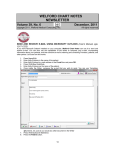
Press OK to merge the two charts. Do not turn off your computer during this process, or you may
end up corrupting the data of the patient's charts.
If Name 1 and Name 2 have different birth dates, the program warns you of this fact before merging
the charts. MAKE ABSOLUTELY SURE THAT THESE ARE IN FACT THE SAME PATIENT before
merging the charts! The same patient should not have two different birth dates, so this would imply
that someone entered the wrong birthdate into the Name Editor for one of the names, or that they
are in fact two different patients, in which case you should not merge their charts.
REMEMBER, MERGING CHARTS CANNOT BE UNDONE! Once you have combined two charts, the
program is not able to separate the data back into two separate charts. If you discover such an error
immediately after running the Chart Merger, restore the most recent backup that you created in step #1.
MEDICATION RECONCILIATION (User’s Manual, pgs. 1113-1115)
You can keep track of each time that you verify exactly which medications your patient is currently taking
using the Medication Reconciliation feature. Medication Reconciliation is important because patients often
are not taking medications the way you intended, are often started on medications by other healthcare
providers, and often take over-the-counter medications on their own. It is important to keep the Medication
Editor current in order to avoid drug interactions and drug-disease contraindications, and to enhance
compliance with your intended treatment regimen. The program keeps a log of each time this activity takes
place so that you can see at any given time which medications the patient was verified as taking. Let's see
how this works:
1. Press Write\Medications.
2. Enter the name of the patient.
3. Adjust the list of medications in the Medication Editor to reflect what the patient is currently taking
using Edit, Add, and Stop.
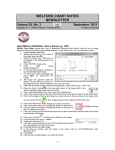
4. Press Utility\Reconciliation\Reconcile Now.
5. Place a check mark next to the name of each Source of information that you used to verify the
current list of medications. Patient is checked by default since this is the most common Source. If
you use any other Source, specify the name of that Source in the Name\Description: column.
6. Place a check mark next to the name of each Method that you used in verifying the current list of
medications. If you choose Other, type in a description of the other Method.
7. You can enter an optional Comment regarding this particular episode of Reconciliation. For
example, you might indicate if there is some uncertainty regarding one or more of the medications
or their dosages.
8. Press OK to store this information.
Now, let's view the Medication Reconciliation Log for this patient:
1. Press Write\Medications.
2. Enter the name of the patient.
3. Press Utility\Reconciliation\Log.
4. The program shows you the last time that this patient's medications were reconciled, including the
list of medications and their dosages, the Sources, Methods, and Comment, as well as who did
the reconciliation and when.
5. Present Back button jump into the immediately previous episode of Medication Reconciliation for
this patient, and the Next button to jump to the immediately subsequent episode of Medication
Reconciliation for this patient.
Note that the Medication Reconciliation Log is different from the Medication Snapshot
(Write\Medications\Utility\Snapshot). The Medication Snapshot shows the contents of the Medication
Editor on any given date. Unlike the Medication Reconciliation Log, the contents of the Medication Editor
may not necessarily reflect what the patient is actually taking at any given time since it has not been
independently verified with the patient as being accurate.
SEND US YOUR TIPS
If you have tips, shortcuts, questions, or suggestions for future newsletter topics, please send them to us at:
Welford Medical Computing, Inc.
or
MEDCOM Information Systems
3779 Hermitage Trail
2117 Stonington Avenue
Rockford, IL 61114
Hoffman Estates, IL 60195
12