1
Basics
Basics - Starting the Program
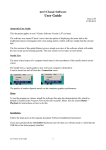
The program will be listed on the Start menu under mindwalker>mw3 Classic. The first time the
program is run, it will enter Demo mode. If you have mindwalker hardware plugged into a USB
port then select Connection>Connect from the menu bar. The program should find the
mindwalker device and will automatically locate it the next time the program is run.
Basics - View menu
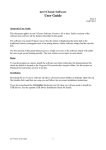
There are 3 main elements to the screen display.
•
•
•
Meter Panel – with either traditional (rectangular) or circular style dial
Recording Panel (Optional)
Graph Panel (Optional)
These main elements of the display are controlled from the View menu.
Meter Panel Dial Type - Three types of dial and needle display are provided.
Traditional AutoSet - a traditional analog dial is presented, and the needle behaves the same way as
modern automatic analog meters - when the needle goes off the dial it is automatically SET. It can
also be manually SET by the keyboard space bar.
Traditional Continuous - when the needle nears the edge of the dial, a second shadow needle enters
from the other side and then becomes the main needle.
Circular - this display provides a theoretically better presentation of the needle since it is
permanently visible with no discontinuity. It may however take some time to become accustomed to
this less familiar format.
There are also options to change the scale graduation and clock display.
Recording - The Recording/Playback panel is made visible or hidden by selecting
View>Recording. It must be visible to play demo file.
Graph - The graph display is made visible or hidden by selecting View>Graph.
Using the View menu enables the user to tailor the screen to display only those elements required.
Remember that the window can be made full screen, which produces a particularly clean and clear
display on small screen laptop computers.
mw Classic User Guide
2