1
Basics - Remembering Settings
There are many options which control the function and display of the the program. Colour settings
in particular dramatically affect the screen appearance. It is therefore important to understand how
these settings are remembered.
By default these settings are stored in the file mw3_Classic.ini located in the mindwalker directory.
Also by default you will be prompted to save any settings changes when exiting the program. This
behaviour can be changed from the Settings>Autosave menu item. Select On to always save
changes, select Off to always exit without saving changes, or leave it as Prompt.
If you wish to store several different 'styles' then use the File>Save Settings As and the File>Load
Settings menu items. The program always opens using the settings file in use when the last session
was closed.
Basics – Playback Demo File
Note – this feature is being modified and these instructions may not be accurate. The instructions
will be updated when modifications have been completed. Contact manufacturer if you have any
questions.
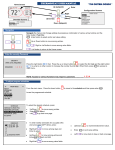
To use the playback function the View>Recording menu option must be checked, so that the
Recording Panel is visible. Also ensure that the Recording>Audio>On menu item is checked.
Playback is accomplished by first loading a file using the OPEN file button. Once loaded, the total
time of the recording will be shown at the left end of the panel. Press PLAY to start playback, and
STOP to terminate it.
It is also possible to select a section of a recording for playback. This is done by dragging the mouse
from left to right along the progress bar while holding down the left button. Right clicking on the
bar will return to full selection.
mw Classic User Guide
4