1
HelpNDoc User Manual
Symptoms
After an Internet Explorer update, when viewing your CHM documentation, Microsoft's HTML Help
Viewer isn't showing anything in the topic's contents.
Solutions
The update process might have caused problems with some files registration. You can try to
register them manually from the Start / Run prompt by entering each of these commands:
·
regsvr32 %systemroot%\system32\hhctrl.ocx <press the enter key>
·
regsvr32 %systemroot%\system32\itss.dll <press the enter key>
Despite modifying the navigation pane's width the CHM file is not updated
Symptoms
You change the navigation tab's width in the HelpNDoc's projects settings but when opening the
CHM file, nothing has changed.
Solutions
The Microsoft HTML help viewer stores the help window's size and position for each individual
help file as soon as it has been launched. Modifying the help settings after that won't have any
effect as the help viewer will only read local configuration for that help file and ignore the file's
settings set up using HelpNDoc.
A solution would be to erase the help viewer's configuration file, but be warned that this file
contains all the configuration made to all the help files viewed on the system. So deleting this file
will delete the configuration options for all the other files too.
This file is usually located there: C:\Users\%username%\AppData\Roaming\Microsoft\HTML
Help\hh.dat where %username% is your Windows user name.
The search feature is not working in the CHM documentation
Symptoms
When trying to search within the CHM documentation, no results are found.
Solutions
·
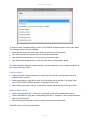
In your HelpNDoc project, click "Project options" in the "Home" ribbon tab and make sure the
project language and charset are correct
·
Make sure you are using a Windows installation setup with the same language as your
HelpNDoc's project language
·
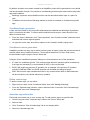
Click the top part of the "Generate Help" button in the "Home" ribbon tab to access the
"Generate documentation" dialog, then select your CHM build in the list on the left, then click
"customize" if the "Template settings" tab is not already visible on the right, then check the
option "Use project charset for topics"
·
Generate the CHM documentation again
87 / 90