1
Visual MODFLOW Premium
Demo Tutorial
Includes New Features of Visual MODFLOW
and a Step-by-Step Tutorial
© Schlumberger Water Services
Table of Contents
1. Introduction to Visual MODFLOW ...............................1
What’s New in Visual MODFLOW .............................................................................1
New Features in Visual MODFLOW 2010.1 ................................................................................... 2
Starting Visual MODFLOW ............................................................................................................ 3
Getting Around In Visual MODFLOW ........................................................................................... 3
Screen Layout ................................................................................................................................... 4
Contacting SWS ............................................................................................................5
2. Visual MODFLOW Premium Tutorial ..........................7
Introduction ....................................................................................................7
How to Use this Tutorial ...............................................................................................7
Terms and Notations ......................................................................................................................... 7
Description of the Example Model ...............................................................................8
3. Module I: Creating and Defining a Flow Model ............9
Section 1: Generating a New Model ..............................................................9
Step 1: Project Settings ...............................................................................................10
Step 2: Flow Settings ..................................................................................................11
Step 3: Transport Settings ...........................................................................................12
Step 4: Model Domain ................................................................................................13
Add Air Photo ................................................................................................................................. 16
Section 2: Refining the Model Grid .............................................................19
Section 3: Adding Pumping Wells ...............................................................27
Section 4: Assigning Flow Properties ..........................................................30
Section 5: Assigning Flow Boundary Conditions ........................................34
Assigning Aquifer Recharge to the Model ..................................................................................... 34
Assigning Constant Head Boundary Conditions ............................................................................ 35
Assigning River Boundary Conditions ........................................................................................... 38
Section 6: Particle Tracking .........................................................................40
4. Module II: The Contaminant Transport Model ..........41
Section 7: Setting Up the Transport Model ..................................................41
Contaminant Transport Properties ..............................................................................41
Viewing Sorption Properties .......................................................................................................... 41
Assigning Dispersion Coefficients ................................................................................................. 42
Section 8: Transport Boundary Conditions ..................................................43
Section 9: Adding Observation Wells ..........................................................43
5. Module III: Running Visual MODFLOW ....................45
Section 10: MODFLOW Run Options .........................................................45
MODFLOW Solver Options .......................................................................................................... 46
Dry Cell Wetting Options ............................................................................................................... 46
Section 11: MT3DMS Run Options .............................................................47
MT3DMS Solver Settings .............................................................................................................. 47
MT3DMS Output Times ................................................................................................................ 48
Section 12: Running the Simulation ............................................................48
6. MODULE IV: Output Visualization .............................49
Section 13: Head Contours ...........................................................................50
Displaying a Color Map of Heads .................................................................................................. 52
Section 14: Velocity Vectors .......................................................................53
Section 15: Pathlines ....................................................................................55
Section 16: Concentration Contours ............................................................57
Section 17: Concentration vs. Time Graphs ................................................62
7. Module V: Visual MODFLOW 3D-Explorer ...............63
Section 18: Starting Visual MODFLOW 3D-Explorer ................................64
Section 19: Changing the Default Settings ..................................................65
Section 20: Using the Navigation Tools ......................................................65
Section 21: Creating a 3D Contaminant Plume ...........................................66
Customizing the Color Legend ....................................................................................................... 68
Selecting Output Times .................................................................................................................. 69
Section 22: Visualizing Model Input Data ...................................................69
Section 23: Defining Surfaces (Cross-Sections and Slices) .........................70
Section 24: Creating a Cut-Away View .......................................................72
Section 25: Creating a Color Map of Head Values ......................................74
Customizing the Color Legend ....................................................................................................... 75
Section 26: Printing to a Graphics File ........................................................76
1
Introduction to Visual MODFLOW
Visual MODFLOW is the most complete and easy-to-use modeling environment for
practical applications in three-dimensional groundwater flow and contaminant transport
simulations. This fully-integrated package combines MODFLOW, MODFLOWSURFACT, MODPATH, ZoneBudget, MT3Dxx/RT3D, MGO, and WinPEST with the
most intuitive and powerful graphical interface available. The logical menu structure and
easy-to-use graphical tools allow you to:
•
•
•
•
•
•
easily dimension the model domain and select units
conveniently assign model properties and boundary conditions
run the model simulations
calibrate the model using manual or automated techniques
optimize the pumping well rates and locations
visualize the results using 2D or 3D graphics
The model input parameters and results can be visualized in 2D (cross-section and plan
view) or 3D at any time during the development of the model, or the displaying of the
results. For complete three-dimensional groundwater flow and contaminant transport
modeling, Visual MODFLOW is the only software package you will need.
When you purchase Visual MODFLOW, or any Schlumberger Water Services (SWS)
software product, you not only get the best software in the industry, you also gain the
reputation of the company behind the product, and professional technical support for the
software from our team of qualified groundwater modeling professionals. SWS has been
developing groundwater software since 1989, and our software is recognized, accepted
and used by more than 10,000 groundwater professionals in over 90 countries around the
world. This type of recognition is invaluable in establishing the credibility of your
modeling software to clients and regulatory agencies. Visual MODFLOW is continuously
being upgraded with new features to fulfill our clients needs.
What’s New in Visual MODFLOW
The main interface for Visual MODFLOW has much of the same user-friendly look and
feel as the previous versions of Visual MODFLOW, but what’s “under the hood” has been
dramatically improved to give you more powerful tools for entering, modifying,
analyzing, and presenting your groundwater modeling data. Some of the more significant
upgrade features in the latest version of Visual MODFLOW are described below.
1
New Features in Visual MODFLOW 2010.1
Support for Lake Package (LAK3)
Simulate Lake-Aquifer interactions in transient or steady-state flow conditions using the
MODFLOW Lake Package (LAK3). The LAK3 package is supported in the following
engines: MODFLOW 2000, MODFLOW 2005, SEAWAT and MODFLOW-SURFACT.
For more information on the LAK3 package, please refer to the following USGS
publication: Documentation of a Computer Program to Simulate Lake-Aquifer Interaction
Using the MODFLOW Ground-Water Flow Model and the MOC3D Solute-Transport
Model.
Support for the Evapotranspiration Segments Package (ETS1)
Simulate evapotranspiration by defining a multi-segment function that relates
evapotranspiration rate to hydraulic head. This capability provides a degree of flexibility
not supported by the original EVT Package, which by contrast, simulates
evapotranspiration with a single linear function.
Import MODFLOW Packages into Existing Projects
MODFLOW packages can now be directly imported into any existing Visual MODFLOW
project.
Supported packages include: HFB1, HFB6, DRN, CHD, RIV, GHB, LAK, WEL and Zone
Budget
More Options for Importing and Exporting Data
Visual MODFLOW now provides more flexibility for importing and exporting data to/
from your Visual MODFLOW project. The following options are now available:
• Import and export grid and property zones in layer, row and column format (IJK)
• Import and export boundary conditions in layer, row and column format for the
following packages: Constant Head (CHD), Drain (DRN), River (RIV), General
Head (GHB), Wall (HFB) and Lake (LAK).
Support for Windows 7
Visual MODFLOW is now supported on Windows 7 operating systems, including
Professional, Enterprise and Ultimate editions.
About the Interface
The Visual MODFLOW interface has been specifically designed to increase modeling
productivity, and decrease the complexities typically associated with building threedimensional groundwater flow and contaminant transport models. In order to simplify the
graphical interface, Visual MODFLOW is divided into three separate modules:
• The Input section
• The Run section
• The Output section.
Each of these modules is accessed from the Main Menu when a Visual MODFLOW
project is started, or an existing project is opened. The Main Menu serves as a link to
About the Interface
2
seamlessly switch between each of these modules, to define or modify the model input
parameters, run the simulations, calibrate and optimize the model, and display results.
The Input section allows the user to graphically assign all of the necessary input
parameters for building a three-dimensional groundwater flow and contaminant transport
model. The input menus represent the basic "model building blocks" for assembling a data
set using MODFLOW, MODFLOW-SURFACT, MODPATH, ZoneBudget, and MT3D/
RT3D. These menus are displayed in a logical order to guide the modeler through the steps
necessary to design a groundwater flow and contaminant transport model.
The Run section allows the user to modify the various MODFLOW, MODFLOWSURFACT, MODPATH, MT3D/RT3D, MGO, and WinPEST parameters and options
which are run-specific. These include selecting initial head estimates, setting solver
parameters, activating the re-wetting package, specifying the output controls, etc. Each of
these menu selections has default settings, which are capable of running most simulations.
The Output section allows the user to display all of the modeling and calibration results
for MODFLOW, MODFLOW-SURFACT, MODPATH, ZoneBudget, and MT3D/RT3D.
The output menus allow you to select, customize, overlay the various display options, and
export images for presenting the modeling results.
Starting Visual MODFLOW
Once Visual MODFLOW has been installed on your computer, simply double-click on the
Visual MODFLOW shortcut icon, or click on Start/Programs/SWS Software/Visual
MODFLOW /Visual MODFLOW.
Getting Around In Visual MODFLOW
The Main Menu screen contains the following options:
File
Select a file utility, or exit Visual MODFLOW.
Input
Design, modify, and visualize the model grid and input parameters.
Run
Enter or modify the model run settings and run the numerical simulations, in
either project mode or batch mode.
Output
Visualize the model output (simulation results) using contour maps, color
maps, velocity vectors, pathlines, time-series graphs, scatter plots, etc.
Setup
Select the “numeric engine” for both the flow and transport simulation(s).
Help
Get general information on how to use Visual MODFLOW.
A Microsoft compatible mouse performs as follows:
Left button:
This is the regular ‘click’ button. By holding it down on top of an input
box and dragging the mouse, it will also highlight the characters that will
be overwritten by the next typed character.
3
Right button: This button has different functions depending on the context. For
example, it closes polygons or ends a line during the assignment of
properties, boundaries, etc. During grid design, it also locates grid rows or
columns on precise co-ordinates. Using the right button brings up a submenu to copy, paste, delete, etc.
The <Alt> shortcut keys can be used to access toolbar items and to select many buttons
and can be used anytime an item or button text has an underlined letter. Simply press the
<Alt> key and the letter key at the same time to access the item or select the button. The
number and letter keys are active only when numerical or text input is required; all other
keys are ignored by Visual MODFLOW.
Screen Layout
After opening a Visual MODFLOW project and selecting the Input module, a screen
layout similar to the figure below will appear.
Project Name
Transport Variant
Top Menu Bar
Side Menu Bar
Navigation Cube
Co-ordinates area
Status Bar
Function Buttons
About the Interface
Top Menu Bar:
Contains specific data category menus for each
section of the interface (Input, Run and
Output).
Side Menu Bar:
Contains the View Control buttons plus tool
buttons specific for each data category. The
view options are as follows:
[View Column]
View a cross-section along a column.
[View Row]
View a cross-section along a row.
[View Layer]
Switch from cross-section to plan view.
[Goto]
View a specified column, row, or layer.
[Previous]
View previous column, row, or layer.
[Next]
View next column, row, or layer.
4
Navigator Cube:
Provides a simplified 3D representation of the model domain
highlighting the current layer, column, and row being viewed.
Co-ordinates Area:
Shows the current location of the mouse pointer in model coordinates (X, Y, Z) and cell indices (I, J, K).
Status Bar:
Describes the functionality and use of the feature currently
highlighted by the cursor.
Function Buttons:
[F1-Help]
Opens the general help window
[F2-3D]
Opens the Visual MODFLOW 3D-Explorer
[F3-Save]
Saves the current data for the model.
[F4-Map] Import and display .DXF, .SHP, or .graphics image files (.BMP,
.JPG, .TIF, .GIF, .PNG)
[F5–Zoom in] Enlarge the display of a selected rectangular area
[F6–Zoom out] Resets the display area to show the entire model domain
Drag the current view of the model in any direction to display a
different model region
[F7-Pan]
[F8–Vert exag] Set the vertical exaggeration value for viewing cross sections
along a row or column
[F9-Overlay] Opens the Overlay Control window to make selected
overlays visible and to customize the priority (order) in which they appear
[F10–Main Menu] Returns to the Main Menu screen.
Contacting SWS
The purpose of this tutorial is to demonstrate the ease of building, calibrating, and running
a three-dimensional groundwater flow and contaminant transport model. Unfortunately,
this tutorial can only cover a few of the many analytical capabilities and graphical features
that make Visual MODFLOW the leading software package for groundwater flow and
contaminant transport modeling.
If this tutorial has not covered some aspects of the software that you are interested in, we
encourage you to continue to consult the on-line help files and the carefully read the
Visual MODFLOW User’s Manual. If you would like to speak with a technical
representative about how Visual MODFLOW could be applied to solve your particular
needs, please contact at:
5
Schlumberger Water Services
460 Phillip Street, Suite 101
Waterloo, Ontario, N2L 5J2
Tel: (519) 746-1798
Fax: (519) 885-5262
E-mail: [email protected]
Web: www.swstechnology.com
About the Interface
6
2
Visual MODFLOW Premium Tutorial
Introduction
This chapter contains a step-by-step tutorial to guide you through the process of using SWS’
Visual MODFLOW. This tutorial will guide you through the steps required to:
• Design the model grid and assign properties and boundary conditions,
• Configure Visual MODFLOW to run the groundwater flow, particle tracking, and
mass transport simulations, and
• Visualize the results using two- and three-dimensional graphics
For your convenience, Visual MODFLOW installs a complete set of input data files and
simulation results for the example model that you will build. The instructions for the tutorial
are provided in a step-wise format that allows you to choose the features that you are
interested in examining without having to complete the entire exercise.
How to Use this Tutorial
This tutorial is divided into five modules, and each module contains a number of sections.
The tutorial is designed so that the user can begin at any of the modules in order to examine
specific aspects of the Visual MODFLOW environment. Each section is written in an easy-touse step-wise format. The modules are arranged as follows.
Module I - Creating and Defining a Flow Model
Module II - The Contaminant Transport Model
Module III - Running Visual MODFLOW
Module IV - Output Visualization
Module V - Visual MODFLOW 3D Explorer
Terms and Notations
For the purposes of this tutorial, the following terms and notations will be used:
Type:- type in the given word or value
Select:- click the left mouse button where indicated
- press the <Tab> key
↵ - press the <Enter> key
- Click the left mouse button where indicated
- double-click the left mouse button where indicated
Visual MODFLOW: Introduction and Tutorial
7
[...] - denotes a button to click on, either in a window, or in the side or bottom menu
bars.
The bold faced type indicates menu or window items to click on or values to type in.
Some of the more significant upgrade features included in the latest versions of
Visual MODFLOW are described in italic form.
Description of the Example Model
The site is located near an airport just outside of Waterloo. The surficial geology at the site
consists of an upper sand and gravel aquifer, a lower sand and gravel aquifer, and a clay and
silt aquitard separating the upper and lower aquifers. The relevant site features consist of a
plane refuelling area, a municipal water supply well field, and a discontinuous aquitard zone.
These features are illustrated in the following figure:
The municipal well field consists of two wells. The east well pumps at a constant rate of 550
m3/day, while the west well pumps at a constant rate of 400 m3/day. Over the past ten years,
airplane fuel has periodically been spilled in the refuelling area and natural infiltration has
produced a plume of contamination in the upper aquifer. This tutorial will guide you through
the steps necessary to build a groundwater flow and contaminant transport model for this site.
This model will demonstrate the potential impact of the fuel contamination on the municipal
water supply wells.
When discussing the site, in plan view, the top of the site will be designated as north, the
bottom of the site as south, and the left side and right side as west and east, respectively.
Groundwater flow is from north to south (top to bottom) in a three-layer system consisting of
an upper unconfined aquifer, an intervening middle aquitard, and a lower confined aquifer, as
illustrated in the following figure. The upper aquifer and lower aquifers have a hydraulic
conductivity of 2e-4 m/sec, and the aquitard has a hydraulic conductivity of 1e-10 m/sec.
Introduction
8
Module I: Creating and Defining a Flow Model
The project creation wizard was re-designed for version 4.1. Most of the default options and
parameter values for flow, transport, grid, and project are now set during the initial set-up to
avoid having to enter them later in various parts of the program.
Section 1: Generating a New Model
The first module will take you through the steps necessary to generate a new model data set
using the Visual MODFLOW modeling environment.
On your Windows desktop, you will see an icon for Visual MODFLOW:
to start the Visual MODFLOW program
To create your new model:
File from the top menu bar
New
A Create new model window will appear.
For your convenience, we have already created a model following this step-by-step tutorial.
The model is located in the default directory C:\My Documents\Visual MODFLOW\Tutorial.
It is recommended that you create a new folder, and save the new model in this folder.
To create a new folder:
Type in a new folder name.
on the new folder
Type: Airport in the File name field
[Save]
Visual MODFLOW: Introduction and Tutorial
9
NOTE: If you choose the default directory (C:\My Docuements\Visual
MODFLOW\Tutorial) and type in the same Airport file name, a warning message may appear
if the Airport.vmf file has already been created.
[No] to save your new model in a different folder, or
[Yes] to overwrite the existing model.
Visual MODFLOW automatically adds a .VMF extension onto the end of the filename.
Next, the Model Setup is described in four consecutive steps.
Step 1: Project Settings
In Step 1, the following window is used to select:
• the desired Project Information
• Units associated with various flow and transport parameters, and
• the desired Engines for the Flow and Transport simulation
For the Flow model, the following Numeric Engines are available:
•
•
•
•
•
USGS MODFLOW-96 from WHI (saturated, constant density)
USGS MODFLOW-2000 from WHI (saturated, constant density)
USGS MODFLOW-2005
USGS SEAWAT 2000 (saturated, variable density)
MODFLOW-SURFACT from HGL (variably saturated)
In this example, MODFLOW-2005 is selected.
Visual MODFLOW supports all of the latest versions of the public domain and proprietary
programs for contaminant transport modeling, including:
•
•
•
•
MT3DMS
MT3Dv150
MT3D99
RT3Dv1.0
Section 1: Generating a New Model
10
• RT3Dv2.5
• PHT3Dv.1.46
• PHT3Dv.2.0
Note: The MT3DMS, MT3D99 and RT3D, PHT3D transport engines allow for multi-species
contaminant transport. MT3D150 allows only a single species to be modeled.
For MT3DMS transport variants that involve multiple species, Visual MODFLOW gives you
the ability to leverage the power of multiple processors on your machine (or dual core
processor). One or more species can be allocated to the available processes on your
computer, and solved independently, effectively improving the solving performance of Visual
MODFLOW.
[Yes] radio button, to enable the Transport Simulation options
In this example, MT3DMS is selected by default, and will be used for the simulation.
Under the Units section, select the following information for each model input data type.
Length:
Time:
Conductivity:
Pumping Rate:
Recharge:
Mass:
Concentration:
meters
day
m/sec
m^3/day
mm/year
kilogram
milligrams/liter
[Next] to accept these values
Step 2: Flow Settings
In Step 2, the following window will appear displaying the default parameter values for the
Flow simulation.
type: 7300 for the Steady State Simulation time
Visual MODFLOW: Introduction and Tutorial
11
The Start Date and Start Time of the model are corresponding to the beginning of the
simulation time period. Currently, this date is relevant only for transient flow simulations
where recorded field data may be imported for defining time schedules for selected boundary
conditions (Constant Head, River, General Head and Drain).
[Next] to accept these values
Step 3: Transport Settings
In Step 3, the following window will appear displaying the default parameter values for the
Transport simulation.
In order to support all of the available options for the multi-species reactive transport
programs, Visual MODFLOW requires you to setup the initial conditions for the contaminant
transport scenario (e.g. number of chemical species, names of each chemical species, initial
concentrations, decay rates, partitioning coefficients, etc.). Each scenario is referred to as a
Transport Variant, and you can have more than one variant for a given flow model.
By default Visual MODFLOW creates a variant named VAR001.
We will now edit this variant to setup the model for transport processes.
The default transport variant will use MT3DMS as the numeric engine, with no sorption or
reaction terms.
For this tutorial you will add a linear sorption process to the transport variant.
in the Sorption combo box
Select Linear Isotherm [equilibrium-controlled]
For this tutorial you will not be simulating any decay or degradation of the contaminant, so
the default Reactions settings of No kinetic reactions will be fine.
Below the Sorption and Reaction settings are three tabs labelled:
• Species
Section 1: Generating a New Model
12
• Model Params
• Species Params
In the Species tab you will see a spreadsheet view with labelled column headings. The last
two columns are labelled with MT3D variable names.
The chemical species being simulated in this model is JP-4. Visual MODFLOW allows you
to use the real names of the simulated chemicals in order to easily identify them in contour
maps and graphs.
Type the following information for the chemical species:
Type: JP-4 in the Designation column
Type: Spilled Jet Fuel in the Component Description column
in the Mobile column and select Yes
Type: 0 in the SCONC [mg/L] column
Type: 1e-7 in SP1 [1/(mg/L)] column
The species information is now set up properly, and should appear similar to the figure shown
below.
This completes the setup for the Transport Engine. You are now ready to exit the Transport
Engine Options window.
[Next] to continue.
Step 4: Model Domain
Step 4 is Creating the Model Grid (see figure below).
Visual MODFLOW: Introduction and Tutorial
13
In this step you can Import a site map, specify the dimensions of the Model Domain, and
define the number of rows, columns, and layers for the finite difference grid.
Enter the following number of rows, columns, and layers to be used in the model. Type the
following into the Model Domain section,
Columns (j):
Rows (i):
Layers (k):
Zmin:
Zmax:
30
30
3
0
18
Import a site map
Next, you must specify the location and the file name of the .DXF background map.
[Browse]
Navigate to the My Documents\Visual MODFLOW\Tutorial\Airport directory and select the
following file:
Sitemap.dxf
[Open]
[Finish] to accept these settings
A Select Model Region window will appear prompting you to define the extents of the
model area. Visual MODFLOW will read the minimum and maximum co-ordinates from the
site map (Sitemap.dxf) and suggest a default location that is centred in the model domain.
Section 1: Generating a New Model
14
Type the following values over the numbers shown on the screen:
Display area:
Model Origin:
Model Corners:
X1:
0
Y1:
X2:
Y2:
0
2000
2000
X:
0
Y:
Angle:
0
0
X1:
0
Y1:
X2:
Y2:
0
2000
2000 ↵
[OK] to accept the model dimensions.
A File attributes window will appear to indicate that the “Sitemap.dxf” is being saved inside
the Visual MODFLOW project with the name “Airport.Sitemap.MAP”.
[OK]
The Input menu will open, and a uniformly spaced 30 x 30 x 3 finite-difference grid will
automatically be generated within the model domain. The Grid and site map will appear on
the screen, as shown in the following figure:
Visual MODFLOW: Introduction and Tutorial
15
By default the Grid screen is loaded when you first enter the Input module.
Add Air Photo
At this time, you may add an additional map for improved visualization; you will add an
airphoto of the site, in bitmap format.
F4 (Map) button from the bottom toolbar.
A dialog will appear where you can specify the file to import. Browse to My
Documents\Visual MODFLOW\Tutorial\Airport.
At the bottom of the dialog, under Files of Type,
Graphics File from the list.
Airport.Airphoto.bmp file from the list.
[Open]
Section 1: Generating a New Model
16
A “Select Model Region” dialog will then appear, as shown below.
In order to map the pixels of the image to a coordinate system, the image must have two
georeference points with known coordinates. These georeference points can be defined using
the procedure described below. For this image, the two points have been marked with a red X,
and are located at opposite ends of the airport’s main runway (and are circled in the image
above).
To help compensate for image stretching and skewing, Visual MODFLOW allows you to
georeference images using three georeference points.
To set the georeference points,
• Click on the red X located on the left side of the map. A Georeference point
dialog will appear prompting for the X1 and Y1 world coordinates of the selected
location:
• Enter the X1 and Y1 coordinates for this point.
for X1, type: 502
for Y1, type: 1212
• Click [OK]
Visual MODFLOW: Introduction and Tutorial
17
• Click on the red X located on the right side of the map. A Georeference point
dialog will appear prompting for the X2 and Y2 world coordinates of the selected
location:
for X2, type: 1619
for Y2, type: 1863
• Click [OK]
A box will appear around the map region.
• Click [OK] to continue
A confirmation message will appear, displaying the filename of the georeferenced image.
• Click [OK] to continue
If the map image was correctly georeferenced, the river and runway locations should match
up closely with those digitized in the AutoCAD Sitemap.dxf file. The display should now be
similar to the one shown below.
The site map properties can be defined in the overlay control.
F9 (Overlay Control) button from the bottom toolbar.
Section 1: Generating a New Model
18
For the remainder of this tutorial, the screenshots will not display the airphoto; you may keep
this visible if you wish.
Map-Airport.Airphoto [Bitmap] checkbox, to turn off this map.
[OK]
This concludes Section 1: Generating a new Model. In the next section, you will refine the
model grid.
Section 2: Refining the Model Grid
The Grid screen provides a complete assortment of graphical tools for refining the model
grid, delineating inactive grid zones, importing layer surface elevations, assigning elevations,
optimizing (smoothing) the grid spacing, and contouring the layer surface elevations.
This section describes the steps necessary to refine the model grid in areas of interest, such as
around the water supply wells, refueling area, and area of discontinuous aquitard. The reason
for refining the grid is to get more detailed simulation results in areas of interest, or in zones
where you anticipate steep hydraulic gradients. For example, if drawdown is occurring
around the well, the water table will have a smoother surface if you use a finer grid spacing.
Also, layer properties can be assigned more correctly on a finer grid.
To refine the grid in the X-direction,
[Edit Grid >] Edit Columns
A Columns window will appear showing the options you have for editing the grid columns.
By default the Add option is selected, and new grid lines can be added by clicking the mouse
on the desired location of a new grid line.
Move the mouse anywhere in the grid. Notice that a highlighted vertical line follows the
location of the mouse throughout the model grid. This line may be used to add a column at
Visual MODFLOW: Introduction and Tutorial
19
any location within the model domain. In this exercise, you will refine the model grid in the
refueling area, near the water supply wells, and around the discontinuous aquitard border.
Refine by
Leave the default value of 2 as the refining criterion.
Click anywhere on the blue background to activate the model domain.
Move the mouse cursor over the model and click at following Xcoordinates (do not worry if you cannot hit the exact values, simply
click on the column closest to this number):
Hint: Use navigation cube for assistance.
Region 1:
• X = 670
• X = 940
Region 2:
• X = 1070
• X = 1140
Region 3:
• X = 1340
• X = 1600
As you click on any pair of columns, each interval between them is divided into two by an
extra column.
[Close] to exit the Columns window
Next, you will refine the grid in the Y-direction around the refuelling area, the area of
discontinuous aquitard, and the supply wells.
[Edit Grid >] Edit Rows
Refine by
Leave the default value of 2 as the refining criterion.
Click anywhere on the blue background to activate the model domain. Move the mouse
cursor over the model and click at following Y-coordinates (do not worry if you cannot hit the
exact values, simply click on the column closest to this number):
Region 1:
• Y = 400
• Y = 730
Region 2:
• Y = 860
• Y = 930
Region 3:
• Y = 1060
• Y = 1130
Region 4:
• Y = 1660
• Y = 1860
Section 2: Refining the Model Grid
20
[Close] to exit the Rows window
The refined grid should appear as shown in the following figure:
The following steps will show you how to view the model in cross-section:
[View Column] from the left toolbar
Move the mouse cursor anywhere in the grid. As you move the cursor across the screen, a red
bar highlights the column corresponding to the cursor location. To select a column to view,
Left mouse button on the desired column
Visual MODFLOW transfers the screen display from plan view to a cross-sectional view of
the model grid. At this point the model has no vertical exaggeration and the cross-section will
appear as a thick line with the three layers barely discernible. To properly display the three
layers, you will need to vertically exaggerate the cross-section.
[F8 - Vert Exag] from the bottom of the screen. A Vertical Exaggeration window
appears prompting you for a vertical exaggeration value.
Type: 40
[OK]
The three layers of the model will then be displayed, as shown below:
Visual MODFLOW: Introduction and Tutorial
21
From the figure you can see that each layer has a uniform thickness across the entire crosssection. However, nature rarely provides us with geology that conforms to flat horizontal
layering with uniform layer thickness.
Visual MODFLOW provides a dramatically improved set of tools for importing, creating,
and modifying layer surface elevations for the finite difference model grid. From importing
USGS DEM files, to specifying a constant slope using Strike and Dip information, no other
graphical interface offers a more complete set of features for designing the model grid layer
surfaces. Visual MODFLOW supports importing of variable layer elevations from a variety
of data files including
•
•
•
•
•
•
•
•
Points data (XYZ) ASCII files (.TXT, .ASC, .DAT),
MS Access Database files (.MDB),
MS Excel files (.XLS),
ESRI Point files (.SHP),
USGS DEM files (.DEM),
Surfer grid files (.GRD),
ESRI grid files (.GRD), and
Mapinfo grid files (.GRD).
In this example, we will import text files containing elevation data for selected X and Y
coordinates within the model domain.
[Import Elevation] from the left-hand toolbar
The following Create grid elevation wizard will appear:
Section 2: Refining the Model Grid
22
This wizard allows you to import and interpolate a data set to the model grid for each of the
selected model layers. By default, in the Layer surface field, the Ground Surface is the
selected layer. Previews of the 2-D and 3-D interpolated/modified layer surface elevations,
and a cell-by-cell spreadsheet data Array, are displayed in tabs on the right side of the
window.
in the Options field and select Import data from the pull-down menu.
Upon selecting this option, the Interpolation
settings frame will appear underneath the Options
field. It is used to select a data file, and an
interpolation method (Natural Neighbors, Kriging,
or Inverse Distance). By default, in the Interpolator
field, Natural Neighbors is selected. However, for
this example, use the
button to select Inverse
Distance.
associated with the Data source field, and the following Open window will
appear:
To select the ground surface topography data file, browse to My Documents\Visual
MODFLOW\Tutorial\Airport and,
Airpt_gs.asc (accept the default file format)
[Open]
Visual MODFLOW: Introduction and Tutorial
23
The following Match fields window will appear.
The Required Data frame lists the columns from the data file, and the Match to column
number frame is used to match the corresponding data to each data field, as required by the
wizard. As shown in the above window, Type the appropriate number in each field to match
Column #1 to X-coordinate, Column #2 to Y-coordinate, and Column #3 to Elevation.
Once all columns are matched, the [Next] button is activated.
[Next] to proceed to the Data Validation window (shown below).
Since no invalid entries (offending cells would be highlighted with a red color) are detected, it
ensures that the data set contains valid data, and that data points are located within the model
domain, as depicted in the Coordinate System and Units window shown below.
[Finish] to proceed to the Coordinate System and Units window, and then
Select Model in the Coordinate System frame, and Meters in the Elevation Units
frame (as shown below).
Click [Preview] button
Section 2: Refining the Model Grid
24
[OK] and the following window will appear.
[OK]
Before proceeding further and assigning the interpolated layer elevations to the selected
model grid layer, a Warning message appears to confirm that the model elevations are going
to be changed.
[Yes]
Visual MODFLOW: Introduction and Tutorial
25
If the proposed changes to your model surface elevations would conflict with the head values
of previously assigned boundary conditions, a warning message would appear, providing you
with the opportunity to address the issue. In this case, no potential problems are detected.
Next you will import the surface elevations for the bottom of Layer 1.
[Import Elevation]
associated with the Layer surface field and select Bottom of Layer 1 from the
pull-down menu.
associated with the Options field and select Import data from the pull-down
menu.
to select the Inverse Distance interpolation method
associated with the Data source field and select the Airpt_b1.asc from the My
Documents\Visual MODFLOW\Tutorial\Airport folder (to select the elevation
data for the bottom of Layer 1) in the Open window.
[Open]
Match Column #1 to the X-coordinate, Column #2 to the Y-coordinate, and Column #3 to
the Elevation.
[Next] to view the Data Validation window.
[Finish] to proceed to the Coordinate System and Units window.
Select Model in the Coordinate System frame, and Meters in the Elevation Units
frame.
[OK] to import the elevation data.
[Apply] in the Create grid elevation window.
Next you will import the surface elevations for the bottom of Layer 2 and Layer 3.
associated with the Layer surface field and select Bottom of Layer 2 from the
pull-down menu.
associated with the Options field and select Import data from the pull-down
menu.
to select the Inverse Distance interpolation method
associated with the Data source field and select the Airpt_b2.asc from the My
Documents\Visual MODFLOW\Tutorial\Airport folder (to select the elevation
data for the bottom of Layer 2) in the Open window
[Open]
Match Column #1 to the X-coordinate, Column #2 to the Y-coordinate, and Column #3 to
the Elevation.
[Next] to view the Data Validation window.
[Finish] to proceed to the Coordinate System and Units window, and then select
Model in the Coordinate System frame, and Meters in the Elevation Units frame.
[OK] to import the elevation data.
[Apply] in the Create grid elevation window.
[Yes] to confirm the changes in the model elevations.
Section 2: Refining the Model Grid
26
The bottom of layer 2 will then appear with a variable layer surface.
Next you will import the surface elevations for the bottom of Layer 3. Follow the previously
described process, noting that for the Bottom of Layer 3, you will select Airpt_b3.asc from
the pull-down menu. The bottom of Layer 3 will then appear with a variable layer surface.
The model cross-section should appear similar to the following figure (when viewing column
19).
Next you will return to the layer view of the model domain,
[View Layer] from the left toolbar
Then highlight the top layer of the model and click left mouse button. This will create a plan
view of the Airport site.
Section 3: Adding Pumping Wells
The purpose of this section is to guide you through the steps necessary to assign pumping
wells to the model.
[Wells] from the top menu bar
[Pumping Wells] from the drop-down menu
You will be asked to save your data:
[Yes] to continue
Once your model has been saved, you will be transferred to the Pump Wells input screen.
Notice that the left-hand toolbar buttons now contain well-specific options for importing,
adding, deleting, editing, moving, and copying pumping wells.
Before you begin adding the pumping wells for this model, zoom in on the area surrounding
the water “Supply Wells” text (in the lower right-hand section of the model domain).
[F5 - Zoom In]
Visual MODFLOW: Introduction and Tutorial
27
Move the cursor to the upper right of the “Supply Wells” text and click on the left mouse
button. Then stretch a zoom window around the supply wells location markers, and click
again to view the selected area.
To add a pumping well to your model,
[Add Well]
Move the pointer to the western pumping well location marker and click the left mouse button
to add a pumping well at this location.
The Visual MODFLOW well manager has been dramatically improved to allow for easier
definition and modification of properties for pumping wells and observation wells. The new
interface allows you to view all pumping wells / observation wells in a single table, screen
wells between selected model layers and easily find wells using the Find utility. For more
information, please refer to the Visual MODFLOW User’s Manual.
A New Well dialog will appear (shown below) prompting you for a well name.
Type the following information:
Well Name: Supply Well 1
Overwrite the existing coordinate information by typing the following:
X:
1415
Y:
535
[OK]
The following window will display, prompting you to enter Screen Interval and Pumping
Schedule data for the new well:
Section 3: Adding Pumping Wells
28
Screen Interval Table
Pumping Schedule Table
To add a Screened Interval,
In the Screen Interval Table, click in the column labelled Bottom and Type the following
values:
Screen Top (m):
5.0
Screen Bottom (m):
0.3
Notice the well screen interval appears in the well bore diagram on the right-hand side of the
window. The well screen interval can be modified by clicking-and-dragging the edge of the
well screen to a new top or bottom elevation.
To enter the well Pumping Schedule, click the left mouse button once inside the text box
under the column labelled End (day) and Type the following information.
End (day):
Rate (m^3/day):
7300
- 400
[OK] to accept this well information.
An end time of 7300 days was used because this simulation will be run for twenty years.
However, since this will be a steady-state flow simulation, you can use any time value you
like and the results for the flow simulation will not change. A Steady State run means that the
model is run using the first input value for each parameter until equilibrium is achieved,
irrespective of relative time. The rate is entered as a negative number because this well is an
extraction well.
If you have failed to enter any required data, Visual MODFLOW will prompt you to complete
the table at this time.
The next step is to assign the well parameters for the second pumping well by using a
shortcut. This will allow you to copy the characteristics from one well to another location.
[Copy Well] from the left toolbar
Move the pointer on top of the western well (Supply Well 1) and click on it. Then move the
cursor to the location of the eastern well and click again to copy the well.
Next you will edit the well information from the new (copied) well.
[Edit Well] from the left toolbar and select the new pumping well, currently named
“Supply Well 1 (2)”
An Edit Well window will appear. In this window:
Visual MODFLOW: Introduction and Tutorial
29
Type: Supply Well 2 in the Well Name field
Type: X=1463, Y= 509, and
Type: -550 in the Rate (m^3/day) field
[OK] to accept these changes
[F6 - Zoom Out]
The USGS drawdown-limited Multi-Node Well (MNW) package has been integrated with
Visual MODFLOW to allow for simulation of intraborehole flow in wells with screens that
span multiple aquifer layers. Through the newly improved Wells Manager window, you can
choose which well package to use (WEL or MNW), specify the well loss type (Skin, Linear or
Nonlinear) and its respective values to simulate well losses, specify drawdown-pumping
constraints and select the cell-to-well conductance distribution method. For more
information on this new feature, please refer to the Visual MODFLOW Users’ Manual.
Section 4: Assigning Flow Properties
This section will guide you through the steps necessary to design a model with layers of
highly contrasting hydraulic conductivities.
Properties/Conductivity on the top menu bar
[Yes] to save your data
You will now be transferred to the Conductivity input screen where you will modify the
default hydraulic conductivity values (Kx, Ky, and Kz) for each cell in the model.
Click on the [Database] button and Type the following values in the window:
Kx (m/s):
Ky (m/s):
Kz (m/s):
2e-4
2e-4
2e-4
[OK] to accept these values
Note that in this case the Kx, Ky, and
Kz values are the same, indicating the
assigned property values are assumed
horizontally and vertically isotropic.
However, anisotropic property values
can be assigned to a model by modifying the Conductivity Database.
In this three layer model, layer 1 represents the upper aquifer, and layer 3 represents the lower
aquifer. Layer 2 represents the aquitard separating the upper and lower aquifers. For this
example, we will use the previously assigned hydraulic conductivity values (Zone# 1) for
model layers 1 and 3 (representing the aquifers) and assign different Conductivity values (i.e.
a new Zone) for model layer 2 (representing the aquitard). Note that layer 1 is the top model
layer.
[Goto] from the left toolbar
The Go To Layer window will appear.
Type: 2
[OK]
Section 4: Assigning Flow Properties
30
You are now viewing the second model layer, representing the aquitard. The next step in this
tutorial is to assign a lower hydraulic conductivity value to the aquitard (layer 2). We can
graphically assign the property values to the model grid cells.
The [Assign >] Window button in the left-hand toolbar allows you to assign a different
hydraulic conductivity inside a rectangular window.
[Assign]
[Window]
Move the mouse to the north-west corner of the grid and click on the centre of the cell. Then
move the mouse to the south-east corner and click on the centre of the cell. This creates a
(white) window covering the entire layer.
A Conductivity - [Assign Window] dialog will appear.
[New]
The entire grid will turn blue and the Zone # will increment to a value of 2.
To enter aquitard conductivity values (for the new Zone# 2), click in the Kx Value field and
Type the following values:
Kx(m/s):
Ky(m/s):
Kz(m/s):
[OK]
1e-10
1e-10
1e-11
to accept these values
Now view the model in cross-section to see the three hydrogeological units.
[View Column] and click on a Column through the Zone of Discontinuous
Aquitard.
Visual MODFLOW: Introduction and Tutorial
31
The upper aquifer, aquitard, and lower aquifer units should be plainly visible by the different
colors of the Conductivity property zones, as shown in the previous figure (viewing column
19).
Although the region where the aquitard pinches out is very thin, the conductivity values of
these grid cells should be set equal to the Conductivity values of either the upper or lower
aquifers.
To do this, you must return to the planar view of the model.
[View Layer] and click on Layer 2
In this particular example, the zone of discontinuous aquitard is indicated on the DXF
sitemap.
Next, Zoom in on the area where the green circle delineates the discontinuity in the aquitard.
[F5 - Zoom In]
Move the mouse to the upper left of the discontinuous aquitard zone and click the left mouse
button. Then stretch a box over the area and click again. A zoomed image of the
discontinuous aquitard zone should appear on the screen.
[Assign >]
[Single] to assign a property to an individual cell
A Conductivity - [Assign Single] window will appear displaying the last K property that
was entered (Zone # 2). Click on the up-arrow key
beside the Zone # field so that Zone #
1 is the active K property.
DO NOT SELECT [OK] AT THIS TIME.
Move the mouse into the discontinuous aquitard area defined by the green circle. Press the
mouse button down and drag it inside the area until the cells within the zone area are shaded
white (as shown in the following figure).
If you accidentally re-assign some grid cells that shouldn’t be included, Right-Click on these
cells to change them back to the original setting.
Section 4: Assigning Flow Properties
32
Once you are finished painting the cells, click the [OK] button in the Conductivity - [Assign
Single] window.
[F6 - Zoom Out] to return to the full-screen display of the entire model domain.
To see the model in cross-section,
[View Column]
Click on a column passing through the zone of discontinuous aquitard (e.g. col. 19)
A cross-section will be displayed as shown in the following figure.
Return to the plan view by selecting the [View Layer] button, and then clicking on Layer 1 in
the model cross-section view.
Next you will modify the storage values.
Properties/Storage on the top menu bar
You will be transferred to the Storage input screen where you will modify only the default
Specific Storage value, but NOT the Specific Yield, Effective Porosity, or Total Porosity
values.
Database from the left-hand toolbar
Type: 1E-4 for Ss(1/m) (as shown in the figure below):
[OK] to accept these values
This concludes the section of the tutorial explaining how to assign constant value property
zones. For this example you have modified the Conductivity and Storage values for the
model. Visual MODFLOW also provides the same types of graphical tools for editing the
Visual MODFLOW: Introduction and Tutorial
33
Initial Heads estimates for the flow model, and the model properties associated with flow and
transport processes.
Section 5: Assigning Flow Boundary Conditions
The following section of the tutorial describes the steps required to assign various model
boundary conditions.
Visual MODFLOW now supports defining flow boundary conditions by importing standard
MODFLOW packages. The following packages can currently be imported into an existing
Visual MODFLOW project: HFB1, HFB6, DRN, CHD, RIV, GHB, LAK, and WEL.
Visual MODFLOW now supports the LAK package designed to simulate lake-aquifer
interactions and the ETS1 package which simulates evapotranspiration using a user-defined
multi-segmented function relating evapotranspiration rate to hydraulic head.
Assigning Aquifer Recharge to the Model
In most situations, aquifers are recharged by infiltrating surface water. In order to assign
recharge in Visual MODFLOW, you must be viewing the top layer of the model. Check the
Navigator Cube in the lower left-hand side of the screen to see which layer you are currently
in. The first boundary condition to assign is the recharge flux to the aquifer.
Boundaries/Recharge from the top menu bar
If you are working on a new model, a Recharge - [Assign Default Boundary] window will
prompt you to enter the Stop Time. Note that when the model was created, a zero recharge
rate was assigned to the model as default value. Visual MODFLOW automatically assigns
this recharge value to the entire top layer of the model. Enter the following information in the
Recharge window:
Stop Time [day]:
7300
Recharge [mm/yr]:
100
[OK] to accept these values
[F5-Zoom-In]
Move the cursor to the upper left of the refuelling area and click on the left mouse button.
Then stretch a box around the refuelling area and click again to close the zoom window.
Now you will assign a higher recharge value at the Refuelling Area where jet fuel has been
spilled on a daily basis:
[Assign >] Window
Move the cursor to the top-left corner of the Refuelling Area and click the left mouse button,
drag a window across the refuelling area, and click the left mouse button again. The
Recharge- [Assign Window] window will appear.
Section 5: Assigning Flow Boundary Conditions
34
[New] to create a new Recharge zone
The Zone # will increment to a value of 2 and the zone color preview box will turn blue.
Type the following values:
Stop Time [day]:
7300
Recharge [mm/y]:
250
[OK] to accept these values
The grid cells in the Refuelling Area will be colored blue to indicate they contain values for
Recharge Zone #2.
Now return to the full view of Layer 1.
[F6-Zoom Out]
Assigning Constant Head Boundary Conditions
The next step is to assign Constant Head boundary conditions to the confined and unconfined
aquifers at the north and south boundaries of the model.
As an alternative to clicking Boundaries/Constant Head from the top
menu bar, use the overlay picklist on the left-hand toolbar to switch from
the Recharge overlay to the Const. Head overlay (scroll up the list to find
Const. Head).
[Yes] to save your Recharge data
The first Constant Head boundary condition to assign will be for the upper unconfined aquifer
along the northern boundary of the model domain. To do this you will use the [Assign >]
Line tool.
[Assign >] Line from the left hand toolbar
Move the mouse pointer to the north-west corner of the grid (top-left grid cell) and click on
this location to anchor the starting point of the line.
Now move the mouse pointer to the north-east corner of the grid (top-right grid cell) and
Right-Click on this location to indicate the end point of the line.
The horizontal line of cells will be highlighted and a Constant - Head - [Assign Line]
window will appear as shown in the following figure:
Visual MODFLOW: Introduction and Tutorial
35
Type the following values:
Description:
Stop Time (day):
Start Time Head (m):
Stop Time Head (m):
CH - Upper Aquifer - North
7300
19
19
[OK] to accept these values
The pink line of grid cells will now turn to a dark red color indicating that a Constant Head
boundary condition has been assigned to these cells.
Next you will assign a Constant Head boundary condition along the northern boundary for the
lower confined aquifer.
[Goto] on the left toolbar
The Go To Layer window will appear. In the Layer you wish to go to field, the number 1
will be highlighted as the default setting.
Type: 3
[OK] to advance to layer 3
Check the Navigation Cube to ensure that you are viewing Layer 3. The current layer number
is displayed next the field labelled Layer (K).
Now assign the Constant Head boundary condition to the line of grid cells along the northern
boundary of Layer 3.
[Assign >] Line
Move the mouse pointer to the north-west corner of the grid (top-left grid cell) and click on
this location to anchor the starting point of the line.
Now move the mouse pointer to the north-east corner of the grid (top-right grid cell) and
Right-Click on this location to indicate the end point of the line.
A horizontal line of cells will be highlighted and a Constant- Head - [Assign Line] window
will appear.
Type the following values:
Description:
Stop Time (day):
Start Time Head (m):
Stop Time Head (m):
CH - Lower Aquifer - North
7300
18
18
[OK] to accept these values
Section 5: Assigning Flow Boundary Conditions
36
The pink line of grid cells will now turn to a dark red color indicating that a Constant Head
boundary condition has been assigned to these cells.
Next, assign the Constant Head boundary condition to the lower confined aquifer along the
southern boundary of the model domain.
[Assign >] Line
Move the mouse pointer to the south-west corner of the grid (bottom-left grid cell) and click
on this location to anchor the starting point of the line.
Now move the mouse pointer to the south-east corner of the grid (bottom-right grid cell) and
Right-Click on this location to indicate the end point of the line.
A horizontal line of cells will be highlighted and a Constant- Head - [Assign Line] window
will appear.
Type the following values:
Code description:
Stop time (day):
Start Time Head (m):
Stop Time Head (m):
CH - Lower Aquifer - South
7300
16.5
16.5
[OK] to accept these values
The pink line of grid cells will now turn to a dark red color indicating that a Constant Head
boundary condition has been assigned to these cells.
Now view the model in cross-section along a column to see where the Constant Head
boundary conditions have been assigned.
[View Column] from the left toolbar
Move the mouse into the model domain and select the column passing through the zone of
discontinuous aquitard. A cross-section similar to that shown in the following figure should
be displayed (viewing column 19).
The hydraulic conductivity property zones can also be displayed at the same time.
[F9 - Overlay]
Visual MODFLOW: Introduction and Tutorial
37
The Overlay Control window will appear providing a list of available overlays that may be
turned on and off.
Use the Overlay List Filter to display only the Properties overlays by clicking the
and selecting Properties.
button
Prop(F) - Conductivities
[OK] to display the Conductivity overlay
The grid cells in the middle layer of the model (Layer 2) should be colored dark blue, except
in the region of the Discontinuous Aquitard, to indicate they belong to Conductivity Zone #2.
Now return to the layer view of the model domain.
[View Layer] button from the left toolbar
Move the mouse into the cross-section and select Layer 1.
Assigning River Boundary Conditions
If you look closely at the sitemap, you will see the Waterloo River flowing along the southern
portion of the model domain (drawn in a light blue color). The following instructions describe
how to assign a River boundary condition in the top layer of the model.
Boundaries/River from the top menu bar to enter the River input screen
[Assign >] Line from the left toolbar
Beginning on the south-west side of the grid and using the sitemap as a guide, digitize a line
of grid cells along the river by clicking along its path with the left mouse button.
When you have reached the south-east boundary, Right-Click the mouse button at the end
point of the line.
The grid cells along the Waterloo River will be highlighted in pink and River - [Assign Line]
window (as shown in the following figure) will prompt you for information about the river.
Traditionally, the River boundary condition has required a value for the Conductance of the
riverbed. However, the Conductance value for each grid cell depends on the length and width
of the river as it passes through each grid cell. Therefore, in a model such as this, with
different sizes of grid cells, the Conductance value will change depending on the size of the
grid cell.
In order to accommodate this type of scenario, Visual MODFLOW allows you to enter the
actual physical dimensions of the river at the Start point and End point of the line, and then
calculates the appropriate Conductance value for each grid cell according to the standard
formula.
Type the following information for the River boundary condition:
Description: Waterloo River
.Assign to appropriate layer
.Use default conductance formula
.Linear gradient
Note that when the checkbox beside the Linear gradient is checked, two tabs, Start Point
and End Point appear in the window (as shown in the following figure)
Start Point tab and Type the following information:
Section 5: Assigning Flow Boundary Conditions
38
Stop time (day):
River Stage Elevation (m):
River Bottom Elevation (m):
Riverbed Thickness (m):
Riverbed Kz (m/sec):
River Width (m):
7300
16.0
15.5
0.1
1e-4
25
End Point tab and Type the following information:
Stop time (day):
River Stage Elevation (m):
River Bottom Elevation (m):
Riverbed Thickness (m):
Riverbed Kz (m/sec):
River Width (m):
7300
15.5
15.0
0.1
1e-4
25
[OK] to accept these values.
After the River boundary condition has been defined, the River grid cells will be colored dark
blue, as shown in the following figure:
Visual MODFLOW: Introduction and Tutorial
39
Section 6: Particle Tracking
Particle tracking is used to determine the preferred flow pathways for a groundwater
‘particle’ starting from a known location. In this section, you will be guided through the steps
necessary to assign forward tracking particles to determine the preferred contaminant
exposure pathways.
Particles from the top menu bar
You will be asked to save the Boundary data,
[Yes]
The Particle input screen will appear, with the various options for assigning particles
displayed along the left-hand toolbar.
For this model you will assign a line of particles in the vicinity of the Refueling Area to
determine where the contamination from this location will travel once it is in the groundwater
The first step is to once again zoom-in on the Refuelling Area.
[F5 - Zoom In] from the bottom toolbar
Click the left mouse button near the top left corner of the Refueling Area, then drag a window
over the area and click on the left mouse button again to close the zoom window.
[Add>] Add Line to add a line of particles in Layer 1
Move the cursor to the middle left side of the refuelling area and click the left mouse button.
Stretch a line to the right side of the refuelling area then click again. A Line Particle window
will appear, as shown in the following figure:
The default number of particles assigned is 10. Change the number of particles to 5.
# of Particles: 5 ↵
[OK]
The line of green particles through the refuelling area indicates forward tracking particles.
Now return to the full-screen display of the model domain.
[F6 - Zoom Out] (from the bottom toolbar)
Section 6: Particle Tracking
40
At this point the first Module of this tutorial has been completed and you have now
successfully built a three-dimensional groundwater flow and particle tracking model.
The next Module of this tutorial deals with setting up the contaminant transport model, and
assigning the properties and boundary conditions for the transport model.
Note: You can skip Module II: The Contaminant Transport Model on page 41 and
proceed to “Module III: Running Visual MODFLOW on page 45 if you want to work
only with the Flow model.
Module II: The Contaminant Transport Model
Module II provides instructions on setting up the Transport Model and assigning the required
properties and boundary conditions for the contaminant transport model.
If you have skipped MODULE I, then you may start at this point by opening the
Airport2.vmf project located in the Tutorial folder of the Visual MODFLOW
installation directory.
Section 7: Setting Up the Transport Model
The following section outlines the steps necessary to complete a simplified transport model.
For the purposes of this tutorial the focus will be on the basic setup using MT3DMS, the
public domain contaminant transport program.
Contaminant Transport Properties
In this example, the only reaction that will be simulated is linear equilibrium adsorption of a
single dissolved species (the diesel fuel compound JP-4). However, depending on the
complexity of the problem you are dealing with, your model may be required to have several
different zones with different sorptive and reactive properties (distribution coefficients, decay
coefficients and yield coefficients) for each dissolved species in the model.
In Visual MODFLOW, the properties and processes for the transport model are assigned
using the same types of graphical tools as you used for assigning the flow model properties.
Viewing Sorption Properties
For this tutorial you will not need to modify the Distribution Coefficient value you defined
during the transport model setup, but you may examine the sorption parameter values as
follows.
Properties/Species Parameters from the top menu bar
You will be prompted to save changes,
[Yes]
[Database] from the left toolbar
The JP-4 Parameters Database window will appear as shown below.
Visual MODFLOW: Introduction and Tutorial
41
The default distribution coefficient (Kd = 1.0e-7 L/mg) was specified during the setup of the
transport numeric engine. If this is not so (e.g. if you did not enter this value when creating
the project), enter them now. Note that three separate zones were created, one for each layer
of the model.
The Kd values for each zone can be modified to accommodate heterogeneous soil properties
and reactions throughout the model domain. However, for this example you will keep it
simple and use a uniform Distribution Coefficient for each layer of the model.
[OK]
to accept the current settings
Assigning Dispersion Coefficients
The next step is to define the dispersion properties for the model.
Properties/Dispersion from the top menu bar
You will be asked to save your data.
[Yes]
Visual MODFLOW automatically assigns a set of default values for each of the dispersivity
variables. The following table summarizes these values.
Longitudinal Dispersivity
10
Horizontal to Longitudinal Ratio
0.1
Vertical to Longitudinal Ratio
0.01
Molecular Diffusion Coefficient
0.0
It is possible to assign alternate values for the longitudinal dispersivity by using the
[Assign>] option buttons from the left toolbar.
[Assign>] > Single
The Dispersivity [Assign Single] window
with default dispersivity value will be
displayed. If you have spatially variable
dispersion at your site, you can create
different zones of grid cells containing
unique dispersion values. However, for this
example, you will use a uniform dispersion value for the entire model domain.
[OK] to accept the default value
In order to modify the horizontal or vertical dispersivity ratios and/or the molecular diffusion
values you can use the [Layer Options] button from the left toolbar. MT3D only allows the
dispersivity ratios to be defined on a layer-by-layer basis - they cannot be defined on a cellby-cell basis.
Section 7: Setting Up the Transport Model
42
For this example you will not need to modify the default dispersivity ratios.
[OK] to accept the default value
Section 8: Transport Boundary Conditions
In this section you will define the location and concentration of the contaminant source. The
source of contamination will be designated at the refuelling area as a Recharge Concentration
that serves as a source of contamination to infiltrating precipitation.
Boundaries/ Recharge Concentration from the top menu bar
You will be prompted to save your data.
[Yes]
Check to ensure that you are viewing Layer 1.
Notice the dark blue grid cells near the Refuelling Area. These grid cells indicate where
Recharge Zone #2 is located. The Recharge Concentration input screen automatically
displays the different aquifer Recharge zones to help you assign the Recharge Concentration
values in the appropriate areas.
Once again, zoom in on the area of interest at the Refuelling Area.
[F5 - Zoom In] and stretch a zoom window over the refuelling area
Next, assign the concentration to the natural recharge entering the model at the refuelling
area:
[Assign >] Polygon from the left toolbar
Move the mouse around the perimeter of the Refuelling Area,
clicking on the corners of the area with the left mouse button,
then Right-Click to close the polygon. The area will become
shaded in a pink color, and the Assign Recharge
Concentration window will appear prompting you to Type the
following:
Code #:
Stop Time (day):
JP-4 (mg/L):
1
7300
5000
[OK] to accept these recharge concentration values.
[F6 - Zoom Out] to return to the full-screen view of the model domain
Section 9: Adding Observation Wells
In the final step, before running the simulation, you will add the three observation wells to the
model to monitor the JP-4 jet fuel concentrations at selected locations down-gradient of the
Refueling Area. The first observation well (OW1) was installed immediately down-gradient
of the Refuelling Area shortly after the refuelling operation started. The other two observation
wells (OW2 and OW3) were installed two years later when elevated JP-4 concentrations were
observed at the first well (OW1).
You can add the Concentration Observation Wells individually using the toolbar options on
the left-hand menu, or you may import well data from a variety of file formats including
ASCII (.TXT), Excel (.XLS), ESRI (.SHP), or MS Access (.MDB). In this section, we will
Visual MODFLOW: Introduction and Tutorial
43
import concentration observation wells data from an Excel spreadsheet, as shown in the
following figure:
Wells/Conc. Observation Wells from the top menu bar
You will be prompted to save your data.
[Yes]
[Import Obs.] from the left toolbar
The Open input window will appear as shown below. Change the Files of type: field to
Excel files *.XLS, and browse for the data file Concentration wells.XLS.
[Open] to open the following window.
In this window,
Section 9: Adding Observation Wells
44
Type: 1 in the Use column names in line field
Match the column numbers to the corresponding fields. When you are finished,
[Next] and the following window will appear.
[Finish] to import the wells.
When you are finished assigning Concentration Observation wells, click the [F6-Zoom Out]
button in the bottom toolbar to refresh the screen.
To prepare for the next Module, select [F10 - Main Menu] from the bottom toolbar and select
[Yes] to save your data.
Module III: Running Visual MODFLOW
Module III guides you through the selection of some of the MODFLOW, MODPATH and
MT3D run options that are available with Visual MODFLOW.
If you have skipped Module I & II, then you may start at this point by opening the
Airport3.vmf project located in the Tutorial folder of the Visual MODFLOW
installation directory.
To continue with the run options,
[Run] from the Main Menu options
Section 10: MODFLOW Run Options
Prior to running the simulation, you may customize the default run-time settings for
MODFLOW, MODPATH and MT3D. The Run section also allows you to setup the
parameter estimation (PEST) simulation.
The MODFLOW Run-Time options allow you to customize the default settings for various
MODFLOW settings including:
•
•
•
•
•
•
•
Time-steps in each Stress Period (activated only when transient flow is simulated)
Initial Heads estimate
Solver selection and settings
Recharge settings
Layers types
Dry cell Rewetting settings
Anisotropy settings
Visual MODFLOW: Introduction and Tutorial
45
• Output Control setting
MODFLOW Solver Options
First you will examine the Solver options for MODFLOW.
MODFLOW-2005/Solver from the top menu bar
The default solver is the WHS Solver, a proprietary solver developed by Schlumberger Water
Services. To select a different solver, simply click the radio button next to the acronym of the
desired solver and the associated solver parameters will be displayed.
For MODFLOW-SURFACT flow models, Visual MODFLOW supports the powerful PCG5
solver, which includes more options for decomposition of the matrix and reduced system
ordering schemes. This solver has been proven to be 20 times faster than the PCG4 solver due
to its advanced computational techniques. Please refer to the Visual MODFLOW User’s
Manual for more information.
For this example, the WHS Solver will be used to calculate the flow solution.
[OK] to accept the WHS Solver
Dry Cell Wetting Options
During flow simulations it is common for cells to become dry when the water table drops
below the bottom of the grid cell. The dry cell thus becomes inactive and will NOT be able to
‘re-wet’ unless the cell wetting option is activated. By default, the cell wetting option is not
active when a new model is created. Therefore, the cell wetting option must be manually
activated as follows:
MODFLOW 2005/ Rewetting
The Dry Cell Wetting Options window will appear.
Activate cell wetting
The remaining default settings for the Dry Cell
Wetting Options (as shown in the figure on the
right) are fine for this model.
Note the addition of two non-standard options at the
bottom of this window. In instances where you are
using a parameter estimation program like
WinPEST, the automated parameter adjustments that
take place during the iterations may cause dry cells
to occur where observations are encountered.
Typically, this will confuse the parameter estimation
program because MODFLOW assigns a calculated
head value of 1e-30 for the dry cell. However, Visual
MODFLOW gives you the option to assign the head
value for dry cells as the cell bottom elevation.
Visual MODFLOW also gives you the option to
prevent dry cells from occurring on the bottom layer of the model.
[OK] to accept the remaining Cell wetting options
There are several other MODFLOW run options available for flow simulations. Feel free to
investigate the options that were not mentioned in this tutorial.
Section 10: MODFLOW Run Options
46
Section 11: MT3DMS Run Options
This section will guide you through the selection of the advection method, solver settings, and
output times that you will use to obtain the solution and results for the contaminant transport
model.
MT3DMS Solver Settings
MT3DMS/Solution Method from the top menu bar
A Solution Method window will appear, as shown in the following figure.
In the Solution Method dialogue, Advection term frame,
you will be using the Upstream Finite Difference solution
method with the Generalized Conjugate Gradient (GCG)
solver. The Upstream Finite Difference method provides a
stable solution to the contaminant transport model in a
relatively short period of time. The GCG solver uses an
implicit approach to solving the finite difference equations,
and is usually much faster than the explicit solution
method.
Click the
button in the Advection term frame, and
select Upstream Finite Difference
To select the GCG Solver
Implicit GCG Solver
[GCG Options]
The Implicit GCG Solver Settings window will appear, as shown in the following figure:
Though the Upstream Finite Difference method and the
Implicit GCG Solver are computationally efficient, the tutorial
simulation tracks contaminant transport over a 20 year period.
In order to speed up the modeling process, you will use a nonlinear time step.
Type the following information in the fields at the bottom of
the window.
Multiplier: 1.1
Maximum transport step size: 200
[OK]
This will return you to the Solution Method window.
Type the following values for the Minimum Saturated
Thickness and Courant Number:
Min. sat. thickness: 1E-2
Cournat number: 7.5E-1
[OK]
Visual MODFLOW: Introduction and Tutorial
47
MT3DMS Output Times
Next, you will define the output times at which you would like to see the contaminant
transport modeling results.
MT3DMS/Output/Time steps from the top menu bar
An Output & Time Step Control window will
appear. The default setting for MT3D output
control is to save only one set of concentration
data values at the End of simulation only. For
this tutorial you will define Specified times at
which you would like to see the simulation
results.
Fill in and check off the following:
Simulation time:
7300 days
Max # of transport steps: 10000
Specified times [days(s)]
In the Output Time(s) list, Type the following values:
730 ↵
1460 ↵
2190 ↵
2920 ↵
3650 ↵
5475 ↵
7300
[OK] to accept these Output & Time Step Control parameters
This concludes the MT3D run options section of the tutorial. There are many other run
settings that have not been covered in this tutorial. Fell free to investigate some of the other
options available.
Section 12: Running the Simulation
To run your simulation,
Run from the top menu bar
An Engines to Run window will appear listing the available numeric engines (as shown in
the figure below).
Although the flow model will solve relatively quickly, the contaminant transport simulation
will take between 1 and 5 minutes to run to completion depending on the processor speed and
amount of RAM on your computer.
If you are using this tutorial for introductory training purposes, you can choose to either run
the simulation for the model you have created, or you can continue with this tutorial, without
running the model. If you do not have time to run the simulation, the Output data files are
provided with the example projects.
To continue with this tutorial without running the model, press [Cancel] and select the [F10 Main Menu] button from the bottom toolbar and then proceed from Module IV - Output
Visualization on page 49.
Section 12: Running the Simulation
48
To run the simulation follow the instructions below.
In the Engines to Run window, select the following options.
MODFLOW-2005
MODPATH
MT3DMS
[Translate & Run]
Visual MODFLOW will then Translate the Visual MODFLOW data set
into the standard data input files required for the selected numeric engines,
and then Run the simulations in a separate window labelled VM Engines.
When the engines are finished running, click [Close] to close the VM
Engines window.
MODULE IV: Output Visualization
In this module, you will be visualizing results from your model. If you did not run the
Numeric Engines, open the Airport4.vmf project located in the Tutorial folder of the Visual
MODFLOW installation directory.
Output from the top menu bar of the Main Menu
You will be transferred to the Visual MODFLOW Output section where you can visualize,
print, and export the simulation results. This Module provides instructions on displaying,
interpreting, customizing, and printing the groundwater flow, pathline, and contaminant
transport modeling results using a variety of mapping and graphing presentation formats
including:
• Maps: Contour lines, color maps, pathlines, velocity vectors, calibration bubble plots
• Graphs: Calibration scatter graphs, calibration frequency histograms, time series
graphs, mass balance graphs, and zone budget graphs
Upon entering the Output section, Visual MODFLOW will automatically load the available
Output files for Head (.HDS), and Drawdown (.DDN) for all output times. Once these data
files are loaded, the Output screen will appear.
The first time the Output section is opened, Visual MODFLOW will display the site map and
the head contours for the current layer, row or column (see figure below). When the Output
display settings are modified, Visual MODFLOW will always recall the most recent Output
display settings.
If the Airphoto map shows up in the output, you may disable it using the Overlays dialogue.
Your Output window should now appear as follows:
Visual MODFLOW: Introduction and Tutorial
49
Section 13: Head Contours
By default, the contouring algorithm will automatically choose contour settings where the
minimum, maximum, and interval values are “attractive”. However, if you do not like the
default contour interval or line color, you can customize the contour map settings. To access
the contouring options for Head Equipotentials:
[Options] from the left toolbar
The C(O) - Head Equipotentials window will appear.
Type the following values:
Interval:
0.25
Decimals:
2
You can also change the contouring speed and resolution by clicking on the pull-down menu
labelled Contouring resolution/Speed. For this exercise, the default setting of Highest/
Slowest is fine.
Section 13: Head Contours
50
[OK] to accept these settings
The contour map of the equipotential heads should appear as follows:
All Output contour display screens have additional contour display options available by
Right-Clicking on the model domain. This will bring up a shortcut menu with options to add,
delete, and move contour lines and labels.
Adding Contour Lines
To add some contour lines at selected locations:
Right-Click on the model domain
Add contour(s)
Left-Click the mouse pointer anywhere in the model domain to add a contour
line for the head value at that location.
Any number of contour lines can be added throughout the model domain by clicking on the
desired contour line locations.
When you are finished adding contour lines, Right-Click to exit the Add Contour mode.
Moving Contour Labels
Next you will move contour line labels.
Right-Click on the model domain
Move label(s)
Move the mouse pointer to the location of any contour label and then Click-and-Drag the
label to a new location on that contour line.
When you are finished moving contour labels, Right-Click to exit the Move Label mode.
Next, take a look at the site in cross-section.
Select the [View Column] button from the left toolbar and move the mouse into the model
domain. Choose a column near the middle of the model domain by clicking the left mouse
button.
Visual MODFLOW: Introduction and Tutorial
51
Notice that the minimum, maximum, and interval values for the contour lines are reset each
time you change the view, but the custom contour values remain. The minimum, maximum,
and interval values are reset to ensure that contour lines are optimized for all data in the
current row, column, or layer. However, this reset option can be de-activated in the contour
options window if you want to maintain the same maximum, minimum, and interval values
for all views.
Deleting Custom Contours
To remove the custom contours,
Right-Click on the model domain
Delete all custom
Displaying a Color Map of Heads
Return to the layer view display of the model
[View Layer] button from the left toolbar
Click on Layer 1 in the model cross-section.
A contour map of the heads in Layer 1 will be displayed. To display a color map of the head
values in Layer 1:
[Options] button from the left-hand tool bar
A C(O) - Head Equipotentials contour options window will appear.
Color Shading tab.
The contour options window should appear as shown below.
Use Color Shading
[OK] to accept these settings
A colormap of the head equipotentials for the top layer of the model will be plotted according
to the default color scale selected. In the figure below, note that the color map is semitransparent in order to show the underlying model features.
Section 13: Head Contours
52
Before you proceed with this exercise, you should turn-off the color shading option to avoid
the long screen refresh times required to redraw the colormap.
[Options] from the left toolbar
[Reset] to re-establish the default contour line settings
Click on the Color Shading tab.
Remove the checkmark
from the checkbox
beside Use Color Shading
[OK]
Section 14: Velocity Vectors
Velocity vectors are an excellent way to visualize the speed and direction of a water particle
as it moves through the flow field. To use this tool:
Maps/Velocities from the top menu bar to view the velocity vectors
The velocity vectors will be plotted according to the default settings that plot the vectors in
relative sizes according to the magnitude of the flow velocity.
Visual MODFLOW: Introduction and Tutorial
53
By default the color scheme for the velocity vectors is: red is outward (i.e. up when
viewing by layer), blue is inward (i.e. down when viewing by layer), and green is
parallel to the plane (i.e. horizontal when viewing by layer).
The velocity vectors can also be displayed as directional arrows independent of velocity
magnitude.
[Direction] from the left toolbar
All of the arrows will then be plotted as the same size, and simply act as flow direction
arrows.
[Options] from the left menu
Now increase the number of vectors displayed.
Type: Vectors:40 (this specifies the number of velocity vectors along a single row)
Autoscale (automatically adjusts the size of the velocity vectors)
Variable Scale (prevents overlapping of velocity vectors)
[OK] to accept the new velocity vector settings
To see the site in cross-section, select the [View Column] button from the left tool bar, and
then move the mouse into the model domain and click once to select any column.
[Projection] from the left toolbar
To show the different hydraulic conductivity zones, select the [F9 - Overlay] button from the
bottom menu bar. An Overlay Control window will appear with a listing of all the available
overlays that you may turn on or off.
Overlay List Filter, and use the
button to select Properties
Uncheck List only visible overlays
Prop(F) - Conductivities
[OK] to show the cross-section with the hydraulic conductivity layers
Section 14: Velocity Vectors
54
The display should look similar to the following figure (col. 19).
Return to the plan view display of the model by selecting the [View Layer] button from the
left toolbar and then clicking on Layer 1 in the model cross-section.
Section 15: Pathlines
Recall that in the Input section we assigned five forward tracking particles near the Refueling
Area. The MODPATH program tracks the flowpaths of these particles as they travel through
the groundwater system. To view the fate of these particles:
Maps/Pathlines from the top menu bar
The default screen display will plot all of the pathlines as projections from the current layer of
the model (as shown below).
Visual MODFLOW: Introduction and Tutorial
55
To remove the velocity vectors from the Output display, select the [F9 - Overlay] button from
the bottom menu bar and select the Show only visible overlays option. The Overlay List
will now include only the overlays currently being displayed.
Scan down the listing (towards the middle) and deselect Vel - Vectors.
[OK] to remove the velocity vectors from the Output display
To show the pathlines in the current layer only, select the [Segments] button from the left
toolbar. This will show only the pathlines that are in the active layer of the model.
Use the [Next] layer button from the left toolbar to advance through each layer of the model
to see where the particle pathlines are located.
[Projections] to see all pathlines again.
Note that the pathlines have direction arrows on them indicating the flow direction. These
arrows also serve as time markers to determine the length of time before a particle reaches a
certain destination. To determine the time interval for each time marker, select the [Options]
button from the left toolbar, and a Pathline Option window will appear as shown below:
Section 15: Pathlines
56
In some instances, you may want to see how far a contaminant might travel in a given amount
of time. For instance, to see how far the particles would travel in 7,300 days;
Travel Time and Type a value of 7300
The Time markers should already be selected as
Visible.
Regular Every and Type a value of 730 in the day field
[OK] to view the time-related pathlines up to a time of 7,300 days
Notice that none of the particles reach the water supply wells after 20 years.
Now view the pathlines in cross-section to see a projection view of the pathlines as they travel
through the different layers of the model.
[View Column] from the left toolbar
Move the cursor across the screen until the highlight bar is in the vicinity of the zone of
discontinuous aquitard and click on it.
The cross-sectional view clearly shows all of the pathlines travelling horizontally in the upper
aquifer, and then vertically downwards to the lower aquifer through the ‘hole’ in the aquitard.
Return to the plan view display of the model by selecting the [View Layer] button from the
left toolbar, and then clicking on Layer 1 in the model cross-section.
Section 16: Concentration Contours
In this section you will learn how to display your contaminant transport simulation results.
Maps/Contouring/Concentration from the top menu bar
The concentration contours will be plotted for the first transport output time (in this case the
first transport output time is 730 days).
At this early time in the simulation, the contaminant plume does not appear to have migrated
far from the Refuelling Area. However, this appearance is somewhat misleading because the
concentration contours are plotted using a normal scale automatically selected by Visual
MODFLOW.
Visual MODFLOW: Introduction and Tutorial
57
A more effective (and common) method of plotting
concentration contours is to plot the contour lines at
logarithmic intervals (e.g 0.01, 0.1, 1.0, 10, 100, etc.).
[Options] button from the left-hand toolbar.
A Contour Options window for C(O) - JP-4 will
appear, as shown in the figure to the right:
Notice that the minimum concentration value is -100.
Obviously, a negative concentration value is not
possible in a natural environment. This negative
concentration value is a result of numerical dispersion
encountered during the solution of the contaminant
transport simulation.
Automatic contour levels (to remove
the automatic contour line)
Custom contour levels
Type the following custom contour levels in the text boxes provided:
10↵
100↵
500↵
1000↵
4000
Although this is not a strict logarithmic scale, it does provide a much better representation of
the concentration contours.
Next you will increase the drawing speed of the concentration contour lines by changing the
Contouring resolution/speed setting from Highest/Slowest to High/Slow.
Finally, you will turn the color shading option on to display a color map of the concentrations.
Color Shading tab.
The Color Shading options will appear, as shown in the
figure to the right:
Use Color shading
In the Cutoff Levels section,
Lower Level: 10
The Lower Level setting will ‘clip’ the color map at 10
mg/L (all concentration values below 10 mg/L will not
be shown on the color map). The Lower level setting of
10 mg/L is an action level. If the contamination will be
present in the lower aquifer at a value equal to or greater
than 10 mg/L, then some action must be performed to
remediate the situation.
The Ranges to color section lists the range of concentration values for the current Output
times. In the Ranges to Color section Type the following:
Min: 0.0
Max: 4000
Section 16: Concentration Contours
58
[OK]
A maximum concentration value of 4000 was used because this represents the upper limit of
the calculated concentrations for the entire simulation time (not just the first Output time of
730 days).
Note that the Concentration Contour Map and Color Map appear transparent in order to show
the underlying model features and to display multiple images simultaneously. The reason is
that in Visual MODFLOW the drawing tools and algorithms used to render the color shaded
contour maps of distribution data have been upgraded to include rich RGB color schemes.
However, you may want to modify the default Overlay priority.
[F9 - Overlay] from the bottom menu bar
The List only the visible overlays option is still
selected, so the Overlay List will include only the
Overlays currently being displayed.
User Defined
Scan down the listing (towards the middle) and find C(O)
- Head Equipotentials.
Click on the left-most column (where the black triangle
appears in the figure to the right) next to C(O) - Head
Equipotentials to highlight this row completely in black,
then click the [Up Arrow] button until it is moved above
the C(O) - JP-4 Overlay (make sure the C(O) - Head
Equipotentials Overlay is still selected to be displayed).
Finally, you will remove the Pathlines Overlay from the
Output display.
PT - Pathlines to disable the Pathlines Overlay
[OK]
The Output display should look similar to the following figure.
Visual MODFLOW: Introduction and Tutorial
59
Place the cursor on the display results, you will see the currently selected Time: 730 days is
reported in the Status Bar (at the bottom of the window).
To see the Concentration Color Map and Contour Map for other Output times.
[Time] from the left toolbar
A Select Output Time window will appear with a list of the available Output times.
1460
[OK]
A plot of concentration contours will appear displaying the results from an Output time of
1460 days. You can advance to the next time step by clicking the [Next] button beside the
[Time] button in the left-hand toolbar.
By 3650 and 7300 days, the concentrations in the first layer of the model should look similar
to the following figures:
After 3650 days (10 years) of simulation time it is clear that the plume has migrated to the
‘hole’ in the aquitard.
Section 16: Concentration Contours
60
To see how the plume looks in cross-section,
[View Column]
Move the mouse pointer into the model domain and then click on a column passing through
the plume.
The cross-section view of the plume should look similar to the following figure.
This figure shown the plume has migrated into the lower aquifer at a concentration above the
action level and will eventually threaten the pumping wells. To see the plume in the lower
aquifer,
[View Layer]
Move the mouse pointer into the cross-section view and click on Layer 3.
The display should now look similar to the following figure.
Visual MODFLOW: Introduction and Tutorial
61
Section 17: Concentration vs. Time Graphs
In this section you will learn how to compare the observed concentration data to the
concentration values calculated by the model.
Graphs/Time Series/Concentration from the left toolbar
You will then be presented with the graph for Concentration vs. Time, enabling you to view
the breakthrough curves at each of your concentration observation wells.
A.All from the Groups box on the left side of the window
[Apply]
You should now be viewing the breakthrough curves for each of the three concentration
observation wells defined earlier in the model (see following figure).
This time-series graph shows the calculated result using a line-and-point data series while the
observation data is displayed only as data point symbols. The observation data point symbols
are the same color and shape as the calculated values, but the observation data point symbols
are slightly larger to make it easier to distinguish them.
This graph can also be presented using a log-scale for the concentrations.
Right-Click on the graph to see a popup menu
Properties
A Properties window will appear with a comprehensive selection of settings for customizing
the appearance and settings for the graph.
Under the Y-axis section,
Logarithm
Automin
Minimum: 1e-4
Section 17: Concentration vs. Time Graphs
62
[Close]
The Concentration vs. Time graph should appear as shown below.
The comparison of the observed vs. calculated concentrations should now be easier to make
for the lower concentration values observed at OW2 and OW3.
This graph can be printed, saved to a .BMP, .WMF, .EMF, .DXF, .JPG, .TIF, .GIF, or .PNG
format file, or the data can be exported to an ASCII .TXT file, using the File options from the
top menu bar.
File>Exit to close the graph window
Module V: Visual MODFLOW 3D-Explorer
Visual MODFLOW 3D-Explorer is an advanced 3D visualization system for displaying and
animating Visual MODFLOW models. Visual MODFLOW 3D-Explorer uses state-of-the-art
3D graphics technology to display your model data and simulation results using a complete
selection of graphical formats including:
•
•
•
•
2D and 3D views of the model grid
Colored shapes for each grid cell
Bitmap overlays draped over surfaces
Enhanced contour label positioning and controls
Visual MODFLOW: Introduction and Tutorial
63
• 3D volumetric shapes for representing model property zones, boundary conditions,
and contamination plumes
• Output times synchronized to animate the combined transient flow and transport
results
• 3D cutaway views
• Multiple horizontal slices, vertical slices and irregular cross-sections for plotting
contour line maps and color maps of modeling results and model properties (heads,
concentrations, water table, conductivity values, etc.)
• Concentration plumes, automatically clipped above the water table surface
• Line elements for representing groundwater flow pathlines
• Light source position control
• Transparent objects
• Animation sequence pausing, looping and recording to an AVI file
• Auto-rotate tools to continuously rotate the model image around the X, Y, Z axes
• and much more
The following section will guide you through the process of using Visual MODFLOW 3DExplorer to display and animate a groundwater flow and mass transport model.
NOTE: 3D-Explorer is only available in the Pro and Premium versions.
Section 18: Starting Visual MODFLOW 3D-Explorer
Visual MODFLOW 3D-Explorer can be launched directly from Visual MODFLOW
environment, or as a “stand alone” application. In this tutorial you will launch the 3DExplorer from Visual MODFLOW and visualize the model Input and Output data from the
Airport4.vmf model.
The Visual MODFLOW project files for the Airport4 model are included in the
Visual MODFLOW working directory, in the Tutorial folder
The 3D-Explorer can be launched from either the Input or Output section of Visual
MODFLOW. For this example, you will launch the 3D-Explorer from the Output module.
Output from the top menu bar of the Main Menu
The 3D-Explorer can now be launched by clicking the [F2-3D] icon located on the
bottom toolbar.
When 3D-Explorer is launched directly from Visual MODFLOW, it will
automatically open the active Visual MODFLOW project data files, with the associated
sitemap overlays and the vertical exaggeration setting. The first view of the model is a full
domain view with the Visual MODFLOW project name at the top of the 3D Display window.
When the 3D Explorer window is first opened, it will appear as shown in the following figure.
The Model Tree Panel contains a structured listing of the data classes available for the
selected Visual MODFLOW project.
The Display Settings Panel controls the visual attributes for each display element.
The Navigation Panel controls the on-screen orientation and rotation of the 3D graphical
images, and the position of the light source.
These will be referred to frequently throughout the remainder of this tutorial.
Section 18: Starting Visual MODFLOW 3D-Explorer
64
Model Tree
Panel
Display
Settings
Navigation Panel
Section 19: Changing the Default Settings
The Default Settings are used to define your preferences for how selected objects are
initially displayed when a project is opened. If the Default Settings of the selected objects
are modified, the new settings may be saved and applied to all VMOD 3D-Explorer projects.
For instance, the Default Setting for background color is black. To change these default
settings,
Default Settings in the Model Tree panel
Background in the Display Settings panel
Save configuration on close to save these settings for future 3D-Explorer
projects
[Apply]
Section 20: Using the Navigation Tools
The Navigation Panel allows you to Rotate the model around the X, Y, and Z axes, Shift the
display along the X, Y, and Z axes, and move the position of the Light source. For this
example, you will rotate the model around the X-axis in order to gain a 3D perspective view
of the model.
Drag the “X” Slider to the left to rotate the top of the model “towards” you (as
shown in the following figure)
Drag the “Y” Slider to the left to rotate the right-hand side of the model “towards”
you (as shown in the following figure)
Visual MODFLOW: Introduction and Tutorial
65
Drag the “Z” Slider to the left to “level the model (as shown in the following
figure)
“Y” Slider
“X” Slider
AutoRotate Tools
Your screen should now appear similar to the figure shown below.
NOTE: If your Airphoto map is not displayed, you may need to modify your display settings
in Settings>Open GL.
Section 21: Creating a 3D Contaminant Plume
Next, you will create a 3D volumetric representation of the contaminant plume located
beneath the Refueling Area by creating an isosurface for a selected concentration value.
The Airphoto sitemap obscures the view of the model below it. To remove the map from view
Site maps in the Model Tree
Airport.AirPhoto.BMP
Visible
Now the model domain is clearly visible.
Output in the Model Tree
Section 21: Creating a 3D Contaminant Plume
66
This will expand the Output branch and you will see a listing of the available Output data
categories.
Concentrations
This will again expand the tree to include a listing of the
available concentration species. The Airport4 model only
simulated a single contaminant species with no degradation
reactions, so there will only be a single entry (JP-4) under the
Concentrations branch of the Output tree.
JP-4 to highlight it
Right-Click on JP-4 to see a popup list of display elements (as shown in the figure
above)
Create isosurface
An Isosurfaces properties window will appear, as shown in the following figure:
This window allows you to specify the concentration value, and the visual attributes for the
isosurface. Type the following information:
Isosurface name: Isosurface (0.5 mg/L)
Isosurface value: 0.5
Show borders
Colormap on cut-away
Color from palette
Remove in cut-away
[OK]
Your screen should now display an isosurface for a JP-4 concentration equal to 0.5 mg/L at
the first output time step of 730 days (see figure below).
Visual MODFLOW: Introduction and Tutorial
67
Notice that the concentration isosurface is clipped where the isosurface meets the water table.
3D-Explorer has built-in logic that removes concentration isosurfaces above the water table.
Customizing the Color Legend
To change the text color for the Color Legend,
JP-4 in the Model Tree to highlight it
Color legend (in the Display Settings panel)
The Concentration values on the Color Legend should now be visible, but the default color
scale should also be modified to improve the appearance of the Color Legend.
To customize the values associated with each
color
JP-4 in the Model Tree to highlight
it
Palette [...]
A Palette window will appear as shown in the
figure on right.
By default, the color palette for each data type
is set to a seven color rainbow with equal value intervals between each color. This palette may
be customized to any number of colors and any value associated with each color.
Type the color values shown in the above figure.
[OK]
to accept the new color palette
Section 21: Creating a 3D Contaminant Plume
68
Selecting Output Times
To examine the same isosurface value at a time of 3650 days,
JP-4 in the Model Tree to highlight it
In the Navigation Tool Panel, click on the Time tab. The available output times for the JP-4
concentrations can be displayed by using the slider button. These output times correspond to
the output times specified in the Visual MODFLOW model. To select a different output time:
Click in the Time value field and Type: 3650 ↵
The screen will now display the results of the 0.5 mg/L concentration isosurface at 3650 days,
and should appear similar to the figure shown below:
The Slider button can be used to view the isosurface for any of the available output times.
Section 22: Visualizing Model Input Data
Visual MODFLOW 3D-Explorer also allows you to display the model input data in 3D
perspective.
Input in the Model Tree Panel
This will expand the Input branch to display the available input data categories which can be
displayed using 3D-Explorer.
Now you will display the different Conductivity zones in the model.
Properties in the Model Tree
Conductivity
Visible in the Display Settings
Your screen should now appear similar to the figure below:
Visual MODFLOW: Introduction and Tutorial
69
Notice that the concentration isosurface is now “hidden” by the hydraulic conductivity
regions. However, it is still possible to view the isosurface by changing the hydraulic
conductivity from solid to semi-transparent.
Semitransparent in the Display Settings Panel
The isosurface should now be visible through the hydraulic conductivity zones. The semitransparent option is available for most input parameters, slices, and isosurfaces.
Section 23: Defining Surfaces (Cross-Sections and Slices)
3D-Explorer allows you to plot Color Maps and Contour Maps for selected model parameters
on any horizontal, vertical, or cross-section surface through the model domain. However, first
you must define the locations and orientations of the planar surfaces. The following section
Section 23: Defining Surfaces (Cross-Sections and Slices)
70
describes the process of creating a cross-section, and a horizontal slice, through the model
domain.
Options/Define slices from the top menu bar
The Select/create slices window will appear, as shown in the
figure on right. This window contains a list of all the horizontal,
vertical, and/or cross-section slices defined within the model
domain. Currently, the list is blank because you have not yet
defined any slices.
First, you will create a cross-section through the model.
[Cross-section] button
This will open the Cross-section window, as shown below.
The default location for the cross-section is a horizontal straight line from the left side to the
right side of model domain. In this example you will modify the default cross-section line
such that it cuts along a path from the North Central region to the South Eastern region of the
model.
In some 3D visualization packages, cross-sections are required to be straight lines through the
model domain. With 3D-Explorer, cross-sections can be defined along any polyline through
the model domain. These polylines are defined by a series of vertices. By default, the crosssection starts with just two vertices (a straight line), but new vertices can be easily added by
Right-Clicking on the cross-section line at the desired location of the new vertex.
To modify the existing cross-section,
Drag the left vertex to a point just North of the Refueling Area
Drag the right vertex to the southeast corner of the model domain
Right-click on the cross-section line and select Add vertex
A new vertex will appear on the line. This vertex can be dragged to any location on the map.
Drag the new vertex to a location just southwest of the region where the aquitard
pinches out (as shown on the figure below)
Right-click on the cross-section line again and select Add vertex
Drag the new vertex to a location between the second vertex, and the southeast
corner of the model, as shown on the figure below
Visual MODFLOW: Introduction and Tutorial
71
Once you have defined the cross-section line similar to the figure shown above,
File/Close from the top toolbar
The cross-section (Cross-section no 1) you just defined now appears in the Select/create
slices window.
Next you will create a horizontal slice through the model domain.
[Horizontal]
This will display the Horizontal slice properties
window, as shown in the figure to the right:
The slider button can be used to move the horizontal
slice to any vertical location in the model domain.
[Close] to accept the default values
This Horizontal Slice (Horizontal slice no 1) will also
now appear in the List of slices.
You can define as many different cross-sections, and horizontal and vertical slices as you like
throughout the model domain. These slices can be used to define cut-away regions, or to plot
Color Maps and Contour Maps of selected model properties and simulation results (e.g.
Conductivity values, heads, concentrations).
For this example you will only define these two slices.
[Select] to close the Select/create slices window.
Section 24: Creating a Cut-Away View
Next you will create a cut-away view of the model.
Options/Select cut-away from the top menu bar
This will open the Cut-away properties window, prompting you to select the surface you
would like to use to define the cut-away region. For this example you will select the crosssection you defined earlier:
To select the cross-section,
to open the Vertical cut-away slice pull-down menu, and select Crosssection no. 1 (as shown below).
Section 24: Creating a Cut-Away View
72
Cut-away after slice
[Close]
The model display should appear similar to the figure below. Notice that the conductivity
zones are removed from the cut-away region, while the concentration isosurface remains.
This is possible because each displayed object has it’s own “Remove from Cut-away” setting.
In the case of the concentration isosurface, you de-activated this option. Therefore, the
concentration isosurface is NOT removed in the cut-away region.
This view of the model data can now be saved for easy retrieval at a later time.
File/Save scene configuration from the top menu bar
Visual MODFLOW: Introduction and Tutorial
73
The Save scene configuration window will appear, as shown below:
Using this window, the scene configuration can be saved with a
user defined name, and this configuration can be recalled every
time the same project is opened.
Type a Configuration Name of Cutaway with plume at 3650
days.
[OK]
If the most recently viewed scene configuration is saved using
the name “Default”, VMOD 3D-Explorer re-opens the project automatically with the
“Default” saved settings.
To examine the model view from different angles, the sliders on the Navigation Panel can be
used to rotate the view, or you can move and rotate the view as follows:
Right-Click anywhere in the model screen
Rotate - Screen X and Y
With the left mouse button, click and drag anywhere in the model screen. Try to achieve
several different views of the model and cut-away isosurface.
The AutoRotate tools located on the right-hand side of the Rotate tab may
be used to continuously rotate the model image around the X, Y, and Z axes.
By checking off one or more axes, then using the Play and Stop buttons,
you can start and stop the rotation of the image. The Options button allows
you to change the speed of rotation
When you have finished rotating the model, return to the previously saved scene
configuration.
File/Load scene configuration from the top menu bar
This will produce the Load scene configuration window:
Cutaway with plume at 3650 days
[OK]
Your screen will now be returned to the previously saved view.
Section 25: Creating a Color Map of Head Values
Next you will create a colormap of the calculated heads plotted on the previously defined
horizontal surface.
Output in the Model Tree
Heads in the Model Tree to highlight it
Right-Click on Heads and select Create
color map from the popup menu.
The Select/create slices window will appear, prompting you to select one of the available
slices where the color map will be plotted.
Horizontal slice no. 1 to highlight it
[Select]
Section 25: Creating a Color Map of Head Values
74
A Color Map of the Heads distribution on the selected horizontal slice should now be visible.
However, it is not displayed in the cut-away region of the model.
To plot the Heads Colormap in the cut-away region of the model:
Heads to expand the Heads branch
Color map #1 under the Heads branch
Clip in cut-away in the Display Settings Panel
The Heads Colormap should now appear in the cut-away region of the model, as shown in the
following figure.
Customizing the Color Legend
As you may notice, there are now two Color Legends appearing on the screen. These Color
Legends can be moved to any location in the 3D Display window to enhance the appearance
of the image.
To move the Heads Color Legend, click-and-drag the legend to the right-hand side of the
Display Area.
Adding a New Color
To modify the color palette for the Heads Color Map,
Heads to highlight this data type (under the Output data type)
Pallete [...] button in the Display Settings Panel
Visual MODFLOW: Introduction and Tutorial
75
The Palette window appears.
Change the default color Value settings to 12, 13, 14,
15, 16, 17, and 19.
Click in the Value field on 17
[Add] button (to add another color value)
A new color will be added to the palette for a Value of
18.
The Palette window will appear as shown in the figure on the right.
[OK]
The Heads Colormap legend should appear similar to that shown in the following figure:
Section 26: Printing to a Graphics File
At this point it may be desirable to generate a hardcopy print of the 3D model image to
include in a report.
File/Print from the top menu bar
A high-resolution bitmap image will be created of the on-screen image, and displayed in an
Image editor window as shown in the following figure.
The Image editor window is used to preview the image that will be printed, and to add text,
lines, shapes, and titles to the image.
The Image editor window can also be used to customize the Page setup to include a
detailed description of the image, a company logo, and a project name.
Section 26: Printing to a Graphics File
76
Once the image and Page setup are completed,
File/Print from the top menu bar of the Image editor window.
Alternately, the image can be saved to a graphics file in bitmap (.BMP), Windows Metafile
(.WMF), Enhanced Windows Metafile (.EMF), .JPG, .TIF, .GIF, or .PNG file formats.
File/Save as graphics file... from the top menu bar of the Image editor
window
A Save to file window will appear where you can select the file type and specify the file
name and location.
File>Exit to close 3D Explorer.
This concludes the step-by-step Demo tutorial for Visual MODFLOW and Visual
MODFLOW 3D-Explorer.
Visual MODFLOW: Introduction and Tutorial
77
Section 26: Printing to a Graphics File
78

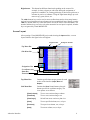


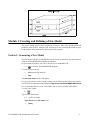

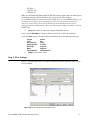


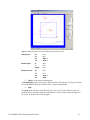
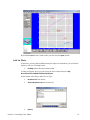
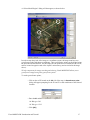

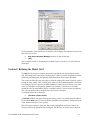
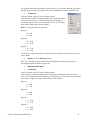
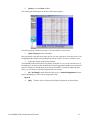
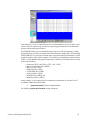

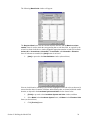


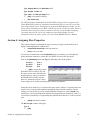
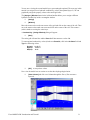


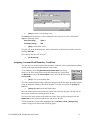
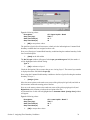


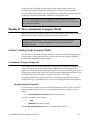
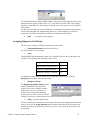
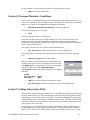


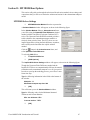
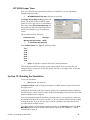


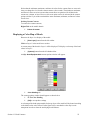
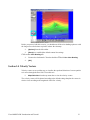
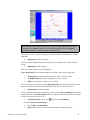

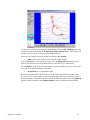
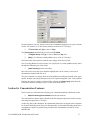

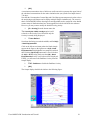


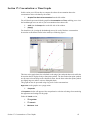


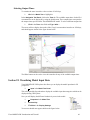

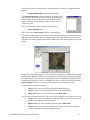
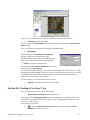
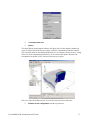
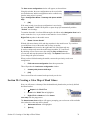
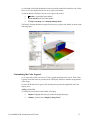




![RessqM, Enhanced Version of RESSQ [Javandel et al., 1984]](http://vs1.manualzilla.com/store/data/005674408_1-e8a4b9f66c80cdc83d847a710e5b4b1f-150x150.png)