1
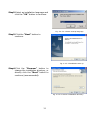
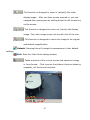
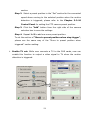
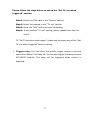
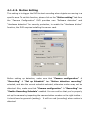
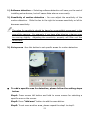
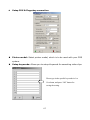
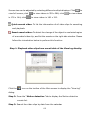
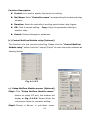
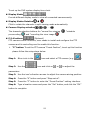
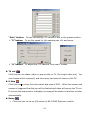
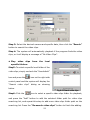
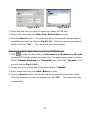
Step4: Press the ―O K ‖ button to complete the areas setting. To delete a setting detection area , please follow the setting steps below: Step1: Select a setting detection area by mouse right button. Step2: Press the “Delete area” to delete. Step3: To delete another setting detection area, please repeat step1 to step2. Step4: Press the ―O K ‖ button to complete the areas setting. If enable the “M otion detection recording ” in the “S et up sched ule” section of the “R ecording ” tap, b ut not specific a detection area in the “S et up area” section of the “M otion setting ” tab, the full area w ill be th e default settin g. Hardware detection (Optional) You can also select hard w are detection . A fter en abling “Hardware detection”, select the specific sensor to use from available port. You need to con nect the sen sor device to the port of “Sensor in” of “N etC om m od u le‖. When the sensor is triggered, it will start to record and trigger the port of relay output. Tolerance – This function is to prevent false alarms by defining acceptable movement. If the tolerance is set 2, video screen must change continuously 3 times before the DVR recording. Post recording – This function sets the time to continue recording after motion is no longer detected; the video will be saved as a file. If the time between one motion detection period and a new motion detection period is less than the value in this field, the two recordings will be combined. It will reduce the motion detection video file and notification. Pre-alarm 60