1
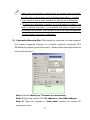
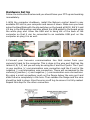
6 turned to the on position.
7. Controlling PTZ Cameras:
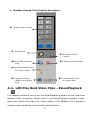
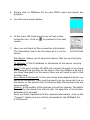
The system is now ready to control the PTZ
cameras assuming they are powered up and their
addresses have been properly set. Placing the
mouse cursor over the center of the PTZ control
button and right click to display the camera you
want to control. When you click on that camera
number you will see the number in the middle of
the PTZ control. Simply click on the arrows to
make the camera move in that direction. You also
have the ability to adjust the Zoom, Focus and Iris
with the controls right above the PTZ icon.
You can now setup pre-set alarm views, auto panning and auto
tours. See manual for details.
7-7. How to Setup PDA Remote Viewing
The first and most important thing to know when using the PDA remote
view software is to be fully aware of how your PDA works by following the
manuals and software instructions that come with the product. Once you
understand how to use your PDA and how to transfer files between your
computer and the PDA the following procedures will be very simple to
perform. Also remember our PDA software was developed using Microsoft
Windows Pocket PC operating system. There is no guarantee that it will
work on other PDA operating systems such as Palm OS and others. Follow
the steps below and you will be able to set up your PDA as a remote viewing
station.
1. First connect your PDA to your PC that you are going to be loading
the software from and synchronize the PC to your PDA.
2. Next load the EZWatch Pro CD into your computer and wait for it to
“au to ru n ” an d display th e in stallation m en u .
3. From the menu select the PDAView Pro item and follow the prompts
to install it. Once it is installed your PDA will tell you it has been
loaded, if it does not click on Start Menu of your PDA and you will
see it there.
152