1
the back of the machine, and continue to Section 2 – Video Board Installation.
2-4. Video Board and Driver Installation
This procedure is for installing the capture card and software driver into the PC.
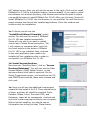
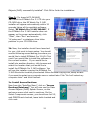
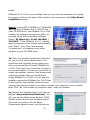
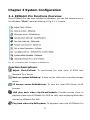
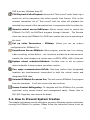
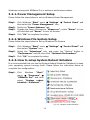
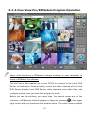
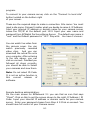
Step 1: Find an open PCI slot
Step 2: Insert PCI card
Step 3: Fasten Card Down
Note: One PCI slot is needed per Video Capture Card. Also make sure that the
power cord is removed from the back of your computer before installing the video
capture cards
Once the software has been properly installed, you can now shut down your
computer and remove any side panels so that you can insert the video capture
boards. Follow Steps #1, #2, and #3 shown above to properly insert the video
capture cards. Once cards are properly inserted in the computer, you can put the
side panels back on and plug back in the power cord. Turn on your computer.
O n ce you r com p uter starts back up, the “Fou nd N ew H ard w are W izard” w ill
appear on the screen prompting you to install the drivers for the video capture
boards. Follow the steps below to install the video capture board drivers. This
step must be correctly completed for the system to operate!
Note: If your com p uter is ru n ning the current service pack in W indow ’s X P
(Service Pack 2) then the “Fou nd N ew H ard w are W izard” w ill first ask you if it can
connect to the Internet to search for a suitable driver. Choose the third option >
No, I do not want to search, and continue with the steps below.
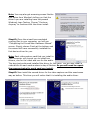
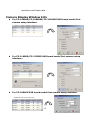
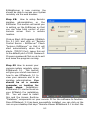
Step#1: The found new hardware wizard should
now be displayed on your screen as shown to the
rig ht. S im ply choose the default option “Install
the softw are autom atically (R ecom m ended)”and
click next at the bottom.
24