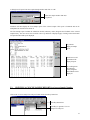
1
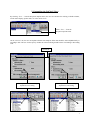
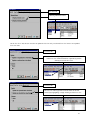
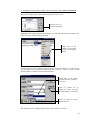
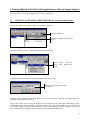
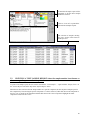
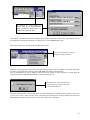
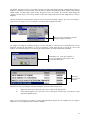
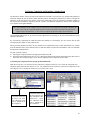
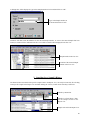
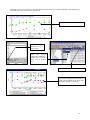
By choosing the “Auto update next
sample date” in the Options/Database
dialog box, the next sample date is set
automatically after each update.
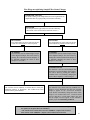
If this option is not chosen, then all new components are selected in the “Due Submissions” report and the user has
the opportunity to change the calculated “Next Sample Date” in the “Submit Form” report.
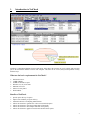
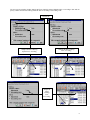
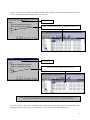
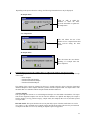
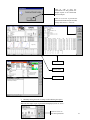
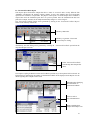
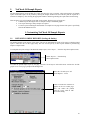
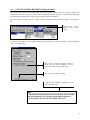
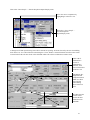
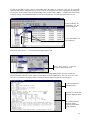
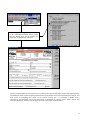
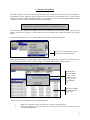
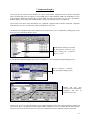
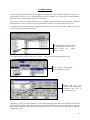
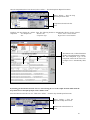
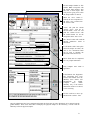
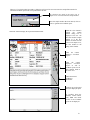
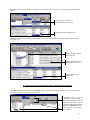
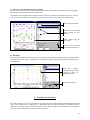
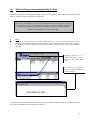
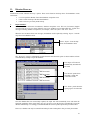
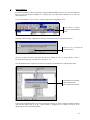
Select “Due Submissions” from the drop down Report/List menu.
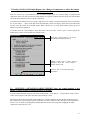
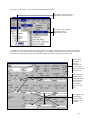
Select "Due Submissions" from the
drop down Report/List menu.
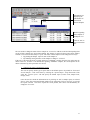
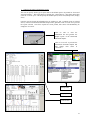
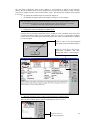
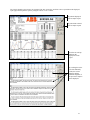
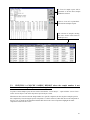
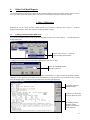
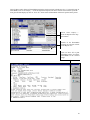
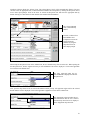
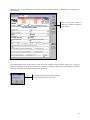
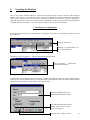
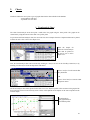
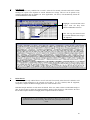
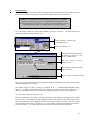
NetCheck will then generate a report listing of all the components that are due for sampling. This listing will include
the location, component name, make & model, SMR, SMR units and the next sample date.
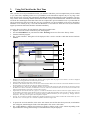
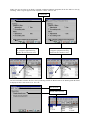
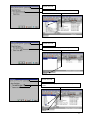
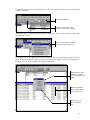
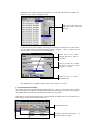
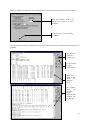
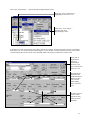
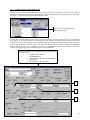
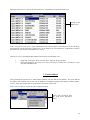
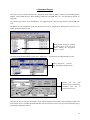
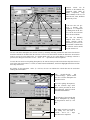
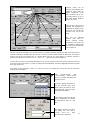
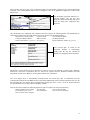
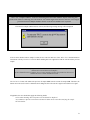
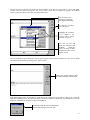
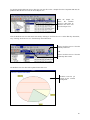
First, an information box will be displayed, showing the total number of “Due Submissions” found while the
components due to be sampled and submitted, are listed in the Report view.
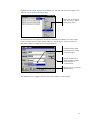
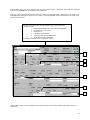
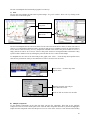
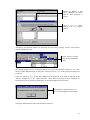
Information box with total number of
“Due Submissions” found. Click “OK”
to close information box.
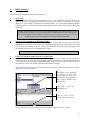
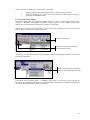
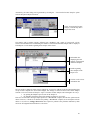
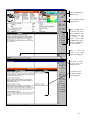
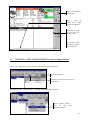
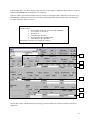
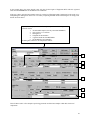
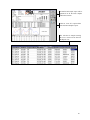
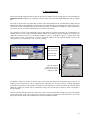
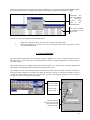
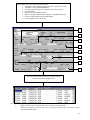
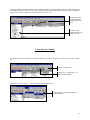
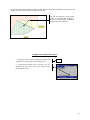
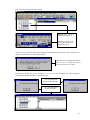
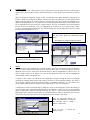
When this information box is closed, NetCheck’s next action depends on the settings chosen by the user. If the “Auto
generate form reports” option is chosen in the “Options/Report/Custom Reports” menu item dialog, then NetCheck
automatically generates the “Submit Form” for the “Due Submissions” components.
52


![[Product Name] Service Manual](http://vs1.manualzilla.com/store/data/006035113_1-0289c4c9f962713aa5c1b10dc8f42975-150x150.png)