1
2. Printing, Completing and Emailing a Submit Form
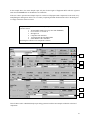
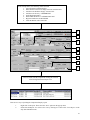
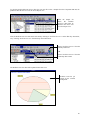
The NetCheck “Submit” form is the same as the submission form that is received with every sample bottle purchased.
This form enables the user to capture sample details needed by the Diagnostic department in order to interpret the
laboratory results of a sample. The “Submit” form can be printed and given to the workshop to manually complete or
the form can electronically be completed. Once the “Submit” form has been completed, it must be sent to Wearcheck
to be captured on the global database.
Note: The information on the “Submit” form is crucial for the correct diagnosis of a sample. Therefore, the
“Submit” form with the completed information must reach the laboratory either before the physical oil
sample reaches the laboratory; or else it must accompany the physical sample to the laboratory.
The completed Submit form can be posted or faxed to Wearcheck for capturing, or the electronic Submission can be
emailed to Wearcheck.
By electronically completing the submission data and emailing it to Wearcheck, the user ensures that the data
accompanying the sample is correct and relevant.
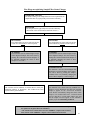
When generating Submission forms, the user should aim to automatically load as much information as is possible
from the database and to restrict manual entries to data that cannot be loaded from the database. This will eliminate
discrepancies and duplications.
The user can achieve this by:
a) Selecting the Component before opening up the Submit form OR
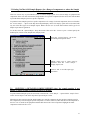
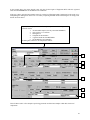
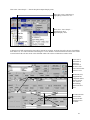
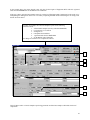
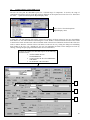
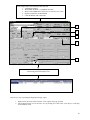
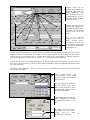
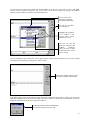
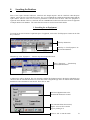
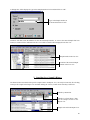
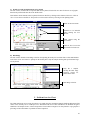
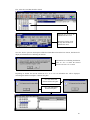
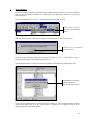
b) Selecting just the Branch from the List View, loading the Submit form and then utilizing the Drop Down boxes
next to the various input prompts to select the Site, Equipment and Component. (In this order)
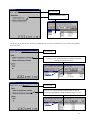
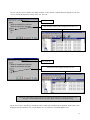
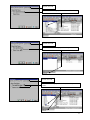
A) Selecting the Component before opening up the Submit form.
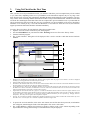
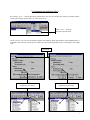
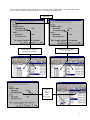
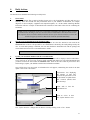
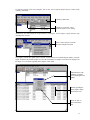
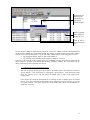
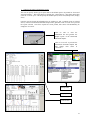
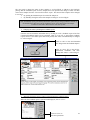
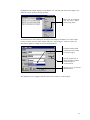
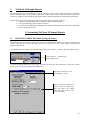
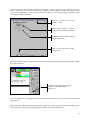
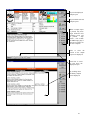
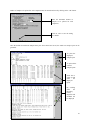
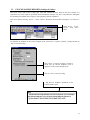
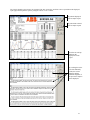
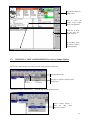
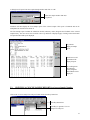
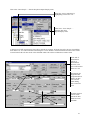
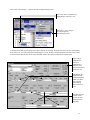
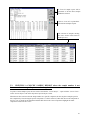
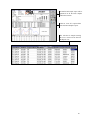
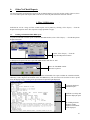
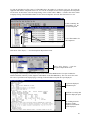
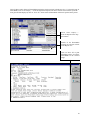
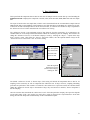
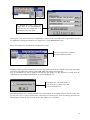
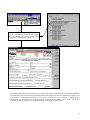
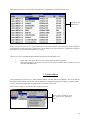
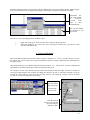
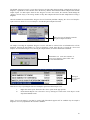
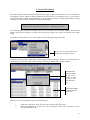
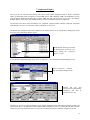
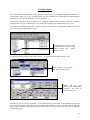
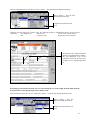
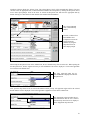
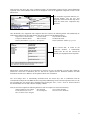
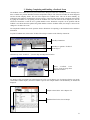
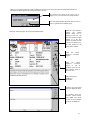
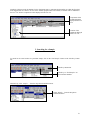
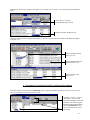
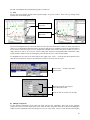
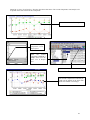
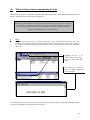
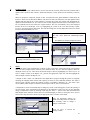
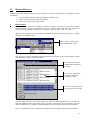
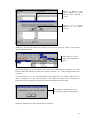
Drill down in the Tree view until the relevant component is displayed in the List view. Select the component from
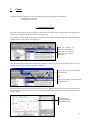
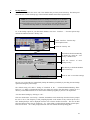
which the sample has been taken in the List view. The submission forms can also be generated on components in the
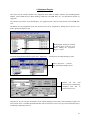
active Report view by running for instance the “Due Submissions” report.
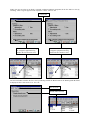
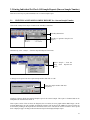
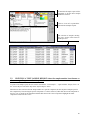
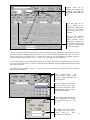
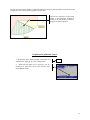
Component selected in
the active List view.
The submission form
will be generated for
this component.
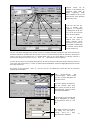
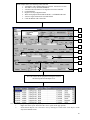
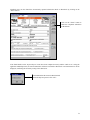
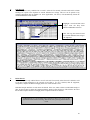
Component selected in
the active Report view
after running the "Due
Submissions" report.
The submission form
will be generated for
this component.
68