1
Chapter 3: Multi-Platform Client and Raritan Remote Client
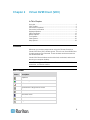
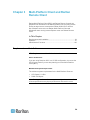
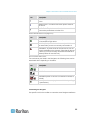
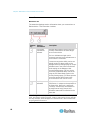
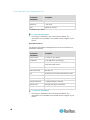
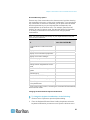
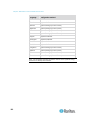
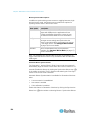
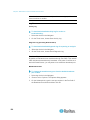
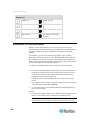
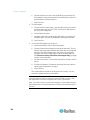
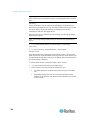
Icon
Action
Description
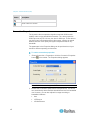
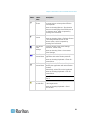
Display/Hide
Navigator
You can also select Navigator in the
View menu to toggle between displaying
and hiding the Navigator.
Refresh Navigator Updates the device status information
displayed in the Navigator.
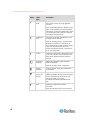
Browse
Discovered
Devices
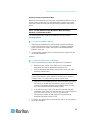
When enabled, Show Discovered
Devices will display devices that are
“not profiled” but have been found on
the network. This option can also be
enabled by choosing View > Show >
Discovered Devices.
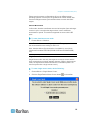
Note: The Browse Discovered Devices
option is the only method of connecting
to a Raritan device configured to use a
DHCP IP address.
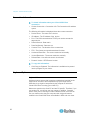
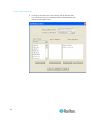
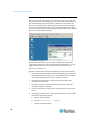
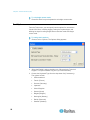
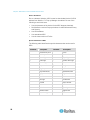
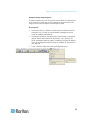
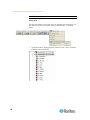
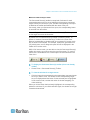
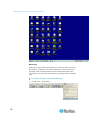
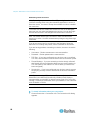
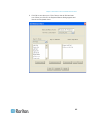
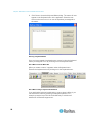
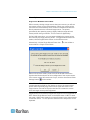
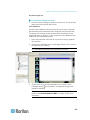
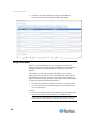
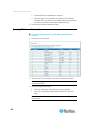
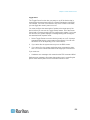
MPC Navigator Tabs
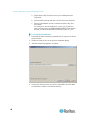
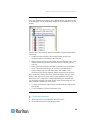
MPC tabs at the base of its Navigator pane. These tabs allow you to
change how you display devices. Click the View By Name tab to sort the
list alphabetically by name, click the View By IP tab to sort the list
numerically by IP address, or click on the View by Host Name tab to sort
the list alphabetically by display name.
These tabs are available only in the MPC interface.
56