1
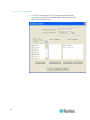
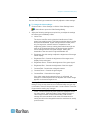
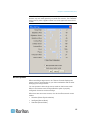
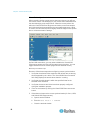
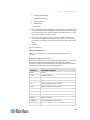
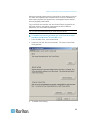
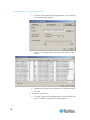
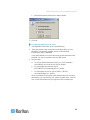
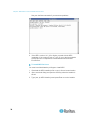
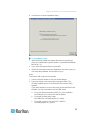
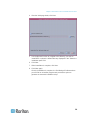
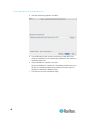
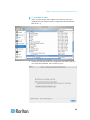
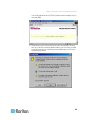
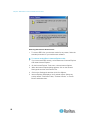
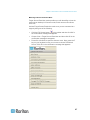
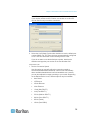
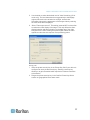
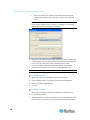
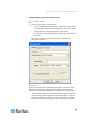
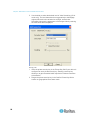
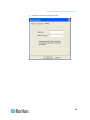
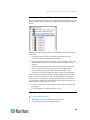
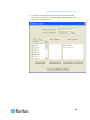
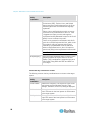
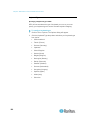
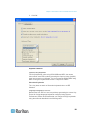
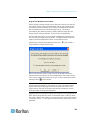
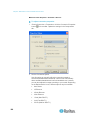
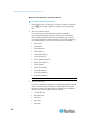
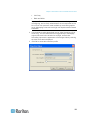
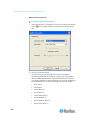
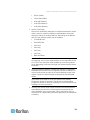
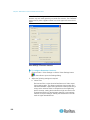
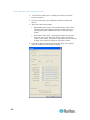
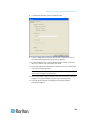
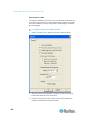
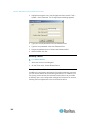
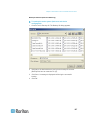
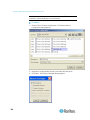
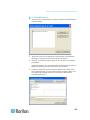
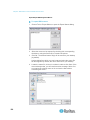
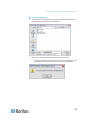
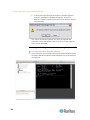
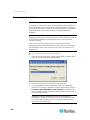
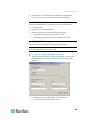
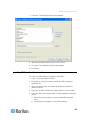
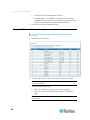
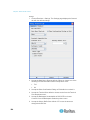
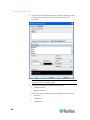
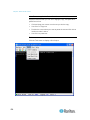
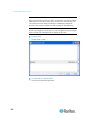
Chapter 3: Multi-Platform Client and Raritan Remote Client Click Yes to replace the existing macro with the imported version. Click Yes to All to replace the currently selected and any other duplicate macros that are found. Click No to keep the original macro and proceed to the next macro Click No to All keep the original macro and proceed to the next macro. Any other duplicates that are found will be skipped as well. Click Cancel to stop the import. Alternatively, click Rename to rename the macro and import it. If Rename is selected, the Rename Macro dialog will appear. Enter a new name for the macro in the field and click OK. The dialog will close and the process will proceed. If the name that is entered is a duplicate of a macro, an alert will appear and you will be required to enter another name for the macro. b. If during the import process the number of allowed, imported macros is exceeded, a dialog will appear. Click OK to attempt to continue importing macros or click Cancel to stop the import process. The macros will then be imported. If a macro is imported that contains a hot key that already exists, the hot key for the imported macro will be discarded. 134