1
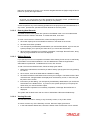
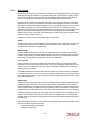
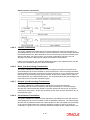
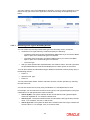
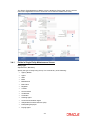
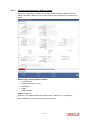
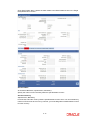
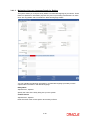
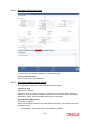
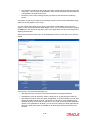
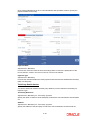
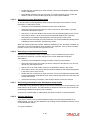
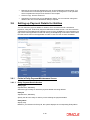
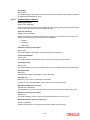
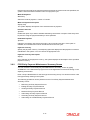
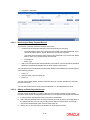
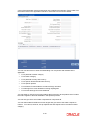
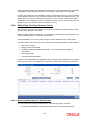
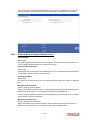
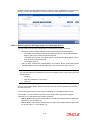
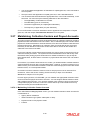
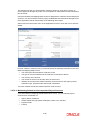
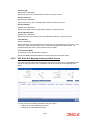
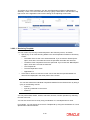
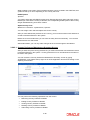
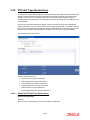
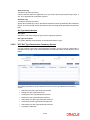
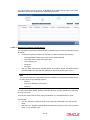
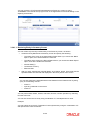
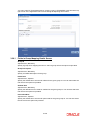
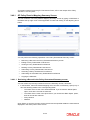
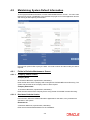
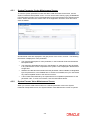
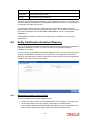
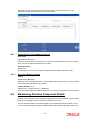
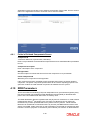
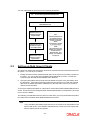
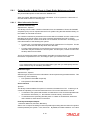
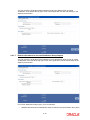
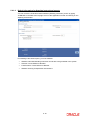
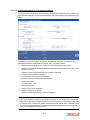
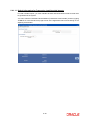
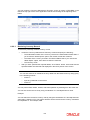
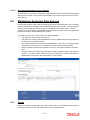
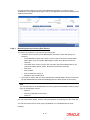
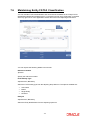
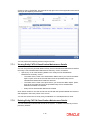
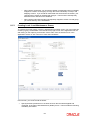
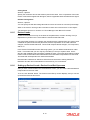
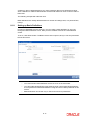
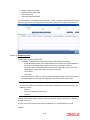
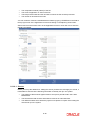
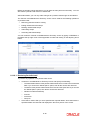
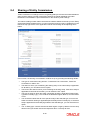
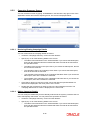
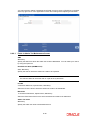
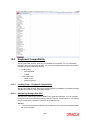
8.5.2 Campaign Summary Screen You can invoke this screen by typing ‘UTSCMPMN’ in the field at the top right corner of the Application tool bar and click the adjoining arrow. The screen is displayed below: 8.5.2.1 Retrieving/Viewing Campaign Details You can retrieve/view the campaign details as follows: 8.5.2.2 Invoke the ‘Campaign Summary’ screen from the Browser. Specify any or all of the following details in the screen: – The status of the transaction in the ‘Authorized field. If you choose the blank space, then both the authorized and the unauthorized status records will be retrieved for the specified criteria. – The status of the records in the ‘Open field. If you choose the blank space, then all the records are retrieved. – The campaign code in the ‘Campaign Code’ field. If you choose the blank space, then all the records are retrieved. – The start date of the campaign in the ‘Campaign Start Date’ field. If you choose the blank space, then all the records are retrieved. – The end date of the campaign in the ‘Campaign End Date’ field. If you choose the blank space, then all the records are retrieved. Click ‘Search’ button to view the records. All records with the specified details are retrieved and displayed in the lower portion of the screen. Double click the record that you want to view in the list of displayed records. The ‘Campaign Maintenance’ screen is displayed in the view mode. Editing Campaign Details You can modify the details that you have already entered into the system, provided it has not been subsequently authorized. You can perform this operation as follows: Invoke the ‘Campaign Summary’ screen from the Browser. Specify any or all of the following details in the screen: – The status of the transaction in the ‘Authorized field. If you choose the blank space, then both the authorized and the unauthorized status records will be retrieved for the specified criteria. 8-55