1
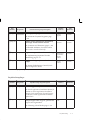
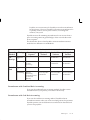
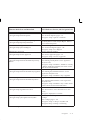
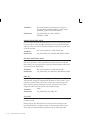
• Not Applicable. All Gateway invoices are saved with this
status. You can customize workflow to select invoice records
with this status. Invoice records with this status can be imported
before workflow processing.
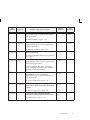
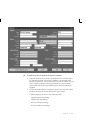
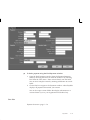
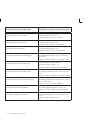
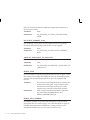
[] (Descriptive Flexfield). You use descriptive flexfields to record
custom data. The flexfield you use in this window will provide values
to the invoice descriptive flexfield in Payables. Therefore, the structure
of the information you enter in these columns (datatypes, value sets)
must match the structure of the descriptive flexfield segments you have
defined in the Invoices window or you will experience validation
problems when you try to access this information in the Invoice
Workbench.
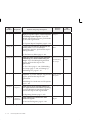
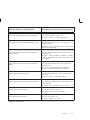
[ ] (Localization Descriptive Flexfield). If you are using a localization,
you must enter appropriate values in this flexfield or the invoice will be
rejected. For more information see your localization guide.
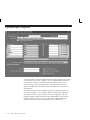
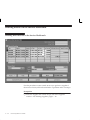
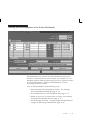
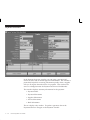
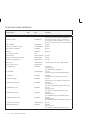
Display Only Region
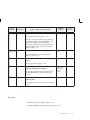
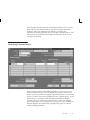
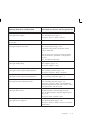
Invoice Total. Payables displays the value you entered for Invoice
Amount so you can compare it to the line total.
Lines Total. Payables displays the sum of the amounts in the Lines
region for this invoice record. The sum of the invoice lines does not
need to equal the Invoice Total when you submit import. For example,
you may have a $10 tax line with a VAT tax that has an offsetting tax.
The tax amount will be zero after the invoice record is imported and
approved, but the lines will not equal the invoice total when you save
the record in the Invoice Gateway.
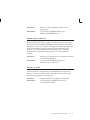
Source. Source identifier used by Payables Open Interface Import.
The value should be either Invoice Gateway, or a source name you
defined in the Oracle Payables Lookups window.
Gateway Batch. Name of the Gateway Batch that you assigned in the
Invoice Gateway Identification window.
Request ID. If you have submitted Payables Open Interface Import for
this record, then the system displays the concurrent request ID. In the
Requests window, you can use the request ID to query the status and
results of the import process.
Invoices
4 – 33