1
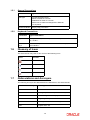
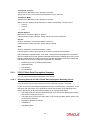
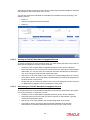
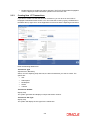
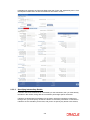
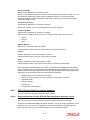
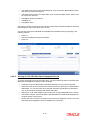
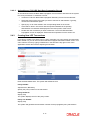
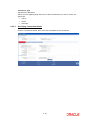
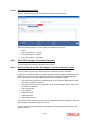
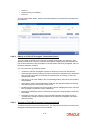
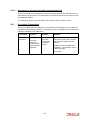
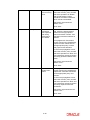
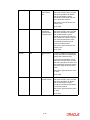
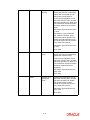
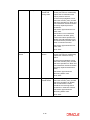
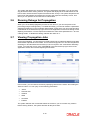
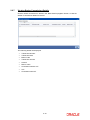
The status of the record in the Authorized field. If you choose the ‘Blank Space’ option, then all the records are retrieved. The status of the record in the Open field. If you choose the ‘Blank Space’ option, then all records are retrieved Propagation Reference Number Unitholder ID Propagation Date Click ‘Search’ button to view the records. All the records with the specified details are retrieved and displayed in the lower portion of the screen. You can also retrieve the individual record detail from the detail screen by querying in the following manner: 2.4.2.2 Press F7. Input the Propagation Reference Number. Press F8. Viewing an FCIS LEP Back Data Propagation Record To view a record that you have previously input, you must retrieve the same in the FCIS LEP Back Data Propagation Summary screen as follows: Invoke the FCIS LEP Back Data Propagation Summary screen from the Browser. Select the status of the record that you want to retrieve for viewing in the Authorization Status field. You can also view all records that are either unauthorized or authorized only, by choosing the Unauthorized/ Authorized option. Specify any or all of the details of the record in the corresponding fields on the screen. Click ‘Search’ button. All records with the specified fields are retrieved and displayed in the lower portion of the screen. Double click the record that you want to view in the list of displayed records. The FCIS LEP Back Data Propagation screen is displayed in View mode. 2-16