1
Nobeltec® Navigation Software User’s Guide
62
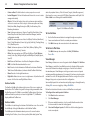
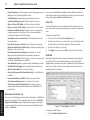
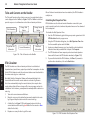
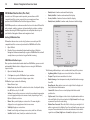
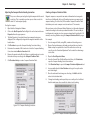
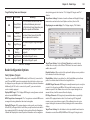
Data Sharing Tab
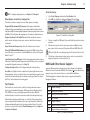
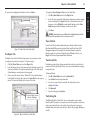
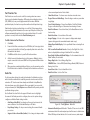
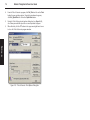
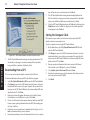
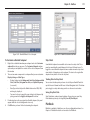
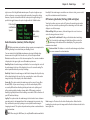
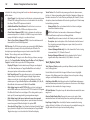
This Tab is used to determine how data (NMEA, Ockam® or B&G®) is shared
between computers connected to a network using an Ethernet (TCP/IP), such
as by the GlassBridge Network (see Chapter 19).
•
The two types of data that can be shared are Processed and Raw Data.
•
Raw Data comes into the computer from any NMEA device. GPS position is
an example of Raw NMEA Data.
Processed Data is produced by the Admiral program. In a situation where
you have more than one GPS connected to one of the computers on the
network, typically port priorities are used to "prefer" one GPS over another.
This official type of information about the vessel is referred to as Processed
NMEA Data or the Nobeltec Packet. By default, Admiral will share Processed
Data on the GlassBridge Network. By setting up Admiral in this way, you do
not have to set a priority on each of the other computers on the network.
•
•
•
•
•
•
•
•
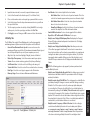
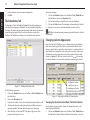
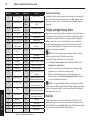
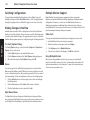
NOTE: All units of measure are adjustable from Tools | Options | Units.
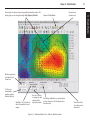
Open Sounder Display at Startup – Indicates whether or not a Sounder
Display should be created whenever Nobeltec Navigation Software is
started. Default is Yes.
Histogram Speed – Speed at which the sounder returns are scrolled
across the screen. Default value is 1:1.
Display A-Scope - Default is Yes.
Display Depth Scale – Indicates whether or not depth numbers appear
down the right side of the Sounder Display. Default is Yes.
Display Bottom Line – Default is Yes
Display Depth (Text) – Default is Medium.
Display Boat Speed (Text) – When enabled, the speed of the vessel is
displayed in the bottom left corner of the Sounder Display. Default is
Medium.
Display Temperature (Text) – Default is Medium.
Display Temperature Graph – When enabled, a moving indication of
water temperature appears on the Sounder Display. Default is No.
Display Tuning Indicators – Auto Gain, Auto Clutter and Auto Range
indicators are drawn on the bottom of the screen, when enabled.
Default is yes.
8 - Properties & Options
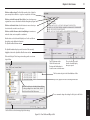
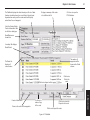
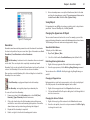
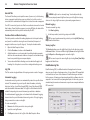
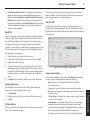
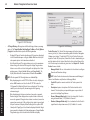
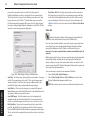
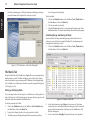
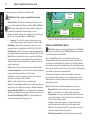
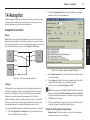
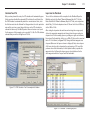
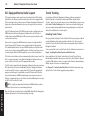
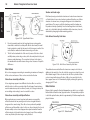
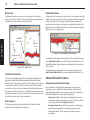
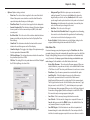
Figure 8.21 - Tools | Options - Data Sharing Tab
Repeater Ports designate the COM ports that will be used to output or
repeat all of the data that your software receives. Repeater ports should only
be used to forward data to other devices.
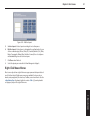
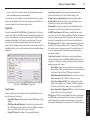
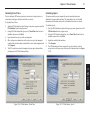
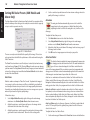
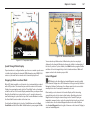
Sounder Tab
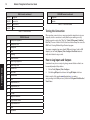
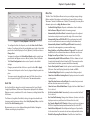
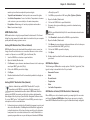
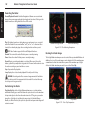
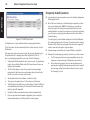
If you have purchased a Nobeltec InSight Sounder and unlocked the Sounder
features with the Sounder Unlock Code, an additional tab is displayed in the
Tools | Options menu to adjust Sounder settings. For complete information
regarding InSight Sounder, please refer to Chapter 22 - Sounder.
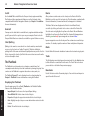
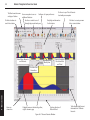
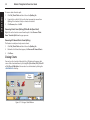
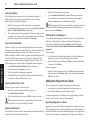
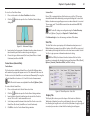
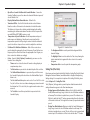
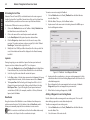
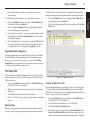
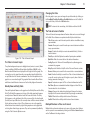
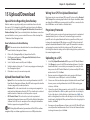
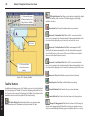
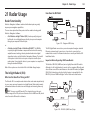
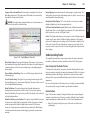
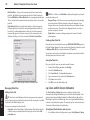
Figure 8.22 - Tools | Options - Sounder Tab
•
Show Ghost Cursor – When the mouse cursor is moved over a Sounder
window, this causes the location of the Sounder returns to be indicated
by crosshairs in any chart windows that are visible. Default is Yes.