1
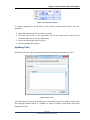
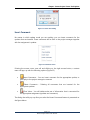
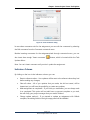
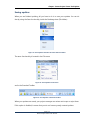
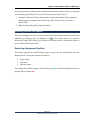
Chapter 2: Task Update Toolbar in MS Project During the process of making project collaborative, Microsoft Project will pop-up message for saving the project file(s). Do not use this saving process if you want to: 1. Change the Microsoft Project version when working with Master Project (example: Master project is created in Microsoft Project 2007 and you want to re-save in version 2010 2. When working with password protected files. Processing received Task Updates The Project Manager can view all newly received and untreated task updates from all Team members by clicking on the “Get Updates” icon in the toolbar menu for in case for Microsoft® Project 2007/2003 or by clicking on the same action in the Add-Ins ribbon in case for Microsoft® Project 2010. Receiving Assignment Updates The Project Manager has several filtering options to get only the updates that meet the desired criteria. The project manager can filter by: Project name Task name Resource name The updates that will be accepted, will be colored green, and those assignments that are rejected will be colored red. Page | 16 Seavus Project Viewer User Manual