1
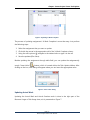
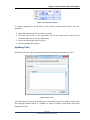
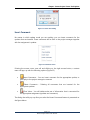
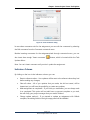
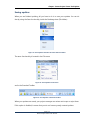
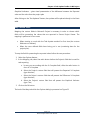
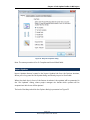
Chapter : Seavus Project Viewer Task Update Figure 5. Updating % Work Complete The process of updating assignment’s % Work Complete is more than easy. Just perform the following steps: 1. Select the assignment that you want to update 2. Click with the mouse in the appropriate cell of the % Work Complete column 3. Using the cell’s spinner ( ) navigate to the desired value or type it in the cell 4. Save the updates (FileSave) Besides updating the assignment through table field, you can update the assignment(s) trough “Insert Value” feature, which is located within the Task Update ribbon. After clicking on the icon, new dialog will appear where you can insert the appropriate value. Figure 6. Insert value dialog Updating Actual Work Updating the Actual Work and Actual Overtime work is done in the right part of the Resource Usage or Task Usage view, as it is presented on Figure 7. Page | 7 Seavus Project Viewer User Manual