1
2. Move the cursor to the apex of the angle and click again, then
move the cursor to the end of the other line such that the red
lines define the required angle and click the right mouse
button.
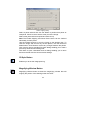
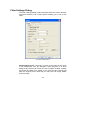
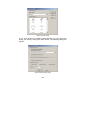
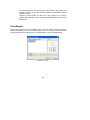
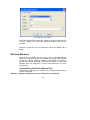
The Measurement Statistics dialog is opened and displays the results
The results are presented dynamically in the status bar while the
measurement function is in progress. The steps can be repeated as
often as required, but only the angle between the last two lines is
displayed in the status bar. All the angles are listed in the
Measurement Statistics dialog.
Measuring Area Enclosed by Multiple Lines
1. Zoom in to the image to achieve the appropriate accuracy.
Activate the Measure function and move the cursor to a point
on the boundary of the object to be measured.
2. Click the left mouse button on the edge of the object to
measure and move the cursor to the next point.
3. Continue clicking points around the object until the object is
completely enclosed except from the last point.
4. Click the right mouse button to complete the enclosed area and
to terminate the current measurement.
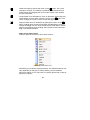
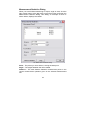
The Measurement Statistics dialog is opened and displays the results
The results are presented dynamically in the status bar while the
measurement function is in progress, and will be deleted from the
status bar when a new function is selected.
Calibrating an Image
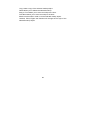
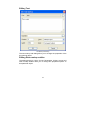
The Calibration function enables you to measure the length of an
object on the active file and define a value for that measurement. The
ratio of the measured distance to the defined distance is remembered,
and thereafter any distances measured on that file will be multiplied by
this scaling factor before being presented. The measurements are
displayed using the units selected in the Filter Settings > Measure tab
for the particular file type.
80