1
Print Scale
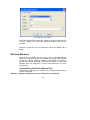
Scaled to fit the paper - will reduce or expand the image to match the
paper size.
Scaled from: to: - enter the scale factor for printing the image. For
example, Scaled from 10 to 1 will reduce the image to 1/10 its original
size (though this may still require several sheets of paper – refer to
option Poster later in this list).
Scale in preview enables you to scale the printout as described in
Print Preview options below.
Print Control
Center the printout on the paper is self-explanatory.
Poster prints over multiple sheets. You can set the number of sheets
in the No. horizontal and No. vertical fields. The number of sheets
used and the position of the image are shown in the preview window.
You can scale and move the image to match the selected number of
sheets as described in Print Preview options.
Print Monochrome will produce a black and white printer output.
Rotate will rotate the image 90 degrees from the current rotation.
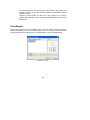
Print Preview
View the printout before you print. Whole of Current Page / Image or
Displayed Portion options must be selected. The Print preview
represents a true visualization of the image to be printed. It allows you
to fit the image to the paper with the required orientation and scaling
factor. You can fit the image to the paper both vertically and
horizontally by not checking the Maintain aspect ratio.
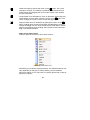
Position the image on the paper by placing the cursor on the image
and dragging The Center the printout option must be unchecked.
Scale the image with or without maintaining the aspect ratio by placing
the cursor on the button at the lower right corner of the image and
dragging. Whole of Current Page / Image or Displayed Portion options
must be selected.
23