1
Editing Markups
Rules
1. Markups can only be edited by the owner of the markup.
2. The current user must own the markup in order to edit it. The
current user is the case-sensitive name shown in the Markup
Preferences > General tab > User Signature.
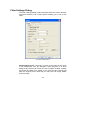
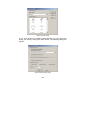
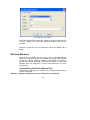
3. To change the current user select Preferences from then
Markup menu and write the new user’s name. The user name
is case-sensitive. Close the dialog. (Apply to local mode
“RxViewX” only.)
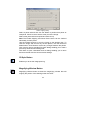
4. User information is stored in the markup file. If a user signature
is changed you may be asked to save the markup file before
exiting the Markup Preferences dialog.
Selecting markups
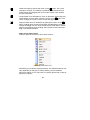
1. Click the
Edit button on the Markup toolbar.
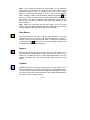
2. Click a markup. The owners name is shown in the status bar. If
you are not the owner then you cannot edit the markup. If you
own the markup then it will be selected. A selection is
enclosed by a black frame with one or more small buttons or
handles.
3. Click outside the selection to de-select.
.
Editing markups
The editing controls depend on the type of markup.
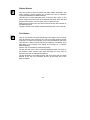
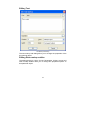
Move a markup by placing the cursor inside the markup selection and
clicking the left mouse button. The cursor changes from an arrow to a
hand. Press and hold down the left mouse button, and drag the
markup to the desired position. Click outside the line to de-select.
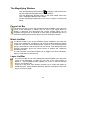
Zoom or size a markup by placing the cursor on the
button. The
cursor changes to a finger. The markup is scaled by holding down the
left mouse button and dragging the corner of the markup. Click
outside the line to de-select.
67