1
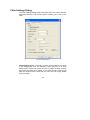
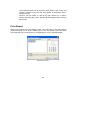
Width – Set the desired printed width for the selected lines in the units
defined in Units. –1 indicates that width isn’t defined for that pen.
Style – Set the desired printed style for the selected lines (full, dotted,
dashed etc.). –1 indicates that no width has been defined for that pen.
Color – Set the desired printed color for the selected lines.
Scale – Select Scaled if when you resize a drawing file you want the
line widths to follow the scale of the drawing. Select Unscaled to keep
the line widths constant irrespective of the scale of the drawing.
Units – Select the units of measurement, metric (mm) or imperial
(inches), you wish to use when defining line widths.
Change – Click to apply the changes to the file.
Default – Click to return to the default settings.
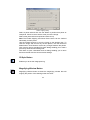
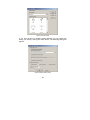
Load – Click to load a previously saved pen table (*.RPT) file. A Load
Pen Table dialog opens to enable you to find and select the desired
file.
Save – Once you have made the desired changes to the pen table,
save your table as an .RPT file so you can reuse the settings. A Save
Pen Table dialog opens enabling you to name the file and place it in
the appropriate folder.
29