1
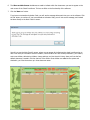
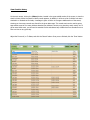
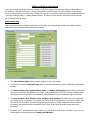
6. The Show on Main Screen checkboxes are used to indicate which four classrooms you want to appear on the
main screen of the Check-In software. This has no effect on the functionality of the software.
7. Click the ‘Next >>’ button.
If you have not entered an Activation Code, you will see the message below each time you run the software. Click
the ‘OK’ button, to continue. If you have entered an Activation Code, you will not see the message, and instead
be taken directly to the Main Check-In screen.
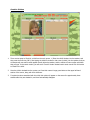
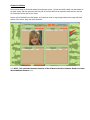
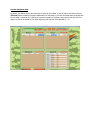
You will now see the Main Check-In screen, where you can access all the features the check-in software has to
offer. From here you’ll be able to check-in children, view all children who are currently checked-in, print rosters,
enter new children, edit existing children, change settings, and view check-in history. Here you’ll see the four
default classrooms, located in the four sections of the screen. Once children are added to the system and
checked-in, you’ll see them show up in these classroom areas.