1
Enter New Children
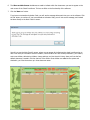
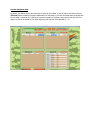
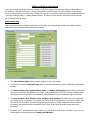
1. To begin entering a new child into the system, click on the ‘Enter New Child’ button, located in the lower-middle
section of the main screen.
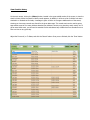
2. There are only four required fields when entering a new child: Number, First Name, Last Name, and Class.
3. The Number field is used to quickly check-in the child from the Main screen. The system initially chooses a
random number, but if you’d prefer, you can change this number.
4. Enter the child’s First and Last name, then select their Class. *** NOTE: The ‘Class’ drop-down list is
customized to show the names you provided for Class #1 – Class #10, in the previous ‘Enter General Info’ steps.
5. Click the ‘Save’ button.
*** Entering the information below is Optional ***
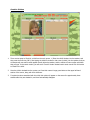
6. Enter the child’s Address, City, State, Zip and Phone number. No specific format is required for Zip code or Phone
number.
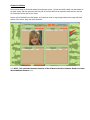
7. If a digital photo of the child is available, click the ‘Add Photo’ button and then select the photo. NOTE: Any photo
size and resolution is acceptable, the system automatically re-sizes the photo to the precise size for performance.
8. Enter the names of the child’s parents.
9. The Points Total field is often used for congregations who utilize a points system to reward children’s behavior /
achievements. In this scenario, each child’s Points Total field is usually updated on a weekly basis.