1
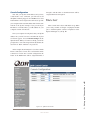
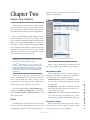
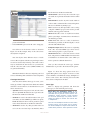
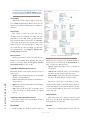
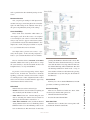
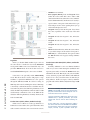
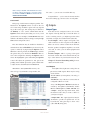
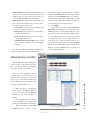
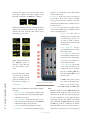
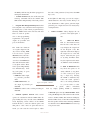
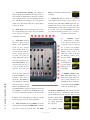
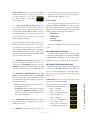
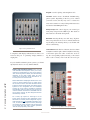
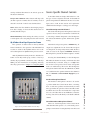
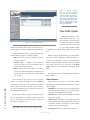
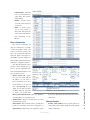
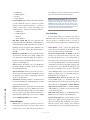
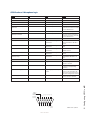
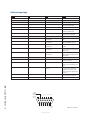
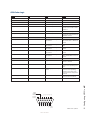
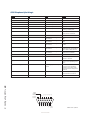
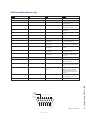
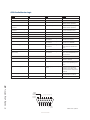
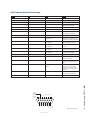
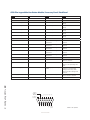
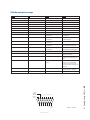
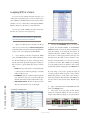
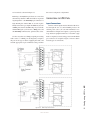
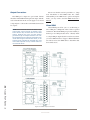
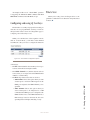
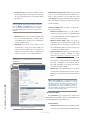
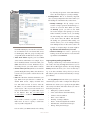
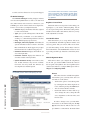
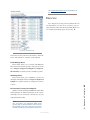
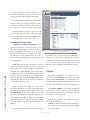
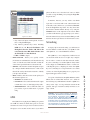
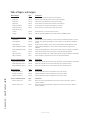
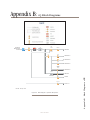
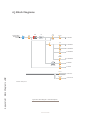
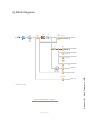
• • • • Figure 2-2: Source Profiles • password field blank. • Select Sources to proceed to the source setup page. • Note that iQ has three different classes of audio sources. Most originate with the rear panel input connectors and are used locally in the iQ; some audio sources may be obtained from other devices in your Livewire network, and some audio sources (PGM1, PGM2, etc) are generated internally. With that in mind, let’s discuss configuring your local sources and making them available for fader assignment. Creating a New Source Your first choice defines what type of source you’re setting up, which is important since GPIO, mix-minus and other console behaviors are decided based on your choice. Your choices: • Operator is the board operator’s mic. It is the source mic for iQ TALK TO functions. Its logic mutes the CR monitors and Preview when ON. • Producer is used for in-studio Producer’s mic positions. It has associated GPIO logic which can operate TALK TO functions from a remote producer’s panel. It also mutes CR monitors and Preview when ON. • CR Guest is used for any other guest mic in the control room. Its associated logic automatically mutes • Once you have selected the source type, click the Create button to proceed to the Source Profile options. Figure 2-3 shows the setup options screen for a typical Microphone source. Figure 2-4 shows a Codec source which has a few different settings, and Figure 2-5 shows a Line source. The following sections describe these Source configurations in detail. Source Type This is a display-only parameter and shows the source type you selected in the previous step. About Mics and Headphone Feeds: iQ provides you with several headphone options, all selectable from iQ monitor control section. The headphone output provides a feed intended for the Host (board-op’s) mic position and includes the ability to monitor the Preview bus in headphones. There are two headphone feeds from the studio monitor section, one for talent, one for guests. The Studio headphone output sends audio to all studio talent positions. Talent positions include ©2011 Axia Audio 2: Inputs and Outputs • 13 You will now see the Sources section as shown in Figure 2-2. In this example, many of the sources have already been configured. the CR monitors and Preview when ON. Studio Guest is used for any mic located in a separate studio. Its logic mutes the Studio monitors when ON. External Mic is used for any mic located outside of a CR or studio. It functions like a Guest microphone but does not include any muting logic. Line is used for any line input audio source, analog or digital. A GPIO logic port can be used to provide machine start/stop pulses if desired. Phone defines this source as a hybrid or broadcast phone system input. A summed mono mix-minus is automatically provided. Codec marks this source as a codec. A dual mono mix-minus is provided; one PA feed (right) + one talent feed with talkback (left). Computer Player defines this source as originating from a PC. Associated GPIO logic can be used to send start/stop signals to a playout system. Studio Feed defines a source that receives a backfeed, and generates an IFB backfeed in return. This is intended for an external studio source which you wish to generate a talkback channel for.