1
The protection modes Enlarge Method and Change Parameters are
intended for the following scenario: User A creates a method using calibration spectra which he does not want to give to anybody else. User B
is to use the method of user A, add his own spectra, perform a new validation and store the modified method, but without having access to the
calibration spectra of user A.
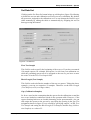
If you select the Enlarge Method mode only new spectra can be added to
the method, whereas, if you select the Change Parameters mode also the
settings on the Parameter page can be modified.
The protection modes Enlarge Method and Change Parameters are only
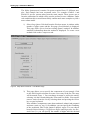
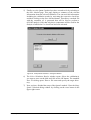
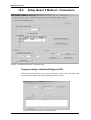
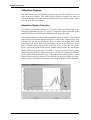
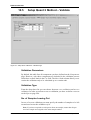
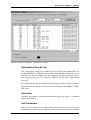
available if you have activated the Store Spectra in Quant 2 Method File
check box on the Setting page of the Setup Quant 2 Method dialog box
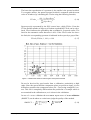
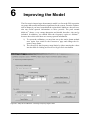
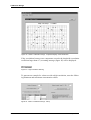
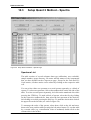
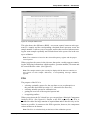
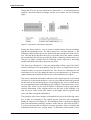
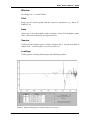
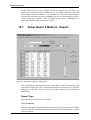
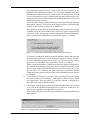
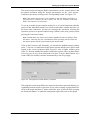
before you have stored the Quant 2 method. See figure 111 and 88.
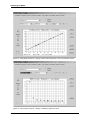
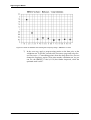
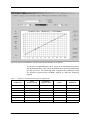
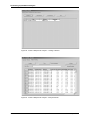
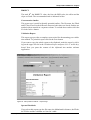
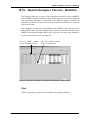
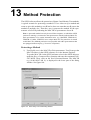
Figure 111: Setup Quant 2 Method Dialog window - Store Spectra Page
If a Quant 2 method file had been stored with this option and has been
protected afterwards in the mode Enlarge Method or Change Parameters, the calibration spectra stored in the *.q2 file can only be used to
perform a new validation. They can not be viewed or extracted.
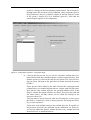
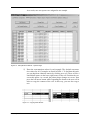
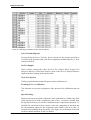
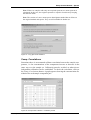
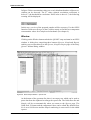
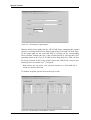
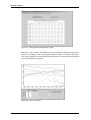
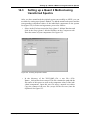
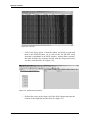
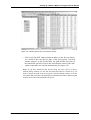
When a protected method is loaded into the Setup Quant 2 Method dialog window the calibration spectra are shown in green in the table on the
Spectra page. Some functions like Display Preprocessed Spectra, Copy
Spectra, Select Test Samples and Add Component are blocked and the
component concentration values of the stored calibration spectra can not
be changed.
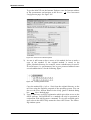
6) Click on the Set button to exit the Prepare Method Protection dialog
box and to return to the Methods - Add Signature/Show History dialog
box (figure 108). Now the MAC ID, you have entered, is displayed to
the right of the Protect Method button.
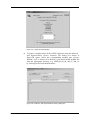
7) Click on the Add Signature button and sign the method file. (See section
12.2.) Select the signature meaning Review or Release. In this case, do
not select the signature meaning Release and Lock.
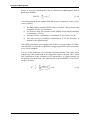
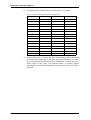
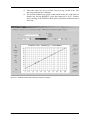
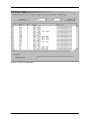
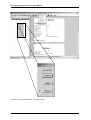
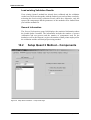
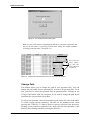
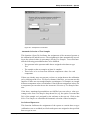
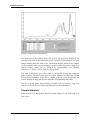
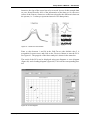
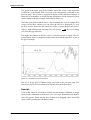
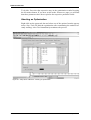
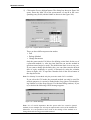
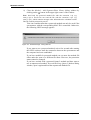
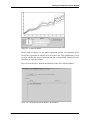
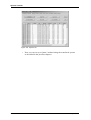
If the method has been protected successfully the following OPUS message appears:
Figure 112: OPUS Message - Successful Method Protection
Bruker Optik GmbH
OPUS/QUANT
123