1
Resolving Resource Conflicts
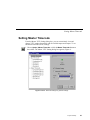
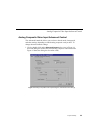
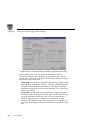
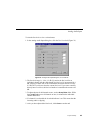
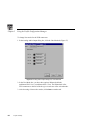
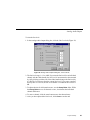
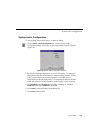
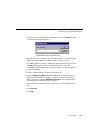
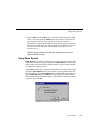
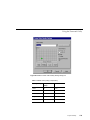
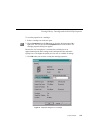
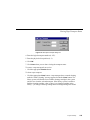
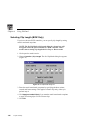
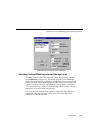
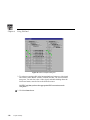
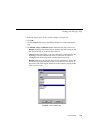
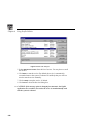
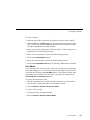
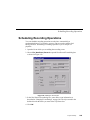
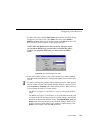
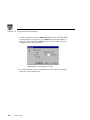
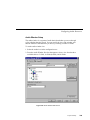
2. Choose a generator mode. You can start timecode using a fixed time or the
time of day. Click Time of Day to use the Windows NT clock, or click Fixed
Time to set a timecode value under Starting Value.
3. If you selected fixed time, you can use the default of 00:00:00:00
(Hours:Minutes:Seconds:Frames) under Starting Value or set a new fixed
starting time. This setting takes effect the next time you click the Record
button.
NOTE: The Drop Frame control is hidden if your Profile system is
configured for PAL video. Refer to “Video Input” on page 52 for
information about configuring the Profile system for PAL video.
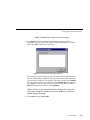
4. To choose drop frame, click on the Drop Frame check box. To compensate
for the 29.97 frame rate in NTSC, drop-frame timecode synchronizes the rate
with elapsed time. Drop-frame timecode drops two frames per minute,
except on the tenth minute. PAL, on the other hand, has a constant rate of 25
frames per second and never requires drop-frame timecode.
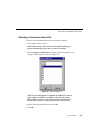
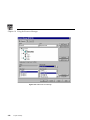
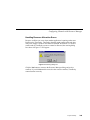
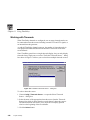
Resolving Resource Conflicts
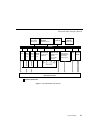
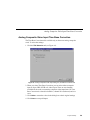
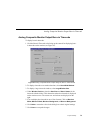
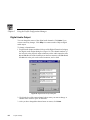
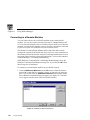
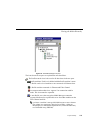
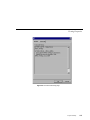
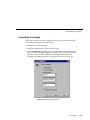
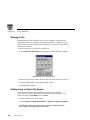
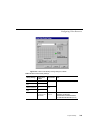
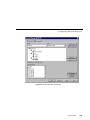
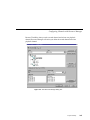
Resource conflicts occur when you attempt to allocate a resource that is already
in use, either by the application you are working with, or by another application.
To resolve a conflict, you must either request a resource that is available, or free
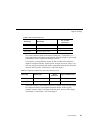
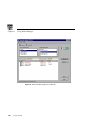
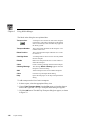
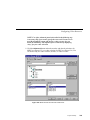
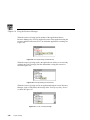
the resource that you want from its other use. Resource Manager uses color
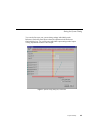
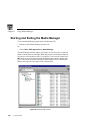
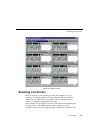
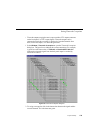
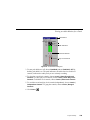
coding to indicate the status of a resource. If a resource such as a video output
is in use, its listing is dimmed, “grayed out.” If you request a resource that is in
use, its listing turns red, indicating a conflict.
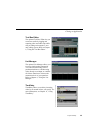
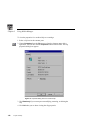
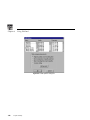
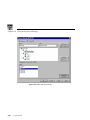
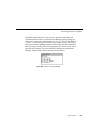
Resource Manager also uses Tool Tips to provide additional information about
resources that are in use. When you hold the cursor for a short period of time
over a resource that is in use (gray) or in conflict (red), a Tool Tip appears with
status information about that resource. Tool Tips do not appear for resources
that are available.
Profile Family
335