1
Chapter 5 – Combining Information
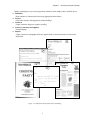
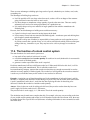
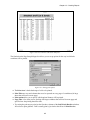
• Click in each line as instructed and change the font to Comic Sans MS.
• Now add the date and page numbers in the Master Slide footer.
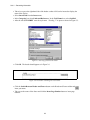
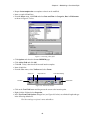
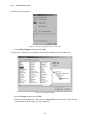
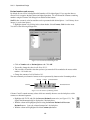
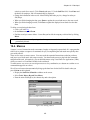
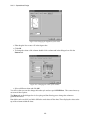
• With the Slide Master still displayed, select View, Header and Footer.
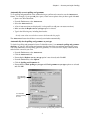
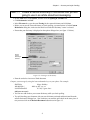
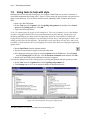
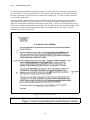
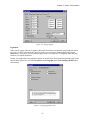
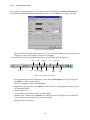
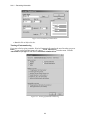
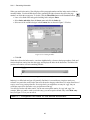
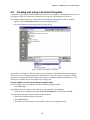
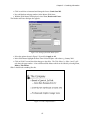
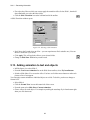
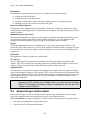
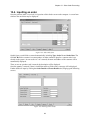
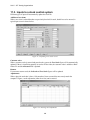
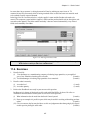
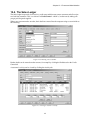
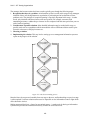
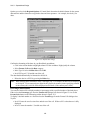
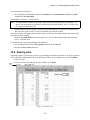
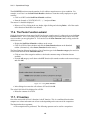
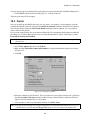
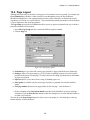
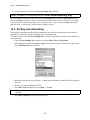
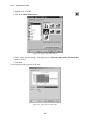
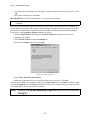
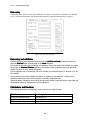
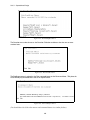
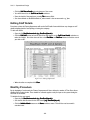
The Header and Footer dialogue box appears:
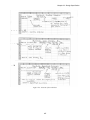
Figure 5.10: Setting up the Slide Master footer
• Select the options shown in Figure 5.10 and click Apply to All.
• In the Slide Master highlight the Date/Time field and replace with a date e.g. January 2001.
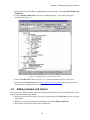
• Click on Slide View and check the changes to the slides. The Title slides (i.e. slides 1 and 3) will
only show the page number – it has a different Slide Master which can be edited by selecting View,
Master, Title Master.
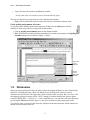
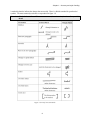
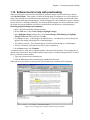
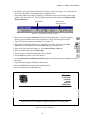
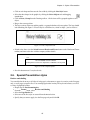
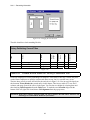
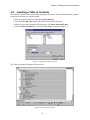
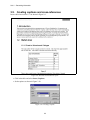
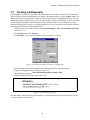
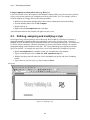
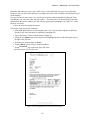
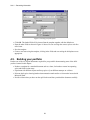
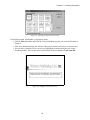
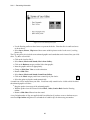
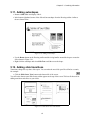
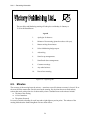
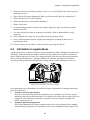
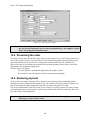
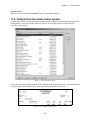
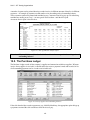
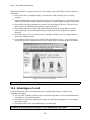
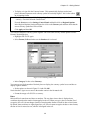
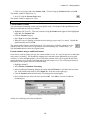
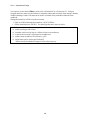
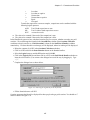
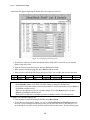
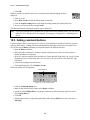
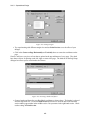
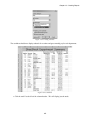
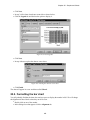
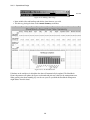
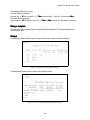
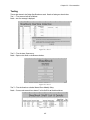
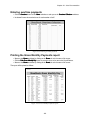
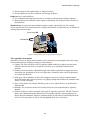
Slide 2 should look something like this:
Figure 5.11: The completed Slide 2
57