1
Power Plotter / Proof Manual
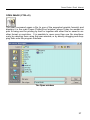
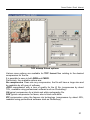
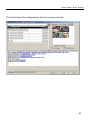
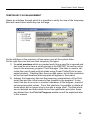
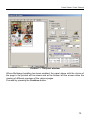
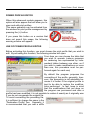
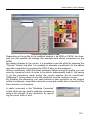
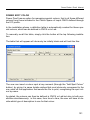
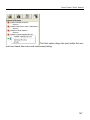
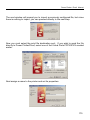
The configurations that are viewed on the print interface of the virtual printer (figure 1) are those that have been previously created internally from the RIP with
the procedure described in the preceding paragraph.
During installation a guided procedure will start which allows 4 configurations to
be created in automatic mode that will immediately be found in the virtual printer.
The virtual printer can be used to print from the application using one of the existing configurations (without having the RIP operating), if print setting is being
used, to transfer the file from the application to the RIP workspace, if the archived
setting is being used, also to generate a PS file (see further ahead).
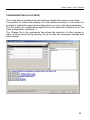
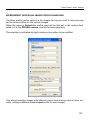
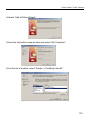
INSTALLATION PROCEDURE OF THE VIRTUAL PRINTER
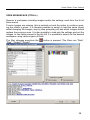
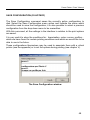
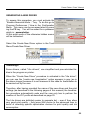
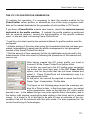
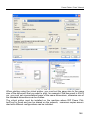
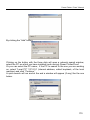
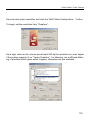
Configuration of the virtual printer starts automatically at the end of the RIP installation and can be recalled from the “file” menu, install/modify printer.
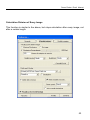
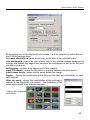
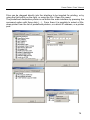
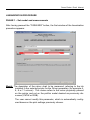
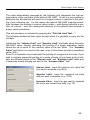
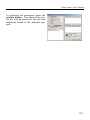
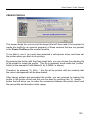
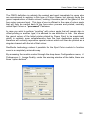
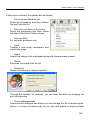
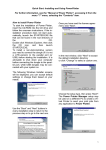
By selecting it, the following interface will appear:
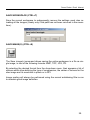
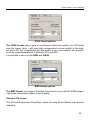
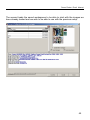
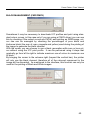
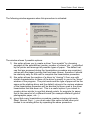
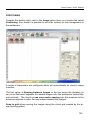
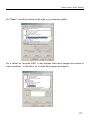
Two types of printers can be created:
1. PPP: using a virtual port created by RIP, the standard port until RIP version
6.1, has been replaced by LPR because it can cause network problems with
the domain, with Windows Vista and with new 64bit (XP 64 and Vista 64) operating systems. It is still current for compatibility of the past. (PPPx port
name)
2. LPR uses the Windows standard TCP/IP port and connects to RIP through an
LPR server. This type of printer is compatible with all systems and current
settings and is the one that is installed by default by RIP (IPXX port name)
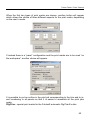
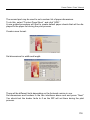
If a configuration has been set (in the case of A4 Photo) and in the options Print
the job has been set, it will be printed internally from the A4 Photo configuration,
otherwise if Archive has been set in the RIP PP queue, the job will be put on hold
in the Power Plotter/Proof queue, and finally, if Print and Archive have been set, it
will first be printed and then kept in the queue for possible future sending.
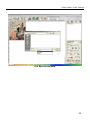
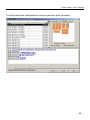
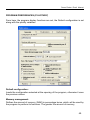
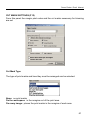
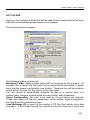
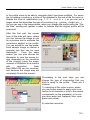
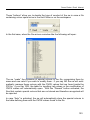
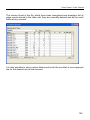
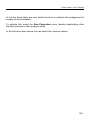
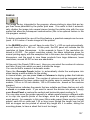
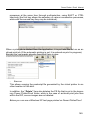
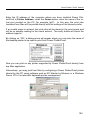
In the configuration interface viewed at the top it is possible to add or delete virtual printers (if visualized there are 2 different virtual printers) and choose all the
167