1
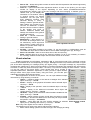
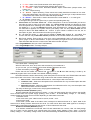
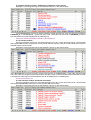
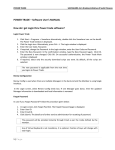
In case if for event receiving is used CU-GSM central unit, you have to insert two zeroes between code symbols
(see picture below)
Event code when using CU-GSM
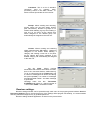
Attention! In case if you are using RT4-5gc in GPRS transmitting mode, it is strongly recommended to enter
both types of events (with and without zeroes in the middle) to avoid receiving not described events, if the
GPRS-connection will be broken for some reason.
Work Schedule tab.
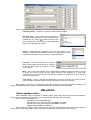
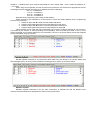
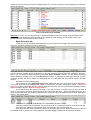
In this tab you can schedule disarming/arming for each object, and program will automatically trace it’s
execution. Schedule example is shown in the picture.
In the left column you specify days of the week. Then there are three Opening/Closing column groups, where
you can set time of object arming or disarming. In first two column groups are the main schedule in the third spare. You can switch to spare schedule by activating Spare schedule checkbox. To stop object monitoring
without deleting it’s object card, just clear Monitoring checkbox. In that case all messages received from this
object are ignored and object number are highlighted red in the DB editor list (see “Header and the first tab”
section).
Schedule works the following way:
Time interval set in the Opening/Closing fields, determines the time, when object may be disarmed. If
at the time, specified in the Closing field, object is still disarmer, an alarm message is formed - Object not
Armed !!! If object was armed properly, but was disarmed at the time, that is out of the specified range, another
alarm message is formed - Disarm in illegal time !!!
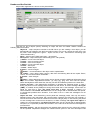
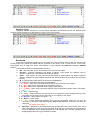
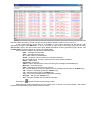
If you need to set a time interval, that starts on one day, but ends on another, than you have to break it
in two. In the first day you set an interval that ends at 23:59, and at the other – interval that starts at 00:00. Any
other intervals that have time difference less than two minutes are also considered as one interval. Example is
shown in the picture below.
In the picture, object can be disarmed from 19:00 Monday till 8:00 Tuesday.
If the day is added into the schedule, but no time is set for it, it means that object must be armed all day.
If the day is not added into the schedule than the schedule is not monitored this day.
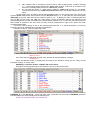
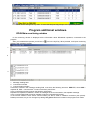
If an object has the same schedule for all days of the week, than you can simply enter the schedule for
the Monday, open a context menu using right-click and select Copy. Schedule will be copied for all week.