1
Glo beC as ter Animator/ Comp osito r Tuto rials
132
Chapter 4
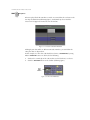
By turning on this area, you ensure that the lower third you are creating will
be visible on any television screen.
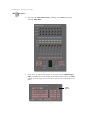
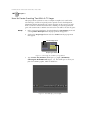
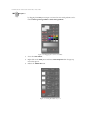
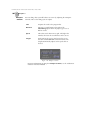
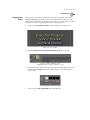
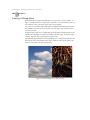
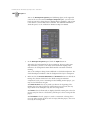
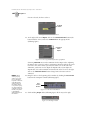
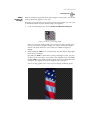
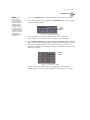
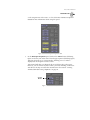
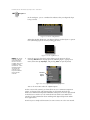
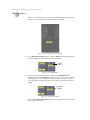
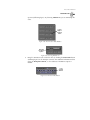
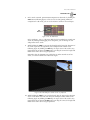
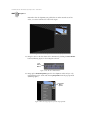
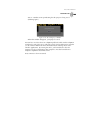
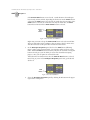
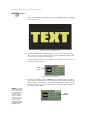
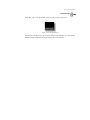
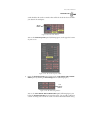
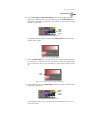
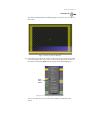
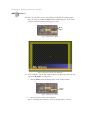
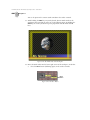
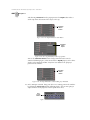
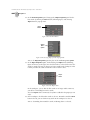
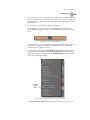
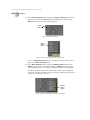
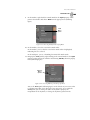
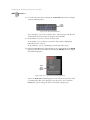
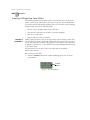
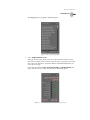
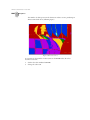
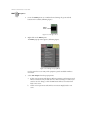
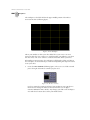
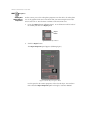
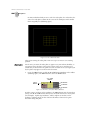
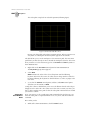
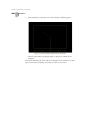
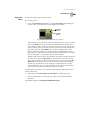
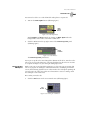
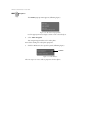
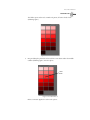
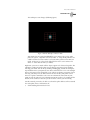
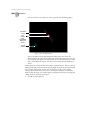
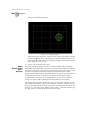
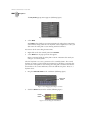
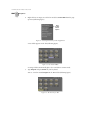
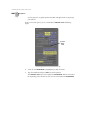
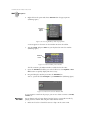
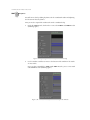
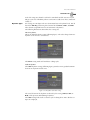
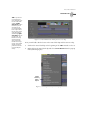
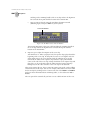
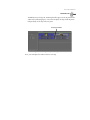
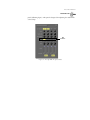
The following figure illustrates what the workspace looks like with the Safe
Area turned on.
Figure 4.167: The Workspace with the Safe Title Area On
7.
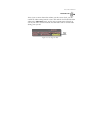
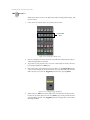
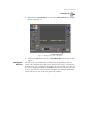
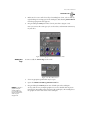
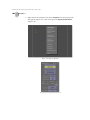
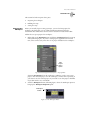
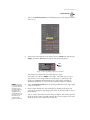
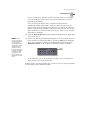
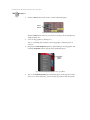
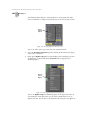
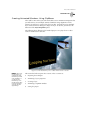
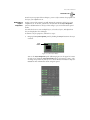
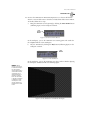
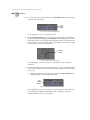
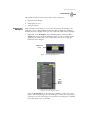
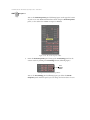
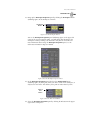
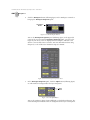
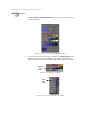
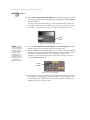
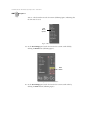
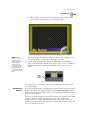
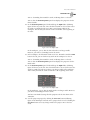
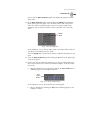
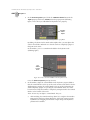
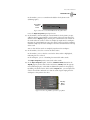
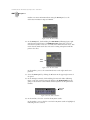
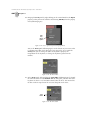
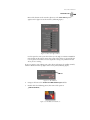
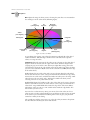
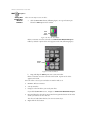
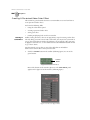
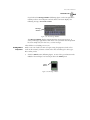
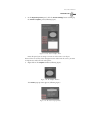
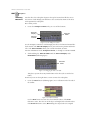
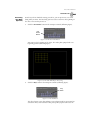
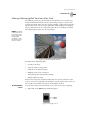
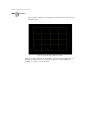
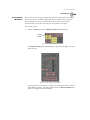
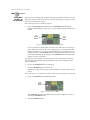
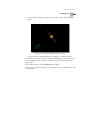
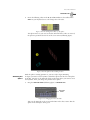
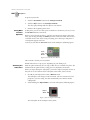
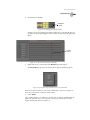
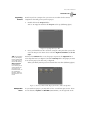
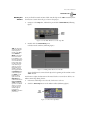
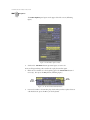
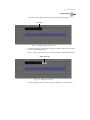
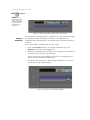
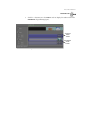
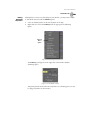
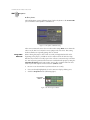
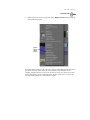
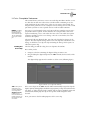
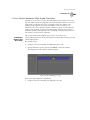
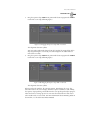
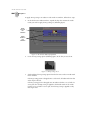
Click-and-drag the Timecode slider (following figure) to the left, until the
Timecode display reads 00:00:01:00.0. This is where you are going to add a
pause point to the effect. That way, when the effect is run in GlobeCaster’s
Switcher, it will pause at this point in the effect.
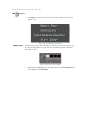
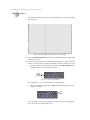
Timecode
Slider
Figure 4.168: The Timecode Slider
8.
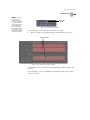
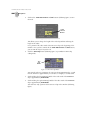
TIP: Adding a pause
point to an effect also
allows an overlay to
be stretched once it is
dragged into a GlobeCaster Editor timeline. When stretching
an overlay with a
pause point in GlobeCaster’s Editor, the
overlay is stretched at
the pause point.
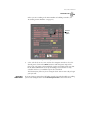
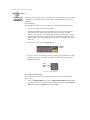
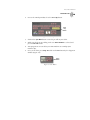
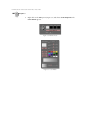
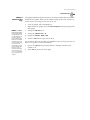
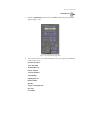
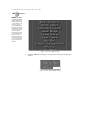
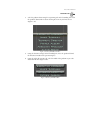
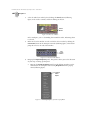
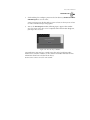
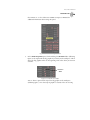
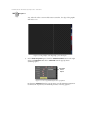
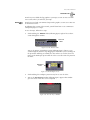
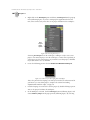
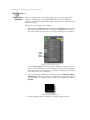
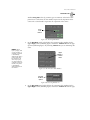
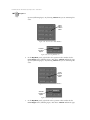
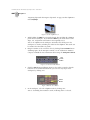
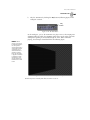
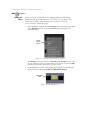
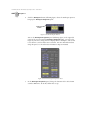
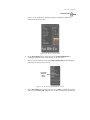
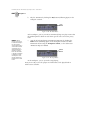
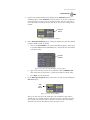
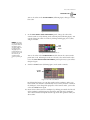
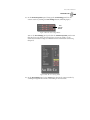
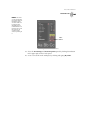
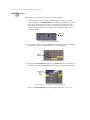
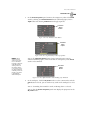
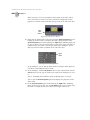
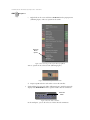
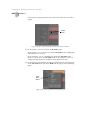
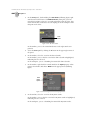
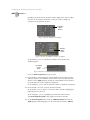
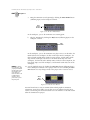
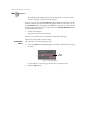
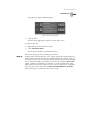
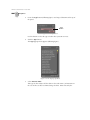
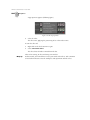
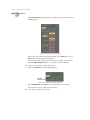
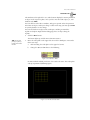
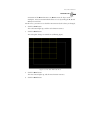
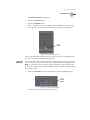
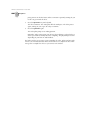
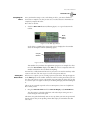
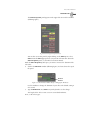
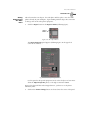
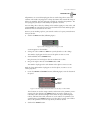
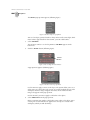
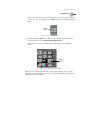
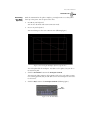
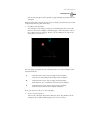
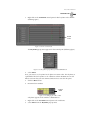
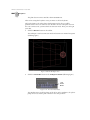
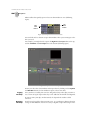
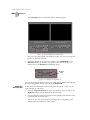
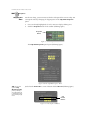
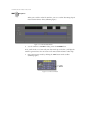
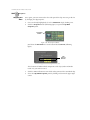
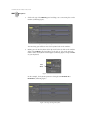
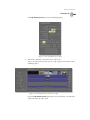
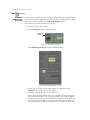
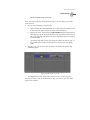
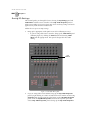
In the Workspace Properties panel, click the Pause button (following figure).
This adds a pause point at this point in the effect. When the effect is run in
GlobeCaster’s Switcher, it will pause at this point in the effect.
Alpha
Button
Figure 4.169: The Pause Button