1
USER SCREENS
3.4 CHANGING SCREEN COLORS
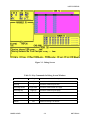
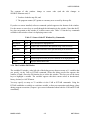
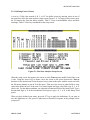
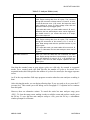
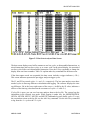
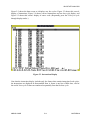
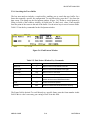
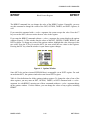
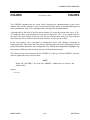
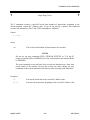
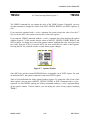
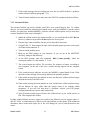
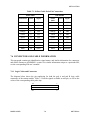
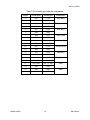
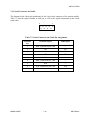
To change screen colors, enter the COLORS command, from the debug screen; the colors
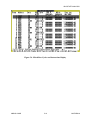
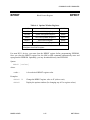
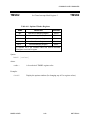
window appears. This window includes a list of screen elements and a matrix of
foreground/background color combinations; each color combination has a two-digit hexadecimal
number.
A prompt asks for the color of the first screen element. To accept the current color, press <CR>.
To change the color, enter the number of your choice, then press <CR>. A new prompt asks for
the color of the next element. Select the color for each element in the same way. The command
ends when you have selected a color for the last screen element, or when you press ESC.
In the color matrix, rows correspond to background colors, and columns correspond to
foreground colors. This means that color choices from the same row result in differently colored
letters and numbers against the same background color. Making the background of highlights and
help screens a different color sets these elements off from the main screen.
The software stores color selections in file COLORS.11; when you execute MMDS11 again the
software applies the newly selected colors. You can use the color selection file with another
system to retain the selected colors.
NOTE
Delete the COLORS.11 file from the \MMDS11 subdirectory to return to the
default colors.
MMDS11OM/D
3-12
MOTOROLA