1
iSync_Manual
3/18/06
10:19 AM
Page 10
Page 10 of 31
Page 11 of 31
iSync HD and iSync Pro User Manual
iSync HD and iSync Pro User Manual
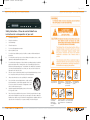
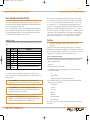
Connect your equipment to the Inputs and Outputs of
your iSync HD [Pro]
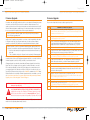
Be sure your iSync HD [Pro] is turned off and unplugged from its power source before
attempting to connect your equipment to the Inputs and Outputs of this unit
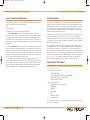
Typical Application of your iSync HD [Pro]
in a Home Theater
Toslink Optical Audio
L&R or PCM Audio
HDTV Set Top Box
HDMI/HDCP
(or DVI* Video)
VCR
S-Video or
Composite Video
a. Connect your Digital Video Inputs:
Be sure your iSync HD [Pro] is turned off and unplugged from its power source before attempting to connect your equipment to the inputs of this unit. There are two (2) separately selectable
and customizable HDMI Digital Video plug-and-play inputs. HDMI supports audio and HDCP
copy protection. Note the 2 x HDMI Type A 19-pin connectors on the left side of the iSync HD
[Pro] rear panel.
L&R or PCM Audio
Display
Game Console
Component
Video
Component
Video
Display
HDMI/HDCP
(or DVI* Video)
IR
Remote
For proper operation, do not connect the external 6 Volt DC supply (provided) to the
back of the iSync Digital Video Processor and Video/Audio Switcher until:
➾ All of your Video and Audio connections to the iSync are complete (as
described in the Operating Instruction Manual included with your unit), and
➾ You have set the rear-panel Mode switch to the “Normal” mode.
HDMI/HDCP
(or DVI* Video)
Component
Video
S-Video
Component
Video
L&R, PCM, or
Toslink Optical Audio
Wired IR
Rear IR
RS-232
DVD Player
Toslink Optical Audio
DVR Player
L&R or PCM Audio
Video Camera
Cable Box
L&R or PCM Audio
Surround Sound
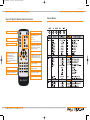
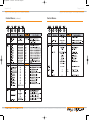
If the equipment you would like to connect to your iSync HD [Pro] has only DVI-D connectors,
then you should use Key Digital® HDMI / DVI-D adapters to connect your equipment to the
iSync HD [Pro]. Note that while HDMI supports both Video and Audio over an HDMI cable,
DVI-D supports Video only and will therefore require that you connect any audio source
separately to the iSync HD [Pro].
*To connect DVI-D Video use HDMI to DVI adapter
DVI-D Sources
* To connect DVI-D video sources to the iSync HD
[Pro] inputs, use Key Digital DVI-D to HDMI adapters
at the output of your source.
If your source does not support HDMI but has a DVI-D
output, you will need a DVI-D to HDMI Adapter at the
output of your source.
The Key Digital® DVI to HDMI Adapter
is the perfect choice.
** To connect displays with DVI-D inputs to the iSync
outputs, use Key Digital HDMI to DVI-D adapters at
the output of the iSync HD [Pro].
DVI Cable
HDMI Connector
DVI-D Displays
If your display does not support HDMI but has a DVI-D
input, you will need an HDMI to DVI-D Adapter at the
output of the iSync HD [Pro].
HDMI Cable
Front IR
Sensors
The Key Digital® DVI to HDMI Adapter
is the perfect choice.
Display