1
To fire, click on the target
location using the right mouse
button. Note: clicking using the
left mouse button always
changes the current location. If
you should change the current
location, you will need to relocate
your firing units and reselect
them. If your target location has
more than one target, the Target
Dialog will be displayed so you
can select which one you want to fire at. So at this point, right click on a target hex
and do some firing! Each time you fire, you will get a report indicating the damage
you did to the target. Remember that clicking on the Next Unit button will take you to
the next valid firing unit. When you are done, you probably want to turn off the
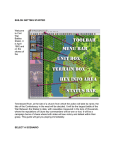
visible hex shading by reclicking on the Visible Hexes button in the toolbar.
When you are through with your turn, you click on the Next Phase
Button in the toolbar. Important: if you should click on the A/I Button at
the end of your turn thinking that it will start the A/I running, you will
actually cause the A/I to complete your own turn for you. So use the
Next Phase Button to avoid this.
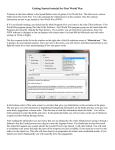
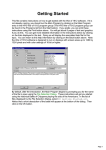
The first time you advance the
phase, the program will prompt
you to save your battle. This
allows you to come back at a later
time and start where you left off. A
default filename is displayed in this
dialog, but you can change the
filename if you want to have
several battles going at one time.
Click on the Save button to save
the battle.