1
22
CNC-Calc v2
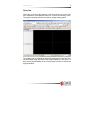
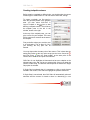
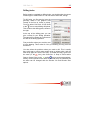
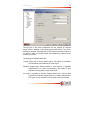
possible direction for the contour). CNC-Calc will then highlight the
possible selections for continuing the contour.
When the desired contour has been selected, it is necessary to set the
depth of the contour, and you should also set the Retract and Lead
In/Out settings by clicking the appropriate buttons.
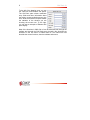
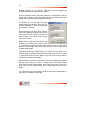
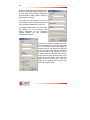
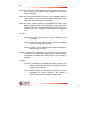
For Retract, you can set rapid and feed
retract heights, as shown to the right. The
behavior depends on which of the options
are selected, as follows:
None selected: At the start of the contour,
there is a positioning at rapid to the start of
the contour in X and Y, and a feed move to
contour depth. The contour ends at depth
(there is no retract).
Rapid Retract selected, Feed Retract not
selected: At the start of the contour, there
is a positioning at rapid to the start of the contour in X and Y, and a feed
move to contour depth. At the end of the contour, there is a rapid move
to rapid retract height.
Feed Retract selected, Rapid Retract not selected: At the start of the
contour, there is a positioning at rapid to the start of the contour in X and
Y, and a feed move to contour depth. At the end of the contour, there is
a feed move to feed retract height.
Both selected: At the start of the contour, there is a positioning at rapid to
the start of the contour in X and Y, a rapid move to feed retract height
and a feed move to contour depth. At the end of the contour, there is a
feed move to feed retract height, and a rapid move to rapid retract
height.
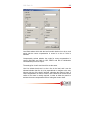
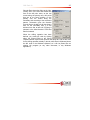
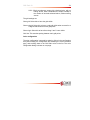
For Lead In/Out, you can set lead in, lead out and cutter compensation in
the control, as shown on next page.