1
8
CNC-Calc v2
Toolbars
Tools
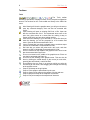
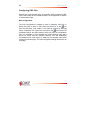
The Tools toolbar
handles file operations, toolpath functions, zoom, snap and configuration
access. The functions on the Tools toolbar are directly in the CNC-Calc
menu.
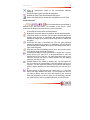
New Drawing will clear the graphics area (you will get a chance to
save any unsaved changes). New can also be accessed with
Ctrl-N.
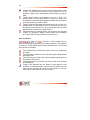
Open Drawing will open an existing CNC-Calc v2 file. Open can
also be accessed with Ctrl-O. The downwards arrow next to the
open icon gives access to a recent files list, making it easy to
reopen a file which you have been editing recently.
Save saves the drawing to your hard disk. If it is the first time you
save the drawing, you will be prompted for a file location and
name. Save can also be accessed with Ctrl-S.
Layout Toolpath lets you chain a toolpath contour, and then export
it as ISO or Heidenhain Conversational NC code.
Drill Hole lets you select drill points and a drill cycle, and then
export it as ISO or Heidenhain Conversational NC code.
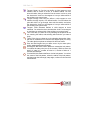
Zoom in centered on the middle of the graphics area. Zoom in can
also be accessed with Page Down.
Zoom out centered on the middle of the graphics area. Zoom out
can also be accessed with Page Up.
Zoom All fits the drawing to the graphics area. This can also be
done by clicking the middle button on the mouse (on most mice,
pressing the scroll wheel), or with Ctrl-End.
Zoom Window lets you zoom in on an area, which you select by
first clicking at one corner, then dragging the rectangle and clicking
at the opposite corner.
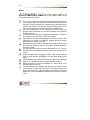
Snap to Grid snaps to the grid points.
Snap to Points snaps to points drawn by the user.
Snap to Center Points snaps to the centers of circles and arcs.
Snap to Mid points snaps to the midpoints of elements.
Snap to End points snaps to the endpoints of elements.