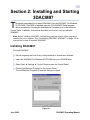
1
SECTION 8: Retrieving and Saving Data from the Instruments
8-5
Retrieving and Saving Data from a 3D-ACM Wave
To retrieve the parameter data from a 3D-ACM Wave:
1
2
Connect the 3D-ACM Wave to your computer’s serial port and switch the KS switch
on the test cable to KS ON.
Choose Start ➤ Programs ➤ FSI Applications 3DACM97.
3DACM97 starts the 3DACM97 Main window opens.
3
Choose Configure ➤ Check Instrument.
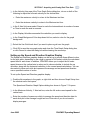
3DACM97 displays which items are being checked during the check instrument
process and then displays a graphic of a 3D-ACM Wave.
4
Choose Retrieve Data ➤ Retrieve Data.
The Retrieve Data window opens.
5
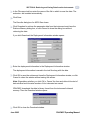
Do one of the following:
•
Select Average Data, and then click OK to retrieve the selected current velocity
and tilt vector averages, where each record also contains one scan of the
selected instantaneous parameters.
•
Select Burst Data, and then click OK to retrieve the selected burst parameter
data.
•
Click the Close button to Close the Retrieve Data window without selecting a
data type.
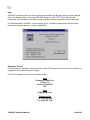
If you click OK, 3DACM97 reads the current configuration of the instrument while
displaying which items are being read. In addition, it resets the Logging Pointer. Then
the Retrieve Memory dialog box shown in Figure 8-1 on page 8-2 opens.
If you click the Close button, data will not be retrieved.
June 2003
3DACM97 Operating Manual