1
7-6
SECTION 7: Acquiring and Viewing Real-Time Data
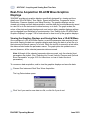
Viewing the Graphics Display and Saving Data from a 2D-ACM, 3DACM or 3D-Wave
Once configured, an ACM can be run and the parameter data acquired in real time
while viewing the data on a graphics display and saving the data to a text file or to the
instrument’s internal memory or to both. When the text file is opened in a text editor, the
data are listed under the parameter names.
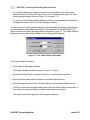
To commence data acquisition, and to view the graphics display and save the data:
1
Choose Run Instrument ➤ Graphics Mode.
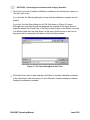
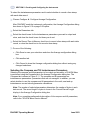
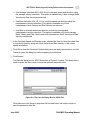
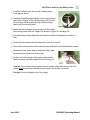
The Log Data window opens:
2
Click Yes if you want to save data to a file, or click No if you do not.
If you click Yes, the Save As dialog box for log files shown in Figure 7-1 on page 7-2
opens. This dialog box is used to create the file in which to save the parameter data.
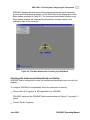
If you click No, a Log Data window opens asking if you want to record data to the
instrument’s internal memory. Clicking either Yes or No in the Log Data window
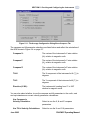
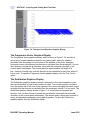
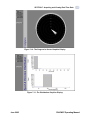
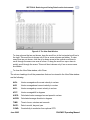
opens the graphics display shown in Figure 7-3 on page 7-8.
3
Click the arrow in the Save in drop-down list box and select the folder in which to
save the parameter data file.
4
In the File name text box enter the name of the file in which to save the data. The
extension .dat is added automatically.
5
Click Save to create the file in which to save the data and close the Save As dialog
box for log files, or click Cancel to close the dialog box without creating the file.
If you click Cancel, a Log Data window opens asking if you want to record data to
the instrument’s internal memory. Clicking either Yes or No in the Log Data window
opens the graphics display shown in Figure 7-3 on page 7-8.
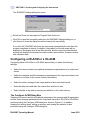
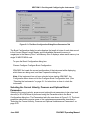
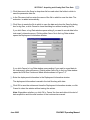
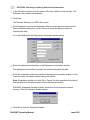
If you click Save, the Deployment Information window opens:
3DACM97 Operating Manual
June 2003