1
e-Racer: Faculty Guide
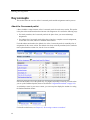
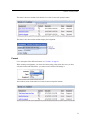
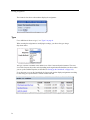
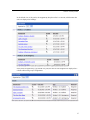
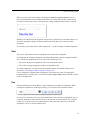
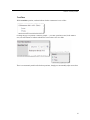
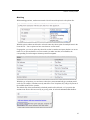
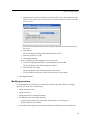
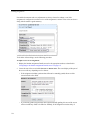
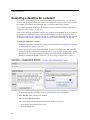
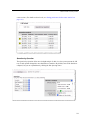
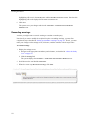
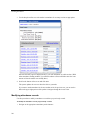
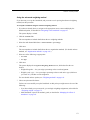
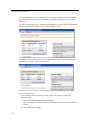
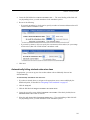
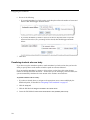
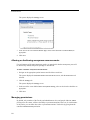
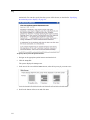
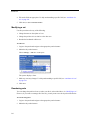
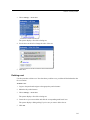
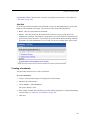
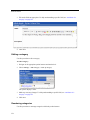
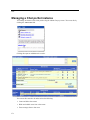
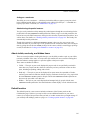
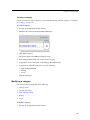
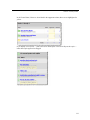
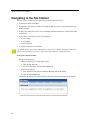
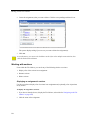
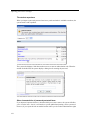
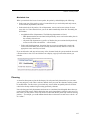
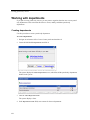
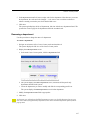
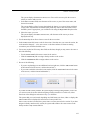
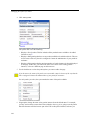
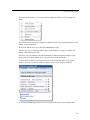
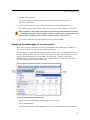
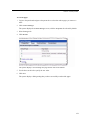
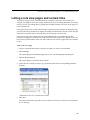
3 Locate the bookmark that you want to edit and click the corresponding pencil icon.
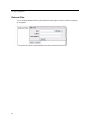
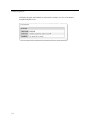
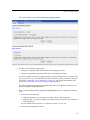
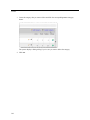
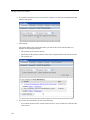
The system displays a form.
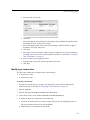
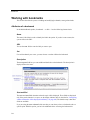
4 Make any necessary changes. For help understanding a specific field, see “Attributes of a set”
on page 241.
5 Click Save.
Deleting a bookmark
Use this procedure to delete a topic.
As an alternative to this procedure, you can also choose to make the bookmark inactive, which
might be useful if you want to hide the bookmark from students but have the option of making it
active again later. For details, see “Editing a bookmark” on page 246.
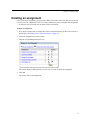
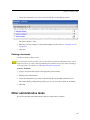
To delete a bookmark:
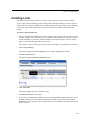
1 Log in to the portal and navigate to the appropriate portlet instance.
2 Maximize the portlet instance.
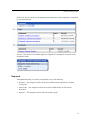
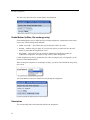
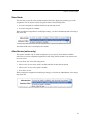
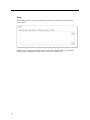
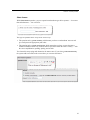
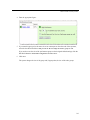
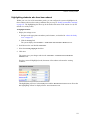
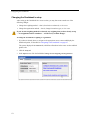
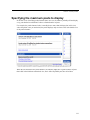
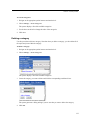
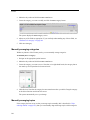
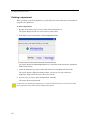
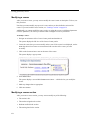
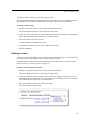
3 Locate the bookmark that you want to edit and click the corresponding trash-barrel icon.
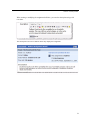
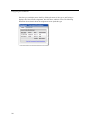
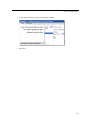
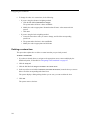
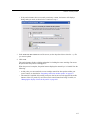
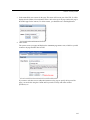
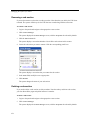
The system displays a dialog asking whether you are sure you want to delete the bookmark.
4 Click OK.
Other administrative tasks
This section describes other administrative tasks you might want to complete.
247