1
Creating assignments
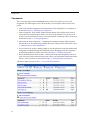
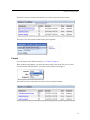
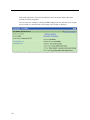
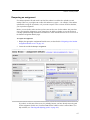
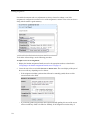
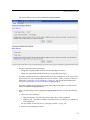
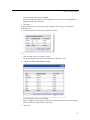
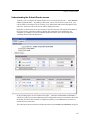
The due date is displayed for students in the list of assignments in the Coursework portlet instance
(but recall that only active assignments, and assignments specifically configured to display while
inactive, will show up in the student view of the portlet instance).
The due date is also shown to students when they display the assignment.
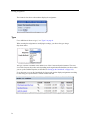
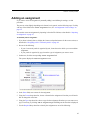
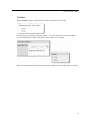
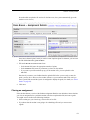
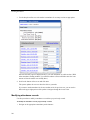
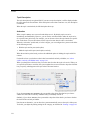
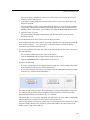
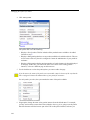
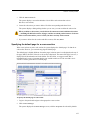
If you want the due date to be displayed in the calendar for the course section, select the checkbox
labeled Include this assignment's due date in the course calendar. (For details about course
calendars, see Chapter 15, “Calendar.”)
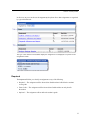
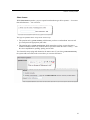
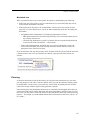
Note that the following actions automatically occur when a due date is reached, and a student has
not yet finished:
• If the assignment is an online assignment, and if the student has not yet submitted the
assignment, the system automatically gives the student a zero.
• If the assignment is a file-exchange assignment, and if student has not yet uploaded a file, the
system automatically gives the student a zero. If the student has uploaded a file (or files) but
failed to click the Mark as Final button, the system automatically submits the file(s) on the
student’s behalf.
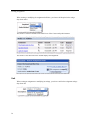
• If the assignment is an offline assignment, there are no automatic actions taken when the due
date arrives.
62