1
2.3.2 Logging Status Panes
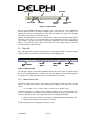
Three Logging Status Panes show current statistics for CAN, Video and XCP logging. The
example below is a snapshot of CAN (C:) logging information (video (V:) and XCP (X:)
information is similar):
C: 104235 16
The two numbers in each CAN or Video block describe:
The total number of messages or frames logged (written to file)
The number of messages or frames remaining to be written (to catch up to receive)
The Logging Status Pane is updated once every 4 seconds.
While logging (systems with a constant average data rate), the number of messages/frames
remaining will be constant or decreasing if the logging task is able to keep up with the receive
task. If this number is increasing, the logging may eventually fall so far behind that new data will
overwrite old data before it is written to the log file.
3 Settings
3.1
Log File Options
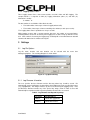
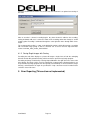
Log file name, location, and max duration can be selected with the menu item
Settings/Log/Options. The resulting dialog box is shown below.
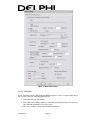
Figure 6. Log Options Dialog
3.1.1 Log Filename & Location
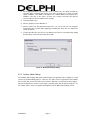
The user specifies the base filename and the directory where logs should be stored. DV
automatically creates log filenames by appending a three-digit integer to the specified base name
(e.g., mylog005.dvl). This integer increases by one for each new log file (logging event). If the
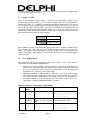
specified base filename includes any of the special key strings shown in Table II, these will
automatically be expanded to their respective quantities when the files are created.
Table II. Log Filename Auto-Expand Keystrings
Confidential
Key string
Auto-Expands to
%Date%
Current date: yyyymmdd
%Time%
Current time: hhmmss
Page 8